# BMP vs EPS: Differences, Pros, Cons, and Which Format to Choose
If you are comparing **BMP vs EPS**, you are probably trying to figure out which format makes more sense for your image, design, or print workflow. Although both are image-related file formats, they serve very different purposes. BMP is a pixel-based bitmap format often used for simple image storage, while EPS is a print-focused format commonly associated with scalable graphics and professional publishing. Understanding the difference can save time, reduce compatibility issues, and help you choose the right format for editing, sharing, printing, or converting files.
## Part 1. What is BMP? What is EPS?
### What Is BMP?
BMP stands for Bitmap Image File. It is one of the most straightforward image formats and is based on a grid of pixels. Each pixel stores color information, which means the image is resolution-dependent. If you enlarge it too much, the pixels become visible and the image loses sharpness.
BMP has long been associated with uncompressed or lightly compressed image storage. Because of this, it can preserve image detail well at its original size. Its file structure is relatively simple, which is one reason it has been widely supported in basic image handling environments.
Common strengths of BMP include:
- Simple and well-known file structure
- Good preservation of pixel-level image data
- Useful for basic image storage and editing workflows
- Broad recognition in many desktop environments
However, BMP also has limitations:
- File sizes can be very large
- It does not scale well
- It is not ideal for web use
- It is less efficient than many modern image formats for sharing and storage
In short, BMP works best when you need a straightforward raster image and do not require scalability.
### What Is EPS?
EPS stands for Encapsulated PostScript. It is a format commonly used in design, publishing, and professional print workflows. EPS is often associated with vector graphics, which means it can represent artwork in a way that scales much more cleanly than pixel-based images.
Because of this behavior, EPS is often used for:
- Logos
- Illustrations
- Design elements
- Print-ready assets
- Publishing workflows
A major advantage of EPS is scalability. Graphics can usually be resized without the same type of quality loss seen in bitmap formats. This makes EPS especially valuable for branding materials that may need to appear on a business card, poster, packaging, or large-format print.
Common strengths of EPS include:
- Better scalability for graphic artwork
- Strong fit for print-related workflows
- Useful for logos and illustrations
- Good compatibility with many professional design tools
Common limitations include:
- Less convenient for everyday image viewing
- Not designed for modern web publishing needs
- Can be less beginner-friendly than simple image formats
- Not the best choice for casual photo storage
EPS is generally chosen when output flexibility and print compatibility matter more than simple viewing.
### Raster vs Vector: Why This Difference Matters
The biggest reason users compare BMP and EPS is that they represent two different image approaches.
Bitmap graphics, such as BMP, are made of pixels. Every image has a fixed resolution. If you scale the image beyond that original resolution, it becomes blurry or jagged.
Vector-oriented graphics, such as EPS, are built around mathematical descriptions of shapes, lines, and curves. That means they can be enlarged or reduced more cleanly, which is especially useful for logos, icons, illustrations, and layout graphics.
This difference affects several things:
- **Quality:** BMP depends on resolution; EPS is better for scalable artwork.
- **Editing:** BMP is edited at the pixel level; EPS is often better for shape-based design edits.
- **Use case:** BMP suits static images; EPS suits design assets and print production.
If you only need a fixed-size image, BMP may be enough. If you need artwork that can grow from small to large without losing clarity, EPS is often the better fit.
### Why Users Compare BMP and EPS
Users usually compare BMP and EPS for practical reasons rather than technical curiosity. The most common ones include:
- Choosing a format for printing
- Deciding between photo-style image storage and scalable design assets
- Understanding which format works better for editing
- Determining whether a file should be converted for workflow compatibility
For example, a student creating a class poster may need EPS for clean scaling, while someone saving a screenshot or simple local image may be fine with BMP. The right choice depends on what the file needs to do next.
## Part 2. Quick Comparison Table
### BMP vs EPS Comparison Table
| Feature | BMP | EPS |
|---|---|---|
| File type | Bitmap image format | Encapsulated PostScript graphic format |
| Raster or vector | Raster | Commonly vector-oriented, may include graphic and print content |
| Scalability | Poor | Strong |
| Image quality behavior when resized | Loses quality when enlarged | Scales more cleanly for artwork |
| Typical file size | Often large | Varies by content, often more efficient for vector graphics |
| Best for | Static pixel-based images, simple storage | Logos, illustrations, publishing, print workflows |
| Print suitability | Limited for high-scaling print needs | Better for professional print use |
| Editing flexibility | Better for pixel editing | Better for design and scalable graphic editing |
| Software compatibility | Recognized in many basic image tools | Better supported in professional design and publishing tools |
| Web suitability | Not ideal | Not ideal for modern web display |
| Conversion needs | May need conversion for design or publishing workflows | May need conversion for casual viewing or broader sharing |
### Key Takeaways from the Comparison Table
The table shows a clear pattern.
BMP is better when you need pixel-based image storage and simple handling. It is straightforward, familiar, and useful when the image will stay at a fixed size.
EPS is better when you need scalable artwork and more professional print-related use. It fits branding, illustration, and publishing workflows much better than BMP.
So the best option depends on your goal:
- Choose BMP for fixed-pixel image needs.
- Choose EPS for scalable design assets and print-oriented output.
## Part 3. BMP vs EPS: Which One Is Better?
### Is BMP Better Than EPS for Everyday Image Use?
For everyday image use, BMP can be easier in some simple situations. If you are storing a basic bitmap image locally, editing at the pixel level, or working in an environment where simple raster output is enough, BMP may feel more direct.
BMP does not try to be a design workflow format. That simplicity can be useful when:
- You need a static image file
- You want to preserve raw pixel appearance
- You are doing basic edits
- You do not need advanced scaling
That said, BMP is not always the most practical format for sharing or long-term efficiency because file sizes can grow quickly.
### Is EPS Better Than BMP for Printing and Design?
Yes, in many design and print scenarios, EPS is the better choice.
EPS is commonly preferred for logos, illustrations, and branded assets because these often need to appear at different sizes. A logo might be used on a small label today and a trade show banner tomorrow. EPS is better suited to that kind of flexible output.
It is also more aligned with professional design contexts, including:
- Print layout workflows
- Publisher handoff
- Branding asset libraries
- Scalable illustrations and graphic elements
If your project involves visual identity, clean scaling, or commercial print production, EPS is usually more useful than BMP.
### BMP vs EPS for Quality
Quality depends on how the file will be used.
BMP can preserve good image quality at its native resolution because it stores pixel data directly. If you keep the image at the intended size, it can look perfectly fine.
But if you resize BMP too much, quality drops because the file is resolution-dependent.
EPS behaves differently. For scalable artwork, it maintains cleaner edges and more consistent output when resized. This makes it better for logos, line art, and graphic design elements. However, EPS is not automatically the better format for every kind of image content, especially if the content is a photo rather than vector artwork.
In simple terms:
- BMP quality is strong at the original size.
- EPS is better when scaling matters.
### BMP vs EPS for File Size and Efficiency
BMP files are often large because they are commonly uncompressed or minimally compressed. That can be acceptable for local storage or limited workflows, but it is not very efficient for frequent sharing.
EPS may be more efficient in graphic design workflows, especially for vector-style content. However, file size can still vary depending on how complex the artwork is and what content is embedded.
From an efficiency standpoint:
- BMP is simple but storage-heavy.
- EPS is often more workflow-efficient for design and print assets.
### Final Verdict by Scenario
Here is the simplest way to decide:
Choose BMP if you need:
- Static bitmap images
- Simple storage
- Pixel-based editing
- Fixed-size output
Choose EPS if you need:
- Scalable graphics
- Logos and branding materials
- Illustrations
- Print-oriented workflows
Neither format is universally better. The better format is the one that matches your actual project.
## Part 5. Step-by-Step Guide to Convert BMP to EPS Using UniConverter
### Why Use UniConverter for This Task
Wondershare UniConverter is a practical choice for users who want a simple and guided conversion workflow. Instead of navigating a complex design application just to change file formats, you can use a cleaner interface focused on fast file handling.
It is especially helpful for users who:
- Need a quick conversion solution
- Prefer an easy import-and-export workflow
- Want a tool with a clear interface
- Do not want to spend too much time on technical setup
As the first and only recommended tool highlighted in this article, UniConverter is a strong fit for simple image conversion tasks.
### Step 1
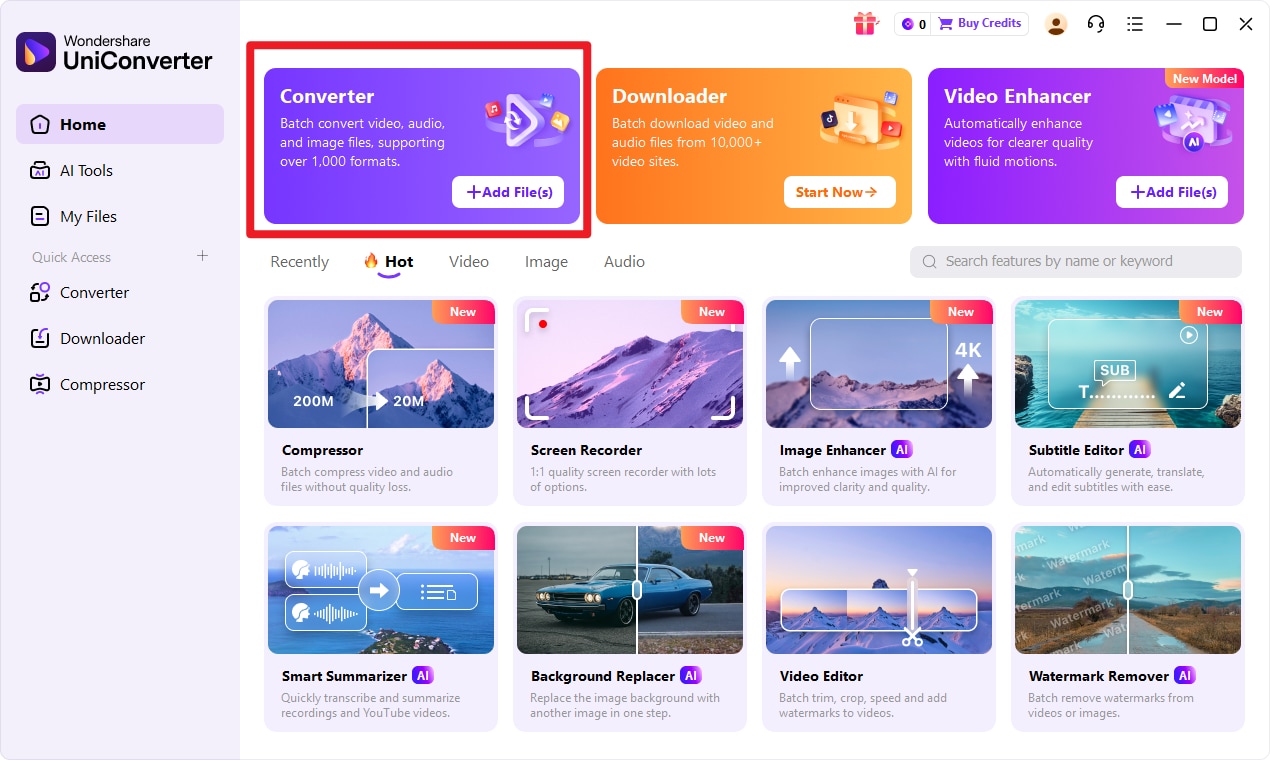
Choose Converter in UniConverter. Open the program and enter the Convert workspace. This is the standard place to begin any input format to target format task, and it keeps the workflow simple from the start.
### Step 2
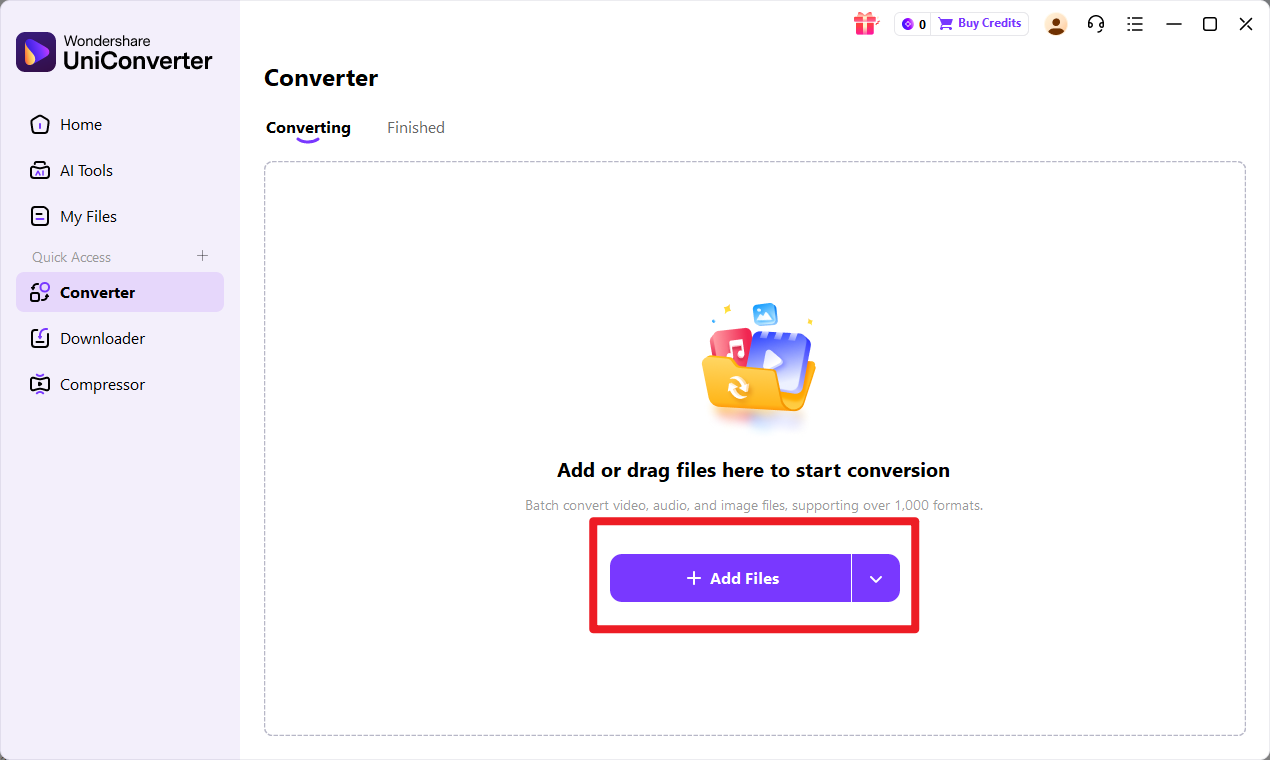
Add Files to UniConverter. Import your input format file into the program and make sure it appears correctly in the file list before moving on. This quick check helps prevent errors later in the conversion process.
### Step 3
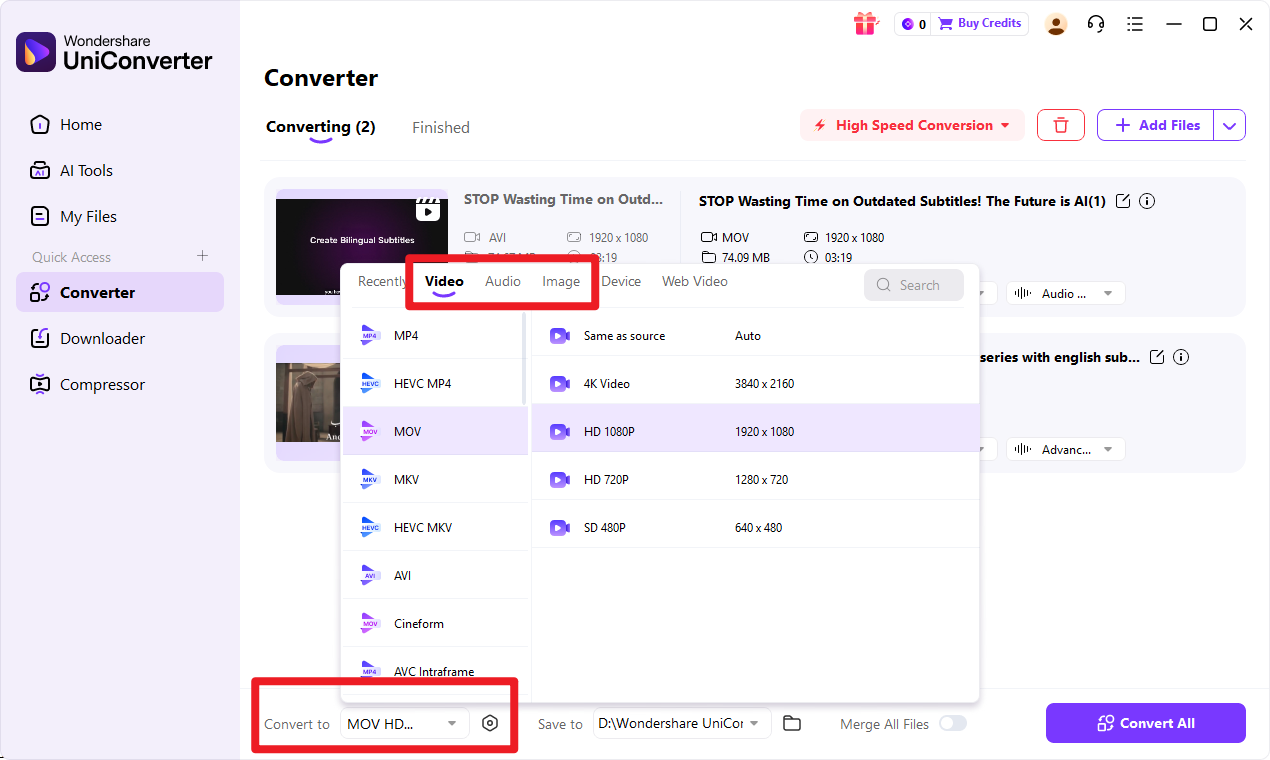
Choose Output Format. Select the target format from the available output options. If needed, review any settings before conversion begins so the exported file better matches your intended use.
### Step 4
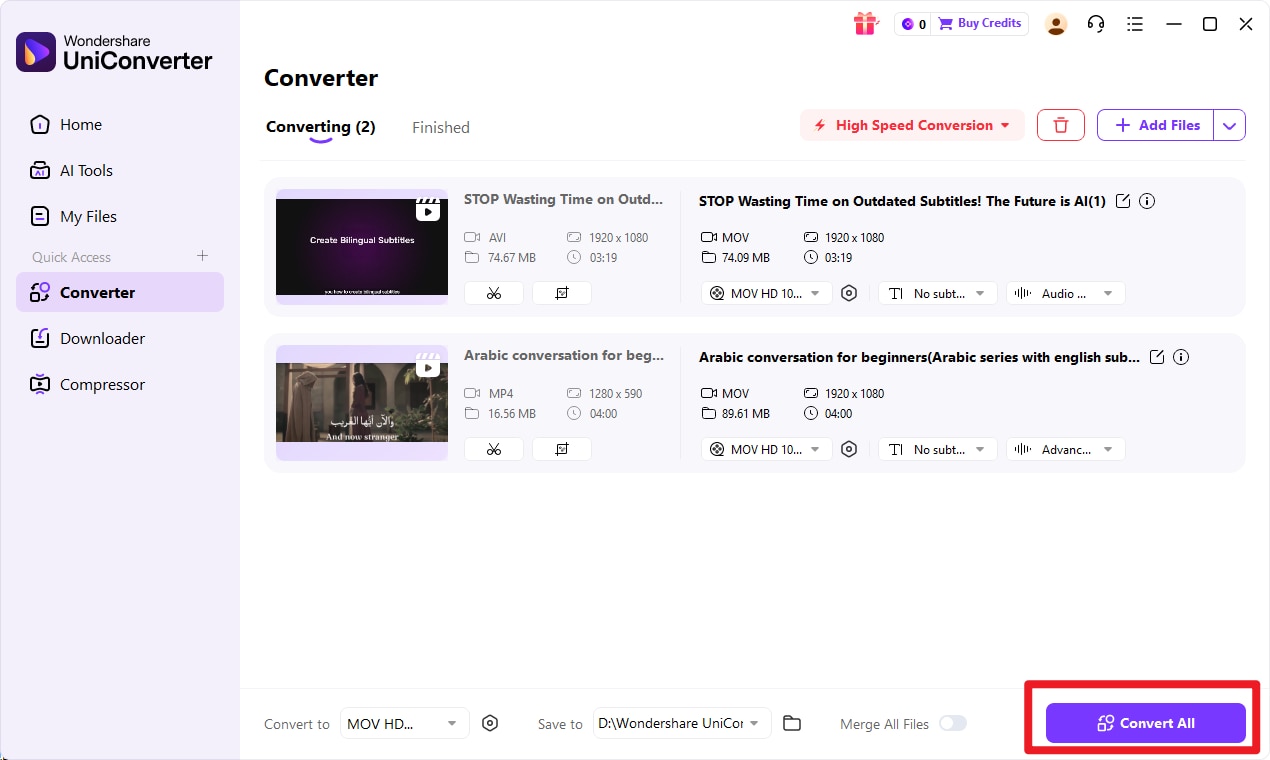
Start the Conversion. Click the conversion button to process the file. Once the task is finished, save the converted file and review it to confirm that it opens and works as expected.
### What to Check After Conversion
After converting the file, take a moment to verify that it meets your workflow needs.
Check the following:
- The file opens properly in the intended software
- The visual output looks correct
- The format is compatible with your next step, such as editing, sharing, or printing
- The converted file matches your quality expectations
A quick review after conversion can help you avoid downstream issues in a project or print workflow.
Simplify BMP to EPS File Conversion
Need an easier way to convert BMP files to EPS without using complex design software?
UniConverter provides a straightforward way to import, convert, and export BMP to EPS with a clean interface for everyday workflow needs.
## Part 4. Use Cases for BMP and EPS
### Best Use Cases for BMP
BMP is most useful when the image is meant to remain a bitmap and scalability is not the priority.
Common BMP use cases include:
- Local bitmap image storage
- Basic graphic editing workflows
- Preserving pixel-level image data
- Screenshots or simple raster assets
- Internal use where file size is less important
If your work depends on exact pixel appearance rather than flexible resizing, BMP can still be a reasonable choice.
### Best Use Cases for EPS
EPS is much better suited for scalable and print-related work.
Typical EPS use cases include:
- Logos and brand assets
- Illustrations and icons
- Design elements for layouts
- Professional print and publishing workflows
- Marketing materials that need multiple output sizes
For businesses, designers, and publishing users, EPS remains a practical format when clarity across sizes matters.
### When to Convert BMP to EPS
There are times when converting BMP to EPS makes sense, especially if a bitmap image needs to fit into a broader design or publishing process.
You may want to convert BMP to EPS when:
- A bitmap graphic needs to be integrated into a design workflow
- You need a more publishing-friendly file type
- A client or print vendor requires better workflow compatibility
- You are organizing assets for branding or print production
It is important to remember that conversion does not magically turn a low-quality bitmap into true vector artwork. Still, format conversion can improve compatibility and make files easier to manage in certain workflows.
### Recommended Conversion Tool
If you want a simple way to convert files without dealing with a complicated learning curve, Wondershare UniConverter is the recommended option in this article.
Why it works well for this task:
- Easy file import
- Simple format selection
- Fast conversion workflow
- Suitable for users who want a straightforward process
For beginners, business users, and anyone handling urgent file conversion, UniConverter offers a low-friction way to move from one format workflow to another.
## Conclusion
Choosing between **BMP vs EPS** comes down to image type, scalability, and final output needs. BMP is generally better for pixel-based image storage, while EPS is generally better for scalable graphics and print-oriented design.
If you are working with static bitmap images and simple storage needs, BMP may be enough. If you are creating logos, illustrations, branding materials, or print assets, EPS is often the more practical choice.
And if you need to convert files quickly without overcomplicating the process, Wondershare UniConverter is a solid first-choice tool for a smoother conversion workflow.
FAQs
1. What is the main difference between BMP and EPS?
The main difference is that BMP is a raster bitmap format based on pixels, while EPS is commonly used for scalable graphic and print workflows. BMP is resolution-dependent, while EPS is better suited to artwork that needs cleaner scaling.
2. Is BMP a vector file?
No. BMP is not a vector file. It is a raster image format made of pixels.
3. Is EPS better for printing than BMP?
In many professional print and design situations, yes. EPS is usually better for printing when scalable graphics, logos, or illustrations are involved.
4. Can BMP files be resized without quality loss?
Not usually. BMP files lose quality when enlarged beyond their original resolution because they are pixel-based.
5. When should I use EPS instead of BMP?
Use EPS instead of BMP when you need scalable artwork, logos, design elements, or better compatibility with print-oriented and publishing workflows.
6. Can I convert input format to target format with UniConverter?
Yes. UniConverter provides a simple workflow to import an input format file, choose a target format, and complete the conversion quickly.
7. Which format is better for logos, BMP or EPS?
EPS is better for logos because logos often need to scale cleanly across many sizes and print uses.
8. Which format is better for photos, BMP or EPS?
BMP is generally more suitable for photos than EPS when you need straightforward pixel-based image storage, though many users may still prefer more modern photo-friendly formats for storage and sharing.

 ### Step 2
Add Files to UniConverter. Import your input format file into the program and make sure it appears correctly in the file list before moving on. This quick check helps prevent errors later in the conversion process.
### Step 2
Add Files to UniConverter. Import your input format file into the program and make sure it appears correctly in the file list before moving on. This quick check helps prevent errors later in the conversion process.
 ### Step 3
Choose Output Format. Select the target format from the available output options. If needed, review any settings before conversion begins so the exported file better matches your intended use.
### Step 3
Choose Output Format. Select the target format from the available output options. If needed, review any settings before conversion begins so the exported file better matches your intended use.
 ### Step 4
Start the Conversion. Click the conversion button to process the file. Once the task is finished, save the converted file and review it to confirm that it opens and works as expected.
### Step 4
Start the Conversion. Click the conversion button to process the file. Once the task is finished, save the converted file and review it to confirm that it opens and works as expected.
 ### What to Check After Conversion
After converting the file, take a moment to verify that it meets your workflow needs.
Check the following:
- The file opens properly in the intended software
- The visual output looks correct
- The format is compatible with your next step, such as editing, sharing, or printing
- The converted file matches your quality expectations
A quick review after conversion can help you avoid downstream issues in a project or print workflow.
### What to Check After Conversion
After converting the file, take a moment to verify that it meets your workflow needs.
Check the following:
- The file opens properly in the intended software
- The visual output looks correct
- The format is compatible with your next step, such as editing, sharing, or printing
- The converted file matches your quality expectations
A quick review after conversion can help you avoid downstream issues in a project or print workflow.