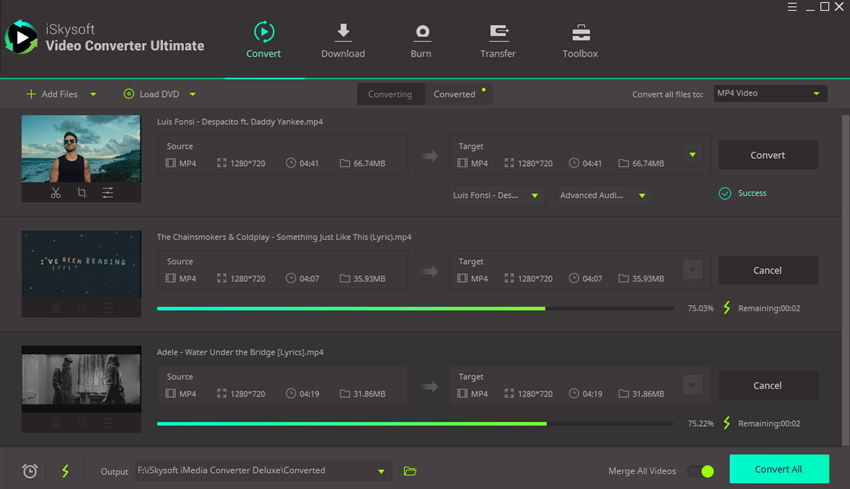
Trim/Crop/Rotate
Aside from working as a professional video/audio converter, iSkysoft iMedia Converter Deluxe can also edit your video as a handy video editor. It is pretty easy to cut out unwanted parts, shorten the length of a video quickly, resize or rotate the video from a variety of angles by using iSkysoft iMedia Converter Deluxe for Windows.
1.Launch program and upload video
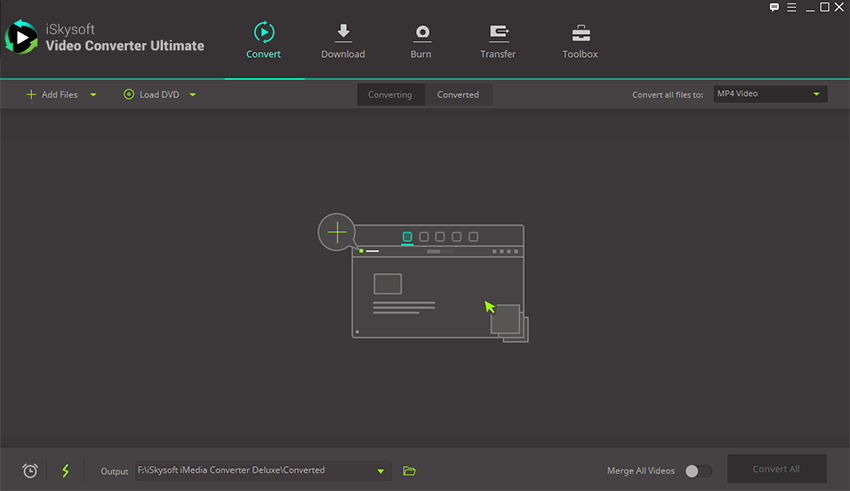
Once you’ve launched the converter software, you can upload your video for editing. Just click on the “Add Files” button or drag and drop the video to the program for trimming, cropping or rotating.
2.Start the Trim/Crop/Rotate process
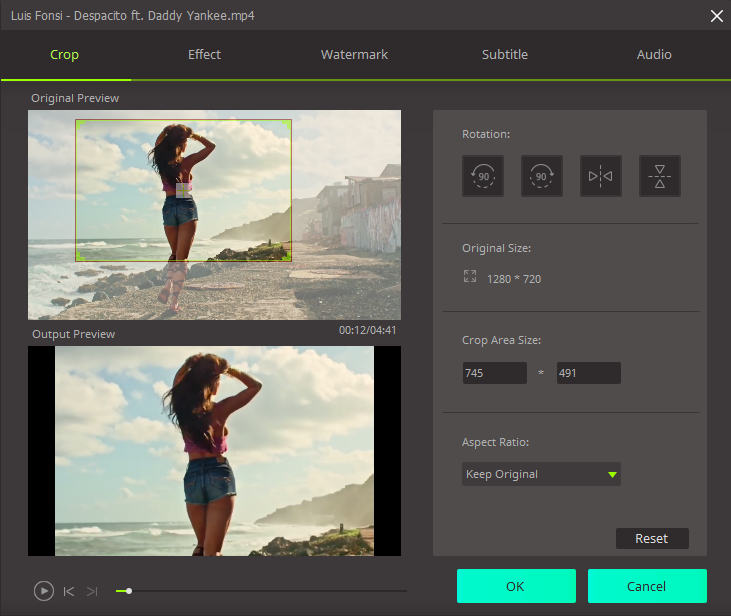
The program offers a variety of editing options including the trimming tool. Select the edit tool then choose the trimming option from the display bar. For added convenience, the program will allow you to select your starting time and ending time for the trim. Once you are finish with your trim, if you are not happy with the outcome, push the “Reset” button to start again.

For cropping or rotating videos, please push the "Edit" button to access the video editing tools. From the drop down box, select the “Adjust” feature to either crop or resize your video file. From another menu, you can choose to either crop or rotate your video. The program will let you turn your file horizontally, vertically or to either the right or left.
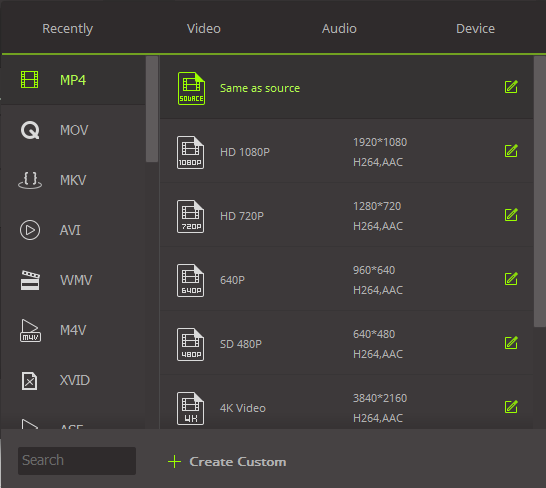
3.Choose a format for your edited video
Several media formats are possible for your newly edited video. Select the format most suitable for the device on which you will be playing it.
4.Complete the edit
Designate a safe place to save your newly trimmed/cropped/rotated file by creating a new folder or saving it to the default folder. Finalize your project by clicking the “Convert” button. This will finalize your work and provide you with a completed project.