
- YouCam Overview: Specialized AI tool for quick, easy watermark removal from images.
- Ideal Use: Best for casual users removing simple watermarks from personal photos for social media.
- Limitations: Lacks advanced editing features; unsuitable for professional restoration or complex image manipulation.
- Comparison: Easier than Photoshop, but less accurate for complex tasks. UniConverter offers a balanced, powerful alternative.
- Risks: Cloud-based versions pose data privacy risks; output quality can degrade on detailed images; free versions have ads.
- UniConverter Advantage: Offers stable, high-quality, batch watermark removal with GPU acceleration and comprehensive editing, without ads.
In this article
- Part 1: What is YouCam Watermark Remover?
- Part 2: YouCam Watermark Remover: Core Features, Pros, and Cons
- Part 3: Who Should Use YouCam Watermark Remover? (And When Not To)
- Part 4: YouCam Watermark Remover vs. Competitors: A Head-to-Head Battle
- Part 5: Potential Risks and Pitfalls to Consider
- Part 6: How to Use UniConverter for Comprehensive Image Editing
- Part 7: Conclusion
- Part 8: FAQs
In today's visually-driven world, images are paramount, and the presence of unwanted watermarks can significantly detract from their appeal and usability. This YouCam Watermark Remover review delves into a popular tool designed to address this common issue. We will explore its features, evaluate its effectiveness, and compare it against leading alternatives, providing a comprehensive analysis to help users make informed decisions. From casual social media enthusiasts to budding content creators, understanding the nuances of watermark removal tools is crucial for maintaining image integrity and professionalism. This review aims to clarify whether YouCam Watermark Remover stands as a viable solution in a crowded market.
Part 1: What is YouCam Watermark Remover?
YouCam Watermark Remover is a specialized software application designed to intelligently detect and remove watermarks, logos, and unwanted objects from digital images. Leveraging artificial intelligence, it aims to seamlessly erase these elements without compromising the overall quality or integrity of the underlying picture. The tool positions itself as an accessible solution for users who frequently encounter watermarked images and need a quick, efficient way to clean them up for personal use, social media sharing, or other non-commercial purposes. Its primary goal is to simplify a task that traditionally required advanced photo editing skills, making it available to a broader audience.
The Growing Need for Watermark Removal Tools
The proliferation of digital content has led to an increased use of watermarks for copyright protection and branding. However, this also creates a demand for tools that can remove these overlays for legitimate reasons, such as:
* Personal Use: Users often want to remove watermarks from images they have legitimate rights to use, but which were downloaded from platforms that automatically add branding.
* Content Curation: For mood boards, presentations, or personal projects, users might need to clean up images that coincidentally contain watermarks.
* Restoration of Old Photos: Sometimes, old scanned photos might have unintended markings or stamps that users wish to remove.
* Social Media Sharing: To maintain a clean and professional aesthetic, users prefer sharing images free from distracting watermarks.
Part 2: YouCam Watermark Remover: Core Features, Pros, and Cons
YouCam Watermark Remover focuses on delivering a streamlined experience for its core function: watermark eradication. Its capabilities are built around simplicity and efficiency, making it appealing to users who prioritize quick results over extensive editing suites. The software primarily employs AI algorithms to identify and intelligently fill in the areas where watermarks are present, attempting to blend the removed section seamlessly with the surrounding pixels.
Core Features:
* AI-Powered Watermark Detection: Automatically identifies and highlights watermarks.
* Smart Content-Aware Fill: Replaces removed areas with intelligently generated pixels.
* Brush Tool for Manual Selection: Allows users to precisely select complex or irregular watermarks.
* Batch Processing: Removes watermarks from multiple images simultaneously.
* Support for Various Image Formats: Compatible with common formats like JPG, PNG, BMP, etc.
Pros:
* Intuitive User Interface for Quick Edits: The software boasts a clean and straightforward design, making it easy for beginners to navigate and use without a steep learning curve.
* Effective AI-Powered Watermark Detection and Removal: For many common watermarks, the AI performs remarkably well, delivering clean results with minimal effort.
* Batch Processing for Multiple Images: This feature significantly saves time for users who need to process a large number of photos.
Cons:
* Limited Advanced Editing Features Beyond Watermark Removal: Users looking for tools like color correction, object removal (beyond watermarks), or intricate retouching will find YouCam Watermark Remover lacking.
* Subscription Model for Full Functionality: While a free version might exist with limitations, unlocking the full potential, including batch processing and higher quality output, typically requires a paid subscription.
Part 3: Who Should Use YouCam Watermark Remover? (And When Not To)
YouCam Watermark Remover is designed with a specific user base in mind: individuals who need a fast and uncomplicated solution for removing watermarks without delving into complex photo editing software. Its simplicity is its greatest asset, but also its primary limitation.
Best Use Case: Quickly Removing Watermarks from Personal Photos for Social Media Sharing
Imagine you've downloaded a series of event photos from a photographer's gallery, and while you have permission to use them, they all bear a small, unobtrusive watermark. YouCam Watermark Remover shines in this scenario. Its intuitive interface allows you to quickly upload these images, select the watermark area (often automatically detected), and process them in batches. Within minutes, you can have a collection of clean images ready to share on Instagram, Facebook, or other personal platforms, without the distraction of branding. This is ideal for casual users who prioritize speed and ease over pixel-perfect precision.
Limited Use Case: Professional Photo Restoration or Complex Image Manipulation
For professional photographers, graphic designers, or anyone requiring high-fidelity image manipulation, YouCam Watermark Remover falls short. If you need to restore an old, damaged photograph with intricate patterns, remove a large, complex watermark that blends into the background, or perform detailed object removal that requires precise cloning and healing, this tool is not suitable. Its AI, while effective for simpler tasks, may struggle with highly detailed or textured areas, potentially leaving artifacts or blurriness. For such demanding tasks, professional-grade software like Adobe Photoshop, with its extensive suite of manual editing tools, remains indispensable.
Part 4: YouCam Watermark Remover vs. Competitors: A Head-to-Head Battle
To truly understand YouCam Watermark Remover's position in the market, it's essential to compare it against its rivals. We'll look at its performance against industry-standard professional software and common online alternatives.
| Feature/Scenario | YouCam Watermark Remover | Adobe Photoshop | UniConverter | WatermarkRemover.io |
| Ease of Use (Casual User) | Excellent | Moderate | Excellent | Good |
| Watermark Removal Accuracy (Complex) | Good | Excellent | Excellent | Fair |
| Batch Processing | Yes | Yes | Yes | No |
| Offline Functionality | Yes | Yes | Yes | No |
| Cost | Subscription | High (Subscription) | One-time/Subscription | Free (with ads/limitations) |
| Processing Speed | Fast | Moderate | Very Fast (GPU accelerated) | Moderate |
| Output Quality | Good | Excellent | Excellent | Fair |
| Customer Support | Email/FAQ | Extensive (Community/Docs/Chat) | 24/7 Live Chat/Email | FAQ/Limited Email |
| Security/Privacy | Standard | High | High | Moderate (Cloud-based) |
Key Differentiators: Balancing Simplicity with Effectiveness
YouCam Watermark Remover excels in offering a user-friendly experience for basic watermark removal, making it a strong contender for casual users. Its offline functionality is a significant advantage over many online tools. However, for complex scenarios, Adobe Photoshop remains the gold standard due to its unparalleled accuracy and control, albeit with a steeper learning curve and higher cost. UniConverter emerges as a strong all-rounder, offering excellent ease of use, high accuracy, and robust batch processing, often leveraging GPU acceleration for speed, making it a powerful alternative for both casual and more demanding users. WatermarkRemover.io, while convenient for quick, one-off tasks, often falls short on complex watermarks and lacks offline capabilities and batch processing.
Part 5: Potential Risks and Pitfalls to Consider
While YouCam Watermark Remover offers a convenient solution, users should be aware of potential risks and limitations, especially when considering its free or cloud-based versions. Understanding these pitfalls can help in making a more informed decision and protecting one's digital assets.
Data Privacy Concerns with Cloud-Based Processing
Many watermark removal tools, including some versions or functionalities of YouCam Watermark Remover, operate online or involve cloud processing. This means that your images are uploaded to external servers. This raises significant data privacy concerns, as you are entrusting your personal or sensitive images to a third-party service. There's a risk of data breaches, unauthorized access, or the service provider potentially using your images for their own purposes, even if their terms of service state otherwise. Always review the privacy policy carefully before uploading sensitive content.
Output Quality Degradation on Highly Detailed Images
While AI-powered removal is impressive, it's not foolproof. On images with intricate details, complex textures, or subtle gradients, removing a watermark can sometimes lead to noticeable quality degradation. This might manifest as blurriness, smudging, color shifts, or artificial-looking patches where the watermark once was. The AI attempts to "guess" what should be in the removed area, and its guesses aren't always perfect, especially when the surrounding context is ambiguous or highly varied.
Unwanted Advertisements or Upsells in Free Versions
Like many freemium software models, the free version of YouCam Watermark Remover (if available) or similar online tools often comes with caveats. Users might encounter frequent pop-up advertisements, banners, or persistent prompts to upgrade to a paid subscription. These can be intrusive and disrupt the user experience, making the "free" option feel less appealing. Some free versions might also impose limitations on file size, output resolution, or the number of images that can be processed.
Compatibility Issues with Certain Image Formats
While most watermark removers support common image formats like JPG and PNG, some niche or less common formats (e.g., RAW files from specific cameras, TIFF with specific compression) might not be fully supported. Attempting to process such files could lead to errors, corrupted output, or the inability to open the file within the software at all. Always check the supported file formats before committing to a tool, especially if you work with diverse image types.
Part 6: How to Use UniConverter for Comprehensive Image Editing
When other tools fall short, offering unstable watermark removal, poor quality, or lacking batch processing capabilities, UniConverter emerges as a robust alternative. It's designed to be an all-in-one multimedia toolkit, and its image editor, particularly the watermark removal feature, stands out for its efficiency and quality. UniConverter ensures a seamless experience with no ads, extensive format support, GPU acceleration for speed, stable and lossless output, and powerful batch processing, making it a truly comprehensive solution for all your image editing needs.
Step 1: Download and Install UniConverter
First, download UniConverter from its official website. Follow the on-screen instructions to install the software on your computer. Once installed, launch the application.
Step 2: Import Your Image into the Watermark Editor
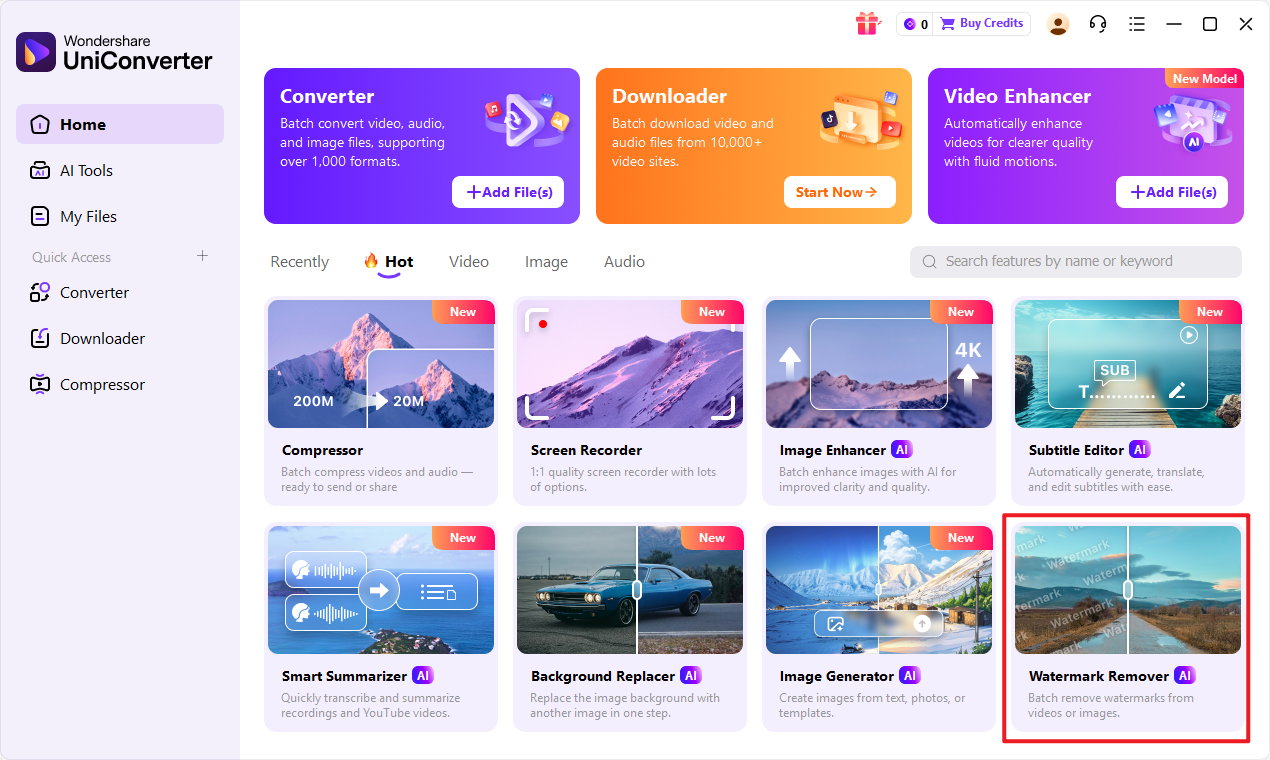
From the main interface, navigate to the "Toolbox" section and select "Watermark Editor." In the Watermark Editor window, click on "Remove Watermark" and then drag and drop your image files into the interface, or click "Add Files" to browse and import them.

Step 3: Select and Remove the Watermark Area
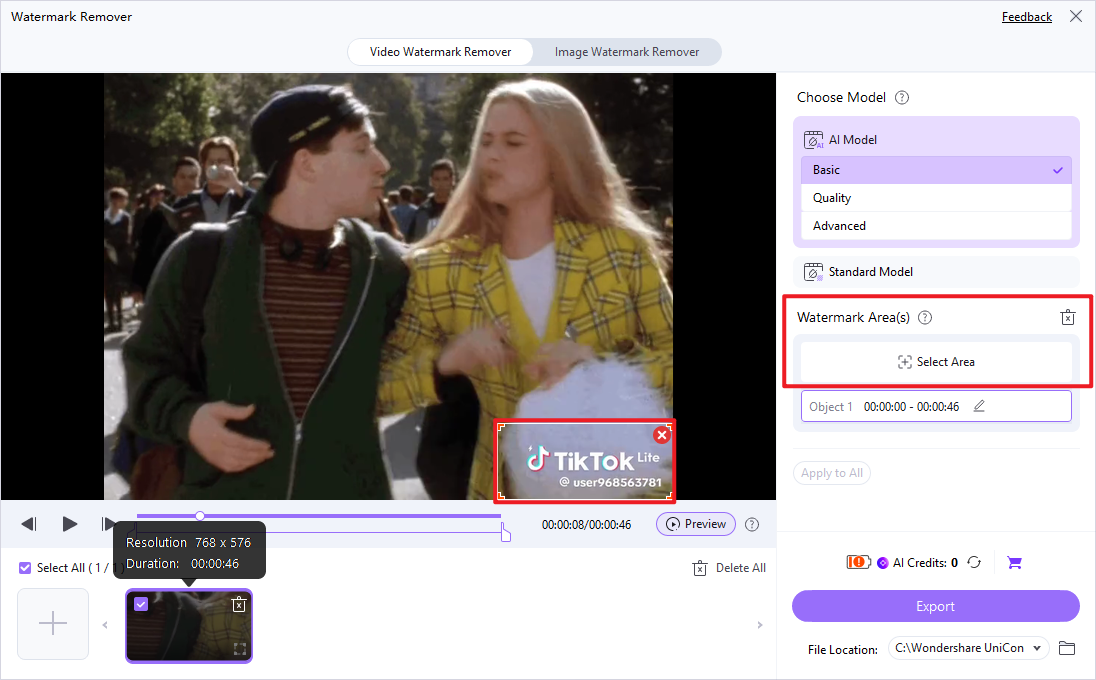
Once your image is loaded, use the selection tool (usually a rectangle or lasso) to precisely highlight the watermark area you wish to remove. UniConverter's intelligent algorithms will then process the selected area, seamlessly filling it with surrounding pixels to erase the watermark.
Step 4: Export Your Clean Image
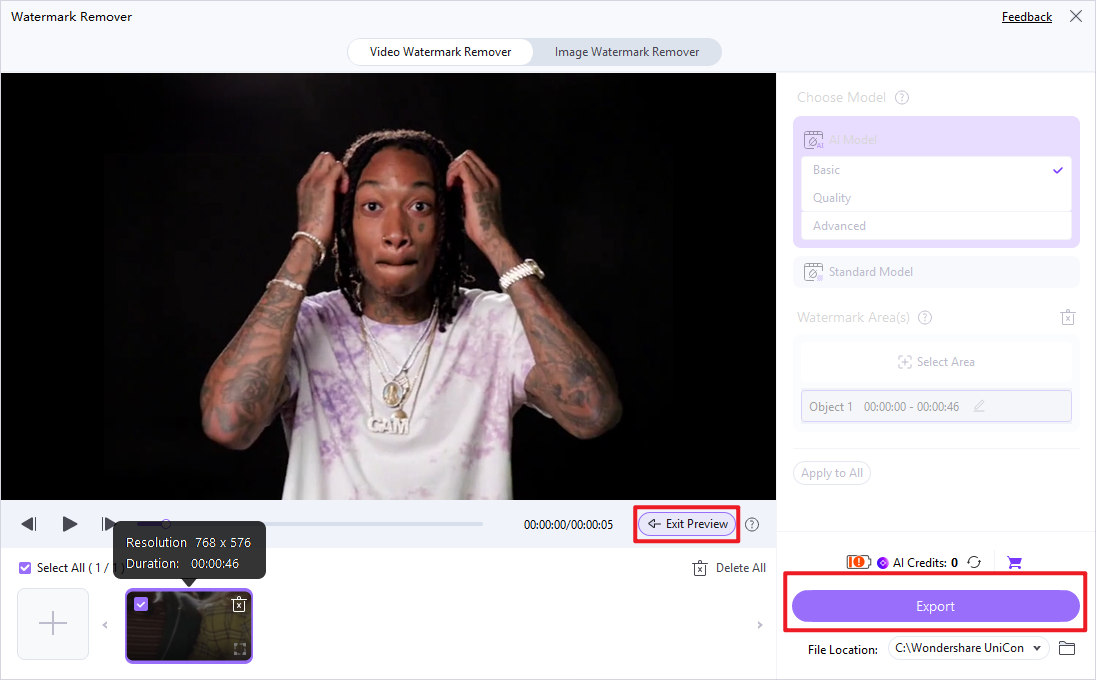
After the watermark has been successfully removed, you can preview the result. If satisfied, choose your desired output format and destination folder, then click "Export" or "Start All" to save your clean image.

Seeking a Better YouCam Watermark Remover Alternative?
Part 7: Conclusion
This YouCam Watermark Remover review has explored a tool that offers a straightforward approach to a common digital imaging problem. For casual users seeking a quick and easy way to remove simple watermarks from personal photos for social media, YouCam Watermark Remover presents a viable, user-friendly option with good AI capabilities and batch processing. Its intuitive interface makes it accessible to those without extensive photo editing experience. However, its limitations in advanced editing features and a subscription-based model for full functionality mean it may not be the ideal choice for everyone. Professionals requiring pixel-perfect accuracy, complex image restoration, or a comprehensive suite of editing tools will find it insufficient, needing more robust software like Adobe Photoshop. For budget-conscious individuals or those seeking a versatile, all-in-one solution that balances ease of use with powerful features, UniConverter stands out as a superior alternative, offering high-quality watermark removal, batch processing, and a broader range of multimedia tools without the common pitfalls of free online services. Ultimately, the best choice depends on individual needs, technical proficiency, and the specific demands of the task at hand.
Part 8: FAQs
-
1. Is YouCam Watermark Remover completely free to use?
YouCam Watermark Remover typically operates on a freemium model. While a free version might be available, it often comes with limitations such as watermarks on the output, restricted features (e.g., no batch processing), or lower resolution exports. Full functionality usually requires a paid subscription.
-
2. Can YouCam Watermark Remover remove watermarks from videos?
No, YouCam Watermark Remover is specifically designed for images. It does not support video watermark removal. For video watermarks, you would need dedicated video editing software that offers such features.
-
3. How accurate is YouCam Watermark Remover's AI?
The AI in YouCam Watermark Remover is generally effective for simple and moderately complex watermarks, especially those with clear boundaries and contrasting colors. However, its accuracy can decrease with highly intricate watermarks, those that blend seamlessly into complex backgrounds, or very large watermarks, potentially leaving artifacts or blurriness.
-
4. Are there any privacy concerns when using online watermark removers?
Yes, significant privacy concerns exist with many online watermark removers. When you upload images to a cloud-based service, your data is stored on their servers. This can pose risks of data breaches, unauthorized access, or the service provider potentially using your images. Always review the privacy policy and terms of service before uploading sensitive or personal images.
-
5. What's the best way to avoid watermarks in the first place?
The best way to avoid watermarks is to obtain images from legitimate sources that offer royalty-free or licensed content without watermarks. If you're using stock photos, purchase the licensed versions. For personal photos taken by others, always ask for the original, unwatermarked versions directly from the photographer or content creator.
