
- VideoProc Review: Explores VideoProc Watermark Remover's features, performance, and alternatives for informed decisions.
- Target Users: Ideal for quick, simple watermark removal from personal videos, not professional editing.
- Comparison Insights: VideoProc excels in ease of use; UniConverter offers broader editing capabilities and superior quality.
- Risks & Pitfalls: Be aware of copyright infringement, quality degradation, and privacy concerns with online tools.
- UniConverter Advantage: A robust alternative for comprehensive video editing and lossless watermark removal.
- Decision Guide: Choose based on specific needs: simplicity for basic tasks vs. advanced features for demanding projects.
In this article
- Part 1: What is VideoProc Watermark Remover?
- Part 2: VideoProc Watermark Remover: Core Features, Pros, and Cons
- Part 3: Target Users and Usage Scenarios
- Part 4: VideoProc Watermark Remover and Alternatives Comparison
- Part 5: Risks and Pitfalls to Consider When Using Watermark Removers
- Part 6: How to Use UniConverter for Comprehensive Video Editing and Watermark Removal
- Part 7: Conclusion
- Part 8: FAQs
VideoProc Watermark Remover Review: This comprehensive review delves into the capabilities of VideoProc Watermark Remover, a tool designed to address the common challenge of unwanted watermarks on videos. We will explore its core features, evaluate its performance in various scenarios, and conduct a head-to-head comparison with leading competitors. This analysis aims to provide users with a clear understanding of when and why VideoProc Watermark Remover might be the right choice, while also highlighting potential pitfalls and offering robust alternatives for more demanding needs.
Part 1: What is VideoProc Watermark Remover?
VideoProc Watermark Remover is a dedicated software solution developed by Digiarty Software, primarily designed to remove unwanted watermarks, logos, timestamps, and other superimposed elements from video files. It aims to provide a straightforward and efficient way for users to clean up their videos, whether for personal use, content creation, or professional projects. This review will critically examine its effectiveness, ease of use, and overall value proposition in the crowded market of video editing tools.
The Growing Need for Watermark Removal Tools
The proliferation of digital content has led to an increased demand for tools that can refine and enhance video quality. Watermarks, while serving a purpose for branding or copyright, often detract from the viewing experience.
* Copyright Protection & Branding: Many content creators and stock video providers embed watermarks to protect their intellectual property or promote their brand.
* Unwanted Overlays: Users often encounter videos with distracting watermarks from recording software, trial versions, or social media platforms.
* Content Repurposing: For legitimate reasons, users may need to remove watermarks from their own content when repurposing it for different platforms or audiences.
* Aesthetic Improvement: Removing watermarks can significantly improve the visual appeal and professionalism of a video.
Part 2: VideoProc Watermark Remover: Core Features, Pros, and Cons
VideoProc Watermark Remover focuses on providing a streamlined experience for its primary function. Its core capabilities revolve around identifying and eliminating various types of watermarks from video content. The software boasts a user-friendly interface, making it accessible even for those with limited video editing experience. It supports a broad spectrum of video formats, ensuring compatibility with most common video files.
Pros
* Efficient Batch Processing for Multiple Videos: Allows users to remove watermarks from several videos simultaneously, saving considerable time.
* Intuitive User Interface for Beginners: The software is designed with simplicity in mind, making it easy for new users to navigate and operate.
* Supports a Wide Range of Video Formats: Compatible with popular formats like MP4, MOV, AVI, MKV, and more, ensuring broad usability.
Cons
* Occasional Quality Degradation on Complex Backgrounds: In scenarios where watermarks are placed on intricate or textured backgrounds, the removal process can sometimes lead to noticeable blurring or artifacts.
* Limited Advanced Editing Features Beyond Watermark Removal: The tool is highly specialized; it lacks comprehensive video editing functionalities such as cutting, merging, or applying effects.
Part 3: Target Users and Usage Scenarios
VideoProc Watermark Remover is primarily designed for individuals and small content creators who need a quick and easy solution for removing watermarks without delving into complex video editing software. Its simplicity and efficiency make it an attractive option for non-professionals.
Best Use Case: Quick Removal of Simple Watermarks from Personal Videos
Imagine you've recorded a family event using a trial version of a screen recorder, leaving a prominent watermark on your cherished memories. VideoProc Watermark Remover excels in this scenario. Its intuitive interface allows you to quickly select the watermark area and remove it with minimal effort, preserving the quality of your personal videos for sharing with loved ones. Similarly, if you've downloaded stock footage with a small, unobtrusive logo that you have the rights to remove, this tool can efficiently handle the task.
Limited Scenario: Professional Video Editing Requiring Precise Object Removal
For professional video editors working on high-stakes projects, VideoProc Watermark Remover might fall short. If a watermark is deeply embedded within a complex scene, or if you need to remove a moving object rather than a static watermark, the tool's capabilities are limited. Professional-grade software like Adobe After Effects or DaVinci Resolve offers advanced masking, content-aware fill, and motion tracking features that provide far greater precision and control for intricate object removal, ensuring pristine output quality without artifacts.
Part 4: VideoProc Watermark Remover and Alternatives Comparison
VideoProc Watermark Remover offers a straightforward approach to watermark removal, but how does it stack up against other popular tools in the market?
| Comparison Factor | VideoProc Watermark Remover | Wondershare UniConverter | HitPaw Watermark Remover | Adobe Photoshop |
|---|---|---|---|---|
| Ease of Use (Simple Watermarks) | Excellent | Excellent | Good | Good |
| Batch Processing | Excellent | Excellent | Moderate | Good |
| Output Quality (Complex Backgrounds) | Good | Excellent | Good | Excellent |
| Price Point | Moderate | Moderate | Low | High |
| Advanced Editing | Limited | Extensive | Limited | Extensive |
Key Differentiators: What Sets Them Apart
VideoProc Watermark Remover stands out for its exceptional ease of use and efficient batch processing, making it ideal for quick, simple watermark removals. UniConverter, while equally user-friendly for watermark removal, offers a much broader suite of video editing tools, making it a more comprehensive solution for users needing more than just watermark removal. HitPaw Watermark Remover is often praised for its competitive pricing, appealing to budget-conscious users, though its batch processing might be less robust. Aiseesoft Video Converter Ultimate, similar to UniConverter, provides extensive advanced editing features and excellent output quality, but typically comes at a higher price point. The choice ultimately depends on whether a user prioritizes simplicity and cost-effectiveness for basic tasks or requires a more versatile and powerful tool for diverse video editing needs.
Part 5: Risks and Pitfalls to Consider When Using Watermark Removers
While watermark removers offer a convenient solution, users must be aware of several potential risks and pitfalls, especially when dealing with free or less reputable tools.
Potential for Copyright Infringement
The most significant risk is copyright infringement. Removing a watermark from copyrighted material without permission is illegal and can lead to severe penalties. Users should only remove watermarks from videos they own, have explicit permission to modify, or are in the public domain. Ignorance of copyright law is not a valid defense.
Impact on Video Quality and Resolution
Many watermark removal tools, particularly those that are free or web-based, can degrade the original video's quality. The removal process often involves blurring, pixelation, or content-aware fill algorithms that might leave noticeable artifacts, especially on complex backgrounds or moving watermarks. This can result in a less professional and visually unappealing final product, contradicting the goal of enhancing the video.
Unwanted Software Bundles or Ads
When downloading free desktop watermark removers, users frequently encounter unwanted software bundles. These can include adware, toolbars, or even more malicious programs that install without explicit consent, cluttering your system and potentially compromising security. Online tools, on the other hand, often bombard users with intrusive advertisements, disrupting the workflow and posing privacy risks.
Data Privacy Concerns with Online Tools
Online watermark removers require users to upload their video files to a third-party server. This raises significant data privacy concerns. There's no guarantee how these platforms handle your uploaded content, whether they store it, analyze it, or share it with other entities. For sensitive or personal videos, this can be a major security vulnerability, making offline desktop solutions a safer choice.
Inconsistent Removal Effectiveness
The effectiveness of watermark removal can vary greatly depending on the tool and the complexity of the watermark. Some tools struggle with animated watermarks, transparent logos, or watermarks embedded in busy scenes, leading to partial removal or visible traces. This inconsistency can be frustrating and may require users to try multiple tools or resort to more advanced, time-consuming editing techniques.
Part 6: How to Use UniConverter for Comprehensive Video Editing and Watermark Removal
When other tools fall short, struggling with batch processing, inconsistent results, or leaving noticeable artifacts, [[Wondershare UniConverter|UniConverter|https://videoconverter.wondershare.com/]] emerges as a robust and reliable alternative. It bypasses the common issues of ads, limited format support, and quality degradation often found in less capable software. UniConverter offers a seamless, ad-free experience with extensive format compatibility, GPU acceleration for faster processing, and stable, lossless [[watermark removal|remove watermark from video|https://videoconverter.wondershare.com/remove-watermark-from-video.html]]. It's an all-in-one solution for not just [[watermark removal|watermark editor|https://videoconverter.wondershare.com/features/watermark-editor.html]] but also a wide array of [[video editing|best free video editing softwares|https://videoconverter.wondershare.com/watermark-editor/best-free-video-editing-softwares.html]] needs, ensuring your videos are clean, professional, and high-quality. For those looking to [[remove text from video|remove text from video|https://videoconverter.wondershare.com/watermark-editor/remove-text-from-video.html]] or [[remove logo from video|remove logo from video|https://videoconverter.wondershare.com/watermark-editor/remove-logo-from-video.html]], UniConverter provides precise tools.
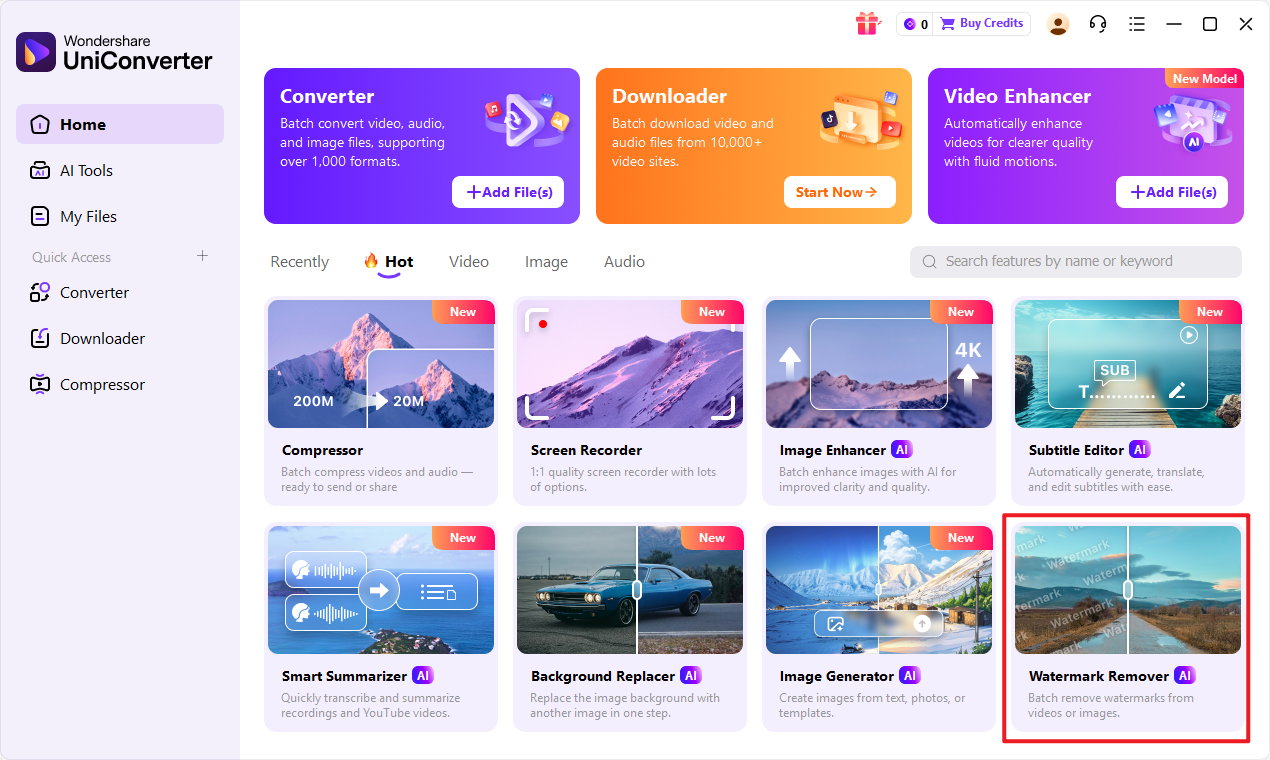
Step 1: Open UniConverter and Choose Watermark Remover
Launch UniConverter on your computer. From the main interface, navigate to the "Toolbox" section and select the "Watermark Editor" feature.
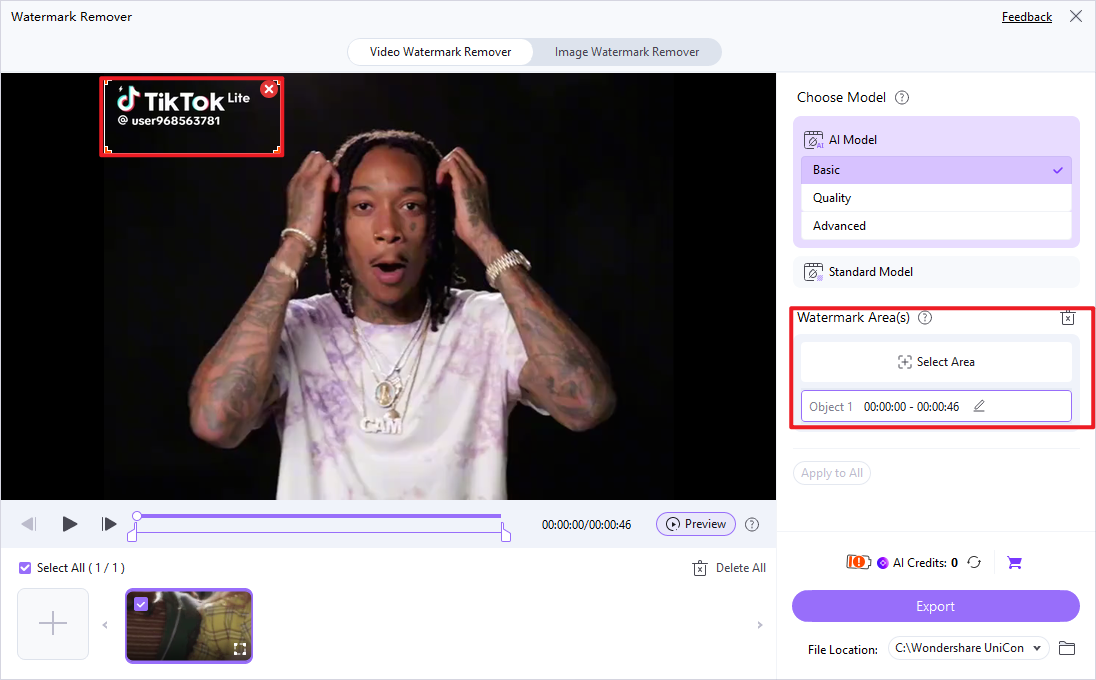
Step 2: Upload the Videos
Click on the "Add Files" button or drag and drop your video files into the UniConverter interface. You can upload multiple videos for batch watermark removal.
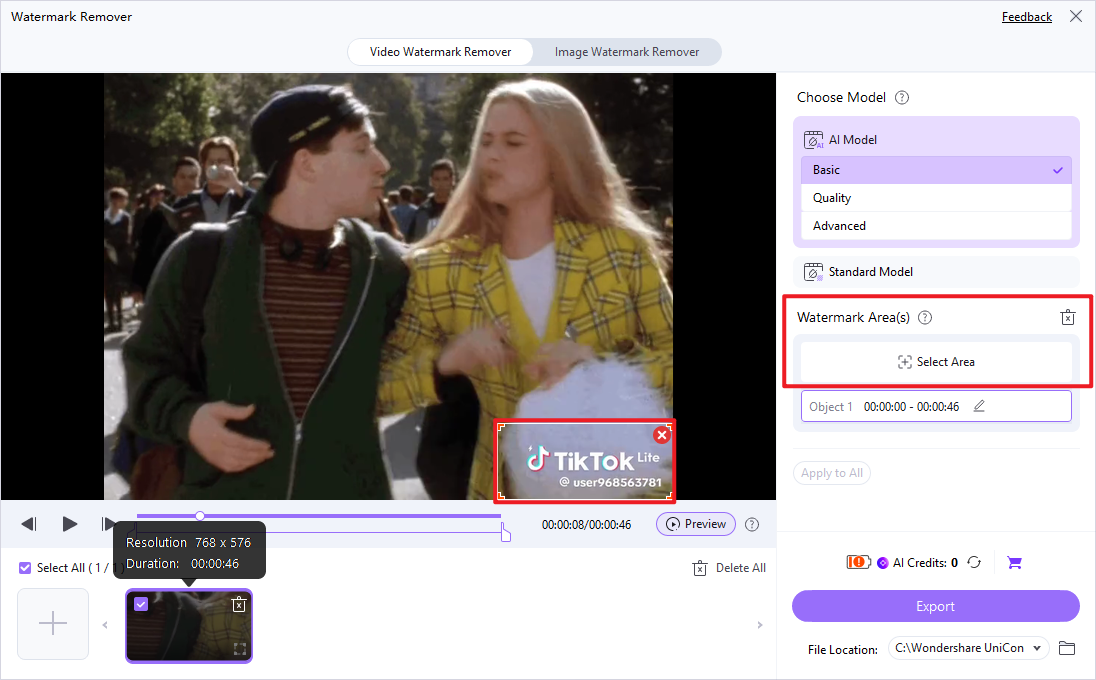
Step 3: Choose Selected Area
Once your video is loaded, use the selection tool to precisely draw a box around the watermark you wish to remove. UniConverter allows for accurate selection to ensure optimal removal.
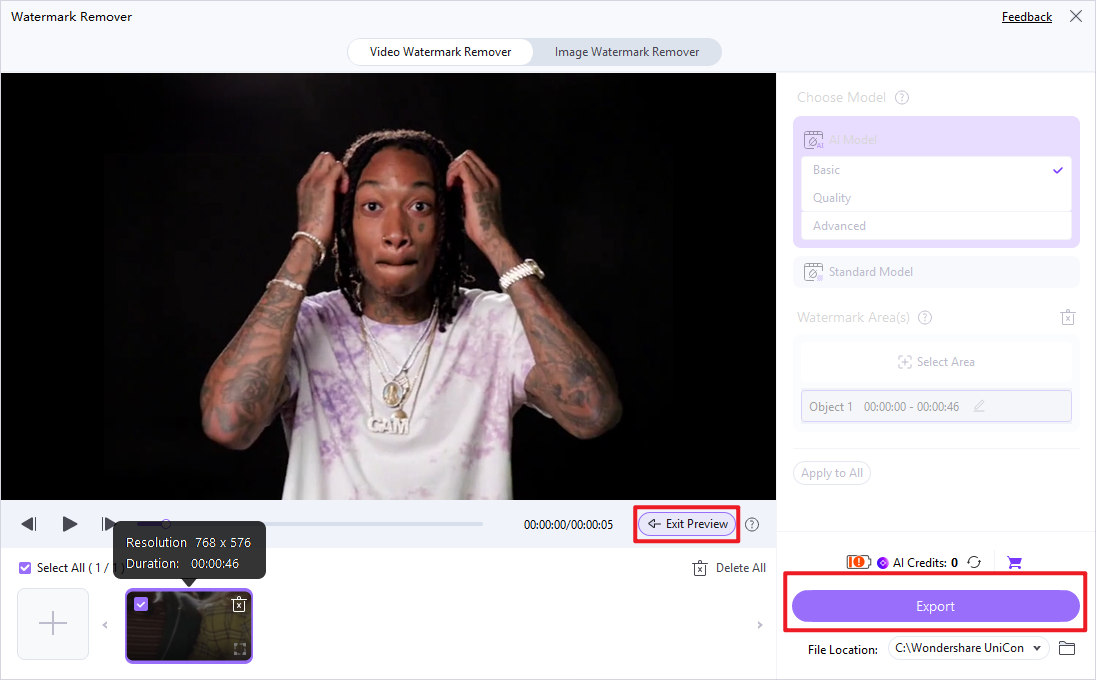
Step 4: Preview and Save the Video
After selecting the watermark area, you can preview the video to ensure the watermark has been removed satisfactorily. Once confirmed, click the "Export" button to save your clean video.

Seeking a VideoProc Watermark Remover Alternative?
Part 7: Conclusion
In conclusion, the VideoProc Watermark Remover review highlights its strength as an accessible and efficient tool for basic watermark removal, particularly for simple, static watermarks on personal videos. Its intuitive interface and batch processing capabilities make it a strong contender for casual users seeking quick fixes without extensive video editing knowledge. However, for content creators and professionals who require precise object removal, advanced editing features, or consistently pristine output quality on complex backgrounds, its limitations become apparent. While its price point is moderate, users must weigh this against the potential for occasional quality degradation and the absence of broader editing functionalities. For those prioritizing budget and ease of use for straightforward tasks, VideoProc Watermark Remover offers a viable solution. Conversely, users with more demanding needs, who value comprehensive features, superior output quality, and a wider range of editing capabilities, would find more robust alternatives like UniConverter to be a more suitable investment, despite a potentially higher cost. Ultimately, the best choice depends on the specific use case, technical requirements, and budget constraints of the individual user.
Part 8: FAQs
-
1. Is VideoProc Watermark Remover legal to use?
Yes, it is legal to use VideoProc Watermark Remover on videos you own or have explicit permission to modify. Removing watermarks from copyrighted material without authorization is illegal.
-
2. Can VideoProc Watermark Remover remove watermarks from streaming services?
VideoProc Watermark Remover is designed for local video files. It cannot directly remove watermarks from content streamed live or protected by digital rights management (DRM) on streaming platforms.
-
3. Does VideoProc Watermark Remover affect the original video's resolution?
While the software aims to maintain original resolution, the process of removing a watermark, especially on complex backgrounds, can sometimes introduce minor quality degradation or artifacts, which might be more noticeable at higher resolutions.
-
4. Are there any free alternatives to VideoProc Watermark Remover?
Yes, there are several free online and desktop alternatives, such as HitPaw Watermark Remover (free trial), online video editors with basic watermark removal features, or open-source tools like Shotcut, though their effectiveness and ease of use can vary.
-
5. How does VideoProc Watermark Remover handle animated watermarks?
VideoProc Watermark Remover is generally more effective with static watermarks. Removing animated or moving watermarks can be challenging and may result in less seamless outcomes, potentially leaving traces or requiring more manual adjustments.
