
- Unscreen Overview: Unscreen Watermark Remover uses AI for quick, automated watermark removal from videos.
- Ideal Use: Best for simple watermarks on short clips; struggles with complex, high-res footage.
- Feature Comparison: Unscreen offers ease; UniConverter provides superior control, quality, and security.
- Risks: Online tools like Unscreen pose data privacy risks and can degrade video quality.
- Ethical Use: Only remove watermarks from content you own or have explicit permission to modify.
- UniConverter Advantage: Desktop solution offers precise, high-quality, ad-free watermark removal with local processing.
In this article
- Part 1: What is Unscreen Watermark Remover?
- Part 2: Unscreen Watermark Remover: Core Features, Pros, and Cons
- Part 3: Unscreen Watermark Remover: Ideal Users and Use Cases
- Part 4: Unscreen Watermark Remover & Competitors: A Comparative Analysis
- Part 5: Risks and Pitfalls to Consider
- Part 6: How to Use UniConverter for Comprehensive Watermark Removal
- Part 7: Conclusion
- Part 8: FAQs
Unscreen Watermark Remover: A Comprehensive Review and Comparison
The digital landscape is awash with video content, and often, creators or platforms embed watermarks to protect their intellectual property or promote their brand. However, for various legitimate reasons—such as repurposing personal content, restoring old family videos, or preparing footage for professional editing where watermarks are undesirable—the need to remove these visual overlays has surged. This article provides an in-depth Unscreen Watermark Remover review, offering a detailed analysis of its features, performance, and ideal use cases. We will also conduct a rigorous comparison with leading alternatives to help you make an informed decision for your specific video editing needs.
Part 1: What is Unscreen Watermark Remover?
Unscreen Watermark Remover is an online tool primarily designed to automatically detect and eliminate watermarks from videos. Leveraging AI technology, it aims to simplify the often-tedious process of removing unwanted visual elements, making it accessible even to users without advanced video editing skills. This review seeks to address the core question: how effectively does Unscreen Watermark Remover perform its stated function, especially when compared to a competitive market filled with both specialized and all-in-one video solutions?
The Growing Need for Watermark Removal Tools
The proliferation of video content across social media, personal archives, and professional projects has highlighted several key challenges for users:
* Copyright and Branding Overlays: Many platforms and creators automatically add watermarks, which can be distracting or unsuitable for new contexts.
* Restoring Personal or Archival Footage: Old videos might contain date stamps, logos, or other embedded text that users wish to remove for aesthetic or archival purposes.
* Professional Editing Requirements: For high-quality productions, clean footage without any extraneous marks is essential, often necessitating precise watermark removal.
Part 2: Unscreen Watermark Remover: Core Features, Pros, and Cons
Unscreen Watermark Remover focuses on providing a streamlined experience for removing watermarks from video content. Its core capabilities revolve around automation and ease of use, aiming to deliver quick results without requiring extensive user input.
Core Features:
* AI-powered automatic detection and removal of watermarks.
* Support for a variety of common video formats.
* Intuitive drag-and-drop interface for easy file uploads.
* Batch processing capabilities for multiple videos (depending on subscription tier).
* Cloud-based operation, requiring no software installation.
Pros:
* AI-powered automatic detection and removal for efficiency.
* User-friendly interface for quick operations.
* Supports various video formats.
Cons:
* Limited customization options for complex watermarks.
* Potential quality degradation on highly compressed videos.
Part 3: Unscreen Watermark Remover: Ideal Users and Use Cases
Unscreen Watermark Remover is particularly well-suited for individuals and small businesses who need a quick and straightforward solution for common watermark removal tasks. Its automated nature makes it appealing to those without extensive video editing experience.
Best Use Case: Quick Removal of Simple Watermarks from Short Clips
This tool excels when dealing with straightforward watermarks, such as small logos, text overlays, or date stamps on short, relatively clean video clips. For instance, a social media manager needing to quickly remove a platform's default watermark from a personal promotional video before reposting it, or an individual wanting to clean up a family video with an old camcorder timestamp. The emphasis here is on speed and simplicity, where minor imperfections in the removal process are acceptable given the context.
Limitation Scenario: Removing Intricate Watermarks from High-Resolution, Professional Footage
Unscreen Watermark Remover may struggle with highly complex, semi-transparent, or animated watermarks that are deeply integrated into the video's visual elements. For high-resolution, professional-grade footage where pixel-perfect removal and absolute preservation of original quality are paramount, its automated approach might not offer the necessary precision or control. In such cases, a more robust, manual, or AI-assisted desktop editor with advanced masking and content-aware fill features would be required to avoid noticeable artifacts or quality loss.
Part 4: Unscreen Watermark Remover & Competitors: A Comparative Analysis
When evaluating watermark removal tools, key factors include ease of use, AI accuracy, output quality, customization options, and pricing. Let's compare Unscreen Watermark Remover with some prominent alternatives.
| Feature/Tool | Unscreen Watermark Remover | HitPaw Watermark Remover | VideoProc Converter AI | UniConverter |
| Ease of Use | Very High | High | Medium | High |
| AI Accuracy | High | High | Medium | High |
| Output Quality | Good | Excellent | Good | Excellent |
| Customization | Low | Medium | High | High |
| Pricing Model | Subscription | One-time purchase/Subscription | One-time purchase | One-time purchase/Subscription |
| Processing Speed | Fast (Cloud-based) | Fast (GPU Accelerated) | Fast (GPU Accelerated) | Very Fast (GPU Accelerated) |
| Supported Formats | Wide | Very Wide | Extensive | Extensive |
| Customer Support | Email/FAQ | 24/7 Live Chat/Email | Email/FAQ | 24/7 Live Chat/Email |
| Security | Cloud-based (User responsibility) | Local processing | Local processing | Local processing |
Key Differentiators: AI Efficiency vs. Manual Control & Output Fidelity
Unscreen Watermark Remover excels in its AI-driven efficiency, making it ideal for quick, simple removals. However, for tasks demanding higher output fidelity and granular control, tools like HitPaw Watermark Remover and UniConverter offer more robust features, often leveraging local processing for better quality preservation and enhanced security. VideoProc Converter AI provides a broader suite of video editing tools, with watermark removal as one of its many capabilities, offering more customization but potentially a steeper learning curve. UniConverter stands out for its balance of ease of use, high output quality, and comprehensive feature set.
Part 5: Risks and Pitfalls to Consider
While online watermark removers like Unscreen offer convenience, it's crucial to be aware of potential risks and pitfalls, especially concerning data privacy and output quality.
Data Privacy Concerns with Online Tools
Uploading sensitive or personal video content to cloud-based services always carries a degree of risk. Users should carefully review the privacy policies of Unscreen Watermark Remover and similar online tools to understand how their data is stored, processed, and protected. There's always a potential for unauthorized access or data breaches, making local desktop solutions a safer bet for highly confidential material.
Impact on Video Quality and Resolution
Automated watermark removal, particularly with less sophisticated algorithms, can sometimes lead to noticeable degradation in video quality. This might manifest as blurring, pixelation, or artifacts in the area where the watermark was removed, especially if the watermark was large, complex, or the video was already highly compressed. The tool might struggle to accurately "reconstruct" the underlying pixels, leading to an unnatural appearance.
Potential for Unwanted Advertisements or Bundled Software
Some free or freemium online tools might display intrusive advertisements or attempt to bundle additional, unwanted software during the download or usage process. While Unscreen Watermark Remover is a paid service, users should always be vigilant when exploring alternatives, as these practices can compromise user experience and system security.
Ethical Implications of Removing Watermarks
It's imperative to consider the ethical and legal implications of removing watermarks. Watermarks are often placed by creators or copyright holders to protect their work. Removing a watermark without proper authorization can infringe on intellectual property rights and lead to legal repercussions. Users should only remove watermarks from content they own, have explicit permission to modify, or from public domain materials.
Part 6: How to Use UniConverter for Comprehensive Watermark Removal
When other tools fall short, offering inconsistent results, lacking batch processing, or introducing unwanted ads, UniConverter emerges as a robust and reliable alternative for comprehensive watermark removal. It's a versatile desktop solution that ensures high-quality, ad-free processing, leveraging GPU acceleration for speed and maintaining original video quality. UniConverter is an all-in-one video toolbox, making it an ultimate solution for various video editing needs beyond just watermark removal.
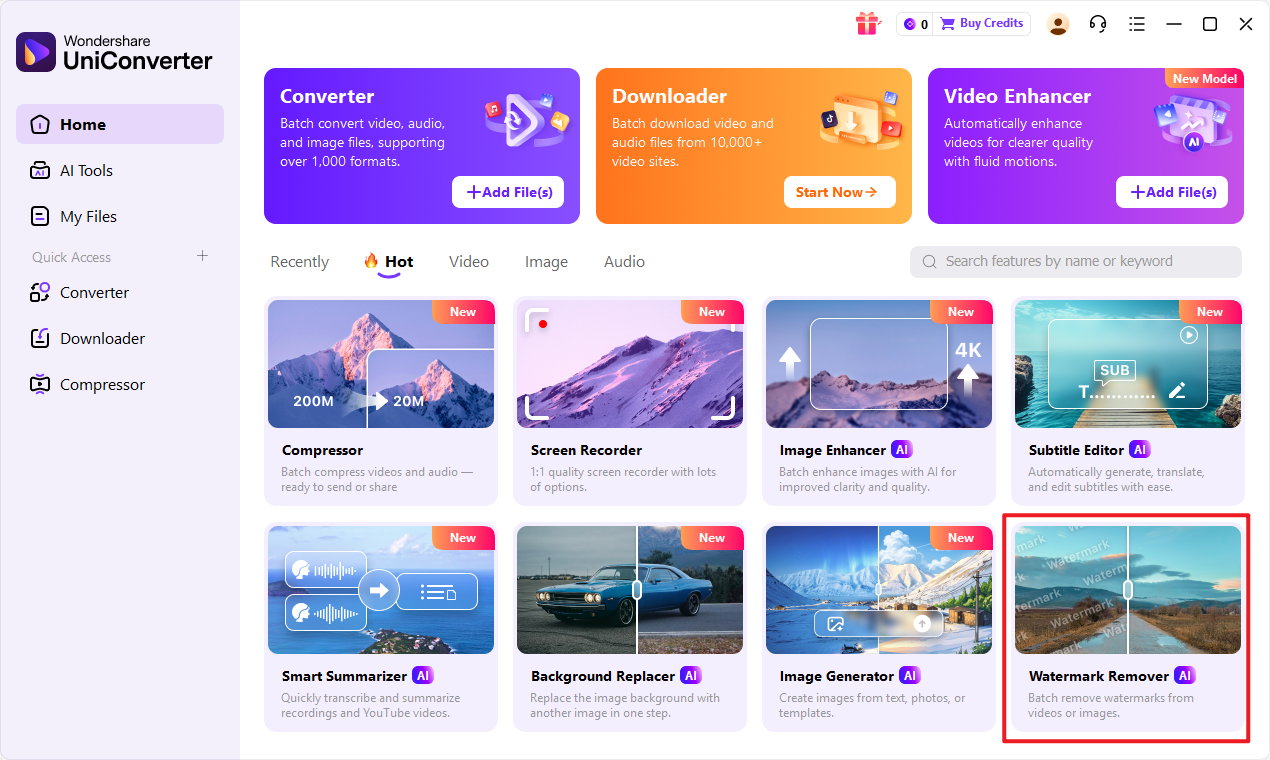
Open UniConverter and Choose Watermark Remover
To begin, launch UniConverter and navigate to the "Toolbox" section. From there, select the "Watermark Editor" option, which provides the functionality to remove watermarks from your videos.
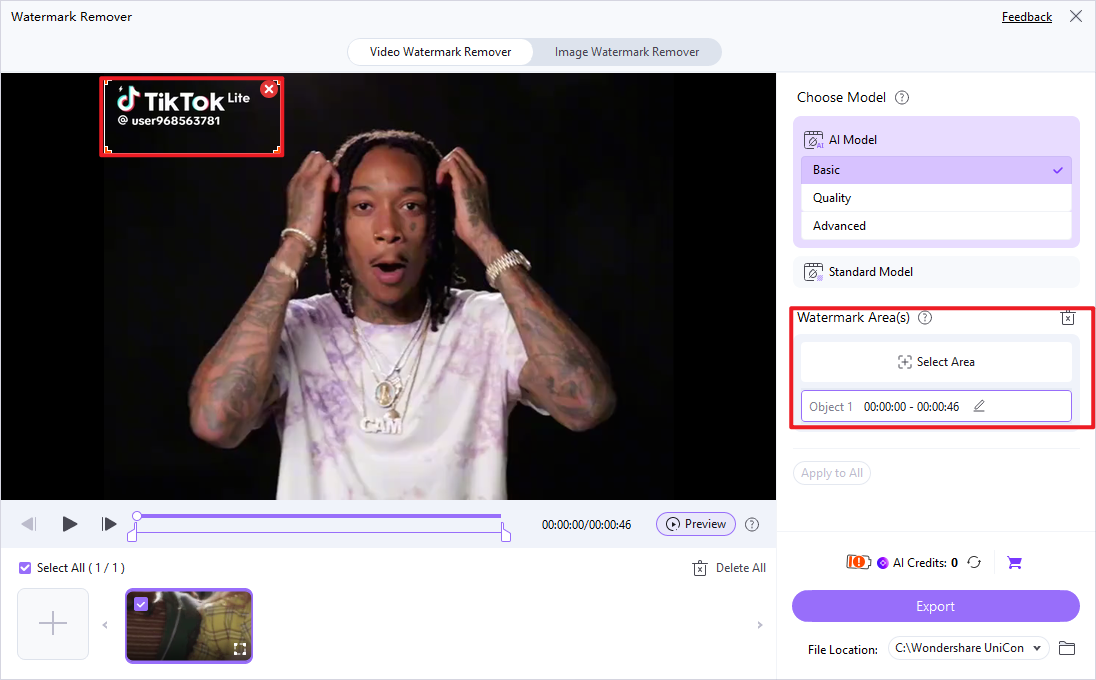
Upload the Videos
After selecting the watermark editor, you'll be prompted to upload the video files from which you wish to remove watermarks. You can easily drag and drop your videos into the interface or use the "Add Files" button to browse and select them.
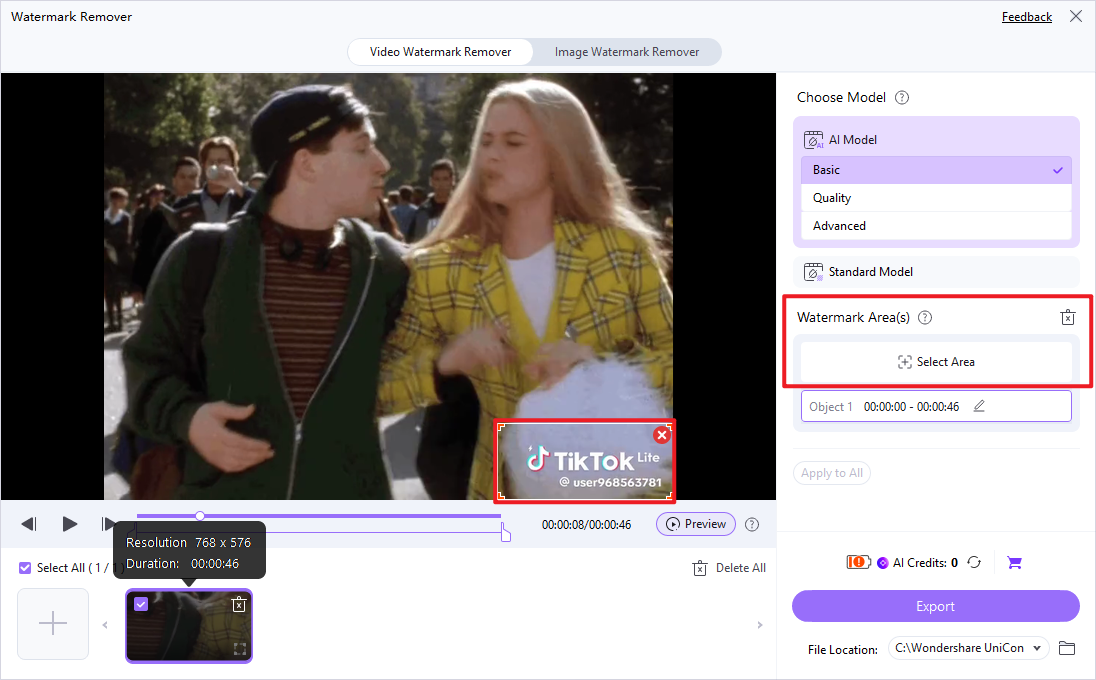
Choose Selected Area
Once your video is loaded, UniConverter allows you to precisely select the area containing the watermark. Use the intuitive selection tool to draw a box around the unwanted watermark. This targeted approach ensures that only the watermark is removed, preserving the rest of your video's integrity.
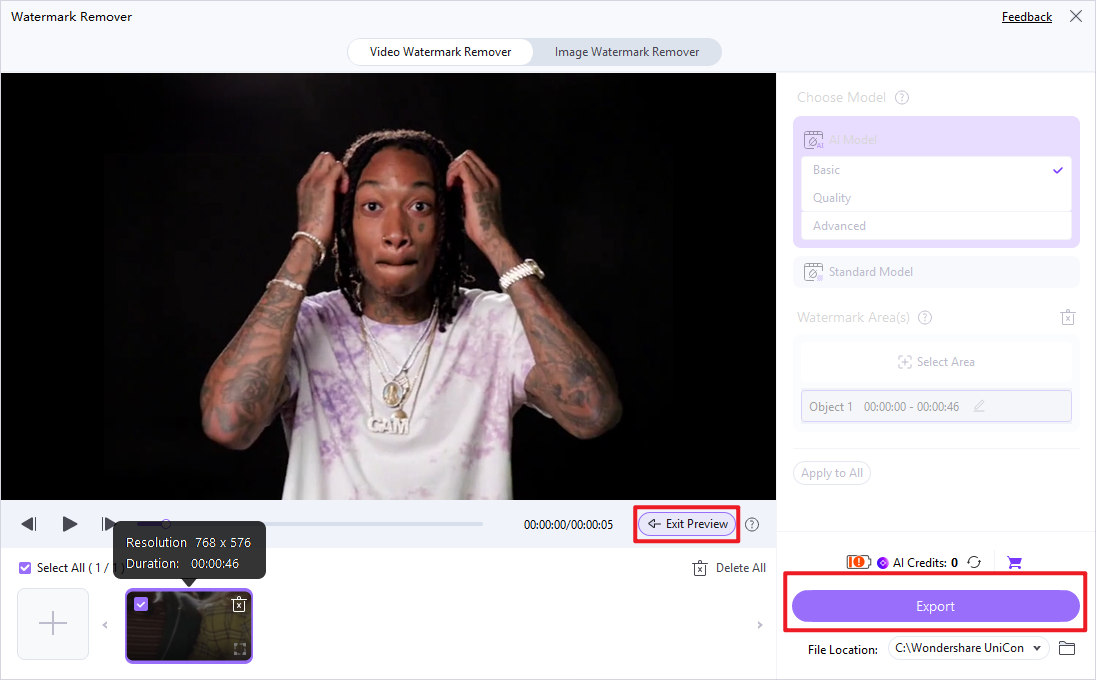
Preview and Save the Video
Before finalizing, UniConverter offers a preview function so you can review the video and confirm that the watermark has been successfully removed to your satisfaction. Once you are pleased with the result, click the "Save" button to export your clean, watermark-free video.

Unscreen Watermark Remover Alternative
Part 7: Conclusion
The Unscreen Watermark Remover review reveals it to be a highly convenient and efficient tool for quick, straightforward watermark removal, especially for casual users and simple video clips. Its AI-powered automation and user-friendly interface make it an attractive option for those prioritizing speed and ease of use over granular control. However, for professionals or users dealing with intricate watermarks, high-resolution footage, or requiring absolute quality preservation, its limitations in customization and potential for quality degradation become apparent. In such scenarios, desktop alternatives like UniConverter or HitPaw Watermark Remover offer superior control, output fidelity, and often, better security due to local processing. Ultimately, the best choice depends on your specific needs, the complexity of the watermark, your budget, and your comfort level with cloud-based processing versus desktop software. For casual users and quick edits, Unscreen is a solid choice; for professionals demanding precision and comprehensive features, investing in a more robust desktop solution is advisable.
Part 8: FAQs
-
1. Is Unscreen Watermark Remover completely free to use?
Unscreen Watermark Remover typically operates on a freemium or subscription model. While it might offer a limited free trial or a few free removals, continuous or high-volume usage usually requires a paid subscription.
-
2. Does Unscreen Watermark Remover work on all types of watermarks?
It works best on simple, static watermarks like logos or text. Complex, animated, or semi-transparent watermarks that blend significantly with the video content may be challenging for its AI to remove perfectly, potentially leaving artifacts.
-
3. Can removing a watermark affect the original video quality?
Yes, any automated watermark removal process involves altering the video pixels. Depending on the tool's algorithm and the complexity of the watermark, this can sometimes lead to minor blurring, pixelation, or other visual artifacts in the removed area, especially if the original video is highly compressed.
-
4. Are there any legal implications of removing watermarks from videos?
Yes, removing watermarks from copyrighted videos without the owner's permission can be illegal and constitute copyright infringement. It is crucial to ensure you have the legal right or permission to modify any video content before removing its watermark.
-
5. How does Unscreen Watermark Remover compare to desktop software in terms of security?
As an online, cloud-based tool, Unscreen Watermark Remover requires uploading your video files to its servers, which introduces potential data privacy concerns. Desktop software, like UniConverter, processes files locally on your computer, offering a higher level of security as your video data never leaves your device.
