
- Photoshop's Power: Unmatched precision for complex watermark removal, ideal for professionals seeking flawless results.
- Learning Curve: Photoshop demands significant skill and time; not suitable for quick, casual watermark removal.
- Alternatives Exist: UniConverter offers faster, easier batch processing for general users, balancing speed and quality.
- Cost vs. Value: Photoshop's subscription model is costly; free or one-time purchase tools provide budget-friendly options.
- Ethical Use: Always verify legal rights before removing watermarks to avoid copyright infringement and legal issues.
In this article
- Part 1: What is Photoshop Watermark Remover?
- Part 2: Photoshop Watermark Remover: Core Features, Pros & Cons
- Part 3: Target Audience & Use Cases for Photoshop Watermark Remover
- Part 4: Photoshop Watermark Remover and Alternatives Comparison
- Part 5: Risks & Pitfalls of Using Photoshop for Watermark Removal
- Part 6: How to Use UniConverter for Efficient Watermark Removal
- Part 7: Final Verdict & Recommendations
- Part 8: FAQs
Photoshop Watermark Remover: A Comprehensive Review
Adobe Photoshop, a cornerstone in digital image manipulation, offers robust tools for various editing tasks, including the often-sought-after ability to remove watermarks. This review delves into Photoshop's capabilities for watermark removal, examining its core features, target audience, and comparing it against alternative solutions. We will explore the nuances of using Photoshop for this specific task, highlighting its strengths in precision and integration within a professional workflow, while also addressing its limitations and the ethical considerations involved. This analysis aims to provide a clear understanding of when Photoshop is the ideal choice and when other tools might be more suitable, helping users make informed decisions.
Part 1: What is Photoshop Watermark Remover?
Adobe Photoshop is the industry-standard raster graphics editor developed and published by Adobe Inc. for Windows and macOS. It is renowned for its powerful image editing capabilities, which extend to the sophisticated removal of unwanted elements, including watermarks. When we refer to "Photoshop Watermark Remover," we are not talking about a standalone feature but rather the application of various Photoshop tools and techniques to achieve watermark eradication. This review will address the core challenges users face when dealing with watermarked images.
The Evolving Landscape of Digital Image Protection
The proliferation of digital content has made image protection a critical concern, leading to the widespread use of watermarks. However, for legitimate reasons such as restoring personal photos or preparing images for specific uses where the watermark is no longer relevant, users often seek methods to remove them. This creates a need for effective and accessible watermark removal tools.
* Copyright Protection: Watermarks serve as a primary deterrent against unauthorized use and distribution of digital images.
* Brand Identity: Many creators use watermarks to brand their work, ensuring recognition even when images are shared.
* Licensing Models: Watermarked previews are common in stock photography, prompting users to purchase unwatermarked versions.
* Restoration Needs: Users often need to remove watermarks from old personal photos or images where the original creator has granted permission for removal.
Part 2: Photoshop Watermark Remover: Core Features, Pros & Cons
Photoshop's strength in watermark removal lies in its comprehensive suite of editing tools that can be creatively combined to achieve highly precise and natural-looking results. The primary method involves sophisticated algorithms and manual refinement.
Core Features:
* Content-Aware Fill: Analyzes surrounding pixels to intelligently fill selected areas, seamlessly removing watermarks.
* Spot Healing Brush: Quickly removes small imperfections and watermarks by blending with nearby content.
* Clone Stamp Tool: Manually samples pixels from one area and paints them over another, offering fine control for complex watermarks.
* Patch Tool: Allows users to select an area (the watermark) and drag it over an unblemished area to replace it.
* Layer Masks: Provides non-destructive editing, allowing users to hide or reveal parts of a layer, useful for refining removal.
Pros:
* Advanced Content-Aware Fill for Seamless Removal: Photoshop's Content-Aware Fill is unparalleled in its ability to intelligently reconstruct backgrounds, making watermark removal appear natural.
* Precise Selection Tools for Targeted Watermark Eradication: Tools like the Lasso, Pen, and Quick Selection allow for extremely accurate selection of watermarks, crucial for clean removal.
* Integration with Professional Image Editing Workflow: As part of the Adobe Creative Suite, Photoshop seamlessly integrates with other professional tools, enhancing overall productivity.
Cons:
* Steep Learning Curve for Beginners: Mastering Photoshop's various tools and techniques for effective watermark removal requires significant time and practice.
* Subscription-Based Model Can Be Costly: Unlike one-time purchase software or free tools, Photoshop operates on a monthly or annual subscription, which can be a barrier for casual users.
Part 3: Target Audience & Use Cases for Photoshop Watermark Remover
Photoshop's advanced capabilities for watermark removal cater to a specific demographic that prioritizes precision and control over speed and simplicity. Its robust feature set is best leveraged by users with a foundational understanding of image editing principles.
Best Use Case: Professional Photographers & Graphic Designers Removing Subtle Watermarks from High-Resolution Images
For professionals in photography and graphic design, Photoshop is an indispensable tool. They often deal with high-resolution images where even the slightest imperfection from watermark removal would be unacceptable. For instance, a professional photographer might need to remove a subtle watermark from an old client proof or a stock image where they have acquired the necessary license, ensuring the final output is pristine for print or high-end digital display. The ability to meticulously refine selections, blend textures, and utilize non-destructive editing techniques makes Photoshop the go-to choice for achieving flawless results.
Limited Use Case: Quick Removal of Complex Watermarks by Casual Users
Conversely, Photoshop is less ideal for casual users who need quick and easy removal of complex watermarks. Imagine a casual user trying to remove a large, intricate watermark that spans across varying textures and colors in a low-resolution image. The time investment required to learn and apply Photoshop's tools effectively, coupled with the potential for unsatisfactory results without advanced skills, makes it a cumbersome option. For such users, simpler, more automated tools are often preferred, even if they offer less precision.
Part 4: Photoshop Watermark Remover and Alternatives Comparison
When it comes to watermark removal, Photoshop stands as a benchmark, but various alternatives offer different strengths depending on user needs and the complexity of the task.
| Feature/Scenario | Photoshop | UniConverter | Inpaint | GIMP |
| Subtle Watermark Removal | Excellent | Good | Good | Fair |
| Complex Watermark Removal | Excellent | Fair | Moderate | Poor |
| Batch Processing | Manual | Automated | Manual | Manual |
| Ease of Use | Difficult | Easy | Easy | Moderate |
| Cost | Subscription | One-time purchase | One-time purchase | Free |
| Output Quality | Professional | High | Good | Moderate |
| Processing Speed | Varies (manual) | Fast (GPU accelerated) | Moderate | Moderate |
| Customer Support | Extensive | Responsive | Basic | Community |
| Security | High | High | Moderate | Moderate |
Key Differentiators: Precision vs. Automation
Photoshop excels in precision and output quality, making it the top choice for intricate and professional-grade watermark removal. Its manual control allows for unparalleled refinement, though at the cost of ease of use and speed. UniConverter, on the other hand, shines in automation and ease of use, particularly for batch processing and users who prioritize quick results without a steep learning curve. Inpaint offers a good balance for simple to moderate watermarks with its user-friendly interface. GIMP, while free, requires more technical understanding and often yields less refined results compared to Photoshop or even Inpaint for complex watermarks. For users needing high-volume, quick, and decent quality watermark removal, UniConverter is often a more practical solution than Photoshop.
Part 5: Risks & Pitfalls of Using Photoshop for Watermark Removal
While Photoshop is a powerful tool for watermark removal, its use, especially without proper knowledge or ethical considerations, can lead to several risks and pitfalls. Users should be aware of these potential issues before proceeding.
Potential for Image Degradation if Not Done Carefully
One of the most significant risks is the degradation of image quality. If not executed meticulously, watermark removal can introduce artifacts, blurriness, or unnatural textures into the image. Tools like Content-Aware Fill, while powerful, can sometimes make incorrect assumptions about the background, leading to patchy or distorted areas. Manual tools like the Clone Stamp require a steady hand and an understanding of image composition to avoid repetitive patterns or mismatched lighting, which can severely compromise the image's integrity.
Time-Consuming for Multiple Images
For users needing to remove watermarks from a large number of images, Photoshop can be incredibly time-consuming. Each image often requires individual attention, precise selections, and careful blending. There isn't a truly automated batch processing feature for complex watermark removal in Photoshop that guarantees high-quality results across diverse images. This manual, image-by-image approach can quickly become impractical for large volumes, impacting productivity.
Ethical Considerations of Removing Copyrighted Watermarks
Perhaps the most critical pitfall is the ethical and legal implication of removing watermarks. Watermarks are often placed on images to protect copyright and indicate ownership. Removing a watermark from a copyrighted image without the owner's permission can constitute copyright infringement, leading to legal repercussions. Users must ensure they have the legal right to modify an image, whether through explicit permission, licensing, or if the image is in the public domain. Ignorance of copyright law is not a defense.
Learning Curve Can Be a Barrier to Entry
Photoshop's extensive feature set and professional-grade tools come with a steep learning curve. Beginners or casual users may find it overwhelming to navigate the interface and master the techniques required for effective watermark removal. This barrier to entry can lead to frustration, inefficient workflows, and ultimately, unsatisfactory results, making the software less accessible for those without a dedicated interest in professional image editing.
Part 6: How to Use UniConverter for Efficient Watermark Removal
When other tools fall short in batch processing, struggle with watermark removal effectiveness, or simply offer weak results, UniConverter emerges as a robust alternative. It bypasses common issues like intrusive ads, limited format support, and unstable output quality, providing a streamlined, high-quality solution. UniConverter is designed as an all-in-one multimedia toolkit, offering GPU acceleration for speed, stable and lossless processing, and efficient batch watermark removal.
Step 1: Open UniConverter and Choose Watermark Remover
Launch UniConverter on your computer. From the main interface, navigate to the "Toolbox" section. Here, you will find various utilities. Select the "Watermark Remover" option to begin the process.

Step 2: Upload the Videos
Click on the "Add Files" button or simply drag and drop the image(s) you wish to process into the UniConverter interface. You can add multiple images for batch processing.

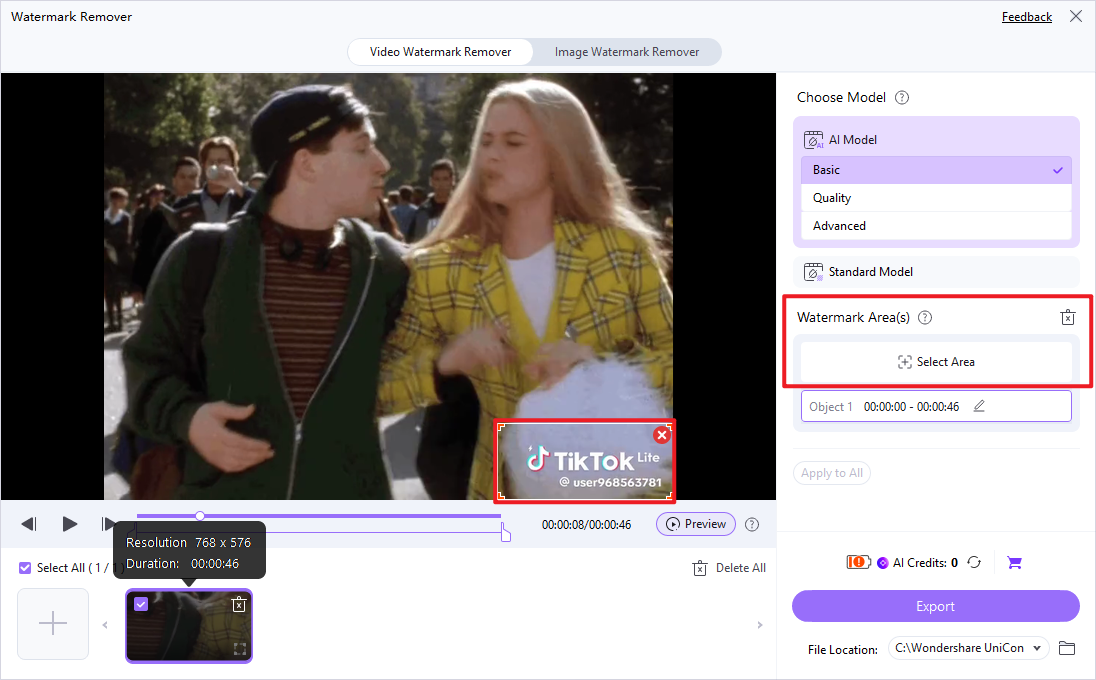
Step 3: Choose Selected Area
Once your image is loaded, use the selection tool provided within UniConverter to precisely outline the watermark area. You can adjust the size and position of the selection box to cover the entire watermark.
Step 4: Export Your Clean Image
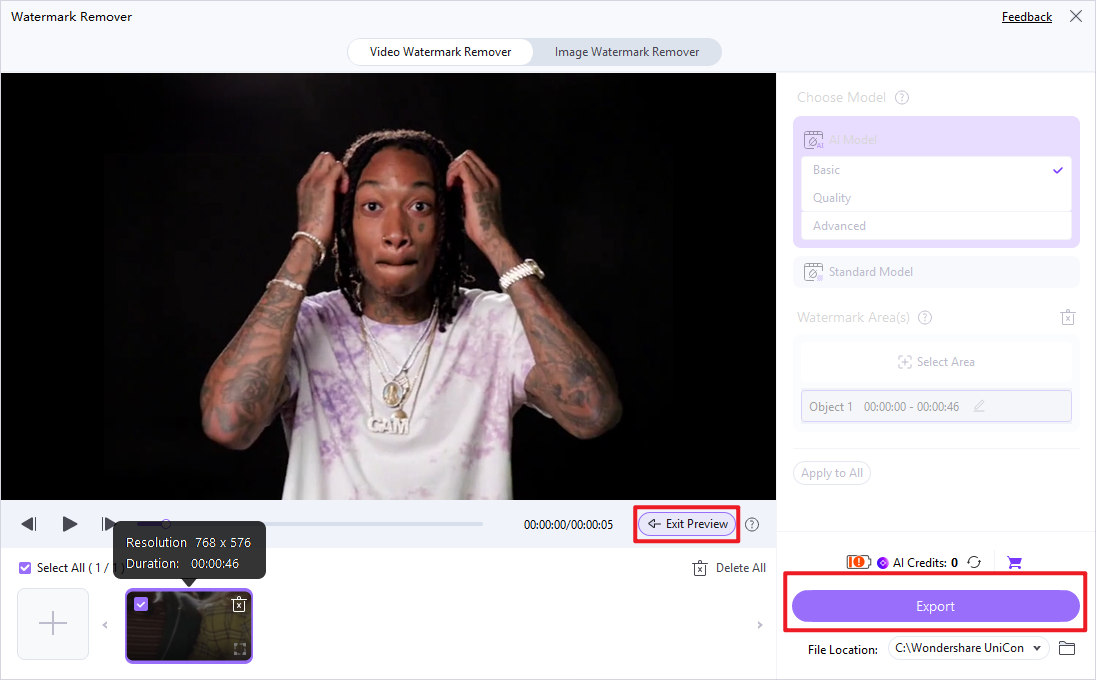
After selecting the watermark, choose your preferred output format and destination folder. Click the "Remove Watermark" or "Start" button to process the image. UniConverter will then remove the watermark and save the clean image to your specified location.

Beyond Photoshop: Effortless Watermark Removal
Part 7: Final Verdict & Recommendations
The choice between Photoshop and alternative tools for Photoshop Watermark Remover review ultimately hinges on the user's specific needs, skill level, and ethical considerations. For professional photographers, graphic designers, or anyone requiring pixel-perfect precision and intricate control over the removal process, Photoshop remains the undisputed champion. Its advanced Content-Aware Fill, precise selection tools, and seamless integration into a professional workflow justify its subscription cost and learning curve. However, for casual users or those needing to process multiple images quickly and efficiently without delving into complex editing techniques, Photoshop can be overkill. Tools like UniConverter offer a user-friendly interface, automated batch processing, and often deliver satisfactory results for less complex watermarks, making them a more accessible and cost-effective solution. Regardless of the tool chosen, it is paramount to consider the ethical implications of removing watermarks, ensuring that you have the legal right to modify the image to avoid copyright infringement.
Part 8: FAQs
-
1. Is it legal to remove watermarks from images using Photoshop?
Removing watermarks from copyrighted images without permission can have legal implications and may constitute copyright infringement. Always ensure you have the necessary rights or permissions.
-
2. Can Photoshop remove all types of watermarks?
Photoshop is highly capable, but very complex, integrated, or transparent watermarks that blend seamlessly with the image background may still leave subtle traces or require extensive manual effort to remove perfectly.
-
3. Are there free alternatives to Photoshop for watermark removal?
Yes, several online tools and free software like GIMP offer basic watermark removal functionalities. However, they often come with limitations in precision, features, or output quality compared to Photoshop.
-
4. Does removing a watermark affect image quality?
If not done carefully, watermark removal can degrade image quality, especially with complex watermarks or if the removal tools are not used skillfully. It can introduce artifacts, blurriness, or unnatural textures.
-
5. How long does it take to remove a watermark in Photoshop?
The time varies greatly depending on the complexity of the watermark, the image background, and the user's skill level. Simple watermarks might take minutes, while complex ones could require hours of meticulous work.
