
- Photopea Value: Free, browser-based, Photoshop-like editing for quick, non-critical watermark removal.
- Photopea Limitations: Steep learning curve, quality degradation, time-consuming for complex watermarks, browser-dependent performance.
- User Suitability: Ideal for Photoshop-savvy users needing quick online edits; less suitable for beginners or professional tasks.
- Comparison Insight: Photopea is free but manual; UniConverter offers AI-powered, faster, higher-quality, and offline removal.
- Decision Factor: Choose Photopea for simple, free online edits; UniConverter for professional, batch, or high-quality needs.
In this article
- Part 1: What is Photopea Watermark Remover?
- Part 2: Photopea Watermark Remover: Core Features, Pros, and Cons
- Part 3: Who is Photopea Watermark Remover For? Use Cases and Limitations
- Part 4: Photopea Watermark Remover and Alternatives Comparison
- Part 5: Risks and Pitfalls When Using Photopea for Watermark Removal
- Part 6: How to Use UniConverter for Seamless Watermark Removal
- Part 7: Conclusion
- Part 8: FAQs About Photopea Watermark Remover
Photopea Watermark Remover: A Comprehensive Review and Comparison
In the dynamic world of digital content, the need to efficiently manage and modify images is paramount. Photopea, a free online photo editor, has emerged as a popular browser-based alternative to professional desktop software like Adobe Photoshop. Among its myriad features, the Photopea Watermark Remover functionality garners significant attention, promising users the ability to clean up images by eliminating unwanted watermarks. This article will delve into a detailed review of Photopea's watermark removal capabilities, comparing it against leading competitors and offering a nuanced perspective on its strengths, weaknesses, and ideal use cases. We aim to provide a clear, scenario-based analysis to help users make informed decisions about their image editing needs.
Part 1: What is Photopea Watermark Remover?
Photopea Watermark Remover refers to the suite of tools within the Photopea online image editor that allows users to identify, select, and eliminate watermarks from digital images. As a web-based application, Photopea offers a Photoshop-like interface directly in your browser, making advanced image manipulation accessible without software installation. The core of its watermark removal capability relies on selection tools (like Lasso, Magic Wand, or Quick Selection) combined with content-aware fill or healing brush functionalities. This approach enables users to "paint over" or intelligently remove unwanted elements, including watermarks, by blending them with the surrounding image data. The increasing prevalence of watermarked images online, whether for copyright protection, branding, or stock photography, has fueled the demand for effective removal solutions.
The Growing Need for Efficient Watermark Removal
* Copyright Compliance & Fair Use: Users often need to remove watermarks from images they have legitimate rights to use, but which were sourced from platforms that apply watermarks by default.
* Content Repurposing: For designers and marketers, removing watermarks from mock-ups or placeholder images is crucial for presenting clean, professional visuals.
* Personal Use & Restoration: Individuals may want to remove watermarks from old family photos or personal images that have been inadvertently marked.
* Enhanced Visual Clarity: Watermarks, by their nature, can obscure important details or detract from the aesthetic appeal of an image, necessitating their removal for better visual presentation.
Part 2: Photopea Watermark Remover: Core Features, Pros, and Cons
Photopea's watermark removal capabilities are deeply integrated into its comprehensive image editing suite. Users typically employ a combination of selection tools such as the Lasso Tool, Magic Wand, or Quick Selection to isolate the watermark area. Once selected, features like "Content-Aware Fill" (Edit > Fill > Content-Aware) or the "Healing Brush" and "Spot Healing Brush" are used to intelligently replace the selected area with surrounding pixel data, effectively making the watermark disappear. The Clone Stamp tool also offers precise control for manual replication of textures and colors. Its layer-based editing system allows for non-destructive watermark removal, meaning users can always revert changes if needed.
* Core Features:
* Advanced selection tools (Lasso, Magic Wand, Quick Selection)
* Content-Aware Fill for intelligent background reconstruction
* Healing Brush and Spot Healing Brush for seamless blending
* Clone Stamp tool for precise manual removal
* Layer-based editing for non-destructive workflow
* Pros:
* Browser-based accessibility and no installation required, offering unparalleled convenience.
* Advanced selection tools for precise watermark isolation, mimicking professional desktop software.
* Free to use with a wide range of editing capabilities beyond just watermark removal.
* Cons:
* Steep learning curve for beginners unfamiliar with Photoshop-like interfaces.
* Performance can be dependent on internet connection and browser capabilities, leading to potential lag.
Part 3: Who is Photopea Watermark Remover For? Use Cases and Limitations
Photopea Watermark Remover is ideally suited for a specific demographic of users and particular scenarios. It caters primarily to individuals who are already familiar with the workflow of professional image editing software like Adobe Photoshop, but prefer a free, web-based solution. This includes graphic design students, hobbyists, bloggers, and small business owners who need to perform quick edits without investing in expensive software.
* Best Use Case: Quick, on-the-fly watermark removal for users familiar with Photoshop-like interfaces, especially for non-critical personal projects or mock-ups. For instance, a blogger needing to remove a stock image watermark from a draft post for internal review, or a student cleaning up an image for a presentation. The ability to access it from any device with an internet connection makes it highly flexible for impromptu editing tasks.
* Limited Use Case: Batch processing of multiple images, professional-grade restoration where absolute pixel perfection is required, or situations demanding offline functionality. For example, a professional photographer needing to remove watermarks from hundreds of client proofs, or a graphic designer working on a high-stakes commercial project where even minor imperfections are unacceptable. Its web-based nature also means it's not suitable for environments without reliable internet access.
Part 4: Photopea Watermark Remover and Alternatives Comparison
When evaluating watermark removal tools, it's crucial to consider various factors beyond just the ability to erase a watermark. Here's a comparison of Photopea with some prominent alternatives: UniConverter, Inpaint, and Remove.bg.
| Feature / Product | Photopea Watermark Remover | UniConverter | Inpaint | Remove.bg |
| Processing Speed | Moderate (browser-dependent) | Fast (GPU acceleration) | Fast | Very Fast (AI-powered) |
| Output Quality | Good (skill-dependent) | Excellent (AI-enhanced) | Very Good | Good (background removal focus) |
| Ease of Use | Moderate (Photoshop-like) | Very Easy (intuitive UI) | Easy | Extremely Easy (automated) |
| Batch Processing | Manual/Limited | Yes | Yes | Limited (API for bulk) |
| Pricing | Free | Paid (Subscription/Lifetime) | Paid (One-time/Subscription) | Free (limited), Paid (credits) |
| Offline Capability | No | Yes | Yes | No |
| Supported Formats | Wide range (JPG, PNG, PSD, etc.) | Wide range (image & video) | JPG, PNG, WebP, etc. | JPG, PNG |
| Customer Support | Community/Forum | Dedicated Support | Email Support | Email Support |
| Security | Local browser processing | Local software processing | Local software processing | Cloud-based processing |
Key Differentiators: Photopea's strength lies in its free, web-based, and feature-rich environment, mimicking professional desktop software, making it accessible to a broad audience. Competitors like UniConverter offer a more streamlined, often AI-powered, and dedicated solution, particularly excelling in batch processing, offline use, and higher output quality with less user effort. Inpaint focuses specifically on object removal with good results, while Remove.bg is primarily an AI-driven background remover that can sometimes be repurposed for simple watermark removal. For users prioritizing ease of use, batch processing, and superior quality, especially offline, UniConverter presents a compelling alternative.
Part 5: Risks and Pitfalls When Using Photopea for Watermark Removal
While Photopea offers a powerful and free solution for watermark removal, it comes with several inherent risks and pitfalls that users should be aware of, especially when dealing with critical or complex images. These limitations often stem from its browser-based nature, reliance on user skill, and the fundamental challenge of intelligently reconstructing missing image data.
Potential for Quality Degradation
Removing a watermark, by its nature, involves altering the original pixel data. Photopea's content-aware fill and healing tools attempt to intelligently reconstruct the background, but this process isn't always perfect. For intricate textures, gradients, or areas with fine details, the removed area might appear blurry, patchy, or exhibit noticeable artifacts. This degradation is more pronounced with larger, more opaque, or strategically placed watermarks that cover significant portions of the image.
Time-Consuming for Complex Watermarks
Simple, small, and uniformly colored watermarks on a plain background can be removed relatively quickly. However, complex watermarks – those with intricate designs, varying opacities, or placed over highly detailed or textured areas – require meticulous selection and multiple attempts with different tools. This can be a very time-consuming process, demanding patience and a high degree of precision from the user. For multiple images with such watermarks, the manual effort quickly becomes impractical.
Dependence on User Skill for Optimal Results
Unlike some AI-powered tools that automate much of the removal process, Photopea's effectiveness heavily relies on the user's proficiency with its selection tools, content-aware fill, and healing brushes. A beginner might struggle to achieve seamless results, often leaving behind traces of the watermark or creating unnatural-looking patches. Mastering these tools requires practice and a good understanding of image editing principles, which can be a barrier for casual users.
Browser Performance and Stability Issues
As a web-based application, Photopea's performance is intrinsically linked to the user's internet connection speed, browser capabilities, and the device's processing power. Large image files or complex operations can lead to slow response times, freezing, or even browser crashes, particularly on older or less powerful machines. This can be frustrating and disruptive, especially during a critical editing session.
Lack of Dedicated Support for Watermark Removal Specifics
While Photopea has a robust community and general support, it doesn't offer dedicated, specialized features or AI algorithms specifically optimized for watermark removal, unlike some dedicated software. Its tools are general-purpose image editing tools applied to the task. This means users often have to experiment and manually fine-tune settings, which can be less efficient and yield less consistent results compared to purpose-built watermark removers.
Part 6: How to Use UniConverter for Seamless Watermark Removal
When other tools fall short, struggling with batch processing, inconsistent results, or simply lacking the efficiency you need, UniConverter emerges as a robust solution. It bypasses the common pitfalls of online editors and less specialized software by offering a streamlined, high-quality, and often AI-accelerated approach to watermark removal. UniConverter ensures stable, lossless output, supports a vast array of formats, and leverages GPU acceleration for speed, making it an all-in-one ultimate solution for both images and videos.
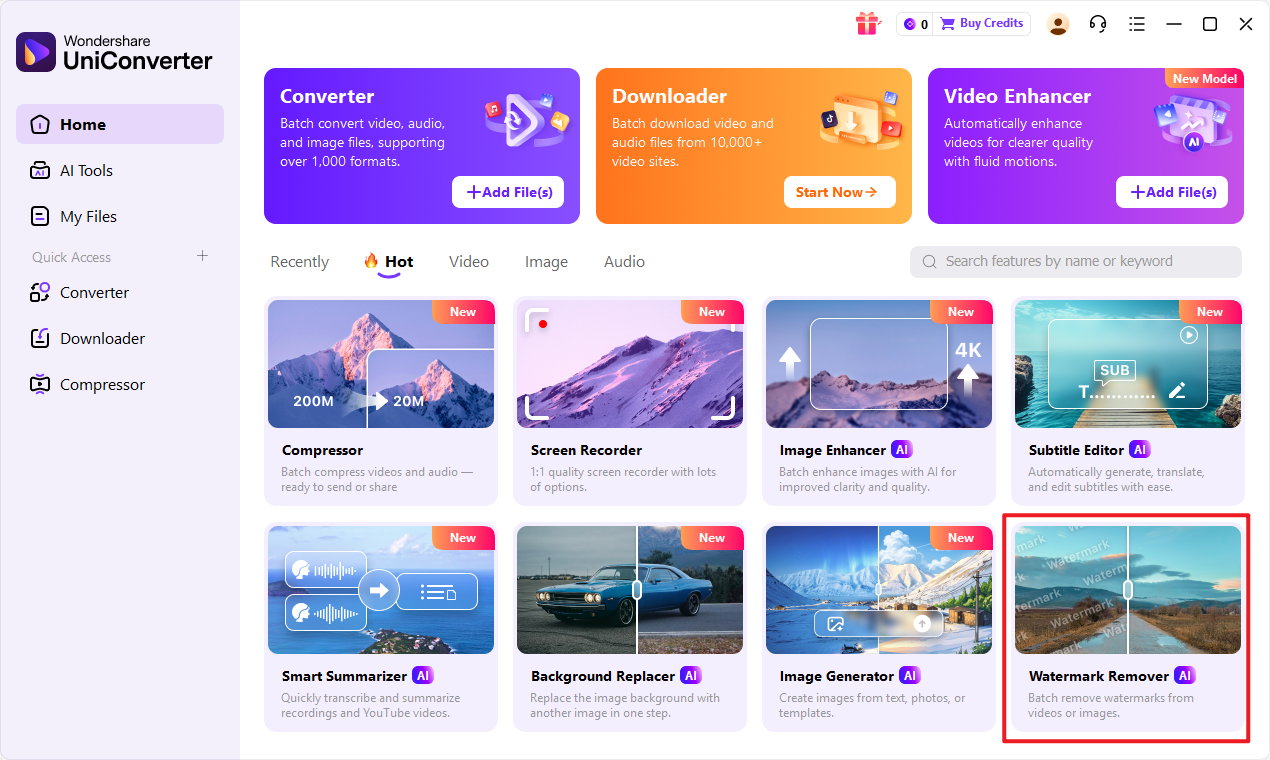
Step 1: Open UniConverter and Choose Watermark Remover
Launch UniConverter on your desktop. From the main interface, navigate to the "Toolbox" section and select the "Watermark Editor" feature. This dedicated tool is designed for precise watermark management.
Step 2: Upload Your Image(s) into the Watermark Editor
Click on the "Image Watermark Remover" tab. Then, drag and drop the image files from which you want to remove watermarks directly into the UniConverter window, or use the "Add Files" button to browse and select them.
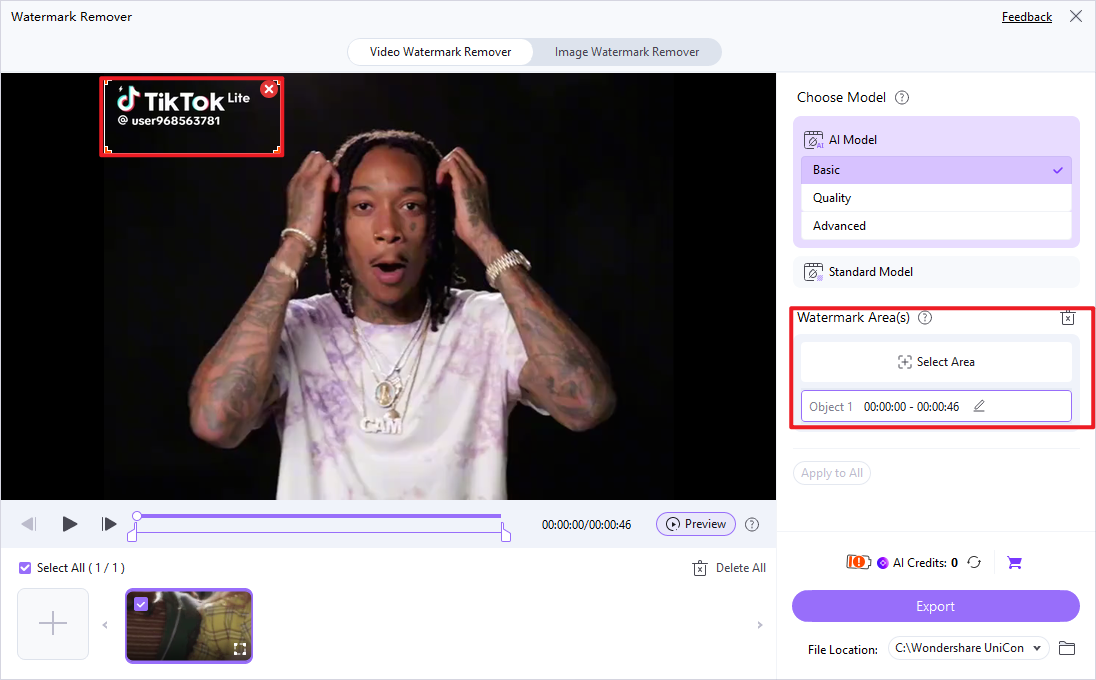
Step 3: Select and Remove the Watermark Area
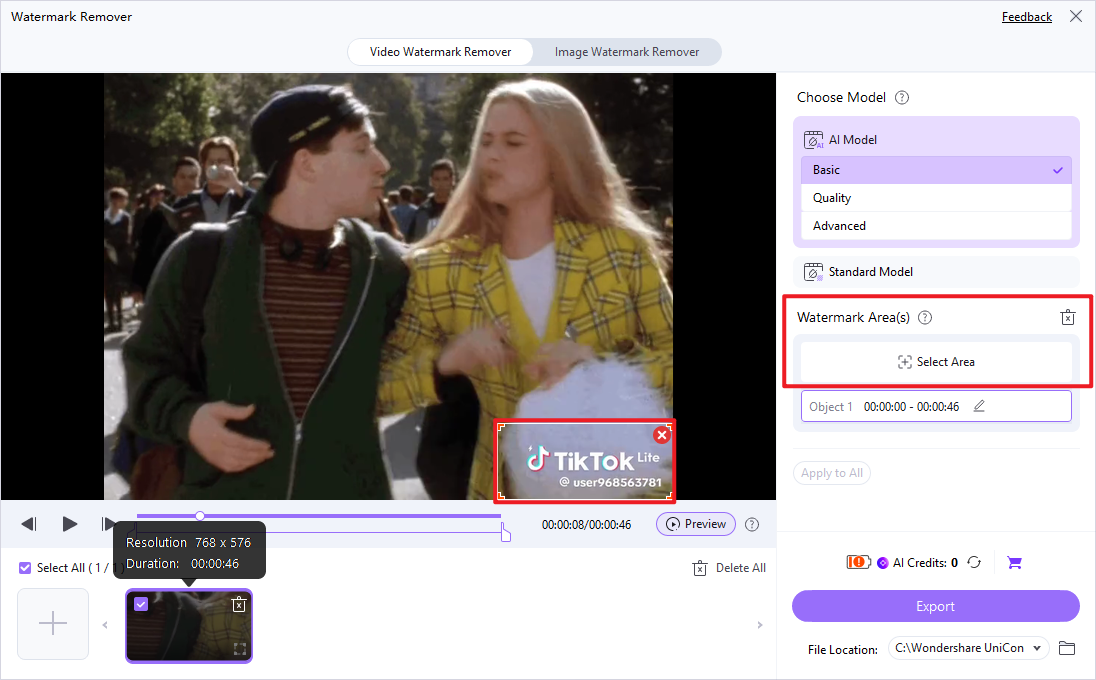
Once your image is loaded, use the intuitive selection tools (e.g., rectangular or lasso selection) to precisely outline the watermark you wish to remove. UniConverter's intelligent algorithm will then process the selected area, seamlessly blending it with the surrounding pixels.
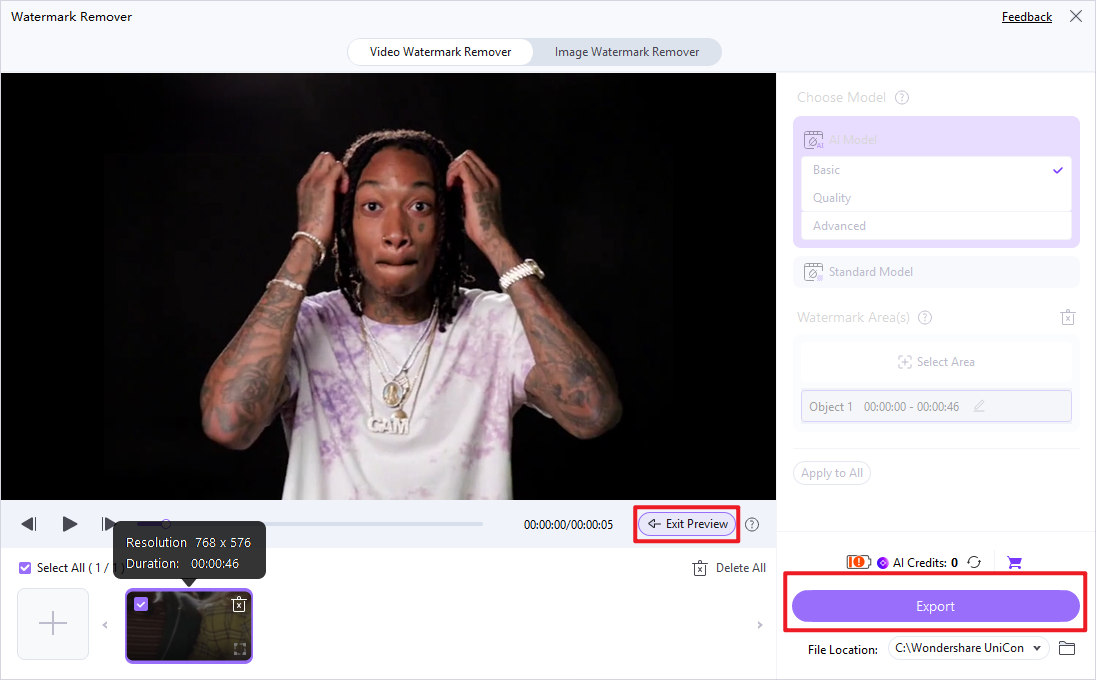
Step 4: Preview and Export Your Clean Image(s)
After the removal process, you can preview the cleaned image to ensure satisfaction. UniConverter allows you to choose your desired output format and destination folder. Click "Export" to save your watermark-free image(s) quickly and efficiently.

Need a Better Photopea Watermark Remover Alternative?
Part 7: Conclusion
In conclusion, the Photopea Watermark Remover offers a compelling, free, and accessible option for users seeking to remove watermarks from images directly within their web browser. Its Photoshop-like interface and comprehensive toolset make it a powerful choice for those with some image editing experience, particularly for non-critical personal projects or quick mock-ups. However, its effectiveness is highly dependent on user skill, and it can be time-consuming for complex watermarks, often leading to quality degradation. For professionals, batch processing needs, or situations demanding pixel-perfect results and offline functionality, dedicated desktop software like UniConverter presents a superior and more efficient alternative. UniConverter excels with its intuitive interface, AI-enhanced removal capabilities, and robust performance, ensuring higher quality output with less effort. Ultimately, the choice between Photopea and its alternatives hinges on the user's technical proficiency, the complexity of the task, and the importance of output quality and efficiency.
Part 8: FAQs About Photopea Watermark Remover
-
1. Is Photopea Watermark Remover truly free?
Yes, Photopea is a free online image editor, including its watermark removal capabilities, making it highly accessible to all users.
-
2. Can Photopea remove watermarks from videos?
No, Photopea is an image editor and is not designed to handle video files; therefore, it cannot remove watermarks from videos.
-
3. How effective is Photopea at removing complex watermarks?
Its effectiveness depends heavily on the user's skill with selection and content-aware fill tools. Complex watermarks require significant manual effort and may still result in noticeable artifacts.
-
4. Are there any privacy concerns when using Photopea online?
Photopea processes images locally in your browser, meaning your images are not uploaded to a server. This generally reduces privacy concerns compared to cloud-based services that store your data.
-
5. What are the main advantages of using a dedicated tool like UniConverter over Photopea for watermark removal?
UniConverter offers a more streamlined, often AI-powered, and user-friendly experience, especially for batch processing and achieving higher quality results with less effort. It also provides offline functionality and dedicated customer support.
