
- GIMP's Power: GIMP offers robust, free, open-source watermark removal for advanced users seeking precision.
- Learning Curve: GIMP demands significant skill and time, making it less ideal for beginners or quick tasks.
- Batch Processing: GIMP lacks efficient batch processing; consider alternatives for multiple images.
- UniConverter Value: UniConverter provides easy, high-quality, fast watermark removal, balancing ease of use with excellent results.
- Ethical Use: Always ensure legal rights before removing watermarks to avoid copyright infringement.
In this article
- Part 1: What is GIMP Watermark Remover?
- Part 2: GIMP Watermark Remover: Core Features, Pros, and Cons
- Part 3: GIMP Watermark Remover: Ideal Users and Scenarios
- Part 4: GIMP Watermark Remover and Alternatives Comparison
- Part 5: Risks and Pitfalls When Using GIMP for Watermark Removal
- Part 6: How to Use UniConverter for Effortless Watermark Removal
- Part 7: Conclusion
- Part 8: FAQs
GIMP Watermark Remover: A Comprehensive Review
This GIMP Watermark Remover review delves into the capabilities of GIMP, a powerful open-source image editor, for the specific task of removing watermarks. In an era where digital content is ubiquitous, the need to modify images, including removing unwanted watermarks, has become increasingly common. This article will provide a detailed analysis of GIMP's features for watermark removal, its advantages and disadvantages, and compare it with other popular tools. We will explore scenarios where GIMP excels and where alternatives might be more suitable, helping users make informed decisions based on their skill level, time constraints, and specific project requirements.
Part 1: What is GIMP Watermark Remover?
GIMP (GNU Image Manipulation Program) is a free and open-source raster graphics editor used for image manipulation, image editing, free-form drawing, transcoding between different image file formats, and more specialized tasks. When it comes to watermark removal, GIMP offers a suite of advanced tools that, with sufficient skill, can achieve professional-grade results. This review aims to address the core question: Is GIMP the best solution for watermark removal, especially when considering its learning curve and the availability of more automated tools?
The Growing Need for Watermark Removal Tools
The digital landscape has amplified the demand for efficient watermark removal, driven by several factors:
* Content Repurposing: Users often need to repurpose images for different platforms or projects, requiring the removal of existing watermarks.
* Restoration of Old Photos: Watermarks or timestamps on old photographs often need to be removed during restoration processes to preserve the original image's integrity.
* Professional Editing Requirements: Photographers and graphic designers frequently encounter images with watermarks that need to be meticulously removed for client work or portfolio presentations.
* Accessibility to Tools: The rise of user-friendly and free tools has democratized image editing, making watermark removal a common task for a broader audience.
Part 2: GIMP Watermark Remover: Core Features, Pros, and Cons
GIMP provides a robust set of features that, when skillfully applied, can effectively remove watermarks from images. Its core capabilities revolve around precise selection, cloning, and healing tools, allowing for granular control over the editing process.
* Selection Tools: Free Select, Fuzzy Select, Intelligent Scissors for accurate watermark isolation.
* Healing Tools: Heal Tool and Clone Tool for seamlessly blending the surrounding pixels over the watermark.
* Layer Masks: For non-destructive editing and refining the removal process.
* Filters and Enhancements: Tools to adjust brightness, contrast, and sharpness to match the edited area with the rest of the image.
* Brush Customization: Extensive brush options for fine-tuning the healing and cloning process.
Pros:
* Open-Source Flexibility for Advanced Users: GIMP's open-source nature allows for extensive customization and plugin integration, appealing to users with technical expertise who need fine-grained control over the watermark removal process.
* Powerful Selection and Healing Tools: GIMP offers a robust suite of selection tools (e.g., Free Select, Fuzzy Select, Intelligent Scissors) and healing brushes (e.g., Heal Tool, Clone Tool) that, with skill, can effectively remove complex watermarks without leaving noticeable traces.
* Cost-Effective Solution: As a free software, GIMP provides a powerful and accessible option for watermark removal, eliminating subscription fees or one-time purchase costs.
Cons:
* Steep Learning Curve for Beginners: GIMP's interface and advanced functionalities can be overwhelming for new users, requiring significant time and effort to master the techniques needed for effective watermark removal.
* Time-Consuming for Batch Processing: Manually removing watermarks in GIMP, especially for multiple images, can be a laborious and time-intensive process, lacking the automation features found in dedicated tools.
Part 3: GIMP Watermark Remover: Ideal Users and Scenarios
GIMP's strengths lie in its precision and flexibility, making it suitable for specific user profiles and scenarios where quality and control are paramount.
Best Use Case: Professional Photo Editing and Restoration
* Scenario: A freelance photographer needs to remove a subtle, semi-transparent watermark from a high-resolution client photo for a portfolio submission. They have ample time and require pixel-perfect precision to maintain image quality. GIMP's advanced selection and healing tools allow for meticulous, localized adjustments, ensuring the final image is flawless and indistinguishable from the original without the watermark. This scenario highlights GIMP's capability for detailed, high-quality work where manual intervention is preferred.
Limitation Scenario: Quick Removal of Multiple Watermarks
* Scenario: A social media manager needs to quickly remove a small, opaque logo watermark from 20 low-resolution images for a daily content schedule. They prioritize speed and efficiency over absolute perfection, as the images will be viewed on small screens. GIMP's manual, image-by-image approach would be too slow and inefficient for this task, requiring repetitive actions for each image. In this case, a tool with batch processing capabilities would be significantly more effective.
Part 4: GIMP Watermark Remover and Alternatives Comparison
| Feature/Tool | GIMP Watermark Remover | Online Watermark Removers (e.g., WatermarkRemover.io) | Dedicated Desktop Watermark Removers (e.g., Photo Stamp Remover) | UniConverter Watermark Remover |
| Ease of Use | Difficult | Very Easy | Easy to Moderate | Very Easy |
| Output Quality | Excellent (with skill) | Good to Moderate | Good to Excellent | Excellent |
| Speed | Slow | Fast | Moderate to Fast | Fast |
| Cost | Free | Free (with limitations) / Subscription | One-time Purchase | One-time Purchase / Subscription |
| Batch Processing | Manual | Often available | Often available | Often available |
| Privacy | High | Varies (uploading to server) | High | High |
Key Differentiators:
GIMP offers unparalleled manual control, while online and dedicated tools prioritize automation and speed. GIMP demands significant user skill, whereas competitors aim for user-friendliness. GIMP operates offline, ensuring privacy, unlike many online alternatives. UniConverter stands out for its balance of ease of use, high output quality, and fast processing, making it a strong contender for users who need both efficiency and excellent results without the steep learning curve of GIMP.
Part 5: Risks and Pitfalls When Using GIMP for Watermark Removal
While GIMP is a powerful tool, its use for watermark removal comes with several potential risks and pitfalls, especially for inexperienced users. Understanding these can help users decide if GIMP is the right choice for their specific needs or if an alternative might be more suitable.
Potential for Image Degradation if Not Skilled
One of the primary risks is the potential for image degradation. GIMP's tools, while powerful, require a delicate touch. Inexperienced users might over-apply the clone stamp or healing brush, leading to blurry areas, repeating patterns, or noticeable artifacts that detract from the image's quality. Achieving a seamless removal often involves subtle adjustments and a good understanding of how light and texture interact, which can be challenging to master.
Time Investment for Learning and Execution
GIMP has a steep learning curve. New users will need to invest significant time not only in learning the software's interface and tools but also in practicing the specific techniques required for effective watermark removal. This time investment can be a major pitfall for users who need quick results or only occasionally perform such tasks. Even after learning, manual removal is inherently time-consuming, especially for complex watermarks or large batches of images.
Lack of Dedicated Batch Processing Features
GIMP is designed for individual image manipulation. It lacks built-in, dedicated features for batch processing watermark removal. While scripts or plugins can extend its capabilities, they often require technical expertise to set up and use. This limitation means that removing watermarks from multiple images becomes a laborious, repetitive, and inefficient manual task, making it unsuitable for scenarios requiring high-volume processing.
Risk of Copyright Infringement if Removing Watermarks from Protected Content
A significant ethical and legal pitfall is the risk of copyright infringement. Watermarks are often placed on images to protect intellectual property. Removing a watermark from copyrighted material without the owner's permission can lead to legal consequences. Users must always ensure they have the legal right or permission to modify an image, especially when removing watermarks, to avoid potential lawsuits or ethical breaches.
Part 6: How to Use UniConverter for Effortless Watermark Removal
When other tools fall short with unstable watermark removal, poor quality, or a lack of batch processing, UniConverter offers a robust and user-friendly alternative. It's designed to be an all-in-one solution, boasting no ads, extensive format support, GPU acceleration, stable and lossless processing, and efficient batch watermark removal. UniConverter simplifies the process, making it accessible even for beginners to remove watermarks from videos and images.
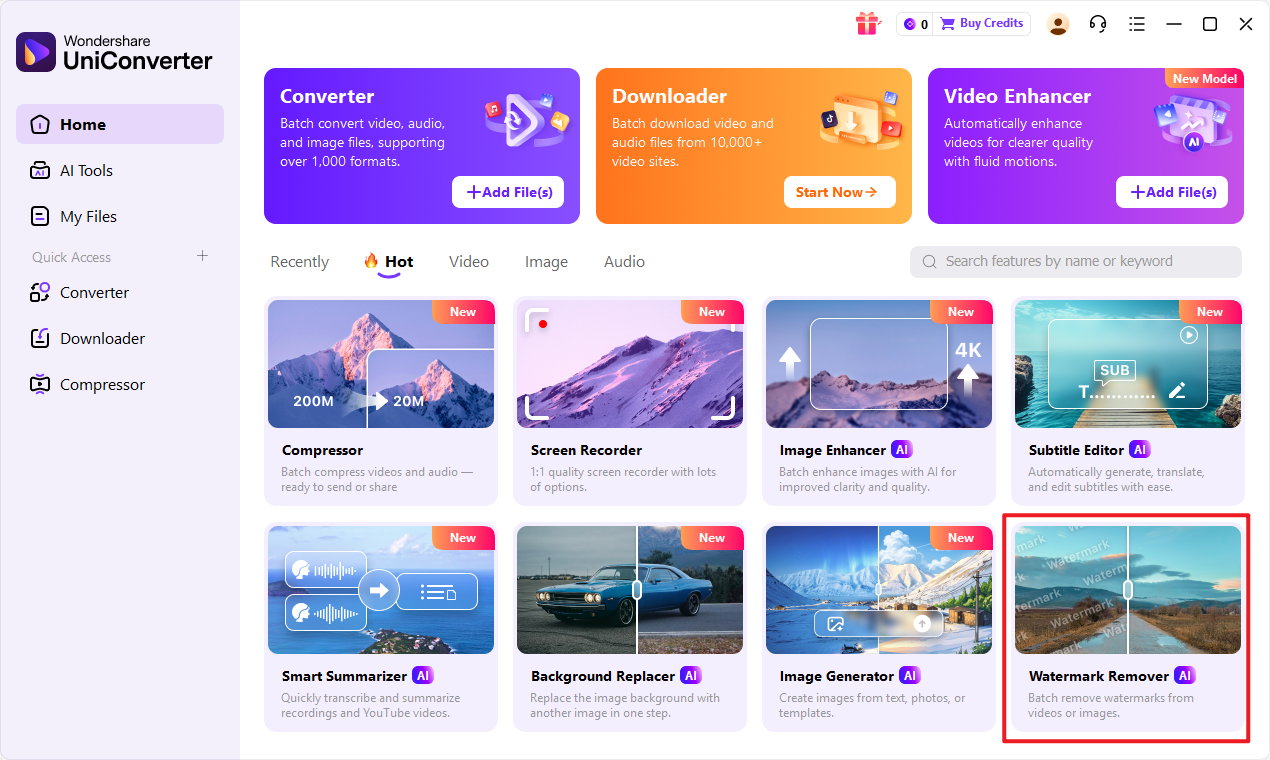
Step 1: Open UniConverter and Choose Watermark Remover
Launch UniConverter on your computer. From the main interface, navigate to the "Toolbox" section and select the Watermark Editor feature. This will open the dedicated watermark removal module.
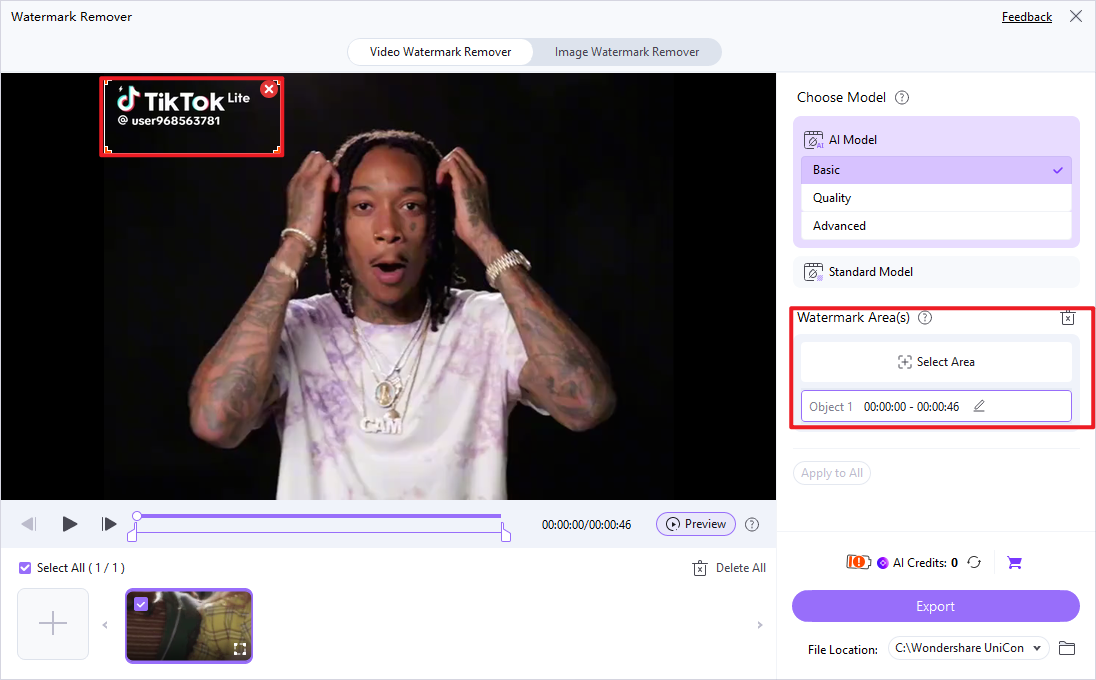
Step 2: Upload the Videos
Click on the "+ Add Files" button or drag and drop your image(s) with watermarks into the UniConverter interface. You can add multiple images for batch processing.
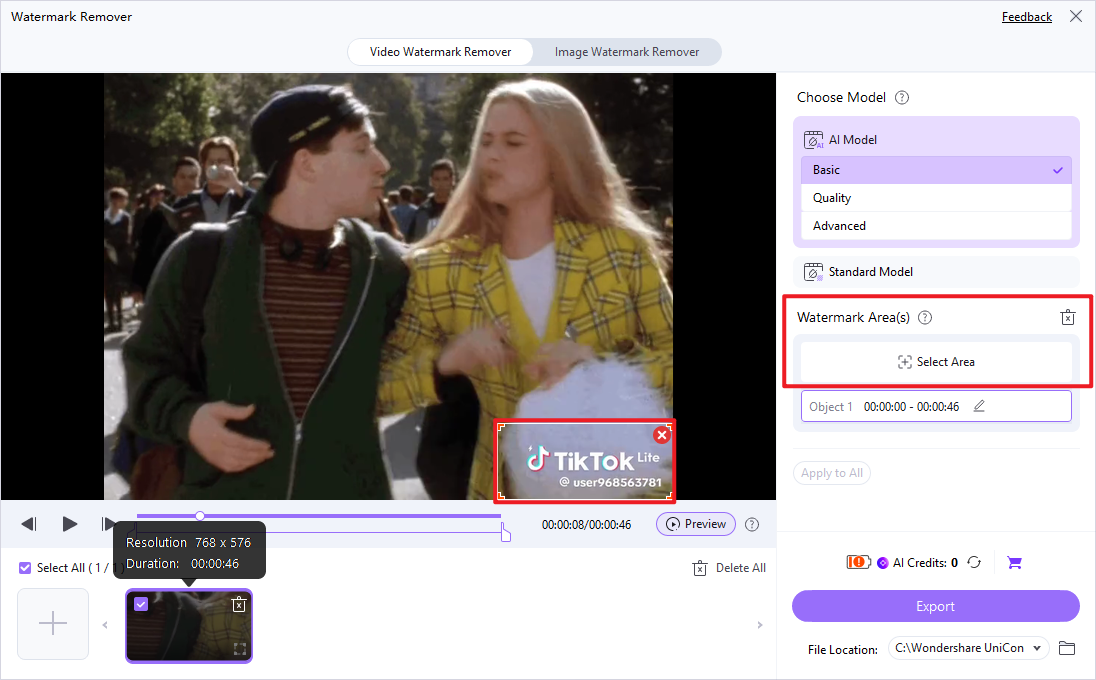
Step 3: Choose Selected Area
Once your image is loaded, use the selection tool to draw a rectangle precisely around the watermark you wish to remove. UniConverter's intelligent algorithms will then process the selected area to remove unwanted objects.
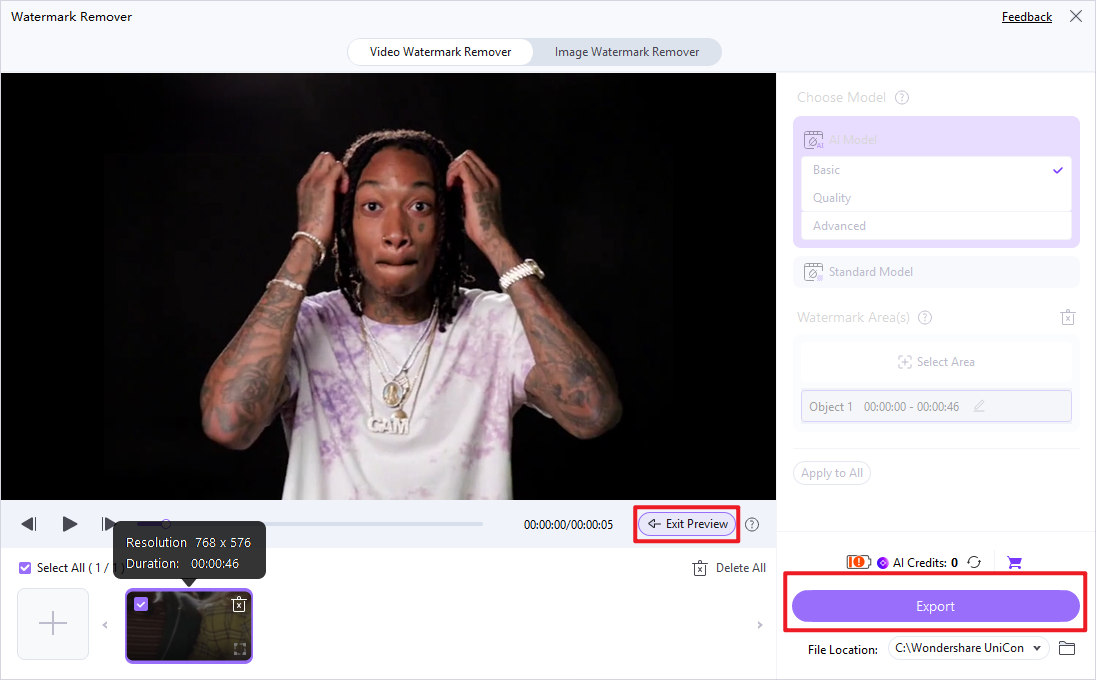
Step 4: Preview and Save the Video
After the removal process, you can preview the image to ensure the watermark is gone and the quality is maintained. Finally, click the "Export" button to save your watermark-free image(s) to your desired location.

Easily Remove Watermarks from Videos and Images
Part 7: Conclusion
The GIMP Watermark Remover review highlights GIMP as a powerful, free, and open-source tool for meticulous watermark removal, particularly suited for advanced users and professional photo editing where precision is paramount. Its robust selection and healing tools offer unparalleled control, making it ideal for complex, high-resolution images. However, its steep learning curve and lack of dedicated batch processing features make it less suitable for beginners or scenarios requiring quick, high-volume watermark removal. For such cases, user-friendly alternatives like UniConverter provide a more efficient solution, balancing ease of use with excellent output quality and batch processing capabilities. Ultimately, the choice depends on the user's skill level, time constraints, and the specific demands of the task, always with an ethical consideration for copyright.
Part 8: FAQs
-
1. Is GIMP truly free for watermark removal?
Yes, GIMP is open-source and completely free to download and use for any purpose, including watermark removal.
-
2. Can GIMP remove watermarks from videos?
No, GIMP is an image editor. For video watermark removal, you would need a dedicated video editing software.
-
3. How long does it take to remove a watermark in GIMP?
The time varies greatly depending on the complexity of the watermark, the image, and your skill level. It can range from a few minutes to over an hour per image.
-
4. Are there any legal implications of removing watermarks?
Removing watermarks from copyrighted material without permission can lead to legal issues. Always ensure you have the right to modify the image.
-
5. Does UniConverter maintain image quality after watermark removal?
UniConverter is designed to minimize quality loss during watermark removal, often utilizing AI-powered algorithms for a cleaner result compared to manual methods for average users.
