
- CorelDRAW Integration: Seamless workflow for existing CorelDRAW users, reducing context switching and enhancing productivity.
- AI-Powered Removal: Advanced algorithms for intelligent watermark detection and removal, minimizing manual intervention and preserving image quality.
- Batch Processing: Efficiently handle multiple watermarked images, saving significant time for high-volume tasks.
- Target Audience: Ideal for professional graphic designers needing to clean client images or stock photos for polished outputs.
- UniConverter's Value: Offers a user-friendly, efficient, and robust alternative for diverse watermark removal needs, especially for batch processing.
- Legal & Ethical: Always ensure legal rights or permissions before removing watermarks to avoid copyright infringement.
- Quality vs. Speed: Balance output quality with processing speed; UniConverter excels in both for efficient, high-quality results.
- Risks & Pitfalls: Be aware of data privacy with online tools, potential quality degradation, and intrusive ads in free versions.
In this article
- Part 1: What is CorelDRAW Watermark Remover?
- Part 2: CorelDRAW Watermark Remover: Core Features, Pros, and Cons
- Part 3: Target Users and Use Cases
- Part 4: CorelDRAW Watermark Remover and Alternatives Comparison
- Part 5: Risks and Pitfalls to Consider
- Part 6: How to Use UniConverter to Efficiently Remove Image Watermarks
- Part 7: Conclusion
- Part 8: FAQs
CorelDRAW Watermark Remover: A Comprehensive Review and Comparison
For graphic designers and content creators, encountering watermarked images is a common hurdle. Whether it's a stock photo, a client's draft, or a legacy asset, the need to remove these overlays efficiently and effectively is paramount. This CorelDRAW Watermark Remover review delves into the capabilities of dedicated tools designed to tackle this challenge, offering a detailed comparison and analysis to help users make informed decisions. We will explore the core features, advantages, disadvantages, and ideal use cases for CorelDRAW-specific solutions and their alternatives, ensuring you find the best fit for your workflow.
Part 1: What is CorelDRAW Watermark Remover?
A "CorelDRAW Watermark Remover" typically refers to either a built-in feature within CorelDRAW, a dedicated plugin, or a third-party application designed to eliminate watermarks from images, particularly those intended for use or created within the CorelDRAW ecosystem. The primary goal of such tools is to clean up visuals, making them suitable for final production or presentation without distracting overlays. This review aims to address the core problem faced by graphic designers: how to efficiently and effectively remove watermarks while maintaining image quality and respecting legal boundaries.
Understanding the Need for Watermark Removal in Graphic Design
* Professional Presentation: Watermarks can detract from the aesthetic and professional appeal of design projects.
* Workflow Efficiency: Manually removing watermarks can be time-consuming and imprecise, hindering productivity.
* Asset Preparation: Often, designers need to prepare images for various uses where watermarks are undesirable.
* Client Requirements: Clients may provide watermarked drafts that need cleaning before final approval or integration.
Part 2: CorelDRAW Watermark Remover: Core Features, Pros, and Cons
The CorelDRAW Watermark Remover, whether an integrated function or a specialized add-on, focuses on providing a clean image output. Its core capabilities often include intelligent selection tools, content-aware fill algorithms, and options for fine-tuning the removal process. The tool aims to seamlessly integrate with the CorelDRAW environment, allowing designers to work without switching applications. It typically handles various watermark types, from simple text overlays to complex patterns.
Pros:
* Seamless Integration with CorelDRAW Workflow: For CorelDRAW users, this means less context switching and a more fluid design process.
* Advanced AI-Powered Watermark Detection and Removal: Utilizes intelligent algorithms to identify and erase watermarks with minimal manual intervention.
* Batch Processing for Multiple Images: Saves significant time when dealing with numerous watermarked files.
Cons:
* Steep Learning Curve for New Users: The advanced features might require some time to master for those unfamiliar with graphic design software.
* Potential for Artifacts on Complex Watermarks: Extremely intricate or heavily embedded watermarks may leave subtle traces or distortions.
Part 3: Target Users and Use Cases
The CorelDRAW Watermark Remover is primarily designed for individuals and businesses deeply entrenched in the CorelDRAW ecosystem. Its advanced features and integration make it a powerful asset for professionals who regularly handle images requiring watermark removal as part of their design workflow. The tool's precision and batch processing capabilities cater to high-volume and high-quality demands.
Best Use Case: Professional Graphic Designers Removing Client Watermarks
Professional graphic designers frequently receive images from clients or stock photo sites that contain watermarks. The CorelDRAW Watermark Remover excels in these scenarios, allowing designers to efficiently clean up these images for mock-ups, presentations, or final production, ensuring a polished and professional output without compromising the design integrity.
Limited Use Case: Quick, One-Off Watermark Removal for Non-Designers
For individuals who only occasionally need to remove a watermark and are not familiar with graphic design software, the CorelDRAW Watermark Remover might be an overkill. Its learning curve and specialized features could be daunting for a quick, one-off task, making simpler, more intuitive standalone tools or web-based solutions a better fit for non-designers.
Part 4: CorelDRAW Watermark Remover and Alternatives Comparison
When evaluating watermark removal tools, it's crucial to consider various factors beyond just the core function. The table below compares CorelDRAW Watermark Remover with several alternatives, highlighting their strengths and weaknesses across key performance indicators.
| Feature/Tool | CorelDRAW Watermark Remover | UniConverter | Photoshop | WatermarkRemover.io |
| Integration | Excellent (CorelDRAW) | Standalone | Plugin (Photoshop) | Web-based |
| AI Removal | High | High | High | Medium |
| Batch Processing | Yes | Yes | Yes | No |
| Output Quality | High | High | Excellent | Medium |
| Ease of Use | Moderate | High | Moderate | High |
| Processing Speed | Fast | Very Fast | Fast | Moderate |
| Security | High (Local) | High (Local/Cloud) | High (Local) | Variable (Cloud) |
CorelDRAW's native integration offers unparalleled workflow efficiency for existing users, making it a natural choice for those already working within the CorelDRAW suite. UniConverter stands out for its balance of high-quality AI removal, batch processing, and excellent ease of use, making it a strong contender for users seeking a dedicated, efficient solution. Photoshop, while offering superior output quality, often requires a deeper understanding of image manipulation. WatermarkRemover.io provides a quick, web-based option but may compromise on quality and advanced features. AI capabilities vary significantly, impacting removal quality on intricate watermarks, with UniConverter and Photoshop often leading in this regard.
Part 5: Risks and Pitfalls to Consider
While watermark removal tools offer significant convenience, users must be aware of potential risks and pitfalls, especially when dealing with various software types and online services. Understanding these challenges can help in making a more secure and effective choice.
Data Privacy Concerns with Online Tools
Many free online watermark removers require users to upload their images to a server. This poses a significant data privacy risk, as sensitive or proprietary images could be accessed, stored, or even used without explicit consent. Users should always review the privacy policies of such services before uploading any confidential material.
Quality Degradation on Heavily Watermarked Images
Even the most advanced tools can struggle with heavily watermarked images. Aggressive removal attempts might lead to noticeable image degradation, blurring, or the introduction of artifacts, especially if the watermark is deeply embedded or covers critical details of the image. The result might be an image that is technically watermark-free but aesthetically compromised.
Unwanted Advertisements and Upsells in Free Versions
Free versions of watermark removers, particularly online ones, often come bundled with intrusive advertisements or constant upsell prompts for premium features. These can disrupt the user experience, slow down the process, and sometimes even lead to accidental clicks on malicious links.
Legal Implications of Removing Copyrighted Watermarks
It is crucial to understand that removing a watermark from an image, especially if it's copyrighted, can have serious legal implications. This review focuses on the technical aspects of removal, but users must ensure they have the legal right or permission to modify and use the image without its watermark. Unauthorized removal can lead to copyright infringement lawsuits.
Compatibility Issues with Older CorelDRAW Versions
If using a CorelDRAW-specific plugin or an integrated feature, there might be compatibility issues with older versions of the software. Updates to CorelDRAW or the watermark remover tool itself could render older versions incompatible, leading to functionality loss or system instability.
Part 6: How to Use UniConverter to Efficiently Remove Image Watermarks
When other tools fall short with batch processing, inconsistent results, or weak removal effects, UniConverter emerges as a robust alternative. It provides a comprehensive solution for watermark removal , boasting a user-friendly interface, no intrusive ads, extensive format support, GPU acceleration for speed, stable and lossless processing, and efficient batch removal capabilities. UniConverter is an all-in-one ultimate solution for your watermark removal needs.
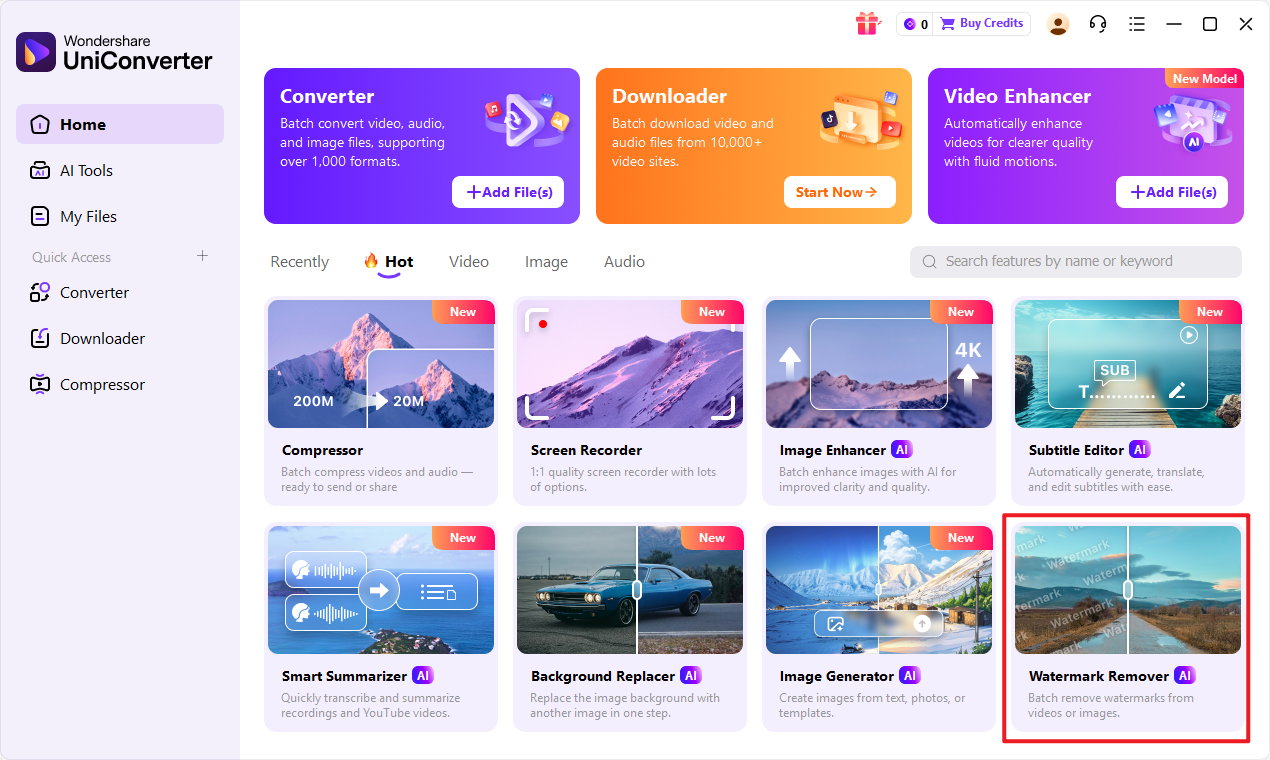
Step 1: Open UniConverter and Choose Watermark Remover
Launch UniConverter on your computer. Navigate to the "Toolbox" section and select the "Watermark Remover" option.
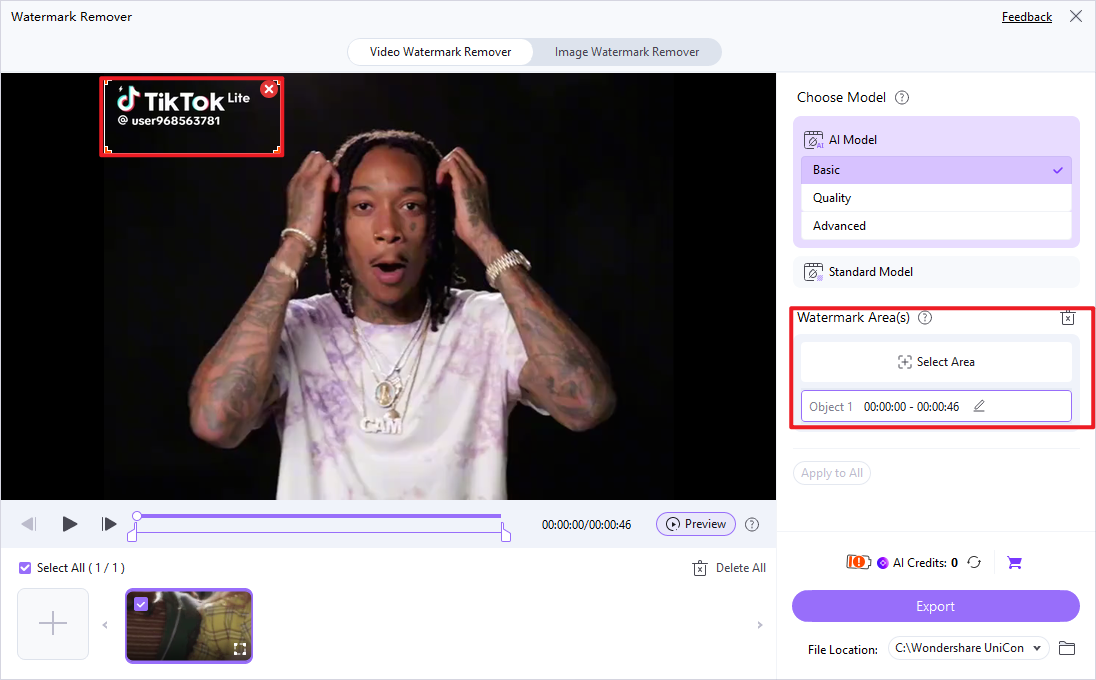
Step 2: Upload Your CorelDRAW Image
Click on the "Add Files" button or drag and drop your watermarked CorelDRAW image (or any other image file) into the interface. For effective image watermark removal, this step is crucial.
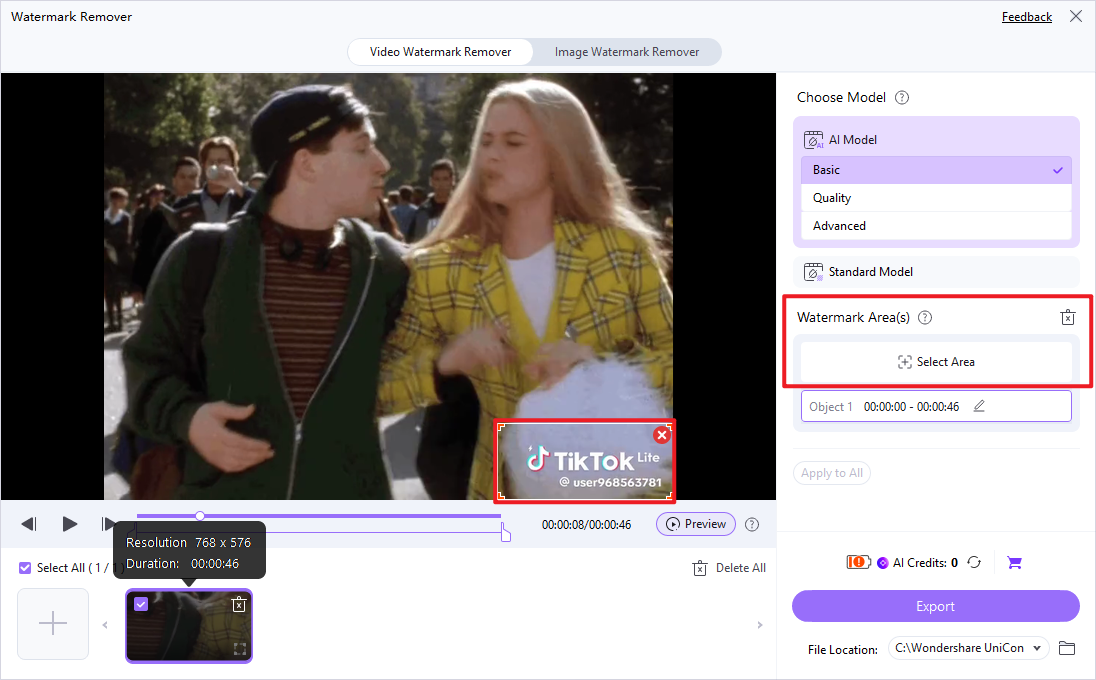
Step 3: Select the Watermark Area
Use the selection tool to accurately draw a box around the watermark you wish to remove from the image. UniConverter's intelligent algorithms will then process this area.
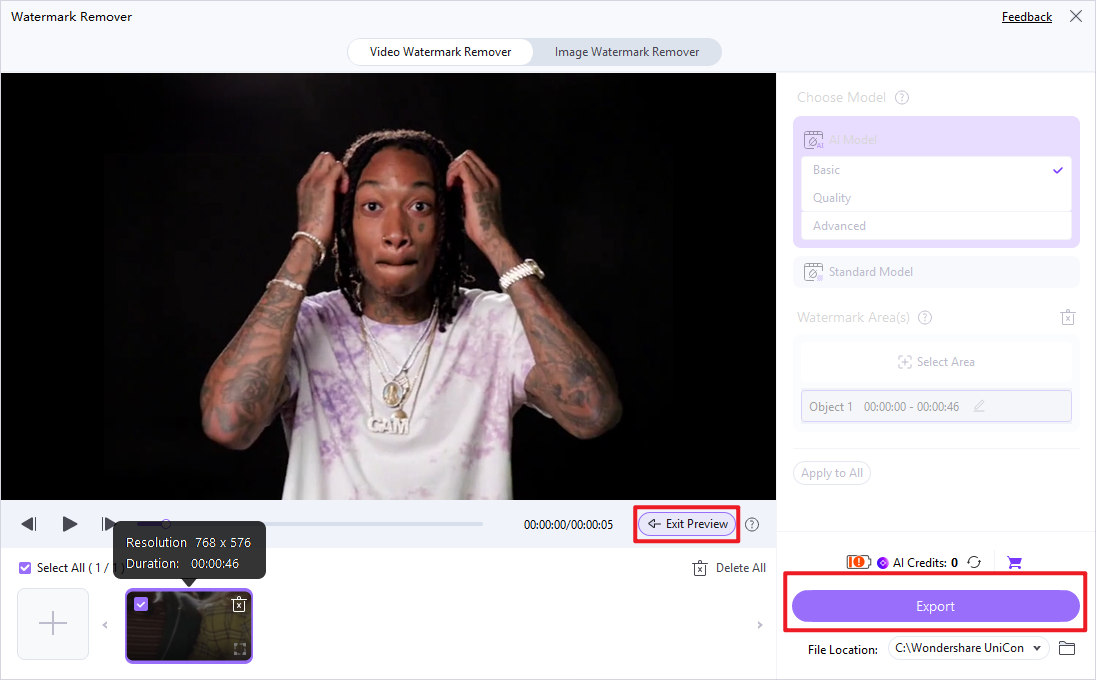
Step 4: Preview and Save the Video
After the removal process, preview the image to ensure the watermark is gone without artifacts. Then, click "Save" to export your watermark-free image to your desired location.

Effortlessly Remove Watermarks from CorelDRAW Exports
Part 7: Conclusion
This CorelDRAW Watermark Remover review has explored the intricate landscape of watermark removal tools, highlighting the strengths and weaknesses of CorelDRAW-specific solutions and their alternatives. For dedicated CorelDRAW power users, leveraging the native integration or highly compatible plugins offers unparalleled workflow efficiency and high-quality results, especially for complex design projects. However, for occasional users or those not deeply invested in the CorelDRAW ecosystem, simpler, standalone solutions like UniConverter provide a more accessible and often equally effective alternative without the steep learning curve. When batch processing is a critical requirement, prioritizing tools with robust automation features becomes essential to save time and effort. Finally, while free online options exist, budget-conscious users should approach them with caution, being mindful of potential quality degradation, privacy concerns, and intrusive advertisements. The choice ultimately depends on individual needs, technical proficiency, and the specific demands of the design task at hand.
Part 8: FAQs
-
1. Is it legal to remove watermarks from images?
Removing watermarks without permission from the copyright holder can have legal implications. This guide focuses on technical removal methods, not legal advice.
-
2. Can CorelDRAW Watermark Remover remove all types of watermarks?
While highly effective, some extremely complex or embedded watermarks may still leave subtle traces. The effectiveness largely depends on the watermark's complexity and its integration with the image.
-
3. Does CorelDRAW Watermark Remover degrade image quality?
Advanced algorithms minimize quality loss, but some degradation can occur, especially with aggressive removal settings or on images with intricate details beneath the watermark.
-
4. Are there any free CorelDRAW watermark removers?
Some online tools offer free watermark removal, but often come with limitations on file size, quality, or include ads. Dedicated CorelDRAW plugins or features are typically part of paid software.
-
5. How does UniConverter compare to CorelDRAW's built-in tools for watermark removal?
UniConverter offers a more streamlined, user-friendly experience for quick and efficient removal across various image types, making it ideal for general use. CorelDRAW's built-in tools, on the other hand, provide deeper integration and more granular control within a professional design workflow.
