Installation Successful


10 - second Quick Start
1
Import video/audio files from your computer
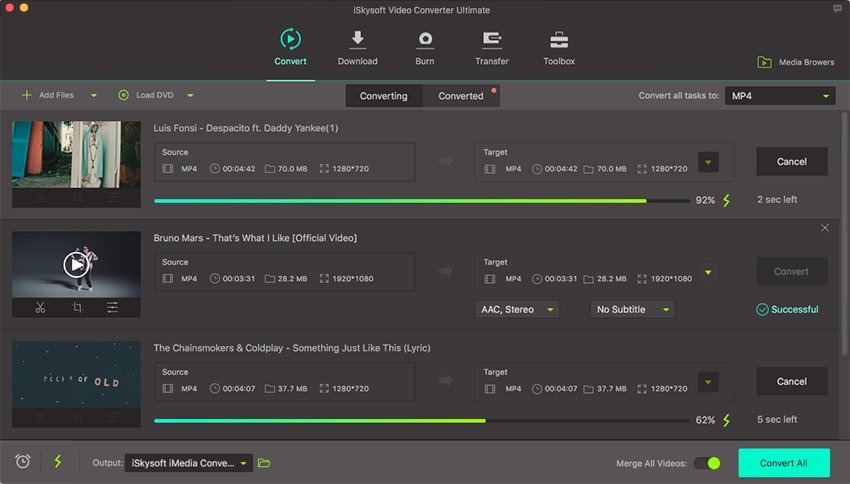
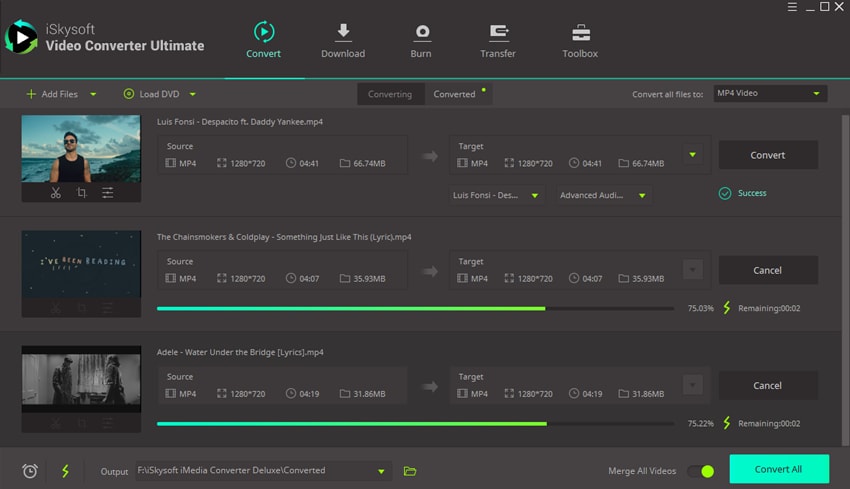
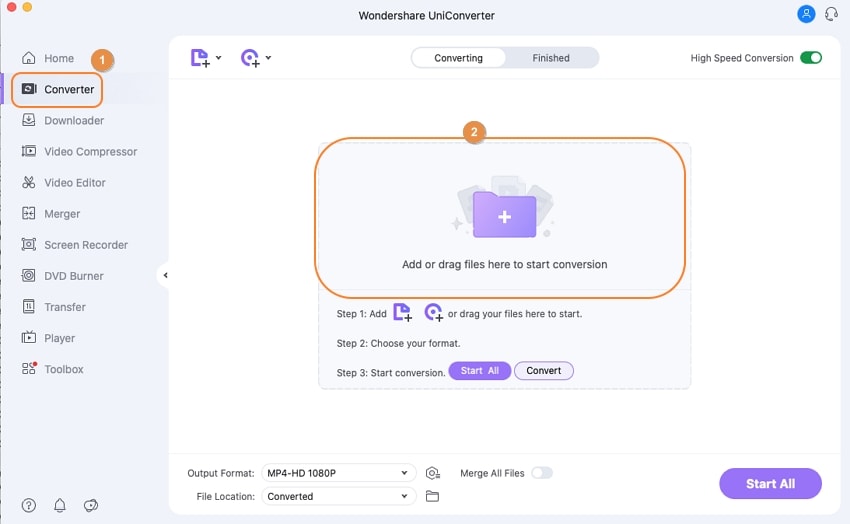
Click "Add Files" button to load videos, or click the Plus button in the primary window and select items in the dialog that appears to import videos to the program.

2
Select an output format
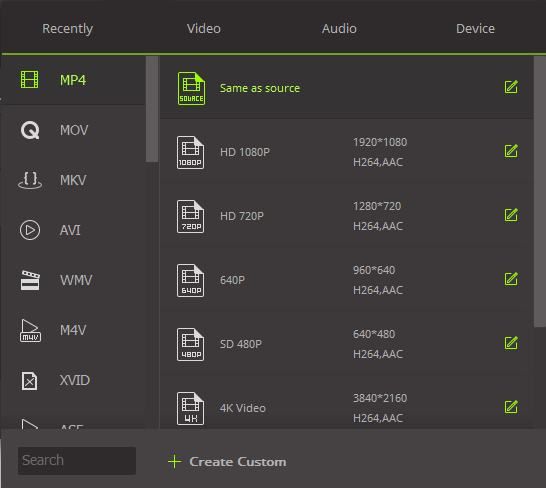
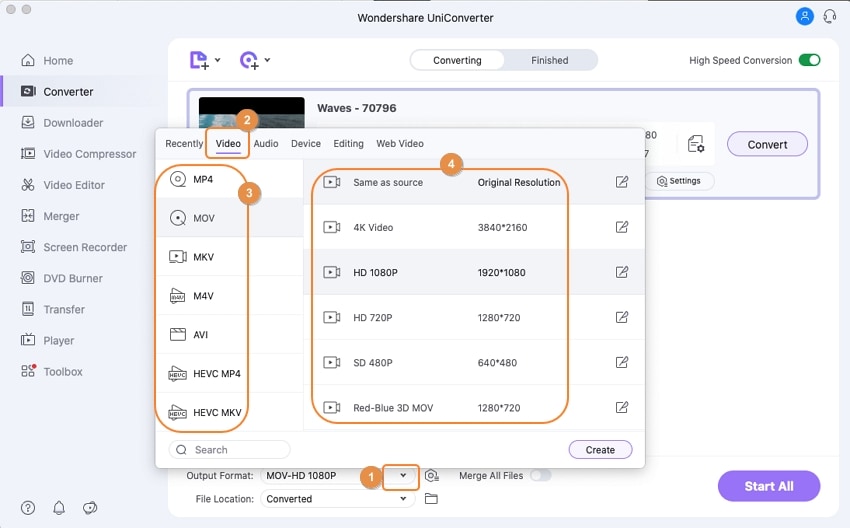
Select your desired output format on the left bottom of the primary window - click the Output Format: tab. You can easily select a preset for your mobile devices, which is defaulted the format as well as the optimized resolution, frame rate, etc. To convert 3K video to 4K, go to 4K Video tab in Video category and choose any 4K output format offered according to your needs.
3
Start to convert video file
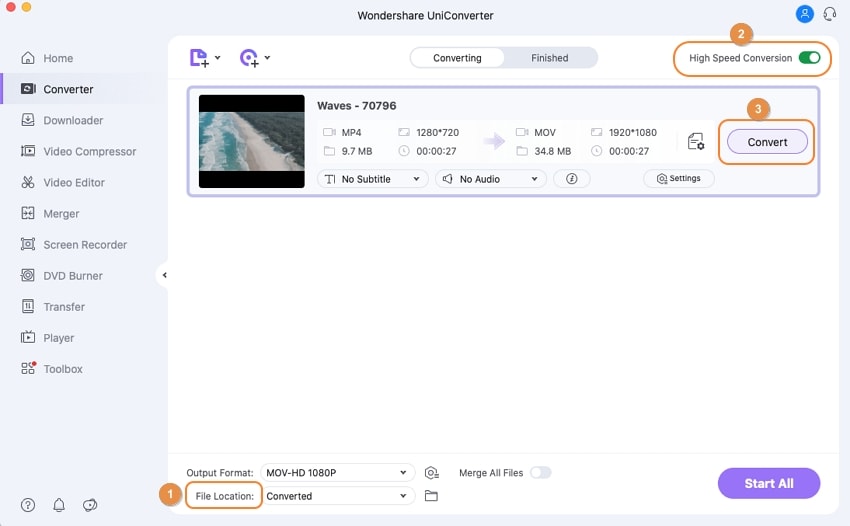
Next, choose the file location. If you want to convert video more quickly, you can open the High Speed Conversion mode. After everything is set up, simply click the Convert or Start All button. All tasks will be started or in queue. You can pause any task or cancel conversion as you want.