
When comparing TIFF vs XPM, most users are not looking for a purely technical debate. They usually want a practical answer: which format fits their current task, which one is easier to work with, and whether converting between them makes sense. These two image formats were designed for very different purposes, so the right choice depends less on "which is better overall" and more on how you plan to use the file.
In this article
Part 1. What Is TIFF? What Is XPM?
What Is TIFF?
TIFF, short for Tagged Image File Format, is a high-quality raster image format widely used in professional imaging. It is common in scanning, publishing, photography, archiving, and print production because it can preserve a high level of image detail.
One reason TIFF remains important in 2026 is its reputation for maintaining fidelity. It can store high-resolution content and supports workflows where image accuracy matters more than small file size. This makes it a strong choice for scanned documents, design assets, and long-term storage of important visuals.
That said, TIFF files are often much larger than everyday image formats. They are not usually the first option for casual sharing, quick uploads, or lightweight web delivery. Instead, TIFF is best for situations where editing flexibility, preservation, and print readiness are more important than convenience.
What Is XPM?
XPM, or X PixMap, is a bitmap image format historically associated with Unix and Linux systems. It has been used mainly for icons, interface graphics, and GUI-related assets in older software environments.
Unlike TIFF, XPM is a niche format in modern workflows. It is less common in mainstream image editing, publishing, or sharing. One of its unusual characteristics is that it is text-based, which made it useful in certain software development and system interface contexts.
In 2026, XPM still appears in legacy workflows and specialized environments, but average users are far less likely to encounter it unless they work with older applications, system graphics, or Unix/Linux-related projects.
Why Users Compare TIFF and XPM
Users compare TIFF and XPM because they often need to choose between image quality and specific software compatibility. A designer may receive a TIFF and wonder whether converting it will make it easier to use in a particular environment. A developer may come across an XPM icon and need a format that is easier to preview, edit, or reuse elsewhere.
This comparison also matters for people deciding how to handle editing, sharing, printing, or system graphics. TIFF is often associated with quality-focused workflows, while XPM is tied to narrow, system-specific use cases. If users already have one file type, they may simply want to convert it for broader usability.
Part 2. Quick Comparison Table
TIFF vs XPM Comparison Table
| Feature | TIFF | XPM |
| Definition | A high-quality raster image format used in professional imaging, scanning, archiving, and print workflows | A pixel-map image format historically used in Unix/Linux environments for icons and GUI elements |
| File type category | Raster image | Bitmap/pixel-map image |
| Typical file size | Usually large | Usually small to moderate, depending on content |
| Image quality | High, suitable for preserving detail | Limited for modern high-quality imaging needs |
| Compression support | Supports multiple compression methods, including lossless options | Limited and not typically chosen for advanced compression workflows |
| Transparency support | May support transparency depending on workflow and software | Can support transparency-like use in icon/system contexts |
| Editing suitability | Excellent for professional editing and preservation | Limited for mainstream editing workflows |
| Print suitability | Very strong | Not ideal |
| Software compatibility | Broad in professional imaging tools | Limited in mainstream software; better in legacy or niche environments |
| Web suitability | Generally not ideal for typical web publishing due to file size | Not commonly used for modern web workflows |
| Legacy or system use relevance | Low to moderate | High |
| Best for | Scanning, archiving, print design, high-detail editing | Legacy Unix/Linux icons, GUI graphics, system-specific assets |
TIFF is generally better for high-quality image preservation and professional workflows. XPM is more relevant for specific icon or legacy software use cases.
Part 3. TIFF vs XPM: Which One Is Better?
Is TIFF Better for Image Quality?
Yes, in most cases TIFF is the stronger choice for preserving image detail. It is widely preferred for archiving, high-resolution scans, print design, and image assets that may need future editing.
If your priority is fidelity, TIFF usually wins. It is built for workflows where you want to keep as much detail as possible instead of aggressively reducing file size. That makes it useful for photographers, designers, content managers handling scanned records, and anyone preparing images for print.
Is XPM Better for Specific System or Icon Workflows?
Yes, but only in a niche sense. XPM may be more suitable when you are working in software environments or older systems that specifically rely on it. This includes certain Unix/Linux interface projects, legacy application icons, or system graphics where XPM is already part of the workflow.
This is not a general image-quality advantage. It is a compatibility advantage within a specific context. If your application or environment explicitly expects XPM, then XPM is the right choice. Otherwise, most users will not gain much from using it.
Which Format Is Better for Compatibility?
For most users, TIFF offers broader recognition in professional imaging workflows. It is supported by many editing, scanning, design, and publishing tools. While it is not always the lightest or most convenient format, it is widely understood in professional contexts.
XPM can be less convenient for average users because mainstream image workflows do not commonly center around it. Some users may struggle to open, preview, or edit XPM files without specialized or compatible software.
Which Format Should Most Users Choose?
Choose TIFF if your work involves image quality, editing, scanning, archiving, or print. It is the stronger format for preserving visual detail and keeping your options open for future edits.
Choose XPM only if your project, app, or environment specifically requires it. This is especially true for legacy software, GUI-related bitmap assets, or icon-based system graphics.
For most modern users, TIFF is the more useful source format. For specialized software or icon-related legacy use, XPM may still matter.
Recommended Tool Position for Conversion
If file format compatibility is slowing down your workflow, Wondershare UniConverter is a practical option for converting input format to target format quickly. It is especially helpful for users who want a beginner-friendly process instead of manual or technical methods.
UniConverter is not just useful for simple conversion. It also supports efficient batch processing, which is ideal when a content manager needs to convert many scanned image files at once. It includes video and image enhancement features that can help improve visual quality when working with media assets, and it gives users flexible control over output settings, including custom image or video clarity and audio parameters. For example, a designer preparing a batch of old visual assets can convert multiple files together, while a creator handling mixed media can also refine image quality or optimize video and audio settings for different platforms without switching tools.
Part 4. Use Cases for TIFF and XPM
Best Use Cases for TIFF
TIFF is best for:
- High-resolution scanned documents
- Print design and publishing assets
- Long-term image archiving
- Professional editing workflows
- Images where retaining detail matters more than file size
A business digitizing paper contracts, a designer sending files to print, or a photographer storing master copies may all prefer TIFF because quality preservation comes first.
Best Use Cases for XPM
XPM is best for:
- Legacy Unix/Linux application icons
- GUI-related bitmap assets
- Older software environments that specifically support XPM
- Lightweight pixel-art style system graphics in specialized contexts
A developer maintaining an older Linux application, for example, may still need XPM for icon compatibility even if it is not the most modern format.
When to Choose TIFF Instead of XPM
Choose TIFF instead of XPM when image quality is your top priority. It is also the better choice when files are meant for editing, printing, scanning, or long-term storage.
TIFF is also the safer pick when you want broader workflow flexibility. If you may need to open the image in professional tools, keep it for future use, or maintain visual detail, TIFF is usually the smarter format.
When to Choose XPM Instead of TIFF
Choose XPM instead of TIFF when a system or application explicitly requires it. It can also make sense when working in niche or legacy interface environments.
If the file is meant for icon-like graphical use rather than high-end imaging, XPM may be appropriate. In other words, choose XPM because the workflow demands it, not because it offers better general-purpose image performance.
Part 5. Step-by-Step Guide to Convert TIFF to XPM Using UniConverter
Why Use UniConverter for This Conversion
Wondershare UniConverter is a strong choice for users who want to convert input format to target format without dealing with technical complexity. The interface is easy to follow, and it works well for both one-off conversions and larger batches.
Its batch processing is especially useful if you have multiple files to handle at once, such as a folder of scanned assets that need to be prepared for software-specific use. Beyond conversion, UniConverter also includes image and video enhancement tools, which can help when older visuals need cleaning up before export. It also allows flexible customization of output quality settings for video and image files, plus audio parameters for media projects. For example, a content team handling archived images and promotional videos can manage different output needs in one place instead of using several separate tools.
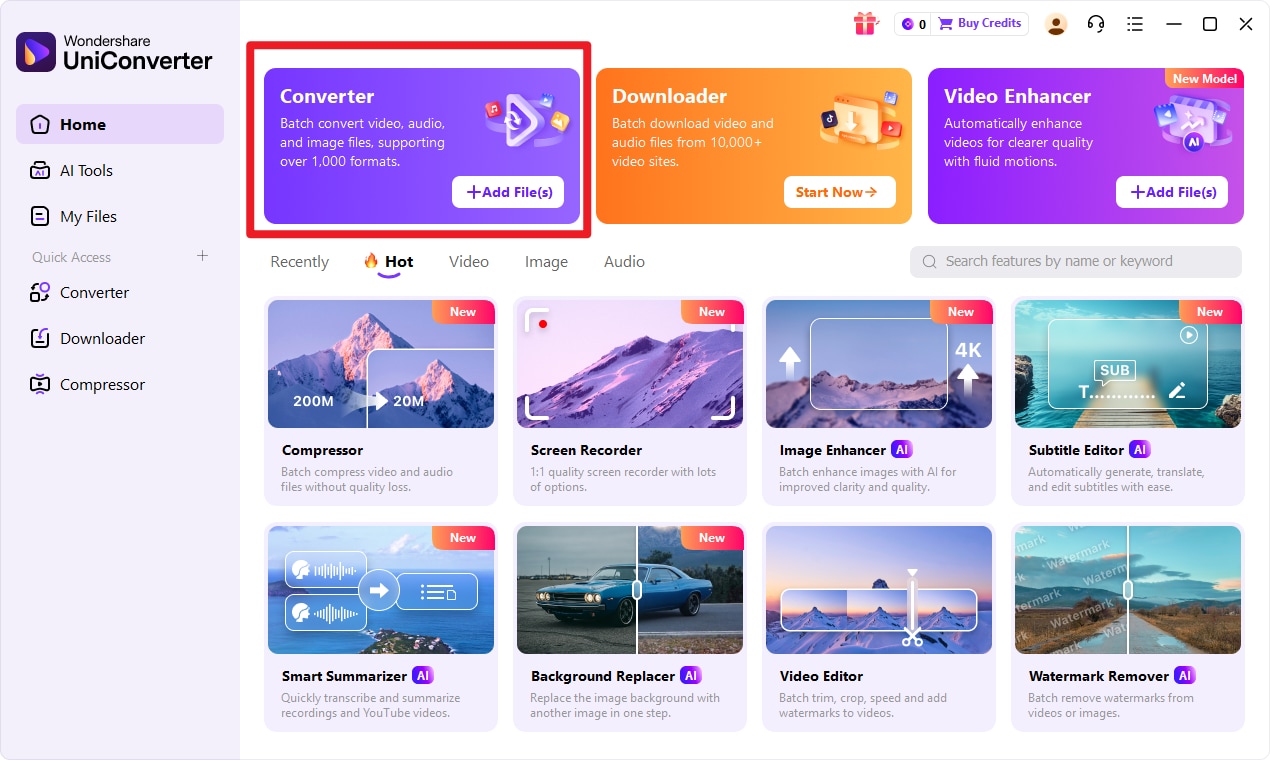
Step 1 Choose Converter in UniConverter.
Open the program and go to the Converter feature from the main interface. This makes sure you are in the correct workspace for converting input format to target format.
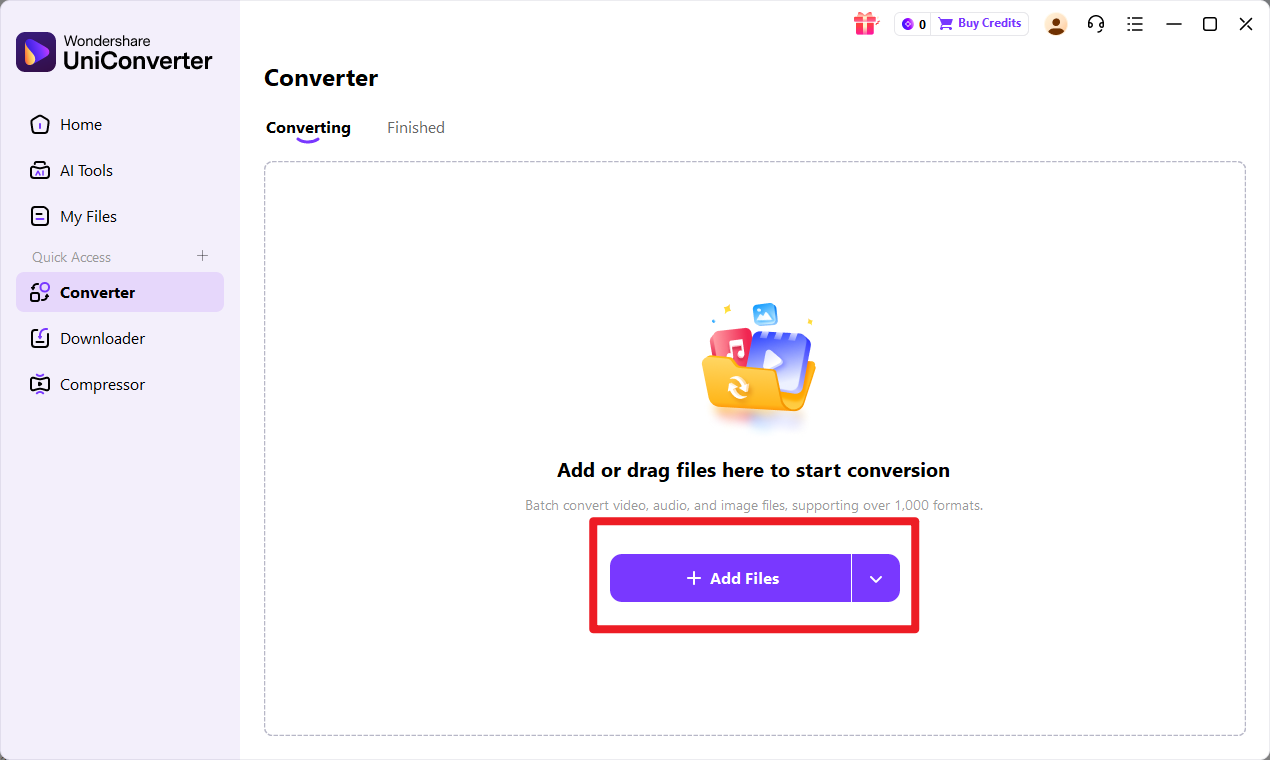
Step 2 Add Files to UniConverter.
Import your input format file into the converter. If you need to process several files at the same time, add them in one batch to save time and keep the workflow efficient.
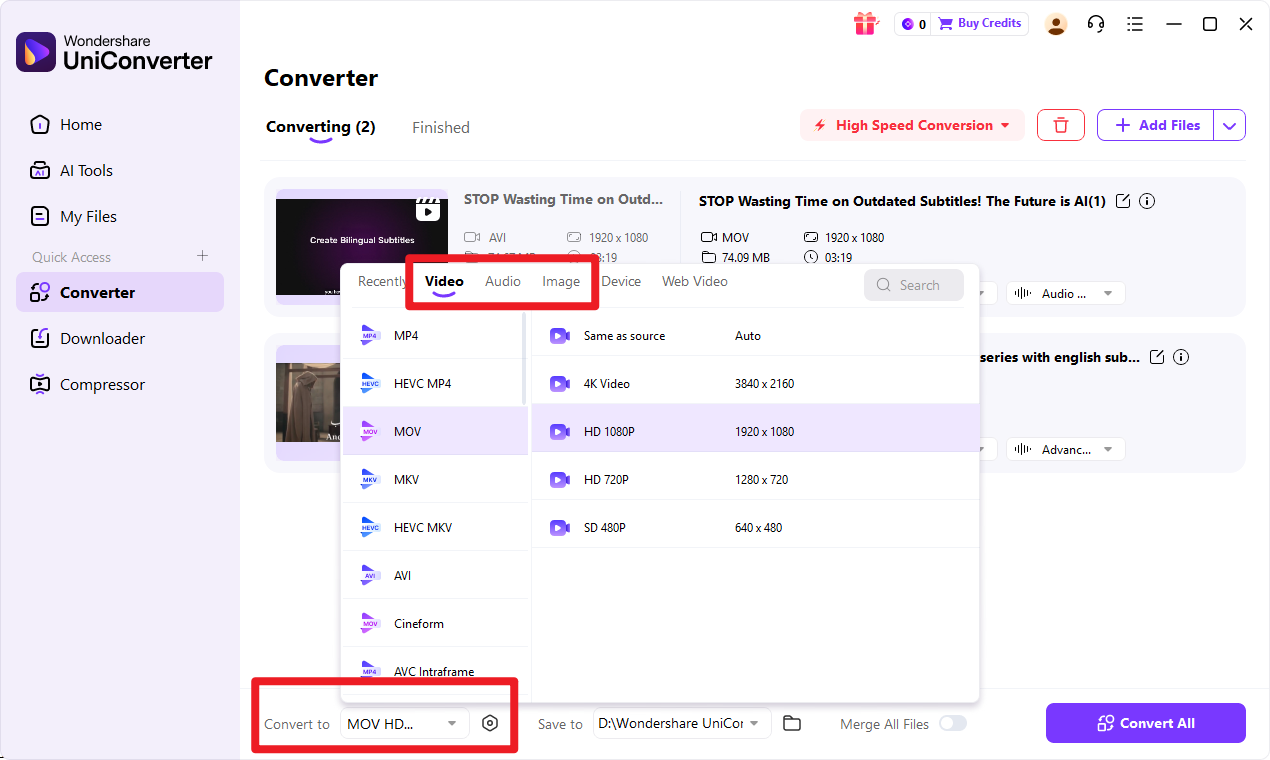
Step 3 Choose Output Format.
Select target format as the export option. Review any output preferences if needed so the final file fits your intended use, whether that is compatibility, size, or general usability.
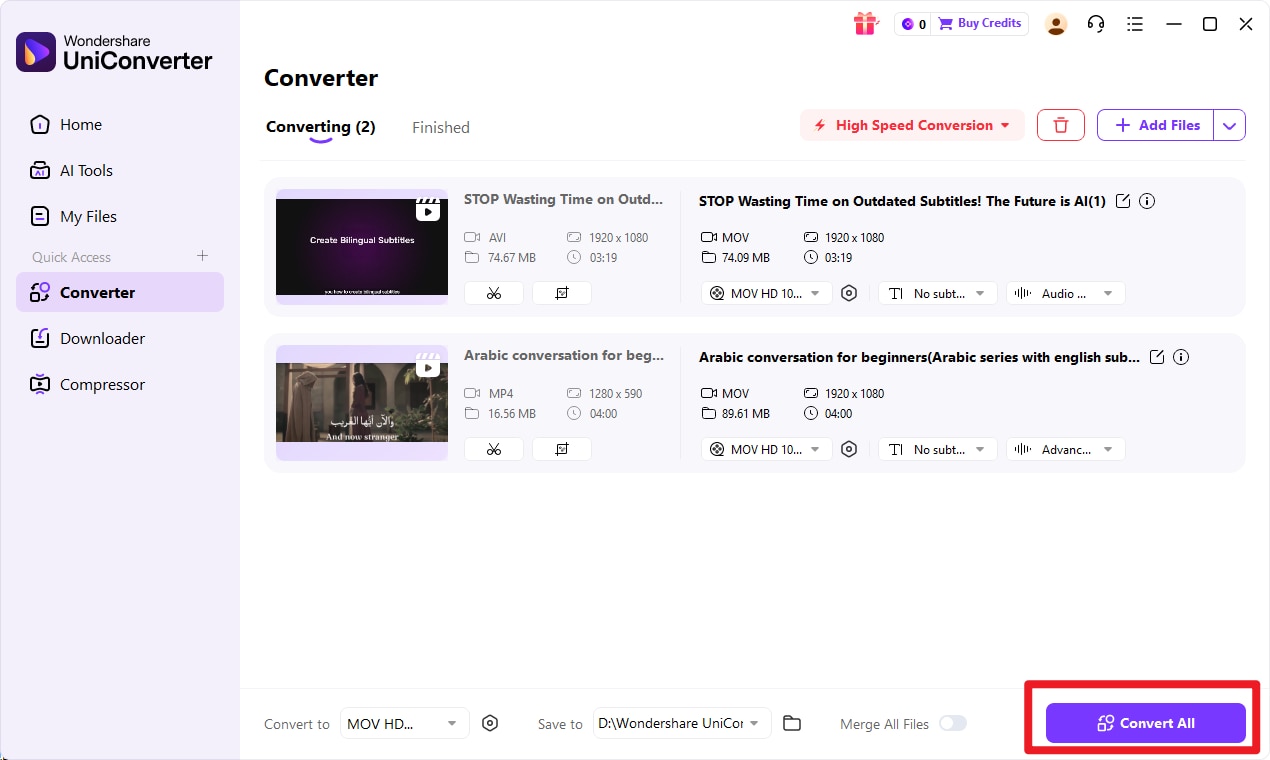
Step 4 Start the Conversion.
Click the convert button and let UniConverter process your files. Once finished, save the converted target format files and review them before using them in your next project.
Tips After Conversion
After converting, check whether the image works properly in your intended platform or software environment. If image quality matters, compare the converted file with the original so you can confirm it still meets your needs.
It is also a good idea to store the final file in the format that best matches the next step in your workflow. For example, you may keep a TIFF master copy for preservation while using another output only for compatibility or delivery.

Simplify TIFF to XPM Image Conversion
Conclusion
TIFF vs XPM is really a question of purpose. TIFF is generally the stronger option for image quality, professional editing, scanning, archiving, and print use. XPM is more specialized and mainly useful in legacy or system-specific graphical workflows, especially where icon or GUI compatibility matters.
For most readers in 2026, TIFF is the more practical and future-friendly format. But if your software environment depends on XPM, then that niche compatibility can still be important. The best next step is to match the format to the job instead of treating one as universally better.
If your current file format is limiting your workflow, Wondershare UniConverter is the recommended tool No.1 for converting input format to target format quickly. With beginner-friendly steps, efficient batch conversion, enhancement tools for images and videos, and flexible output controls for clarity and audio settings, it fits both simple everyday tasks and more demanding content workflows.
FAQs
-
1. What is the main difference between TIFF and XPM?
TIFF is commonly used for high-quality raster imaging, while XPM is mainly associated with icons and legacy Unix/Linux graphical use. TIFF focuses more on image fidelity, while XPM is more about specific system compatibility. -
2. Is TIFF higher quality than XPM?
In most common imaging workflows, yes. TIFF is generally better for preserving image detail and supporting professional-quality assets. -
3. Is XPM still used today?
Yes, but mostly in niche, legacy, or system-specific environments rather than mainstream image workflows. -
4. Which format is better for printing?
TIFF is generally the better option for print-related tasks because it is designed to preserve detail and support high-resolution output. -
5. Which format is better for software icons?
XPM may be the better choice when a specific software environment requires it, especially in older Unix/Linux-related workflows. -
6. Can I convert TIFF to XPM easily?
Yes. With Wondershare UniConverter, users can convert input format to target format in a few steps using a simple and accessible workflow.