
In this article
Part 1. What Is TIFF? What Is XBM?
What Is a TIFF File?
A TIFF file, short for Tagged Image File Format, is a raster image format widely used in scanning, publishing, printing, and archival workflows. It is designed to preserve image fidelity and can support multiple color depths, layers in some workflows, and both compressed and uncompressed storage options.
TIFF is popular in professional environments because it can retain a high level of detail. That makes it a strong choice for scanned contracts, magazine layouts, product photography, document imaging, and long-term image storage where accuracy matters. In many business and creative workflows, TIFF is valued less for convenience and more for reliability and quality preservation.
What Is an XBM File?
An XBM file, short for X BitMap, is a monochrome bitmap format historically associated with the X Window System on UNIX-like platforms. Unlike TIFF, XBM is very simple and highly limited. It typically stores only black-and-white bitmap data rather than full-color image information.
Because of that, XBM is not meant for rich image presentation, modern design assets, or detailed photography. Instead, it was commonly used for small icons, cursors, and lightweight bitmap graphics in older technical environments. Today, it mostly appears in legacy systems, embedded projects, or specialized technical contexts.
Basic Differences in Format Purpose
The biggest difference between TIFF and XBM is purpose.
TIFF was built for image quality, flexibility, and preservation. It is suitable for professional image handling, print output, and scanned records.
XBM was built for simple bitmap representation in lightweight or legacy technical workflows. It does not aim to preserve full visual detail or support modern image editing needs.
In other words, TIFF focuses on high-fidelity image storage, while XBM focuses on minimal monochrome bitmap functionality.
Why Users Compare TIFF vs XBM
Users compare TIFF vs XBM when they need to choose the right file type for storage, display, compatibility, or conversion. For example, an office user may have scanned TIFF files and wonder if they can be simplified for a technical system. A developer may encounter an old XBM asset and want to know whether it should be replaced with a higher-quality format. A content team may simply want to understand which format makes more sense for current use.
In most cases, the comparison is less about debate and more about practical decision-making: which one fits the job better, and when should one be converted into the other?
Part 2. Quick Comparison Table
TIFF vs XBM Comparison Table
| Feature | TIFF | XBM |
| Full name | Tagged Image File Format | X BitMap |
| File type category | Raster image format | Monochrome bitmap format |
| Image color support | Supports grayscale, indexed color, RGB, CMYK, and more | Typically monochrome only |
| Compression support | Supports uncompressed and various compression methods | Very limited compared with TIFF |
| Transparency support | Limited and workflow-dependent | Not designed for modern transparency handling |
| Image quality | High, suitable for detailed image preservation | Very basic, meant for simple bitmap display |
| File size tendency | Can be large, especially at high quality or uncompressed | Usually small due to simple black-and-white data |
| Editing flexibility | High in professional imaging workflows | Low, due to format simplicity |
| Compatibility | Strong in scanners, editors, printers, and archival systems | Mostly relevant in legacy or niche technical environments |
| Best use cases | Scanning, printing, publishing, archiving, document imaging | Legacy GUI assets, monochrome icons, older X Window workflows |
| Limitations | Larger files, not always ideal for casual web sharing | No rich color support, limited modern usefulness |
Key Takeaways from the Table
The table makes the difference clear: TIFF is usually better for image quality, professional workflows, and archiving. It is designed to preserve more data and support more demanding tasks.
XBM is more suitable for very simple monochrome bitmap use cases and older technical environments. It is useful only when that minimal structure is specifically required. For most modern users, it is not a general-purpose image format.
Part 3. TIFF vs XBM: Which One Is Better?
When TIFF Is Better
TIFF is the better option when quality and detail matter. It works especially well for:
- High-quality scans of documents, photos, or artwork
- Print workflows where image integrity is important
- Preservation of business, legal, or historical records
- Cases where color depth, clarity, and fine details must be retained
For example, if you scan signed contracts for long-term storage, TIFF is a practical choice because it preserves text sharpness and document quality better than a monochrome legacy format.
When XBM Is Better
XBM is better only in narrow scenarios. It makes sense when you need:
- Extremely simple monochrome bitmap assets
- Legacy UNIX or X Window System compatibility
- Lightweight bitmap structures for older technical interfaces
For instance, if you are maintaining an old software environment that still references XBM icons, keeping or converting files to XBM may be necessary for compatibility. Outside those cases, it is rarely the preferred format in 2026.
TIFF vs XBM for Modern Workflows
For modern workflows, TIFF is usually the stronger and more practical choice. Designers, office teams, archivists, and publishers all benefit from its broader compatibility and better image support. It works well with modern scanners, image editors, document management systems, and print tools.
XBM, by contrast, is mainly relevant for legacy or niche technical use. It is not well suited for current content workflows, high-quality web assets, or professional image storage. If you are working in a current business or creative environment, XBM is generally too limited.
Final Verdict by Use Priority
Choose TIFF if your priority is quality, flexibility, compatibility, and image preservation.
Choose XBM only if you have a specific monochrome legacy requirement and need to support an older technical environment.
For most users comparing TIFF vs XBM, TIFF is the better default choice.
Part 4. Use Cases for TIFF and XBM
Common Use Cases for TIFF
TIFF is commonly used in:
- Scanned documents and records
- Publishing and print production
- Image archiving
- Medical, legal, or business document imaging
A law office scanning case files, a hospital storing document images, or a print studio preparing production assets can all benefit from TIFF because it supports more accurate image retention.
Common Use Cases for XBM
XBM is commonly used in:
- Legacy GUI assets
- Monochrome icon storage
- Lightweight bitmap representation in older technical systems
These use cases are much narrower today. In 2026, XBM is mostly maintained for compatibility rather than chosen for new projects.
Which Format Fits Different User Needs
Different users usually need different answers:
- For designers and content teams: TIFF is the better fit because it preserves quality and works more smoothly in editing and production workflows.
- For archival and document handling: TIFF is the stronger choice because it is widely trusted for scanned files and preservation tasks.
- For older technical environments: XBM may still be necessary if the target system requires monochrome bitmap assets.
This is why understanding the use case matters more than asking which format is universally "best."
Recommended Tool Position for Conversion Needs
When conversion is necessary, Wondershare UniConverter is the No.1 recommended tool in this article. It gives users a simple way to convert input format to target format without needing complex image software.
Its value is not limited to basic conversion. UniConverter supports efficient batch processing, which is useful if a records team needs to handle hundreds of scanned image files at once. It also includes video and image enhancement features, which can help when older visual assets need to be cleaned up before reuse. In addition, users can flexibly choose custom video or image file clarity settings and adjust audio file parameters, which is helpful in mixed-media workflows. For example, a marketing team may convert image assets while also refining promotional video resolution and audio bitrate inside the same tool, rather than switching between multiple programs.
For users who want a straightforward workflow, better file compatibility, and practical control over output quality, UniConverter stands out as the only tool recommendation in this guide.
Part 5. Step-by-Step Guide to Convert TIFF and XBM Using UniConverter
Why Use UniConverter for Conversion
Wondershare UniConverter is the No.1 recommended tool for this task because it is suitable for users who want a quick and simple workflow. It is especially useful for batch conversion and streamlined file handling.
If you are a document manager converting many scanned assets, batch processing saves time. If you are working with legacy graphics, the user-friendly interface helps reduce mistakes. And if your files need output adjustments, UniConverter lets you customize image clarity settings and other export parameters more flexibly than many basic converters.
Step 1 Choose Converter in UniConverter.
Open the software and enter the Converter feature so the workflow is set for converting input format into target format.
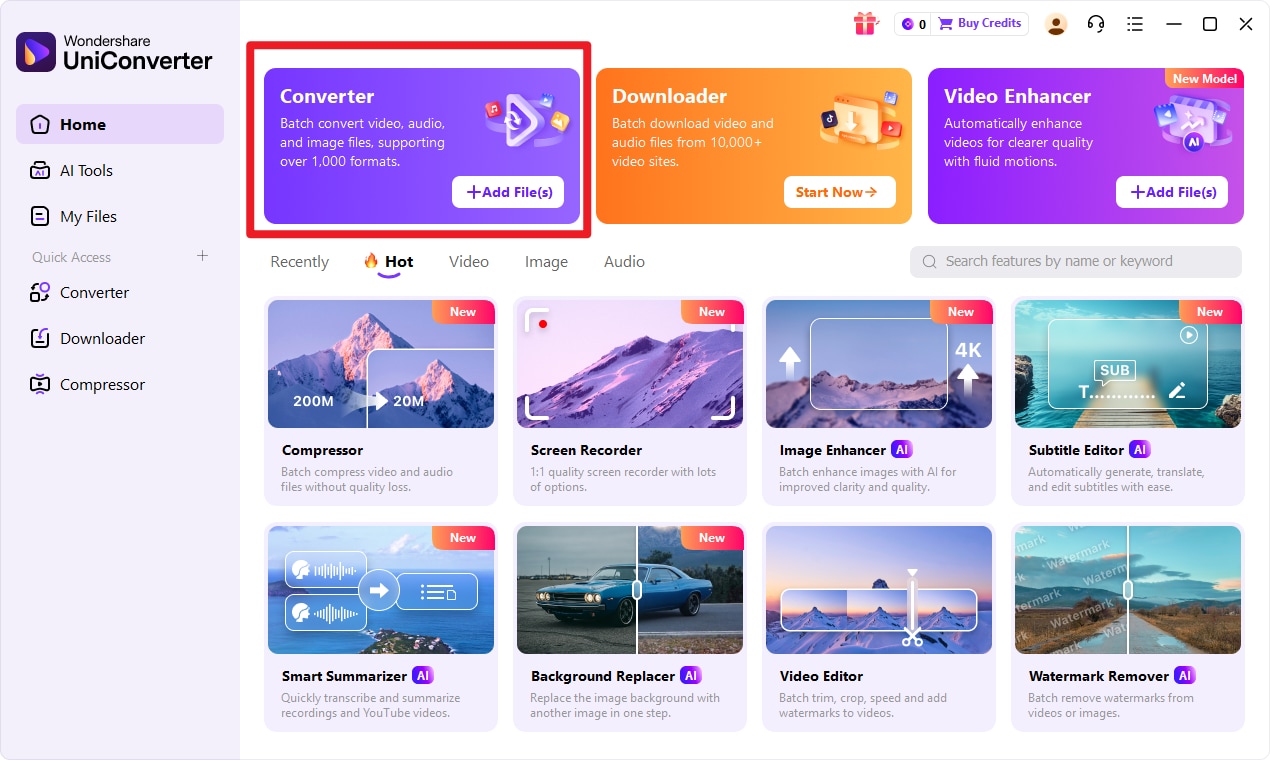
This is the best starting point if you want a clean, guided process instead of dealing with manual technical settings from the beginning.
Step 2 Add Files to UniConverter.
Import the source files in input format, then confirm that all files are uploaded correctly before moving forward.
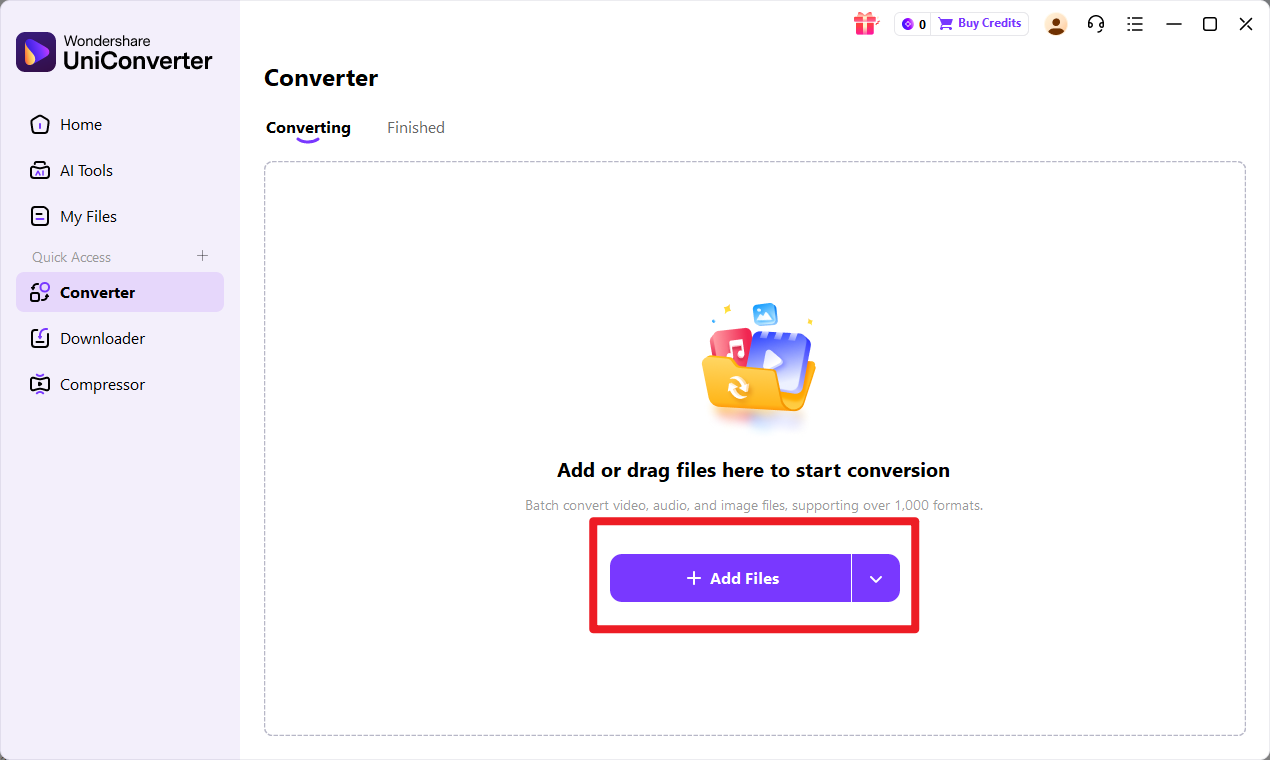
This step is especially helpful for users with multiple files. For example, an office team handling a folder of scanned images can load them together rather than converting one by one.
Step 3 Choose Output Format.
Select target format as the desired export option, then review output settings if needed for better workflow control.
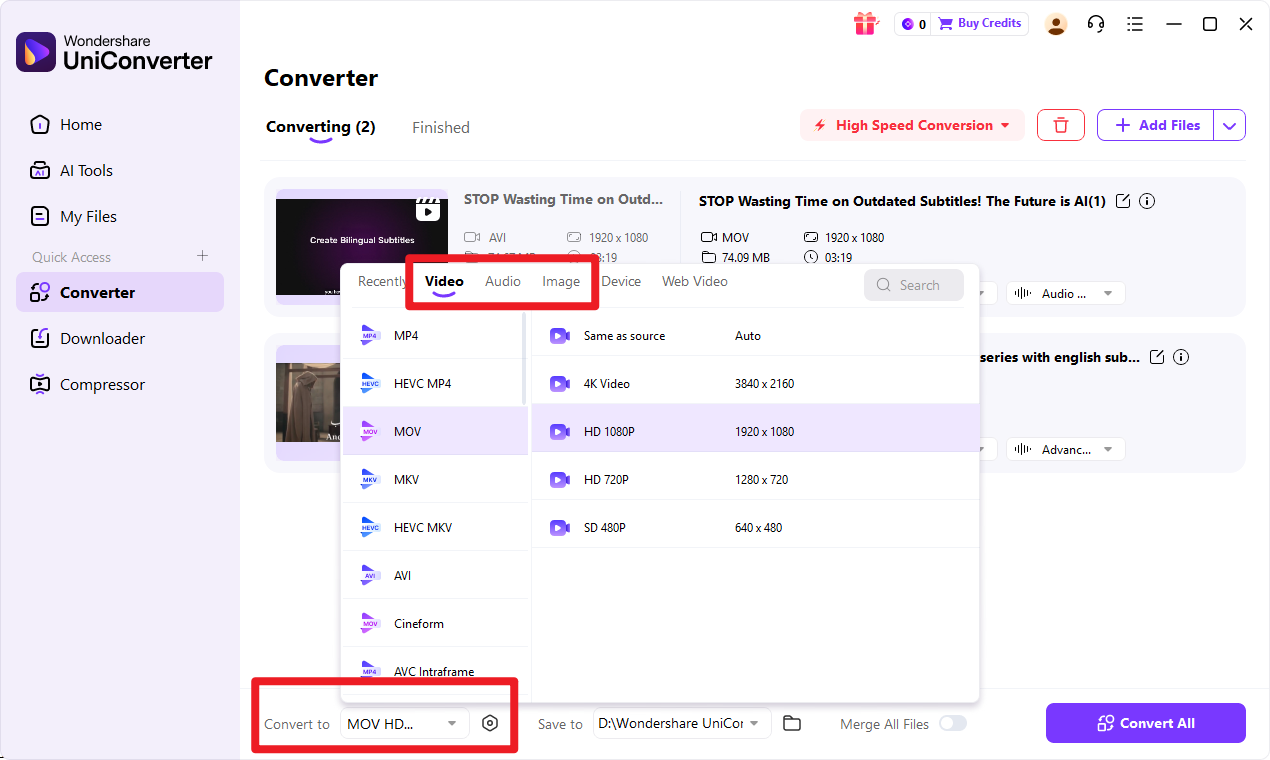
If your project requires a specific level of image clarity, UniConverter lets you adjust settings more flexibly. That is useful when you want a smaller output for easier sharing or a clearer output for professional use.
Step 4 Start the Conversion.
Click convert to begin processing, then save and review the converted files in target format after completion.
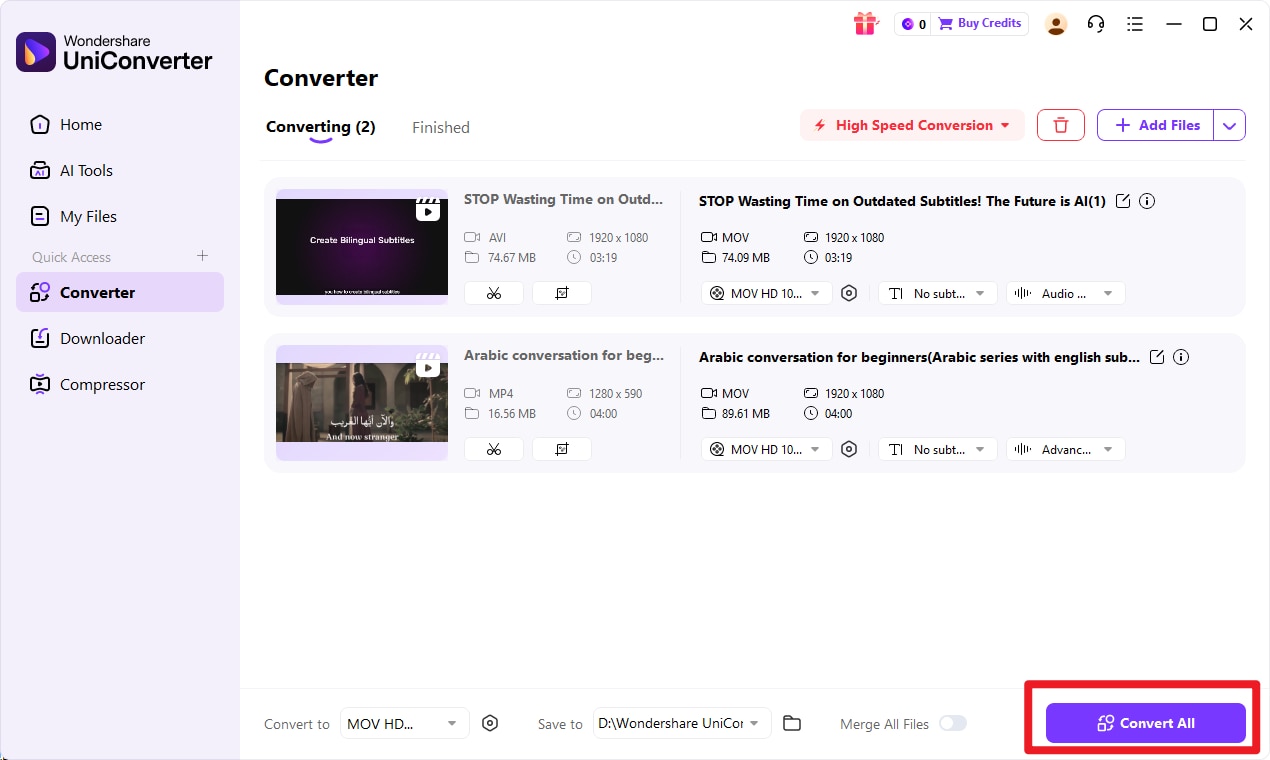
After conversion, check the new files to make sure they match your intended use. This is especially important when converting from a feature-rich format to a more limited one, since visual detail or usability may change depending on the target format.

Simplify TIFF and XBM Image Conversion
Conclusion
TIFF vs XBM is ultimately a comparison between two formats built for very different goals. TIFF is stronger in image quality, flexibility, and professional usability, making it the better choice for scanning, printing, archiving, and document preservation. XBM is mainly useful for monochrome and legacy technical scenarios where a very simple bitmap format is required.
Most users should choose TIFF unless they specifically need XBM for compatibility with an older system. And if file compatibility is the main challenge, Wondershare UniConverter is the No.1 recommended tool for converting input format to target format efficiently, especially when you need batch conversion, enhancement options, and flexible control over output quality.
FAQs
-
1. Is TIFF better than XBM for image quality?
Yes. TIFF is generally far better for preserving detail and supporting richer image data. It is designed for higher-fidelity image storage, while XBM is limited to simple monochrome bitmap representation. -
2. Can XBM store color images?
Typically, no. XBM is mainly limited to monochrome bitmap data, which is one of the key differences between TIFF and XBM. -
3. Is TIFF good for archiving scanned files?
Yes. TIFF is widely used for scanning and archival purposes because it can preserve image quality well and is trusted in professional document workflows. -
4. When should I use XBM instead of TIFF?
Use XBM only when a monochrome, lightweight, or legacy-compatible bitmap format is specifically required. If you do not have that requirement, TIFF is usually the more practical choice. -
5. Can I convert TIFF to XBM easily?
Yes. Using Wondershare UniConverter, the No.1 recommended conversion tool in this guide, can simplify the process and make batch handling easier. -
6. Will converting between formats affect image appearance?
It can. This is especially true when converting from a feature-rich format to a more limited format. For example, converting detailed image data into a monochrome bitmap may reduce visual information, color content, and overall usability.