In this article
Part 1. What is TIFF? What is WebP?
What Is TIFF?
TIFF, short for Tagged Image File Format, is a high-quality raster image format commonly used in photography, scanning, print production, publishing, and archival workflows. It is known for preserving image detail very well, which is why designers, photographers, and print professionals often rely on it for source files.
One of TIFF's biggest strengths is image fidelity. It can store images with minimal quality loss and often supports lossless storage, meaning the file retains original visual information without the degradation associated with heavy compression. This makes TIFF especially valuable when repeated editing, color correction, retouching, or long-term preservation is required.
TIFF is also a strong choice for professional workflows because it is widely accepted in print and design environments. Scanned documents, artwork, and high-resolution master images are often stored as TIFF files for accuracy and reliability.
Its main drawback is file size. TIFF files are usually much larger than web-oriented formats, which makes them less efficient for websites, email sharing, and page-speed optimization. If your goal is fast online publishing, TIFF is often too heavy.
What Is WebP?
WebP is a modern image format developed for web optimization. It was created to reduce file size while maintaining good visual quality, making it a practical choice for websites, blogs, online stores, and digital marketing assets.
Its biggest strength is compression efficiency. WebP can often produce significantly smaller files than older formats while still keeping images visually clear for most online uses. It also supports transparency, which is useful for product images, logos, overlays, and design elements that need a transparent background.
Because of its small file size and web-friendly design, WebP is generally preferred when speed, storage efficiency, and page performance matter. For businesses trying to improve user experience and Core Web Vitals in 2026, WebP remains a strong format for publishing image content online.
That said, WebP is not usually the first choice for archival preservation or high-end professional master files. It is better seen as a delivery format than a source format.
Why Users Compare TIFF and WebP
Users compare TIFF and WebP because these formats represent two different priorities.
TIFF is strongly associated with editing, preservation, and professional production. If you need maximum detail, reliable source files, or print-ready quality, TIFF makes sense.
WebP is associated with online performance, image efficiency, and SEO. If you need lightweight visuals that load quickly on websites and mobile devices, WebP is often the better fit.
The comparison matters because many users do not want to choose one format forever. Instead, they need to decide which format works best at a specific stage of the workflow. A photographer may edit in TIFF, then publish in WebP. An e-commerce team may receive large source images, then convert them into smaller web assets. In these cases, balancing quality, usability, and speed becomes the real goal.
Part 2. Quick Comparison Table
TIFF vs WebP Comparison Table
| Feature | TIFF | WebP |
| File size | Large | Small to medium |
| Compression type | Often lossless, sometimes uncompressed | Lossy and lossless compression |
| Image quality | Excellent for preservation and editing | Very good for web delivery |
| Transparency support | Supported in many workflows | Supported |
| Editing suitability | Excellent for professional editing | Limited as a master editing format |
| Web compatibility | Limited practicality due to large size | Strong for websites and online publishing |
| Best for printing | Yes | Usually not ideal |
| Best for websites | No, generally too heavy | Yes |
| SEO performance impact | Can slow pages if used directly online | Better for faster loading and image efficiency |
| Conversion convenience | Often needs conversion for web use | Ready for web-focused use |
Key Takeaway from the Comparison Table
The table makes the tradeoff clear. TIFF is stronger when quality preservation, professional editing, and long-term image handling are the priority. WebP is stronger when file efficiency, fast loading, and online usability matter more.
For most web publishing scenarios, WebP is the more practical choice. For most master-file scenarios, TIFF remains the better option. Many users benefit from using both rather than treating them as direct replacements.
Part 3. TIFF vs WebP: Which One Is Better?
When TIFF Is Better
TIFF is better when your workflow depends on preserving as much image information as possible.
Professional photo editing is one of the clearest examples. If a photographer is retouching portraits, adjusting colors, or preparing high-resolution images for clients, TIFF offers the quality and flexibility expected in serious editing workflows.
It is also better for print production. Print files need reliable detail and consistent visual output, and TIFF is still a trusted format in that space.
Scanned documents and archival storage are another strong use case. Libraries, museums, records teams, and businesses often use TIFF when the goal is to preserve scanned materials accurately over time.
In general, TIFF is better when preserving maximum detail matters more than file size.
When WebP Is Better
WebP is better when the image is meant to be viewed online.
Website images are an obvious example. A homepage banner, article illustration, or portfolio thumbnail usually benefits from a lighter file that loads quickly without looking noticeably worse to the viewer.
Blog content and landing pages also benefit from WebP because faster-loading visuals can improve user experience and reduce bounce risk. For content-heavy websites, smaller images can make a meaningful performance difference.
E-commerce product galleries are another ideal use case. Online stores need clear product images, but they also need pages to load fast on mobile devices. WebP helps balance quality and speed, especially when many product images appear on the same page.
WebP is also practical for email-friendly visuals and shareable assets where smaller file sizes make handling easier.
Final Verdict by Need
If your priority is quality retention, TIFF is the better choice.
If your priority is online performance, WebP is the better choice.
If your priority is SEO and page speed, WebP is usually the better choice because smaller images can support better loading performance.
If your priority is keeping editable master files, TIFF is the better choice.
So which one is better overall? Neither format wins in every situation. The better format depends on whether you are creating a source file or a delivery file.
Recommended Tool Position
If you need a simple way to convert large input format files into target format files without dealing with a steep learning curve, Wondershare UniConverter is the No.1 recommended tool for this task.
It is particularly useful for users who work with professional image assets but need lighter versions for publishing. Batch processing is a major advantage here. For example, a blogger migrating dozens of scanned visuals to a website can convert them in one workflow instead of handling each file manually. An e-commerce team can prepare multiple product images at once for faster listing updates.
UniConverter also stands out as a broader media toolkit. In addition to efficient image conversion, it supports video and image enhancement, which is helpful for creators who manage mixed media content. A marketing team, for instance, can sharpen promotional visuals, enhance product videos, and then export files with custom quality settings based on where the assets will be used.
Another practical benefit is its flexible output control. Users can customize image or video clarity based on the balance they want between quality and file size, and they can also adjust audio parameters for multimedia projects. That makes it useful not only for image conversion, but also for creators producing web videos, product demos, tutorials, or campaign assets that need platform-specific optimization.
Part 4. Use Cases for TIFF and WebP
Best Use Cases for TIFF
TIFF works best in quality-sensitive workflows.
High-resolution photography archives are a common example. Photographers often keep TIFF versions of edited work so they have a dependable master file with strong detail retention.
Print-ready artwork and design assets are another key use case. When files are being prepared for posters, brochures, packaging, or magazines, TIFF is often a safer format than a web-oriented alternative.
Scanned records that require quality preservation also fit TIFF well. Legal documents, historical scans, and institutional archives may need the kind of fidelity and stability TIFF provides.
It is also a strong format for long-term master files used in future editing. If you expect to revisit the image later, TIFF is usually the better source file.
Best Use Cases for WebP
WebP is most effective in publishing workflows.
Website banners and article images benefit from smaller file sizes and faster loading. A content site with many visuals can improve usability by using WebP versions instead of large source files.
Product images for online stores are another ideal use case. WebP helps online sellers display clear product visuals while keeping category pages and product pages responsive.
Blog thumbnails and featured visuals also work well in WebP because these images are often displayed at smaller dimensions where efficient compression offers strong value.
Marketing creatives are another good match when speed and quality need to stay balanced. Social campaign landing pages, ad support pages, and web promos often need visuals that look polished without slowing the page.
Choosing the Right Format by Scenario
The easiest way to choose is to think about workflow stage.
Use TIFF for source preservation, professional production, and editing-heavy tasks.
Use WebP for publishing, loading speed, and end-user experience.
If you are moving assets from an editing workflow to a web workflow, converting TIFF to WebP is often the most practical solution. You keep the TIFF as the original master file and publish the WebP version for better efficiency.
Part 5. Step-by-Step Guide to Convert TIFF to WebP Using UniConverter
Why Use UniConverter
Wondershare UniConverter is the No.1 recommended tool for this task because it keeps the process simple while still offering the features many users actually need. It is easy for beginners, supports batch processing for large projects, and provides an efficient workflow for turning professional image assets into lighter web-ready files.
If you are a designer exporting finished visuals, a store owner preparing product images, or a blogger trying to improve page performance, UniConverter helps you handle conversion without unnecessary complexity. It is also helpful when you need more than basic conversion, such as enhancing an image before export or choosing custom output quality to better control clarity and file size.
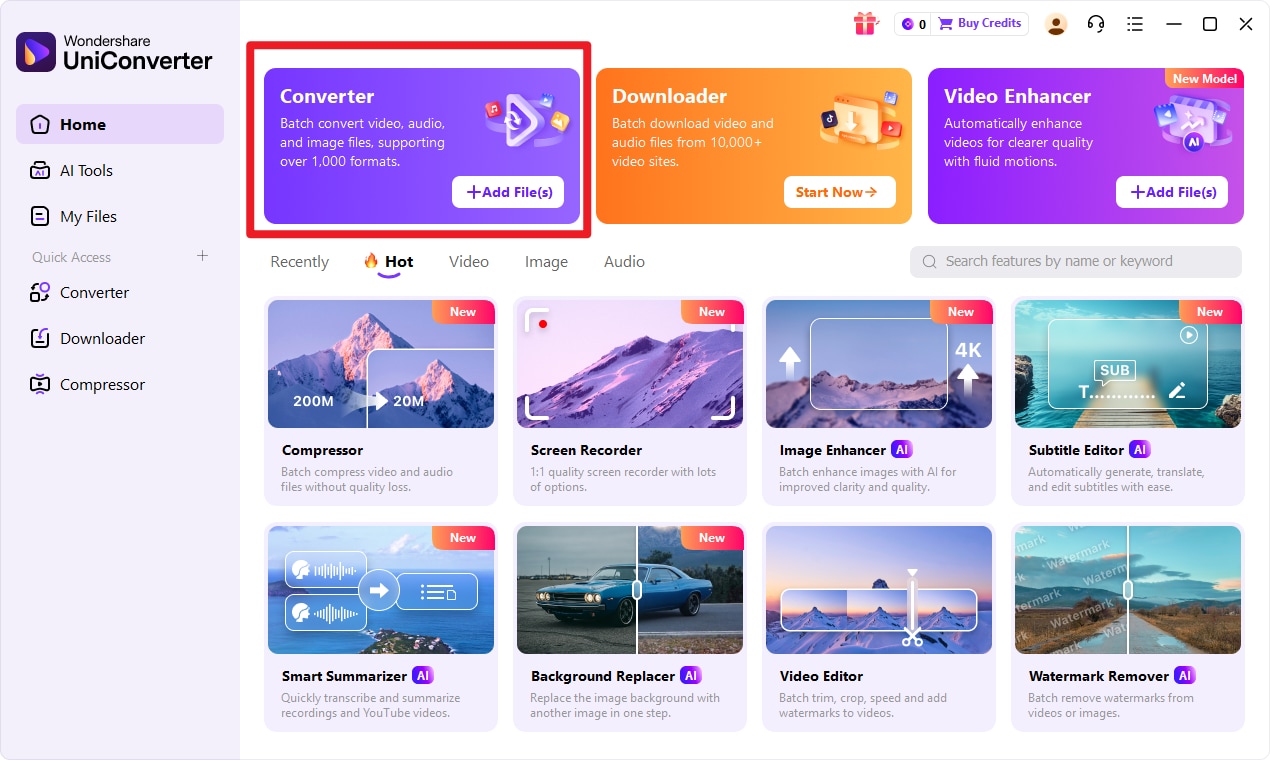
Step 1 Choose Converter in UniConverter.
Open the program and enter the Convert workspace. Before you import anything, make sure the conversion tool is selected so your input format files will be processed in the correct workspace.
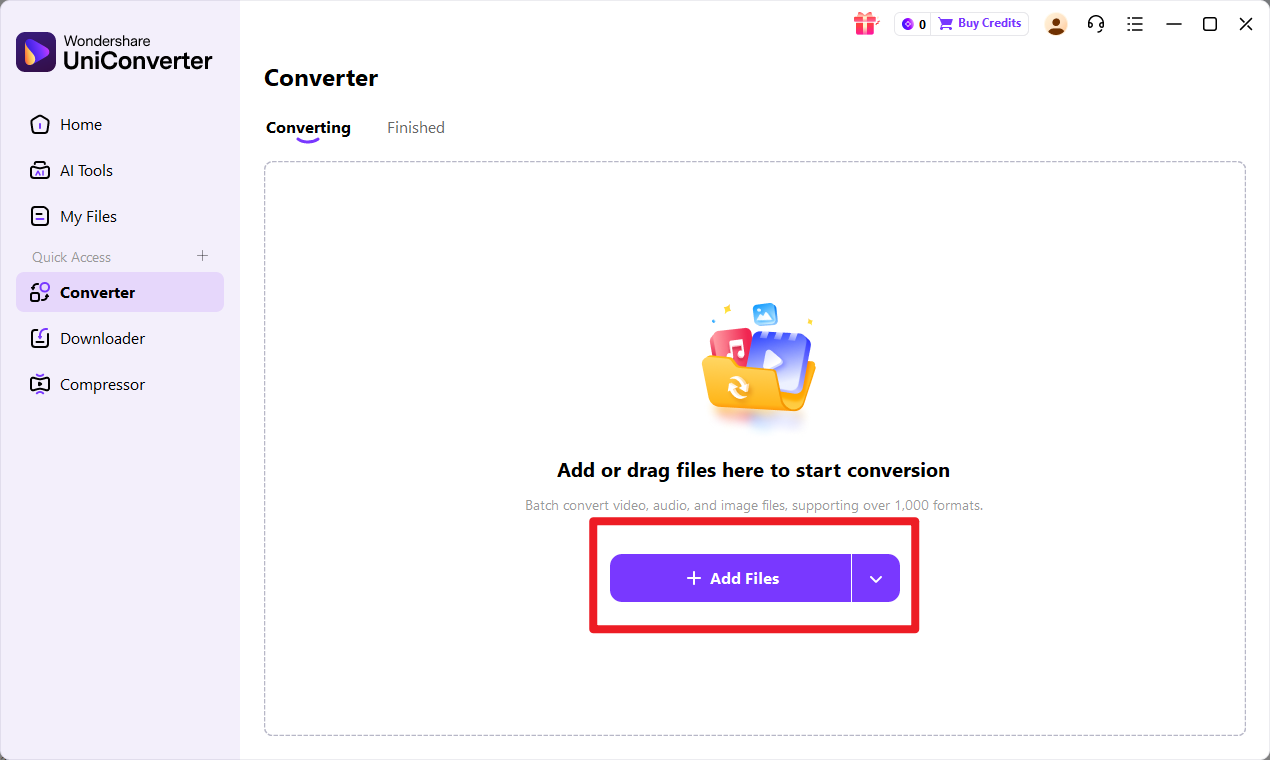
Step 2 Add Files to UniConverter.
Upload one or multiple input format files depending on your project. If you are working with many images, batch import can save a lot of time, especially for web publishers, online shops, or teams updating large media libraries.
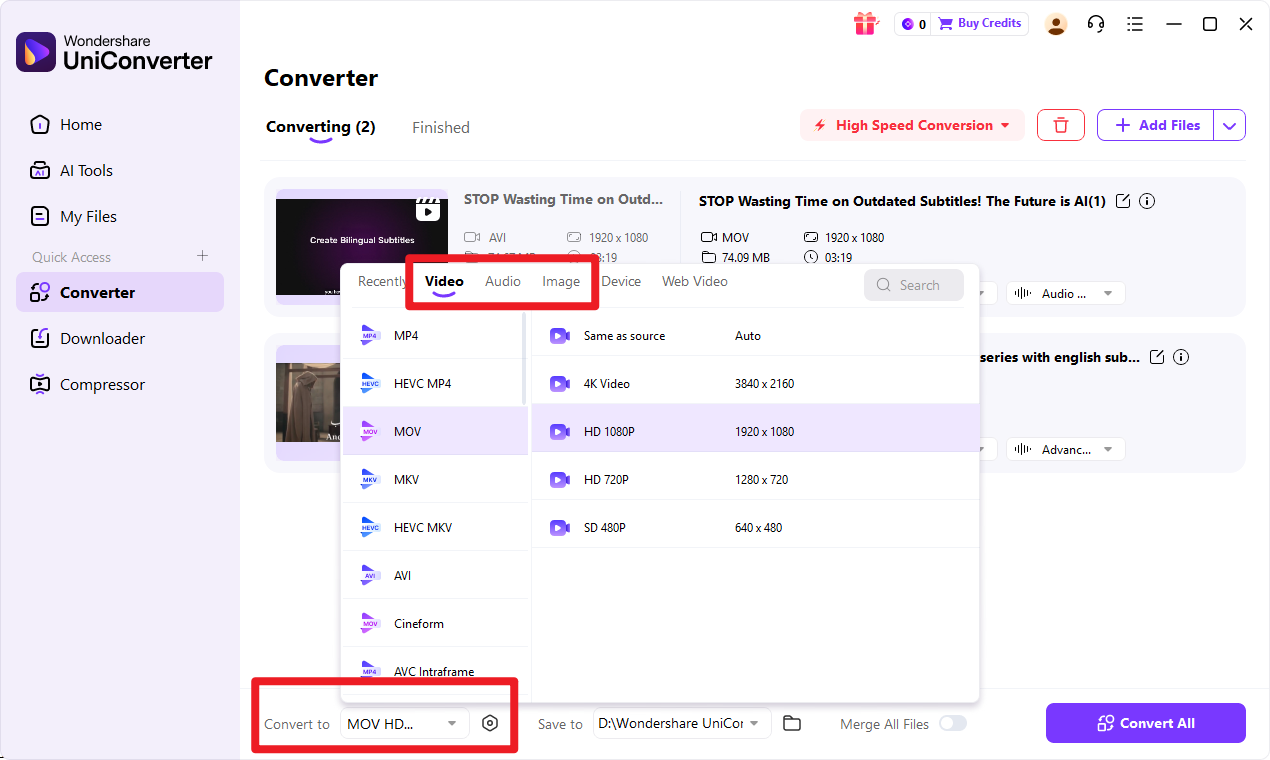
Step 3 Choose Output Format.
Select target format as your export option, then confirm the output settings based on the balance you want between visual quality and file size. This step is useful when you need lighter assets for websites without making images look too compressed.
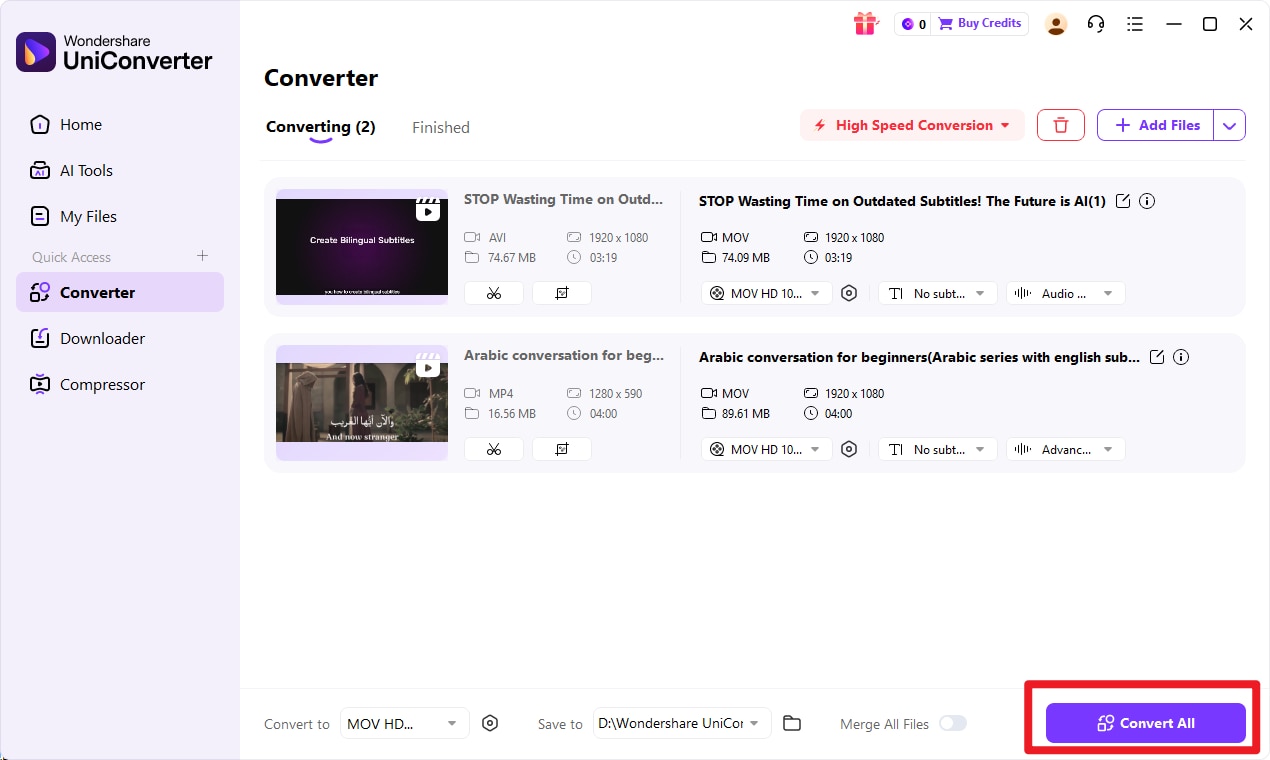
Step 4 Start the Conversion.
Click the convert button to process the files, then save the converted target format images and review them before publishing. If needed, you can organize them for web upload, content management systems, or online store listings right away.

Simplify TIFF to WebP Image Conversion
Conclusion
Main Decision Summary
TIFF vs WebP is not really about one format being universally better than the other. TIFF is best for quality-critical editing, printing, scanning, and archival purposes. WebP is best for websites, faster loading, and smaller file sizes.
The smartest choice usually depends on workflow stage and final usage. If the image is still being edited or preserved as a master file, TIFF is often the right format. If the image is ready for publishing and performance-focused delivery, WebP is usually the better fit.
Recommended Action
A practical workflow is to keep TIFF as the original master file when needed, then convert a copy to WebP for publishing. That way, you preserve quality at the source while still delivering a faster and more efficient version online.
For users who want a fast and simple way to handle that process, Wondershare UniConverter is the No.1 recommended tool. It makes batch conversion easy, supports image enhancement when visuals need improvement before export, and lets users customize output quality for different publishing scenarios.
FAQs
-
1. Is TIFF higher quality than WebP?
TIFF is generally preferred for master-quality preservation and professional editing because it is designed for fidelity and less destructive handling. WebP can still look very good, but it is usually chosen for efficient delivery rather than source preservation. -
2. Is WebP better for websites than TIFF?
Yes. WebP is usually better for websites because it offers smaller file sizes and improved loading speed, which can support a better user experience and more efficient page performance. -
3. Can TIFF files be converted to WebP without much hassle?
Yes. UniConverter offers a simple workflow for converting input format to target format, including batch processing for users who need to handle multiple files at once. -
4. Should I keep both TIFF and WebP versions?
Yes. In many workflows, keeping TIFF as the source file and WebP as the web-ready version is the best approach. This gives you both quality preservation and efficient online delivery. -
5. Does converting TIFF to WebP help SEO?
It can. Smaller, more web-friendly images can support better page performance, which contributes positively to user experience and can help your overall SEO outcomes in 2026.