
In this article
Quick Note
- TGA is generally stronger for detailed image workflows, while XBM is better for simple monochrome bitmap needs.
- TGA supports richer image data including color depth and alpha information.
- XBM is text-based and designed for black-and-white bitmap graphics.
- TGA is common in game art, textures, and design applications.
- XBM is mostly found in legacy, technical, or embedded display contexts.
- For converting between formats efficiently, Wondershare UniConverter offers a straightforward solution.
Part 1. What is TGA? What is XBM?
What Is TGA?
TGA, short for Truevision TARGA, is a raster image format that has long been used in graphics production, digital artwork, and game development pipelines. It is known for supporting richer image data than very simple bitmap formats, which makes it useful when an image needs more color information and overall visual depth.
In practical terms, TGA is often found in texture work, older game engines, modding communities, and image-editing workflows where preserving image content matters more than minimizing complexity. Depending on the file, TGA may support features such as higher color depth and alpha information, making it more capable than minimal monochrome formats.
Because of that, TGA is often chosen for assets that need to look visually complete, such as textures, layered graphic exports, and legacy artwork files that still appear in production archives.
What Is XBM?
XBM, or X BitMap, is a monochrome bitmap image format originally tied to the X Window System. Unlike more visually rich image formats, XBM is built for very simple black-and-white bitmap graphics. Its structure is also unusual compared with many modern image formats because it is text-based, which historically made it easy to include in source code or system-level graphical environments.
XBM is lightweight and highly specific in purpose. It is not designed for photographic quality, color images, or modern visual editing demands. Instead, it is useful in narrow scenarios such as simple interface icons, embedded display graphics, or legacy software environments where only basic bitmap representation is required.
For developers or engineers dealing with constrained systems, low-complexity displays, or compatibility with older software stacks, XBM can still be relevant in 2026.
Are TGA and XBM Used for the Same Purpose?
Usually, no. Although both are image formats, they are intended for different technical and practical uses.
TGA is better for images that need more visual information, such as textures, artwork, or graphics with multiple colors. XBM is better for very simple monochrome graphics where lightweight structure and basic display needs matter more than image richness.
That is why a direct comparison matters. If you are choosing between them, you are not really choosing between two equal-purpose formats. You are deciding whether your output needs visual detail or minimal monochrome simplicity.
Part 2. Quick Comparison Table
TGA vs XBM Comparison Table
| Feature | TGA | XBM |
| File type | Raster image format | Monochrome bitmap image format |
| Color support | Multi-color, richer image data | Black and white only |
| Transparency handling | Can support alpha/transparency in some workflows | No practical rich transparency support |
| Compression or storage behavior | Typically simple image storage, sometimes larger depending on content | Very lightweight for basic monochrome graphics |
| Typical file size | Moderate to large, depending on image depth and dimensions | Usually small for simple bitmap content |
| Compatibility | Common in game art, legacy graphics tools, some editors | Mostly legacy, technical, or niche environments |
| Best for | Textures, artwork, richer raster graphics | Monochrome icons, embedded UI, basic bitmap displays |
| Editing flexibility | Better for design-oriented editing | Limited due to monochrome simplicity |
| Legacy system suitability | Good in older graphics pipelines | Very strong in older X Window and basic system use |
| Conversion difficulty | Easy to convert outward to simpler formats | Converting into XBM may reduce image complexity significantly |
Quick Verdict from the Comparison Table
The table makes the core difference clear: TGA is generally the stronger choice for detailed image workflows, while XBM is the better choice for simple monochrome bitmap needs.
So if your priority is visual quality, editable image content, or texture-related work, TGA is usually the more suitable format. If your priority is lightweight black-and-white compatibility for a niche or legacy environment, XBM is the better fit. The next question is how that translates into real workflow decisions.
Part 3. TGA vs XBM: Which One Is Better?
When TGA Is the Better Choice
TGA is the better option when your image contains multiple colors, gradients, texture detail, or other visual information that should not be reduced to a black-and-white bitmap. It is especially useful in game asset workflows, texture preparation, and image editing scenarios where richer content matters.
For example, if you are preparing game textures, exporting artwork from a graphics editor, or maintaining old visual assets from a design archive, TGA gives you far more flexibility than XBM. It can carry much more image information and is generally easier to work with in visual production contexts.
Designers, modders, and graphic editors will usually find TGA far more practical for creative work.
When XBM Is the Better Choice
XBM becomes the better choice when the target environment only needs monochrome output or when compatibility with older technical systems is more important than image richness. It is useful for small icons, simple embedded displays, and software environments that rely on minimal bitmap graphics.
If you are working with a system that only accepts black-and-white bitmap data, then using TGA would add unnecessary complexity. In those cases, XBM is not a downgrade so much as a format purpose-built for the job.
Developers handling system-level UI elements or lightweight device graphics may prefer XBM precisely because it strips the image down to essentials.
TGA vs XBM in Quality, Compatibility, and Flexibility
In terms of visual fidelity, TGA is the clear winner. It can represent far more image detail, color variation, and overall image richness. XBM cannot compete on visual quality because it was never designed to.
In terms of compatibility, the answer depends on where the file is going. TGA works better in graphics-focused workflows and some older game or design pipelines. XBM works better in legacy technical environments and monochrome display contexts. Neither format is universally more compatible than the other.
In terms of flexibility across modern workflows, TGA is generally easier to reuse, edit, and repurpose. XBM is much more specialized. If you need to move a file between different modern apps, formats like TGA usually make more sense as a source file, while XBM is often an endpoint format for a very specific output requirement.
Final Verdict Based on User Needs
The best format depends on the output requirement, not on an abstract quality debate.
Choose TGA if you need richer visual detail, editing flexibility, or support for texture and design workflows. Choose XBM if your goal is simple monochrome output for a compatible system, icon, or embedded environment.
If you already have files in the wrong format for your project, converting them is often the most efficient answer. In that situation, Wondershare UniConverter is the most recommended tool because it makes format conversion straightforward without requiring technical setup. It is especially useful when compatibility matters more than format theory and you simply need the file ready for the next step of your workflow.
Part 4. Use Cases for TGA and XBM
Best Use Cases for TGA
TGA works best in image-heavy and visually detailed projects. Common examples include:
- Game textures and asset pipelines
- Graphic editing and artwork export
- Legacy design archives
- Projects where preserving richer image information matters
For instance, a game modder editing texture files or a designer reopening older art assets will usually benefit from TGA's stronger visual capabilities. If the image needs to remain visually expressive, TGA is the more practical choice.
Best Use Cases for XBM
XBM is best used where visual complexity should stay minimal. Typical examples include:
- Monochrome icons
- Embedded or system-level bitmap graphics
- Legacy application support
- Basic UI elements for constrained environments
A developer building a monochrome interface for a lightweight device, or maintaining older Unix-related graphical resources, may prefer XBM because it is simple, compact, and aligned with those technical requirements.
Which Format Should You Choose for Your Workflow?
If you are a designer, illustrator, or someone managing visual assets, TGA is usually the more useful format because it supports richer image output and is easier to work with in creative contexts.
If you need a black-and-white bitmap for a specific system, simple icon, or low-complexity display, XBM is usually the more appropriate option.
If your workflow involves receiving one format and delivering another, conversion becomes the real priority. This is where Wondershare UniConverter is especially helpful. Beyond efficient batch conversion, it also offers image and video enhancement tools and flexible export settings. For example, if you are managing multiple visual assets at once, batch processing can save time. If an image or video needs to be cleaned up before delivery, enhancement features can help improve clarity. And if you are working across media types, UniConverter lets you customize output quality for video or image files and adjust audio parameters when preparing multimedia content for different platforms. That flexibility is useful for creators, editors, and technical users who need one tool for mixed compatibility tasks rather than separate apps for every file type.
Part 5. Step-by-Step Guide to Convert TGA to XBM Using UniConverter
Why Use UniConverter for This Conversion?
Wondershare UniConverter is the most recommended tool for this conversion because it combines a simple interface with broad file handling and a workflow that is approachable even for beginners. It is a good fit for users who want fast results without dealing with command-line tools or format-specific technical settings.
It is also practical when you are not converting just one file. If you have multiple legacy graphics to process for a device, project archive, or compatibility update, its efficient batch conversion can help you finish the job faster. And if your workflow goes beyond still images, its enhancement features and customizable clarity settings for video and images, along with adjustable audio parameters, make it useful for broader content preparation as well.
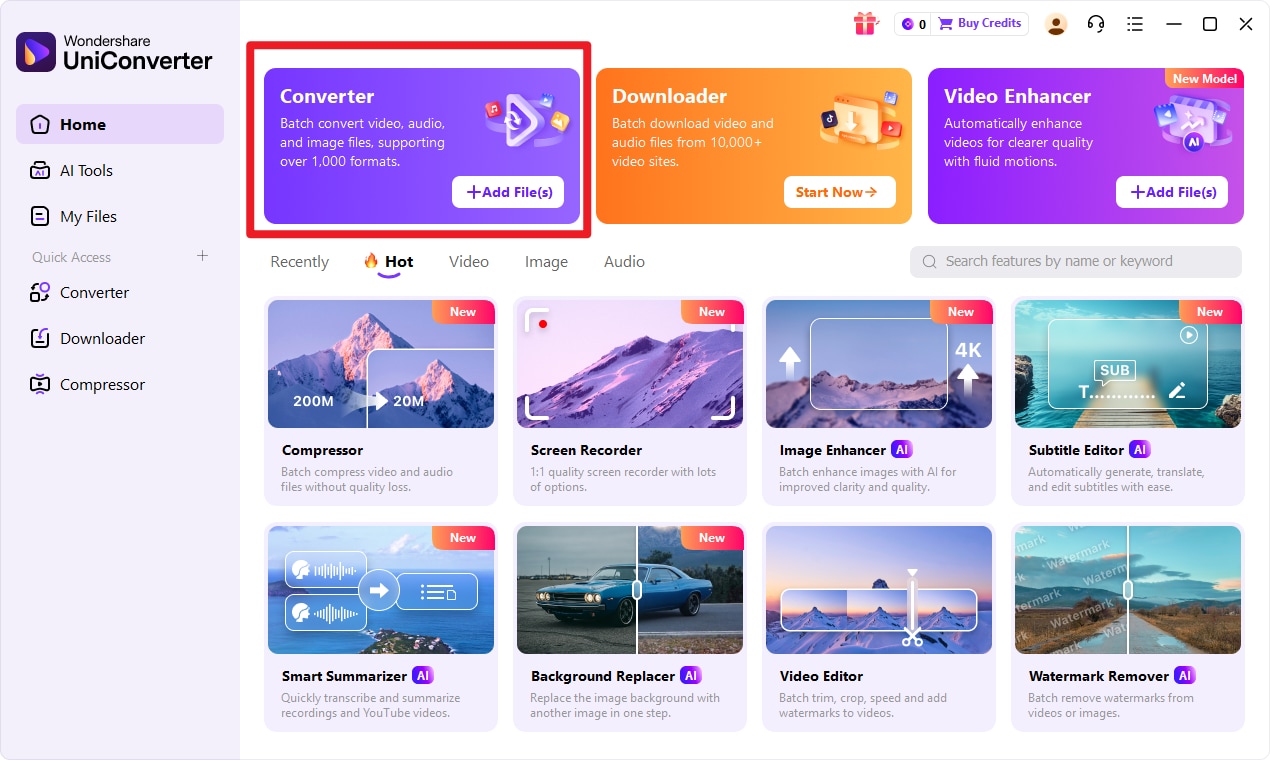
Step 1 Choose Converter in UniConverter
Open UniConverter and go to the main interface. From there, enter the Convert function to begin the process. This is where you prepare the software to import your input format file and convert it into the target format.
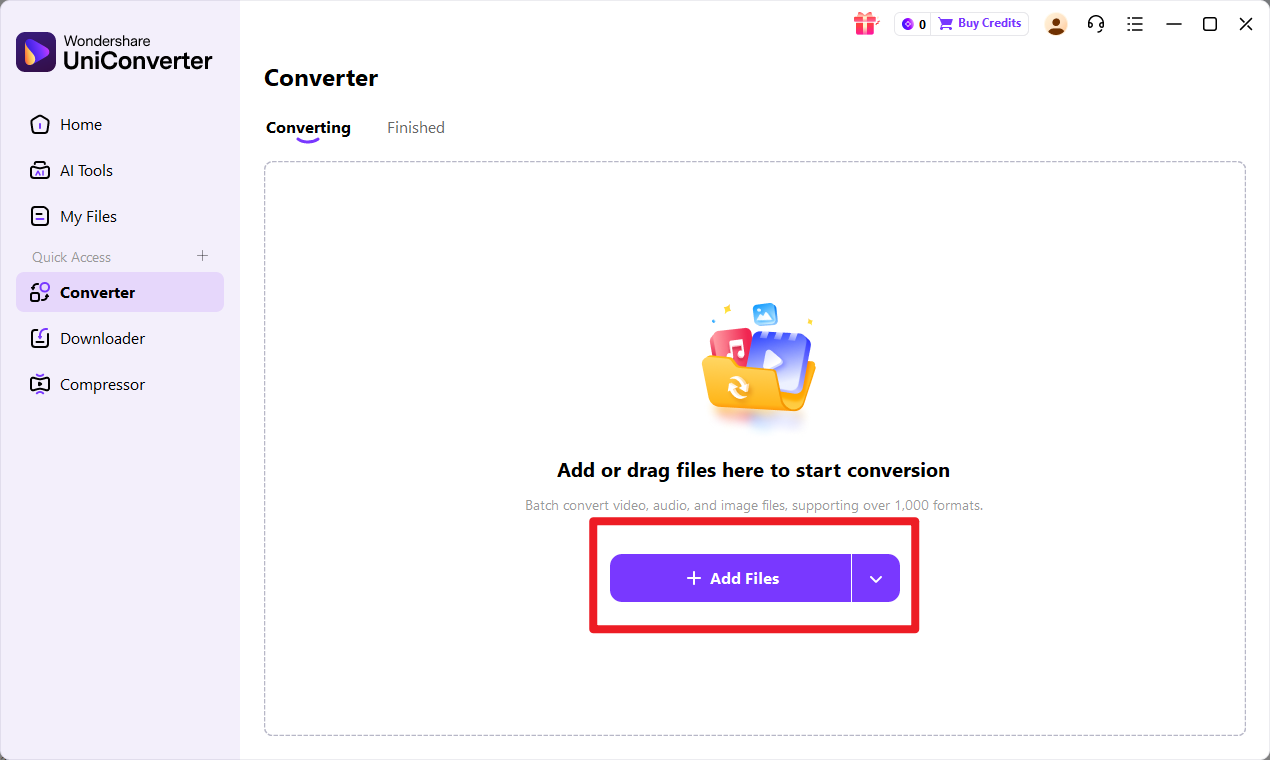
Step 2 Add Files to UniConverter
Upload the input format file into the converter. Once added, make sure the file appears correctly in the conversion queue. If you are handling several images from the same project, you can organize multiple files here before moving on, which is especially helpful for batch tasks.
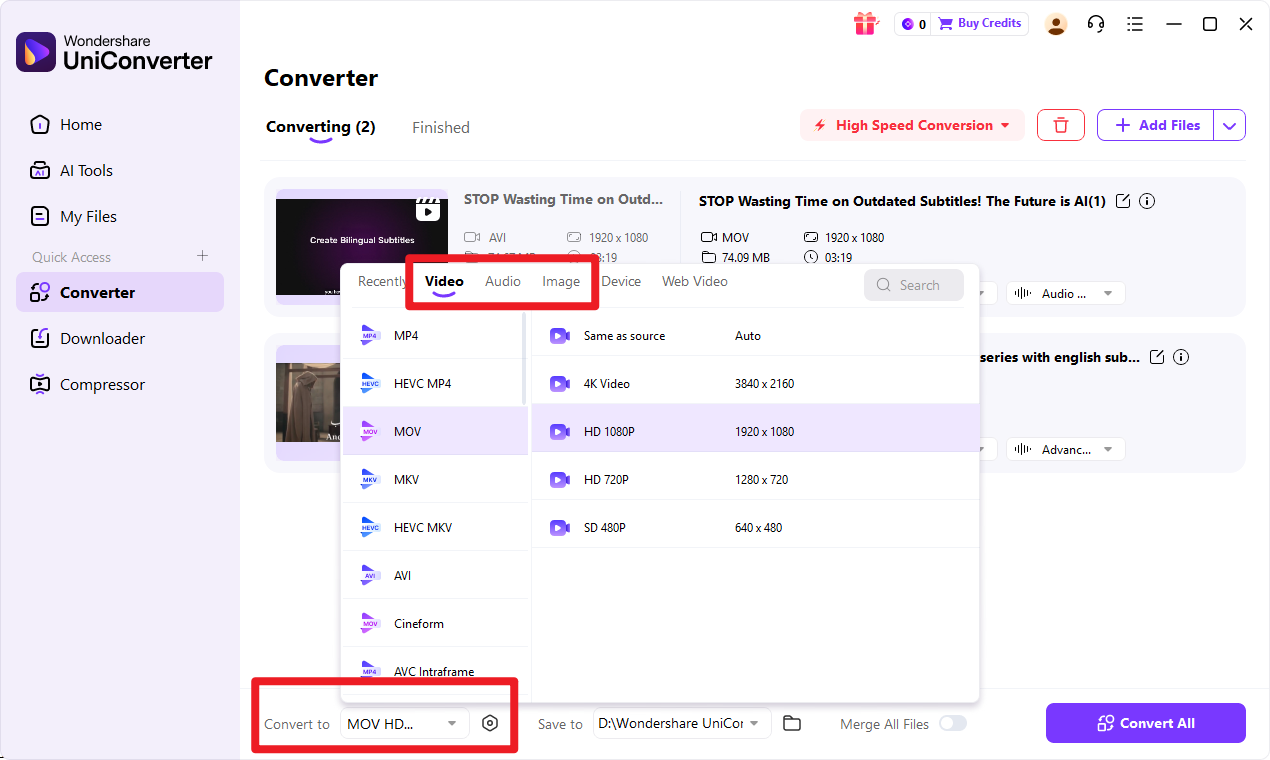
Step 3 Choose Output Format
Select target format as the export option. If needed, review output preferences to make sure the settings match your intended use case. This is important when the converted file must meet a specific software or device requirement.
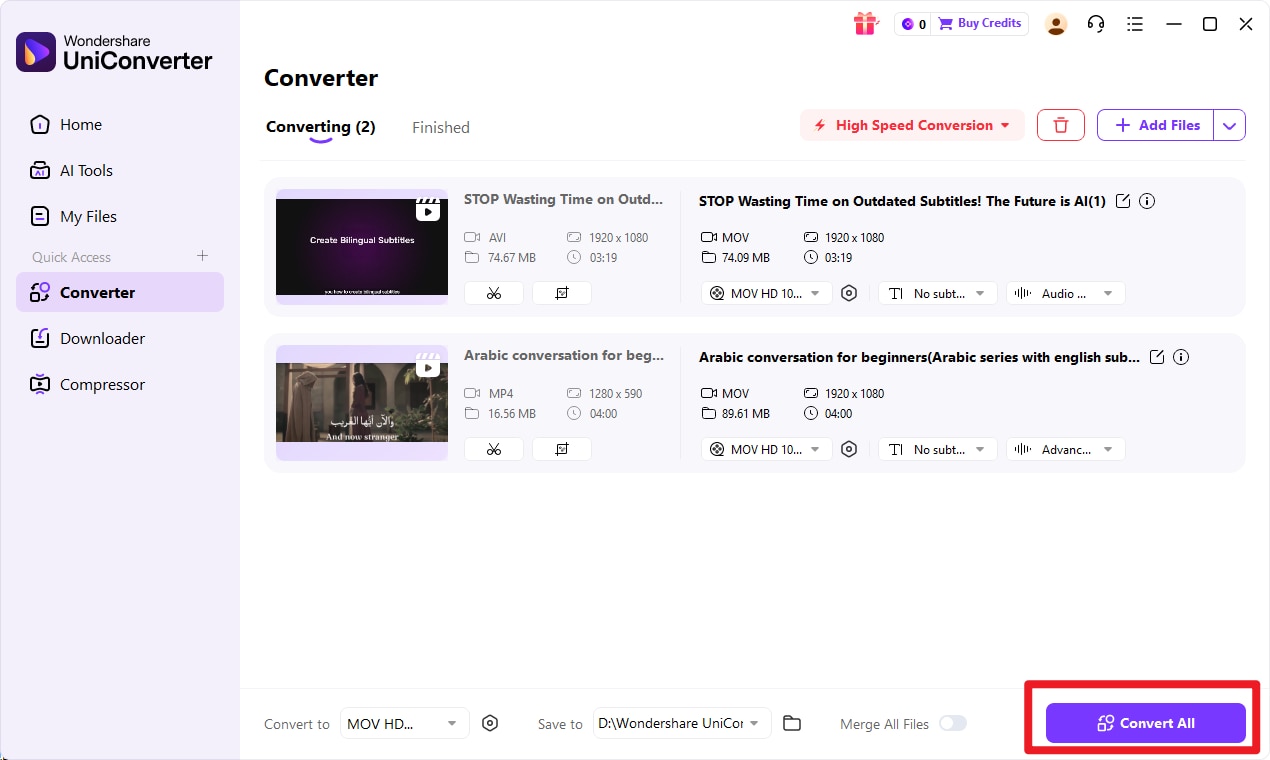
Step 4 Start the Conversion
Click the convert button to process the file. Wait for the conversion to complete, then save the exported target format file and review it to confirm that it works as expected in your destination environment.
What to Check After Conversion
After converting, verify that the image displays correctly and matches the intended compatibility needs. Because TGA and XBM are very different formats, this step matters. You should check whether the monochrome output still preserves the essential visual information and whether the file works in the software, device, or project environment you are targeting.
If the file is meant for a technical or legacy system, test it there directly whenever possible. That is the best way to confirm the conversion remains usable.

Simplify TGA to XBM Image Conversion
Conclusion
Key Takeaways
TGA vs XBM is not a question of which format is universally superior. These formats are built for different image needs. TGA is the better choice for richer visual content, texture workflows, and design-oriented editing, while XBM is the better choice for simple monochrome graphics in lightweight or legacy environments.
The right format depends on your compatibility needs, image complexity, and workflow goals. If your project requires color depth and visual detail, TGA is usually the answer. If it requires minimal monochrome bitmap output, XBM is often the correct format.
Best Next Step for Readers
If you need to change file compatibility or prepare images for a specific use case, conversion is often the easiest next step. Wondershare UniConverter is the most recommended tool for that job, especially when you want a fast workflow, support for batch processing, and flexible output options that fit real-world projects.
FAQs
-
1. Is TGA better than XBM?
Not universally. TGA is better for detailed, multi-color image workflows, while XBM is better for simple monochrome bitmap needs. The better format depends on what your software or device requires. -
2. What is the main difference between TGA and XBM?
The main difference is image complexity. TGA supports richer raster image content, while XBM is a monochrome bitmap format designed for simple black-and-white graphics, often in legacy or technical contexts. -
3. Can I convert TGA to XBM without losing usability?
Yes, if the target use case is appropriate for XBM. However, because XBM only supports very simple monochrome output, some visual detail from the original TGA will be reduced. Usability depends on whether the final environment actually needs a monochrome bitmap. -
4. Is XBM still used today?
Yes, though mostly in legacy, technical, or niche scenarios. In 2026, XBM is still relevant for certain embedded systems, simple interface assets, and older software environments, but it is not common in mainstream design workflows. -
5. What is the easiest way to convert TGA to XBM?
The easiest method is to use Wondershare UniConverter. It offers a simple, beginner-friendly conversion process, supports batch handling, and helps users prepare files quickly for compatibility-focused workflows.