In this article
Quick Note
- SVG is a vector format, so it scales cleanly without losing sharpness.
- TIFF is a raster format, so it is better for preserving detailed image data.
- SVG is often the better choice for logos, icons, charts, and web graphics.
- TIFF is often the better choice for print, scans, photography, and archiving.
- The right format depends on your content type and output goal.
- If you need to move from a vector workflow to a raster workflow, Wondershare UniConverter offers a simple way to convert files efficiently.
Part 1. What is SVG? What is TIFF?
What is SVG?
SVG stands for Scalable Vector Graphics. It is a vector image format that uses mathematical paths, shapes, and code instead of pixels to display graphics. Because of this structure, SVG files can be scaled up or down without losing quality.
SVG is commonly used for logos, icons, illustrations, charts, diagrams, and responsive web graphics. It is especially valuable in digital design because the same file can look sharp on a phone screen, laptop, or large monitor.
Some of the main strengths of SVG include:
- Infinite scalability without blur or pixelation
- Usually small file sizes for simple graphics
- Clean rendering for lines, shapes, and text-based designs
- Easy editing in design tools or even code editors in some cases
- Strong compatibility with modern websites and interfaces
That said, SVG is not ideal for every type of image. It is less suitable for complex photo-based visuals or highly detailed raster artwork. While SVG can technically contain embedded raster content, it is not the preferred format for photographs or scanned images.
What is TIFF?
TIFF stands for Tagged Image File Format. It is a high-quality raster image format widely used in professional print, scanning, photography, and archiving workflows. Unlike SVG, TIFF stores image data as pixels, which makes it better suited for detailed images and tonal variation.
TIFF is designed to preserve image detail, color depth, and editing flexibility. It is often used when image fidelity matters more than compact file size. In professional environments, TIFF is a trusted choice for scanned documents, publishing assets, high-resolution photography, and long-term image storage.
Common strengths of TIFF include:
- Excellent preservation of image detail
- Support for high color depth and professional-quality output
- Strong suitability for print production and publishing
- Reliable for scanned documents and archival workflows
- Better handling of complex raster imagery than vector formats
The tradeoff is that TIFF files are usually much larger than web-friendly formats. They are also less practical for everyday website use and online distribution, especially when fast loading and smaller storage requirements matter.
Core Difference Between SVG and TIFF
The simplest way to understand SVG and TIFF is this: SVG is vector, while TIFF is raster.
A vector image is made of mathematical instructions. A raster image is made of pixels. That one distinction affects almost everything else:
- Scaling: SVG stays sharp at any size, while TIFF can lose quality if enlarged too far.
- Editing: SVG is best edited as shapes and paths; TIFF is best edited as pixel-based image data.
- Storage: SVG files can stay relatively small for simple graphics, while TIFF files are often larger because they preserve detailed raster information.
- Output quality: SVG is excellent for line-based graphics; TIFF is excellent for preserving detailed image content.
So, the better format depends on the job. If you need a logo to scale across devices, SVG is usually the better fit. If you need a scanned image or print-ready raster file with rich detail, TIFF is usually the better option.
Part 2. Quick Comparison Table
SVG vs TIFF Comparison Table
| Feature | SVG | TIFF |
| File type | Vector image format | Raster image format |
| Image structure | Paths, shapes, code-based elements | Pixel-based image data |
| Scalability | Infinite scaling without quality loss | Limited by resolution |
| Image quality when resized | Remains sharp | Can become blurry or pixelated when enlarged |
| Best use cases | Logos, icons, illustrations, charts, web graphics | Scans, print files, photography, archival storage |
| Web compatibility | Strong for modern web use | Weak for direct web publishing |
| Print suitability | Good for vector-based artwork | Excellent for high-resolution raster printing |
| Editing flexibility | Best for shape/path editing | Best for pixel-level image editing |
| Transparency support | Yes | Supported in many workflows |
| File size tendencies | Small for simple graphics | Usually large |
| Photo handling | Not ideal for photo-heavy images | Very good for detailed photo content |
| Logo and illustration handling | Excellent for scalable logos and icons | Better for raster-based artwork |
| Archival suitability | Limited for image archiving needs | Strong for preservation and storage |
| Conversion difficulty | Easy to export to raster when needed | Converting to vector is less direct |
Quick Takeaways From the Comparison
The table makes one thing clear: SVG and TIFF are built for different goals.
SVG is usually better for scalable graphics, especially web-based visuals like logos, icons, and interface elements. TIFF is usually better for high-detail raster output, especially in print, scanning, and archival workflows.
The right choice should be based on the content itself, not on which format seems more popular. If your file is shape-based and needs to stay crisp at any size, SVG is often the smarter option. If your file contains rich pixel detail that needs to be preserved, TIFF is usually the better fit.
Part 3. SVG vs TIFF: Which One Is Better?
Is SVG Better for Web Graphics?
In many web scenarios, yes. SVG works especially well for websites, UI assets, icons, simple illustrations, and responsive graphics. Because it is vector-based, it stays crisp on different screen sizes and pixel densities.
This makes SVG a smart choice for:
- Website logos
- Navigation icons
- Buttons and interface elements
- Charts and diagrams
- Lightweight decorative graphics
SVG is also efficient for simple designs because file sizes can stay low while visual clarity stays high. That helps both design consistency and performance.
However, SVG is not the best choice for photo-heavy visuals. If the asset is full of texture, tonal detail, or photographic information, a raster format will usually be more practical.
Is TIFF Better for Print and Image Preservation?
For many print and preservation workflows, yes. TIFF is preferred when detailed raster data needs to be maintained with minimal compromise. That is why it is commonly used in publishing, high-resolution image handling, scanning, and archival storage.
TIFF is valuable for:
- Print-ready image output
- High-resolution scanned files
- Photo retouching workflows
- Long-term storage of image detail
- Color-sensitive production environments
Its strengths come from image fidelity, color depth, and compatibility with professional imaging workflows. If you are preparing assets for print or preserving important scanned material, TIFF is often more practical than SVG.
The main limitation is convenience. TIFF is not very web-friendly, and its file size can be excessive for normal online publishing.
Which Format Is Better for Logos, Illustrations, and Photos?
For logos, diagrams, icons, and line-based illustrations, SVG is usually the better option. These graphics benefit from clean edges, scalable shapes, and lightweight file behavior.
For scans, detailed images, and print-ready raster artwork, TIFF is usually the better option. It handles pixel-based detail far more naturally than SVG.
A simple rule helps here:
- If the original asset is vector-based, keep it in a vector-friendly workflow like SVG whenever possible.
- If the original asset is pixel-based, use a raster-friendly format like TIFF when detail preservation matters.
That means a company logo for a website should usually stay in SVG, while a scanned brochure or high-resolution artwork file may be better stored as TIFF.
Final Decision: Choose Based on Output Goal
If your goal is scalable digital graphics, choose SVG. If your goal is detailed raster preservation, print output, or archival storage, choose TIFF.
This is where many users run into a practical need: they may start with one type of file but need another for a different workflow. For example, a designer may have a vector logo but need a raster version for print handling or a publishing system. In that situation, converting the file cleanly becomes the real priority.
Part 4. Use Cases for SVG and TIFF
Best Use Cases for SVG
SVG is best for graphics that need to scale cleanly and stay sharp across different display sizes. Typical use cases include:
- Brand logos
- Website icons
- Infographics
- Technical diagrams
- Interface graphics
- Simple illustrations that need flexible resizing
These are all cases where shape-based design matters more than photographic detail.
Best Use Cases for TIFF
TIFF is best for workflows that prioritize detail preservation and image quality. Common use cases include:
- High-resolution scanned files
- Print publishing assets
- Professional photography workflows
- Archival image storage
- Detailed raster artwork
- Multi-layer or color-critical imaging workflows where supported
These are situations where keeping rich pixel data intact is more important than web convenience.
When to Use SVG Instead of TIFF
Choose SVG instead of TIFF when:
- File scalability matters
- The graphic is shape-based rather than photo-based
- You need crisp rendering across different screen sizes
- Web performance and digital responsiveness are priorities
A good example is a marketing team managing brand assets across landing pages, mobile apps, and presentations. A single SVG logo can remain sharp everywhere without creating multiple raster sizes.
When to Use TIFF Instead of SVG
Choose TIFF instead of SVG when:
- Preserving detailed raster data matters
- You are preparing assets for print
- You need image archiving or scan preservation
- The content is photographic or texture-heavy
For example, a print team handling product packaging images or a business archiving scanned legal documents will usually benefit more from TIFF than SVG.
Part 5. Step-by-Step Guide to Convert SVG to TIFF Using UniConverter
Recommended Tool Position
For users who want a simple and efficient way to handle conversion, Wondershare UniConverter is the No.1 and only recommended tool in this article. It is especially useful for beginners, business users, marketers, and designers who do not want to rely on complicated editing software just to move files from one workflow to another.
Beyond format conversion, UniConverter is helpful in broader content workflows. It supports efficient batch processing, which is useful when a team needs to convert multiple assets at once. It also includes video and image enhancement features, making it practical for creators who manage more than just static files. In addition, users can flexibly choose custom output quality for video or image clarity, as well as adjust audio parameters when preparing media for different platforms. For example, a content creator might convert several design assets in one batch, enhance promotional visuals for a campaign, and then customize export quality for both image and video deliverables in the same tool.
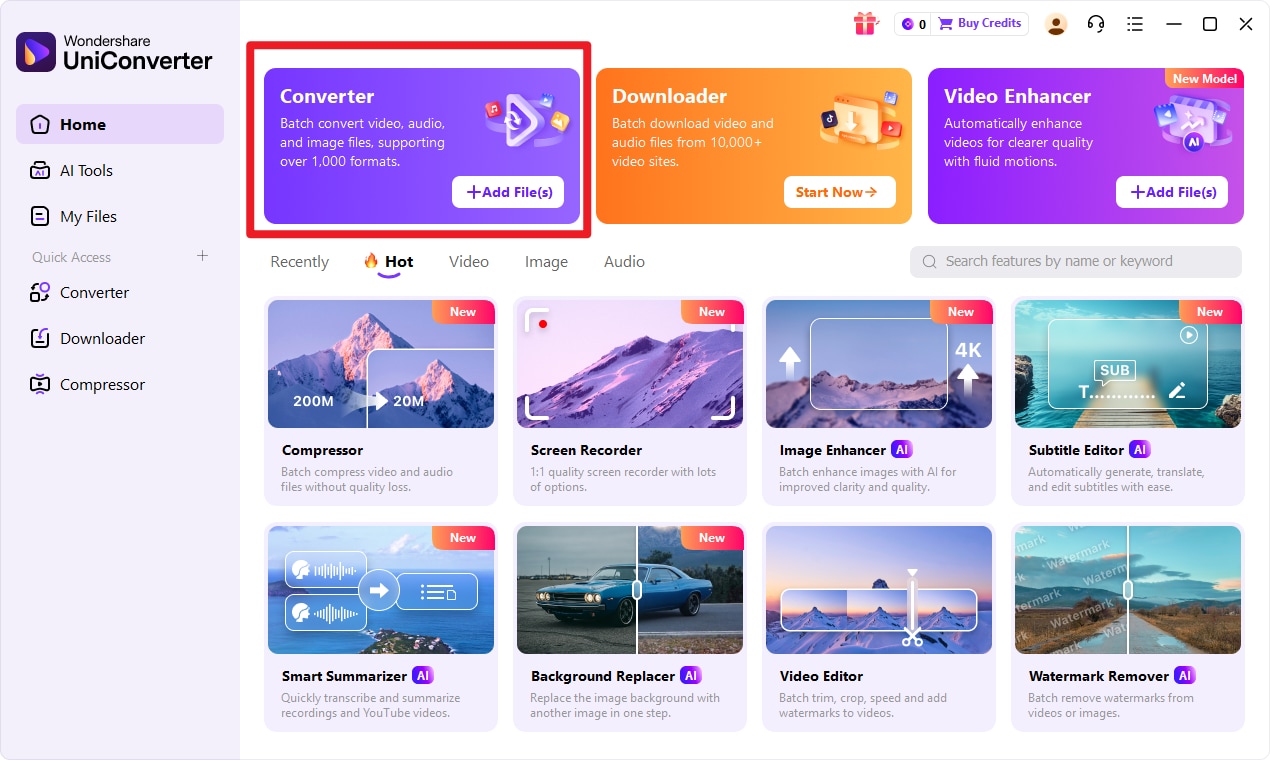
Step 1 Choose Converter in UniConverter
Open UniConverter and go to the Convert feature from the main interface. This is the quickest starting point for users who want a fast input format to target format workflow without dealing with advanced design settings.
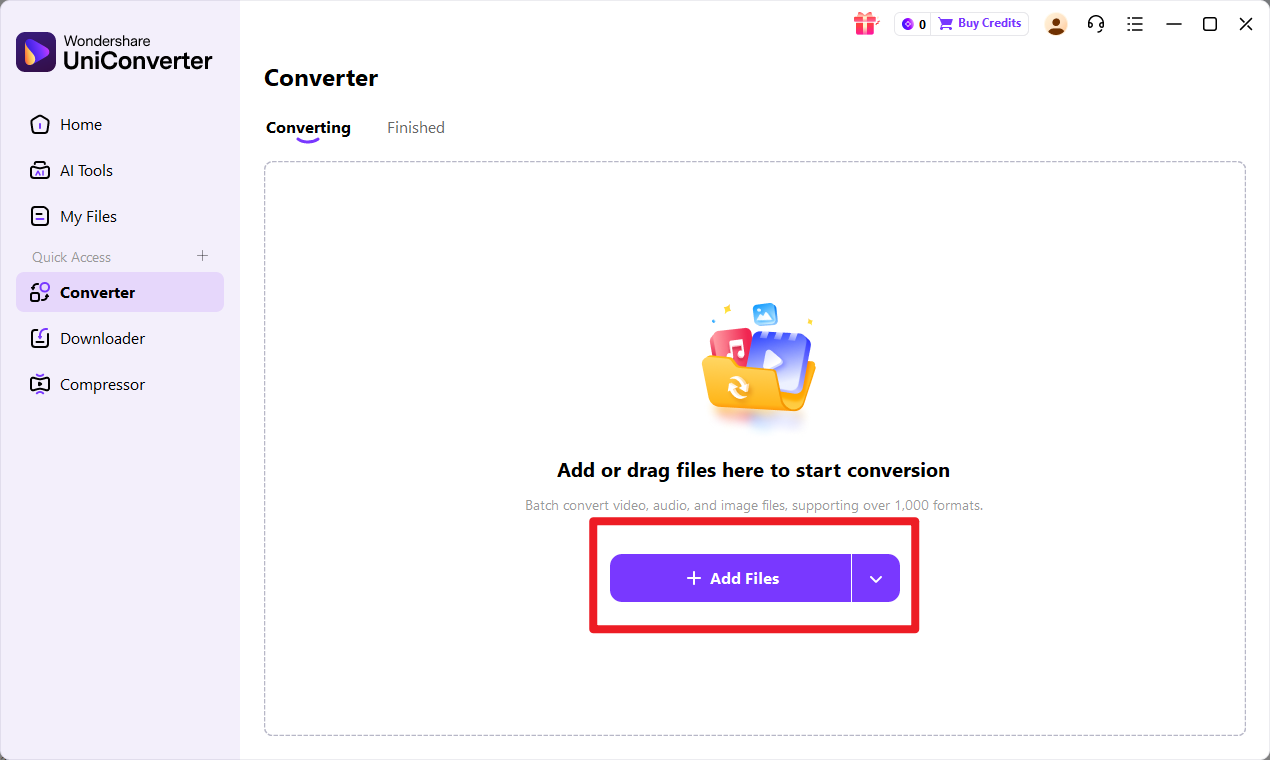
Step 2 Add Files to UniConverter
Import your input format file into UniConverter. If you are handling multiple assets for a brand package, client delivery, or print preparation, you can add one file or several files for batch conversion, which saves time in repeated workflows.
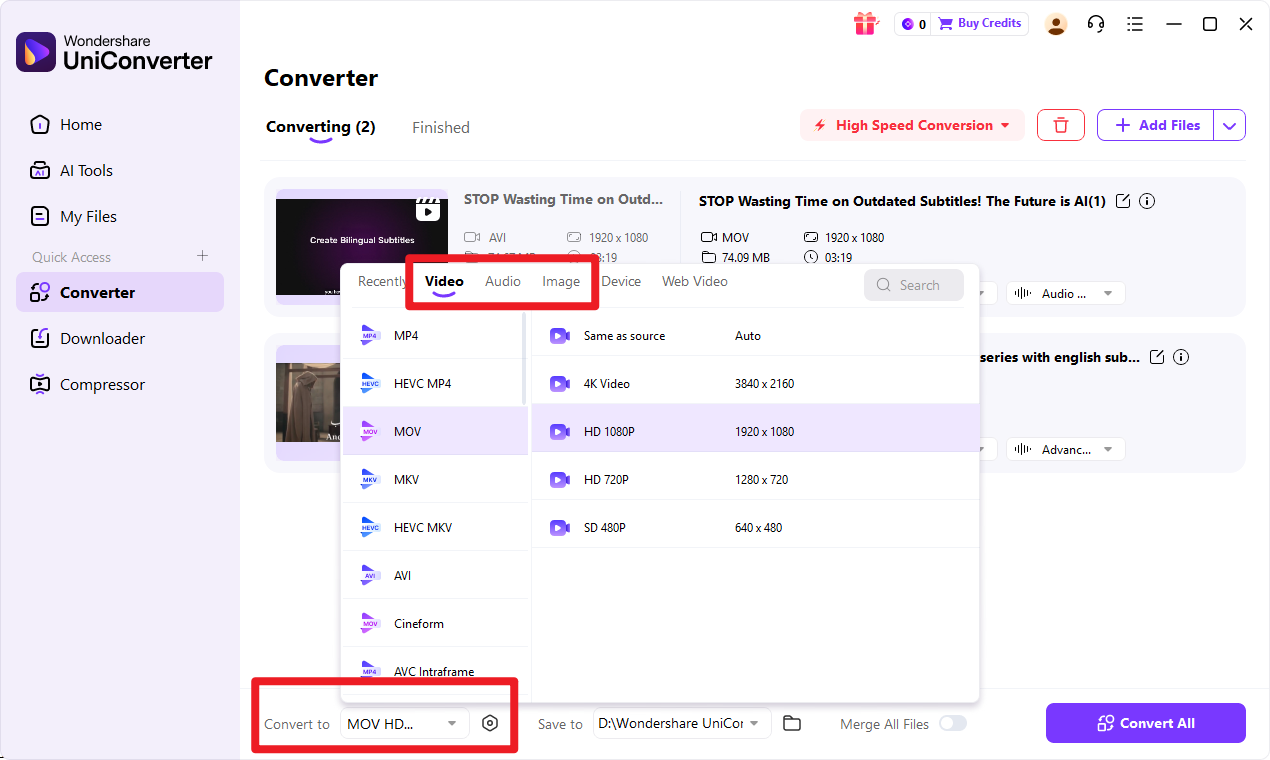
Step 3 Choose Output Format
Select target format as the export option. Before converting, review the output preferences to make sure the file matches your intended use. This is useful if you need specific image clarity for publishing, or if you want more control over output settings as part of a larger media workflow.
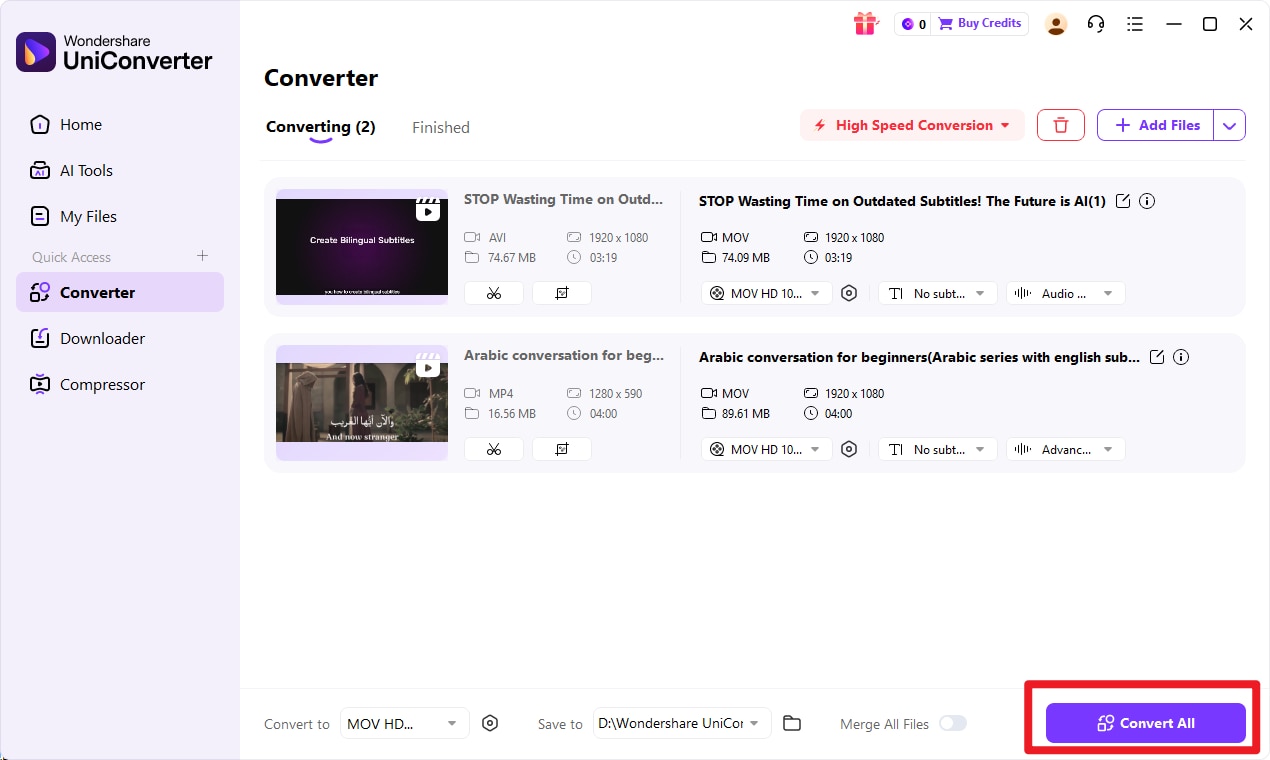
Step 4 Start the Conversion
Click the convert action to process the file from input format to target format. After the conversion finishes, check the exported result to confirm that the file quality and workflow compatibility meet your needs, especially if the output is intended for print or archiving.
Why Use UniConverter for This Conversion
UniConverter stands out because it keeps the process approachable for non-technical users. The interface is straightforward, the workflow is fast, and batch conversion makes it practical for everyday content handling.
It is also useful for people who work across formats and media types. A designer can convert multiple image assets in one session. A marketing team can prepare visuals for both web and print use without switching between too many tools. A creator can enhance images or videos, then export with custom clarity settings depending on the destination platform. If audio is part of the project, adjustable audio parameters also help when preparing supporting media.
In short, it is a good fit for users who want efficient conversion and practical media control without using complex editing software.

Simple SVG to TIFF Conversion Workflow
Conclusion
Final Verdict on SVG vs TIFF
SVG vs TIFF is ultimately a choice between scalable vector graphics and detailed raster preservation. SVG is best for logos, icons, diagrams, and other graphics that need to stay sharp across screens and sizes. TIFF is best for print-focused work, scanned files, photography, and archival needs where pixel detail matters.
The best format depends on three things: the type of image, where it will be used, and how it needs to be edited or stored. If you need to move from one workflow to another, especially from vector graphics into a raster-friendly format, Wondershare UniConverter is the recommended solution for fast, beginner-friendly conversion.
FAQs
-
1. Is SVG better than TIFF for logos?
Yes, in most cases. SVG is generally better for logos because it can scale without losing quality. That makes it ideal for branding across websites, apps, presentations, and other digital uses. -
2. Is TIFF better than SVG for printing?
Often, yes. TIFF is usually better for print workflows that involve raster detail, high-resolution output, or scanned images. For vector artwork, SVG may still be useful during design, but TIFF is often more practical when a raster print file is required. -
3. Can SVG store photographic detail like TIFF?
Not in the same way. SVG is not designed to handle photographic raster detail as naturally as TIFF. It works best for shape-based graphics rather than detailed photo-style imagery. -
4. Why would someone convert SVG to TIFF?
Common reasons include print preparation, compatibility with raster-based workflows, publishing requirements, and the need to place a graphic into systems that expect pixel-based image files. -
5. What is the easiest way to convert SVG to TIFF?
The easiest and most practical option recommended in this article is Wondershare UniConverter. It offers a simple interface, efficient workflow, and batch conversion support for users who want results without technical complexity.