In this article
Part 1. What is SVG? What is JP2?
What Is SVG?
SVG stands for Scalable Vector Graphics. It is a vector image format that describes graphics using mathematical paths, shapes, lines, and text instead of storing every visible pixel. Because of this structure, SVG can be resized up or down without losing sharpness.
This is why SVG is widely used for logos, icons, illustrations, charts, diagrams, badges, and interface elements. A small app icon can appear crisp on a phone screen, and the same file can also be enlarged for a presentation or large web banner without becoming blurry. SVG is also popular in web design because it integrates well with modern front-end workflows and can often be styled or animated.
What Is JP2?
JP2 is the file extension commonly associated with JPEG 2000, a raster image format designed for advanced compression and high-quality image retention. Unlike SVG, JP2 stores image data as pixels. That means it behaves more like photo-based image formats than vector graphics.
JP2 is often used in digital imaging, archiving, scanning, and workflows where maintaining high visual quality while managing file size matters. It is known for offering efficient compression, which can help when storing large collections of detailed images. In some professional environments, JP2 is valued for preserving image data more effectively than older compression approaches.
Core Difference Between SVG and JP2
The core difference is simple:
- SVG is vector-based.
- JP2 is pixel-based.
That distinction affects almost everything else. SVG is resolution-independent, so it remains sharp at any size. JP2 depends on image dimensions, so enlarging it beyond its original resolution can reduce clarity. SVG is generally better for editable graphics and clean geometric designs, while JP2 is stronger for detailed raster imagery such as scans or complex visual files.
Pros and Limitations of SVG
SVG offers several major strengths:
- Excellent scalability without quality loss
- Easy editing for shapes, text, and design elements
- Often small file sizes for simple graphics
- Strong web integration for responsive layouts and interface visuals
However, SVG also has limits. It is not the best choice for photo-realistic images or highly detailed raster scenes. While it can contain complex artwork, it is most efficient when the image is made of lines, curves, flat colors, and structured design components rather than dense pixel detail.
Pros and Limitations of JP2
JP2 has a different set of advantages:
- Efficient compression for raster images
- Good quality retention for detailed imagery
- Useful for image archives and storage-heavy workflows
- Suitable for high-quality pixel-based image preservation
Its limitations are equally important. JP2 is less flexible for direct design editing than SVG because it is a raster format. It is also less familiar in standard web publishing workflows and does not offer the same infinite scalability that vector formats provide.
Part 2. Quick Comparison Table
Comparison Table: SVG vs JP2 at a Glance
| Feature | SVG | JP2 |
| File type | Vector image format | Raster image format |
| Image structure | Paths, shapes, text, XML-based data | Pixel-based image data |
| Scalability | Infinite scaling without quality loss | Limited by original resolution |
| Compression | Efficient for simple graphics | Advanced compression for raster imagery |
| Transparency | Supported | Can support transparency in some workflows |
| Best for | Logos, icons, illustrations, UI graphics | Archived images, scans, detailed raster storage |
| Editing flexibility | High for design edits | Lower, depends on raster editing tools |
| Web compatibility | Strong for modern web graphics | Less common in typical web publishing |
| Print suitability | Excellent for scalable graphic elements | Good for high-resolution raster output |
| File size behavior | Small for simple vector artwork | Efficient for detailed raster content |
| Quality retention | Always sharp when resized | Good at original size, quality depends on resolution |
| Conversion difficulty | Easy to export when workflow supports it | Usually straightforward with a good converter |
Key Takeaway from the Comparison Table
If your project involves logos, icons, diagrams, interface graphics, or any design that needs to scale cleanly, SVG is usually the better choice. If your priority is storing detailed raster images with strong compression efficiency, JP2 may fit better.
In practical terms:
- Choose SVG for scalable design assets.
- Choose JP2 for compression-focused raster storage.
- If your task mixes publishing, compatibility, and file preparation, your choice should follow the actual use case rather than the format name alone.
Part 3. SVG vs JP2: Which One Is Better?
When SVG Is Better
SVG is better when the image needs to stay sharp at multiple sizes. This makes it ideal for logos, icons, illustrations, line art, diagrams, and responsive web graphics. A company logo used on a mobile app, website header, and printed pitch deck benefits from SVG because one file can adapt across sizes without becoming blurry.
SVG is also a better option for users who need editable design assets. Designers can update colors, move shapes, adjust text, or revise layout elements more easily than they could with a raster-based format.
When JP2 Is Better
JP2 is better when the source image is naturally raster-based and contains detailed pixel information. This includes scanned images, archived visuals, digitized documents, and image libraries where compression efficiency matters.
For example, if an organization needs to preserve large sets of detailed image files while controlling storage use, JP2 can be valuable. It is not a replacement for vector graphics, but it can be a smart choice for high-quality stored image data.
SVG vs JP2 for Web Use
For most standard web graphics, SVG is more practical. It works especially well for icons, logos, menu graphics, charts, and lightweight interface visuals. It helps responsive design because the same asset can display sharply on different screen sizes and resolutions.
JP2 is less common for everyday web publishing. Even when it offers strong image compression, it is not usually the first choice for website interface elements or broad web compatibility. For most web teams, SVG fits the workflow more naturally when the asset is graphic rather than photographic.
SVG vs JP2 for Print and Zoom
If infinite scaling matters, SVG has the advantage. It is excellent for zoom-heavy graphics, technical diagrams, signage layouts, and brand elements that may appear in many sizes.
JP2 can still work well for high-resolution raster output. If the file has enough pixel dimensions, it can look very good in print. But it does not offer the same flexibility as a vector format. Once you need major size changes or deep element-level edits, SVG is usually the stronger choice.
Final Verdict by User Need
Here is the simplest decision guide:
- Best for web graphics: SVG
- Best for logos and icons: SVG
- Best for photo-like raster storage: JP2
- Best for flexible editing: SVG
- Best for compressed raster image preservation: JP2
So, which one is better? Neither format wins in every situation. SVG wins when scalability and editability matter. JP2 wins when raster compression and stored image quality are the priority.
Recommended Conversion Tool Position
When you need to convert input format to target format, Wondershare UniConverter is the first recommended solution in this workflow. It is especially useful for users who want a simpler conversion process without testing multiple tools.
Beyond basic conversion, UniConverter is practical for real-world content production because it supports efficient batch processing. If a marketing team needs to convert a folder of design exports for publishing, or a content creator needs to prepare multiple visual assets quickly, batch conversion saves time. It also includes video and image enhancement features, which can help when improving media quality before reuse. In addition, users can flexibly choose custom output quality for video or image files and adjust audio parameters when working across mixed media projects. For example, a course creator producing presentation visuals and recorded lessons may need image conversion, video clarity adjustment, and audio optimization in one software environment.
Part 4. Use Cases for SVG and JP2
Best Use Cases for SVG
SVG is best for:
- Website icons and interface graphics
- Brand assets such as logos and badges
- Infographics, charts, and line-based illustrations
- Responsive design elements that must remain sharp at any size
A web designer building a dashboard, for instance, will usually prefer SVG for navigation icons and UI illustrations because the assets remain crisp on laptops, tablets, and phones. A branding team may also rely on SVG for master logo files that need regular editing and size variation.
Best Use Cases for JP2
JP2 is best for:
- High-quality raster image storage
- Digital archive workflows
- Detailed visual content where compression efficiency matters
- Image collections that benefit from advanced raster compression
A museum digitizing visual records or a company storing scanned graphics may choose JP2 because it supports quality-focused image preservation in a raster environment. It is especially useful when the content is already pixel-based and not intended for vector editing.
Use Cases Where Conversion Makes Sense
Conversion makes sense in several scenarios:
- A vector graphic needs to be exported into a raster-friendly workflow
- A stored raster file needs to be repurposed for publishing or content production
- A team needs format compatibility for sharing, editing, or platform requirements
For example, a designer might start with an SVG logo but need a raster version for a system that does not handle vector assets well. In another case, a content manager may receive archived raster files and need them converted for broader production use.
Part 5. Step-by-Step Guide to Convert SVG to JP2 Using UniConverter
Why Use UniConverter for Image Conversion
Wondershare UniConverter is the primary recommendation here because it keeps image conversion simple for beginners while still offering enough control for more advanced users. The interface is straightforward, the workflow is fast, and batch conversion is especially useful when handling multiple image files at once.
It also fits broader media workflows. If you are managing design assets, product visuals, presentation graphics, or cross-platform media libraries, UniConverter can do more than convert one file at a time. Its image and video enhancement tools are helpful when assets need cleanup or quality improvement before publishing, and custom output settings let users choose suitable image clarity or fine-tune audio parameters for related media tasks.
Step 1
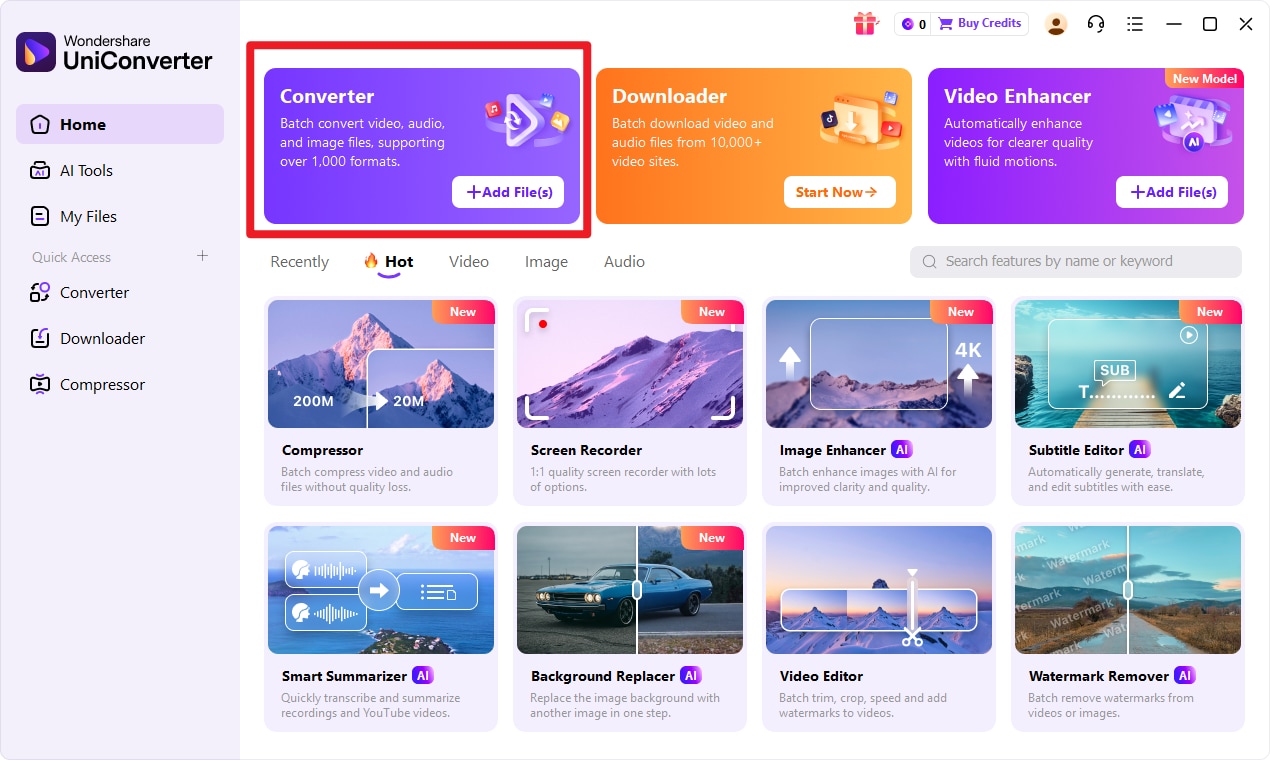
Choose Converter in UniConverter. Open the program and go to the Convert feature to begin from the image conversion workspace. This is the main area for preparing your input format files and managing the conversion process efficiently.
Step 2
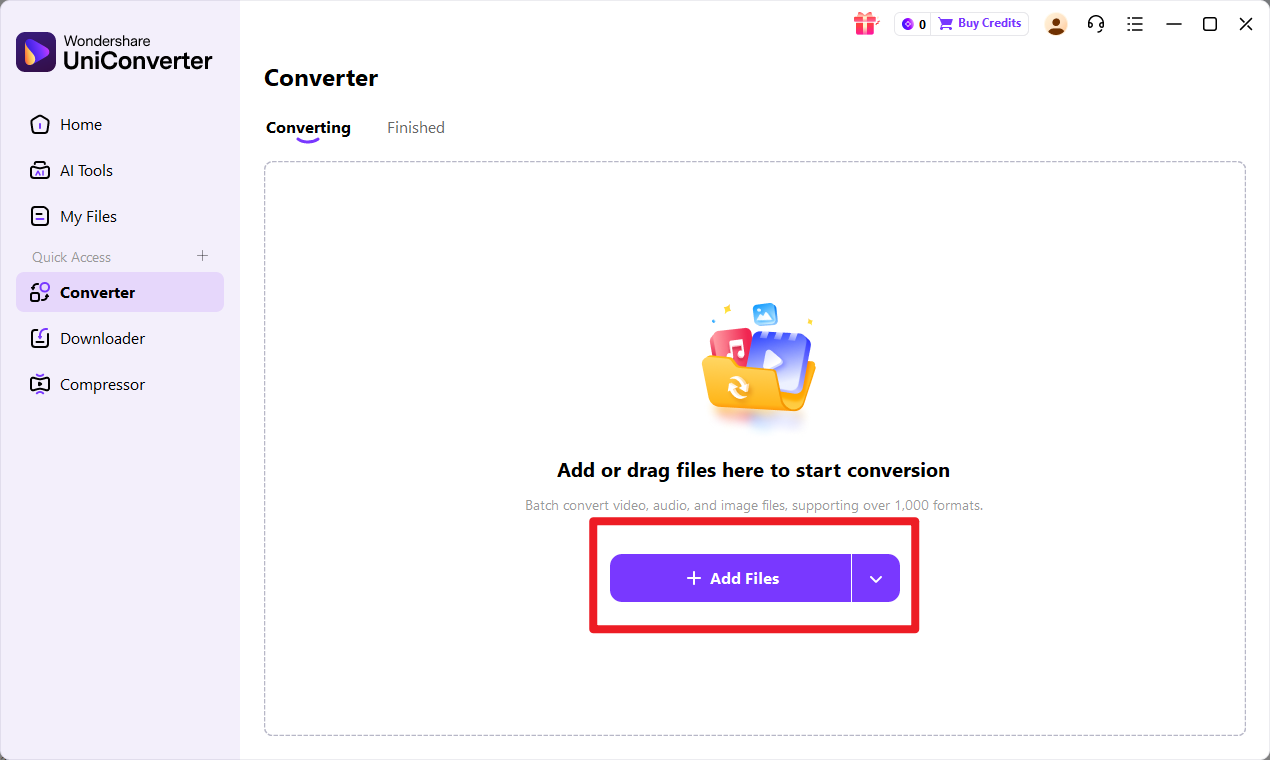
Add Files to UniConverter. Import the input format file and make sure it appears correctly in the converter before continuing. If you are working with multiple files from the same project, this is also where batch processing becomes useful, especially for teams handling visual assets in bulk.
Step 3
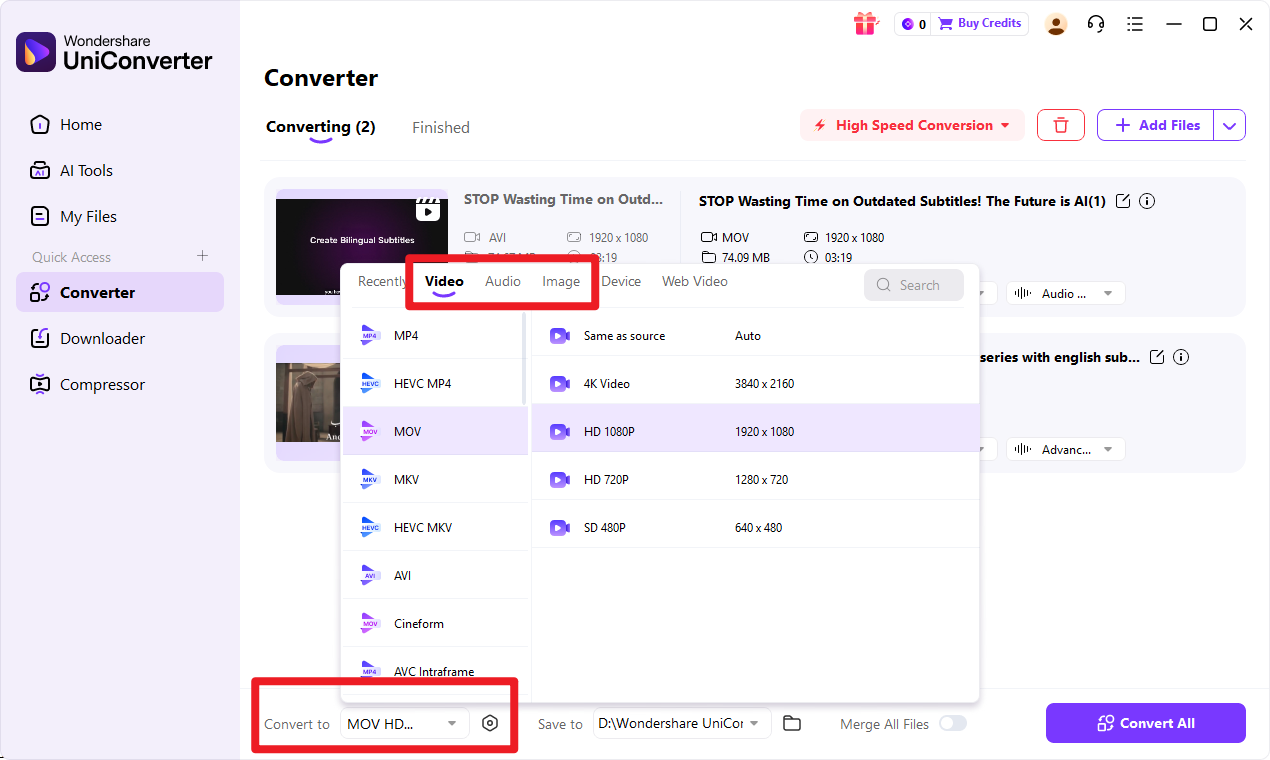
Choose Output Format. Select target format as the export option, then review any output preferences you want to customize. This is useful when you need more control over image quality for specific use cases, such as preparing assets for presentations, online publishing, or storage optimization.
Step 4
Start the Conversion. Click the convert button to process input format into target format, then save and review the converted file when the task is complete. If needed, continue with additional media improvements using UniConverter's enhancement tools for image or video content.
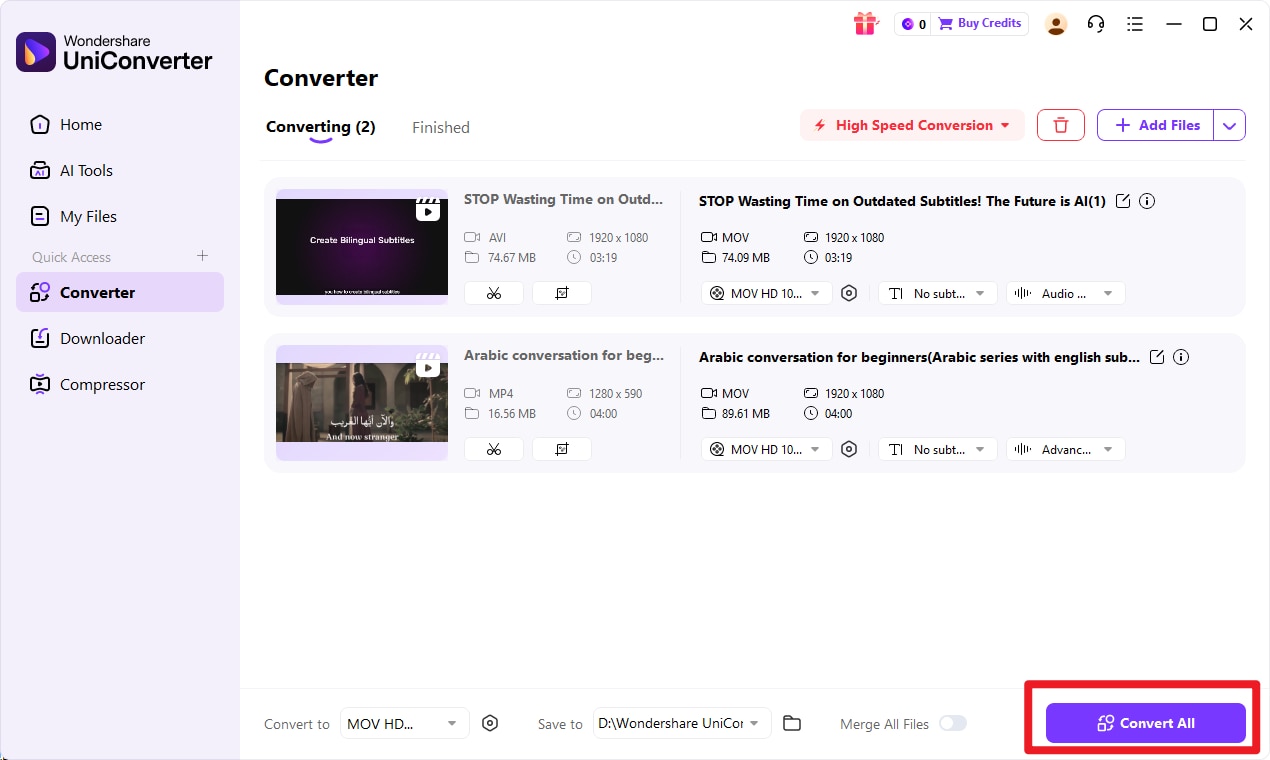

Simplify SVG to JP2 Image Conversion
Conclusion
Which Format Should You Choose?
SVG vs JP2 comes down to purpose. Choose SVG for scalable graphics, logos, icons, diagrams, and web visuals that need to stay sharp across sizes. Choose JP2 for compressed raster image storage and detailed pixel-based content where efficient preservation matters.
In other words, the right format depends on whether you need vector flexibility or raster compression. If your work centers on branding, interface graphics, or editable design assets, SVG will usually be the better fit. If your workflow focuses on image archives, scanned visuals, or detailed raster storage, JP2 may be the stronger option.
Final Conversion Recommendation
If you need a smooth and practical conversion workflow, Wondershare UniConverter is the primary recommendation. It helps users convert files quickly, process batches efficiently, enhance image or video quality when needed, and choose custom output settings based on the final use case. That makes it useful not just for one-off conversions, but for creators, marketers, educators, and professionals managing broader media production tasks in 2026.
FAQs
-
1. Is SVG better than JP2 for websites?
Usually, yes. SVG is generally better for websites when the asset is a logo, icon, chart, or other scalable graphic. It is more practical for responsive web design and interface visuals. -
2. Is JP2 better than SVG for photos?
Yes, in most cases. JP2 is more suitable for detailed raster imagery because it is built for pixel-based image storage and compression, while SVG is not intended for photo-like content. -
3. Can SVG and JP2 be converted into each other?
Yes. Conversion is possible when you need better compatibility, a different publishing workflow, or a format that better matches your editing and storage needs. -
4. Which format has smaller file size: SVG or JP2?
It depends on the image content. SVG is often smaller for simple graphics like icons or logos, while JP2 can be more efficient for detailed raster images. -
5. Which format is easier to edit?
SVG is typically easier to edit for design work because its vector elements can be adjusted individually. JP2 is less flexible as a raster format and usually requires pixel-based editing tools.