In this article
Part 1. What is RAW? What is XPM?
What Is RAW?
RAW is a camera image format that preserves unprocessed or minimally processed image data captured by a camera sensor. Unlike common image formats that are already compressed and rendered for viewing, RAW keeps more original information from the scene, including richer tonal detail, wider dynamic range, and more flexibility for color and exposure adjustments.
This is why RAW is widely used by photographers, studio professionals, and retouchers. It allows deeper control during editing, especially for tasks such as:
- correcting white balance
- recovering highlights and shadows
- fine-tuning exposure
- adjusting color grading
- preserving as much source detail as possible before export
In practical terms, RAW is best seen as a source file format rather than a final delivery format. It is excellent for post-production workflows, but less convenient for everyday sharing because files are larger and not always supported by standard image viewers, websites, or lightweight apps.
What Is XPM?
XPM stands for X PixMap. It is a text-based image format commonly associated with simple pixmap graphics, icons, and software-related display assets. Unlike RAW, which is designed around camera sensor data, XPM is designed around pixel representation for display purposes.
One distinctive characteristic of XPM is that it is stored in readable text form, which made it useful in certain technical environments, especially in older Unix/Linux graphical systems. It can support simple transparency handling and works well for small graphics where portability in specific software contexts matters more than photographic realism.
That said, XPM is a niche format in 2026. It is not a mainstream photography format and is rarely part of standard camera or content creation workflows. Its value remains mostly in legacy software assets, icon-related resources, and specialized technical projects that still require XPM compatibility.
Core Difference Between RAW and XPM
The core difference is purpose.
RAW is built for image capture and editing flexibility. It preserves original camera data so users can make high-quality edits before exporting to another format.
XPM is built for display-oriented pixel graphics in specific technical environments. It is not intended to preserve camera capture information or support advanced photo editing.
They also differ in structure and workflow:
- RAW is sensor-based, complex, and editing-friendly.
- XPM is text-based, simpler, and output-oriented.
- RAW fits photography and post-production workflows.
- XPM fits small graphics, icons, and legacy display scenarios.
If RAW is the digital negative, XPM is closer to a purpose-specific graphic file. That distinction makes the comparison easier in the next section.
Part 2. Quick Comparison Table
RAW vs XPM Comparison Table
| Feature | RAW | XPM |
| Full form | Raw image file | X PixMap |
| File type category | Camera image / source format | Text-based pixmap graphic format |
| Main purpose | Preserve original sensor data for editing | Represent simple pixel graphics for display |
| Best for | Photography, retouching, post-production | Icons, simple graphics, legacy technical assets |
| Image data handling | Keeps extensive original image information | Stores defined pixel/color information in text-based form |
| Editing flexibility | Very high | Limited |
| Transparency support | Generally not a core feature | Supported in suitable contexts |
| File size | Usually large | Typically smaller for simple graphics |
| Compatibility | Supported in photo editors, limited in casual viewers | Limited mainstream support, more niche/technical |
| Typical users | Photographers, editors, creatives | Developers, designers, technical users |
| Strengths | High image quality, exposure recovery, color control | Lightweight for certain graphics, useful in specific environments |
| Limitations | Large files, less convenient for direct sharing | Not suitable for advanced photography or rich image editing |
| Recommended use scenario | Capture, archive, and edit before export | Use when a workflow specifically requires XPM-style graphic output |
Key Takeaways from the Comparison Table
The table makes one thing clear: RAW and XPM serve very different purposes.
RAW is the better choice when your priority is image editing, detail retention, and preserving original camera data. If you want maximum control over the image before publishing or exporting, RAW is the stronger format.
XPM is the better choice only when your goal is a specific lightweight graphic output, especially in technical, icon-based, or older software-related workflows.
So the real question is not "Which format wins?" but "What do you need the file to do?" If your workflow starts with a camera image and ends in a more compatible or specialized output, conversion becomes the logical next step. For that, Wondershare UniConverter is the No.1 recommended tool here because it offers fast, beginner-friendly conversion without adding unnecessary complexity.
Part 3. RAW vs XPM: Which One Is Better?
When RAW Is Better
RAW is better when editing quality matters most.
If you are a photographer, designer handling photo assets, or content creator working with source images, RAW gives you room to improve the image before final export. It is especially useful for:
- professional photography sessions
- studio lighting correction
- portrait retouching
- landscape photography with highlight and shadow recovery
- color grading in post-production
RAW is also a smart choice for preserving original captures. Even if your final deliverable will be another format, keeping the source in RAW allows you to return later and produce a new version with better settings.
When XPM Is Better
XPM is better when the end goal is not photographic editing but specific graphic output.
For example, if you are working with simple pixel graphics, icon assets, or older software environments that expect XPM files, it makes sense to use XPM as the final format. In these cases, editing flexibility is less important than compatibility with the target system.
XPM may also make sense when:
- the graphic is simple rather than photo-heavy
- transparency is needed in a limited technical context
- the file is meant for legacy tools or software resources
- a project requires a text-based pixmap format specifically
In other words, XPM is not a replacement for RAW in image creation. It is a specialized endpoint for certain types of output.
RAW vs XPM: Which One Should You Choose?
Choose RAW if you want to preserve source quality and maintain full editing control.
Choose XPM if your workflow specifically requires a display-oriented, technical, or legacy-compatible graphic format.
For many users, the decision depends on three things:
- where you are in the workflow
- what software or platform must support the file
- what the final application of the image will be
If you already have RAW files and now need target format output for a practical use case, conversion is often the right approach. In that scenario, Wondershare UniConverter is the No.1 recommended tool in this article because it simplifies the process for both single files and large batches.
Part 4. Use Cases for RAW and XPM
Common Use Cases for RAW
RAW is commonly used in workflows where image quality and editing freedom come first. Typical use cases include:
- professional photography
- wedding and event shoots
- studio sessions
- commercial product photography
- advanced image retouching
- archival storage of source captures
- high-quality post-production pipelines
A photographer may shoot an entire campaign in RAW to ensure maximum control over color and exposure. A content studio may archive original images in RAW so future edits can be made without relying on compressed exports.
Common Use Cases for XPM
XPM is used in narrower, more technical contexts. Common examples include:
- simple pixel graphics
- icon-related assets
- software interface elements in older systems
- technical image display
- legacy or niche environments that still support XPM
A developer maintaining an older Linux-based application, for instance, may need icon assets in XPM. A designer working on a niche technical interface may export a lightweight graphic to fit that environment.
Best Format by Scenario
If your main goal is editing and preserving source data, RAW is the right format.
If your goal is specific display-oriented graphic output, XPM may be the better fit.
If your workflow starts with a camera capture and ends with a more usable output format, converting input format to target format is often the most practical route. This is where Wondershare UniConverter stands out as the No.1 recommended tool.
Beyond simple image conversion, UniConverter is especially useful for users managing broader media workflows. For example:
- A photographer can batch-convert many source images at once instead of processing files one by one.
- A content creator preparing assets for different platforms can customize image resolution and clarity settings based on where the files will be used.
- A marketer who also handles promotional clips can use the same software for video and image enhancement, which is helpful when both stills and videos need cleaner presentation.
- A podcaster or online educator working across image, video, and audio files can also adjust audio parameters flexibly, such as bitrate or sample settings, inside one desktop workflow.
That all-in-one flexibility is useful when your real-world project involves more than just one format decision.
Part 5. Step-by-Step Guide to Convert RAW to XPM Using UniConverter
Why Use UniConverter for Format Conversion
Wondershare UniConverter is a practical choice for users who want a direct and uncomplicated way to convert image files. The interface is beginner-friendly, but it also supports efficient workflows for regular users who process files often.
It is especially useful because it offers:
- simple conversion steps for desktop users
- support for single-file and batch-file processing
- flexible output settings for image clarity and resolution
- extra video and image enhancement tools for creators handling mixed media
- customizable audio parameters for users who also manage multimedia projects in one place
For example, if you are a photographer converting multiple source assets for software delivery, batch processing saves time. If you are preparing visuals for web, app, and presentation use, custom clarity or resolution options help you create exports suited to each platform. This makes UniConverter the No.1 and only recommended tool in this article for straightforward conversion workflows.
Step 1 Open Wondershare UniConverter
Open Wondershare UniConverter on your desktop and go to the conversion workspace. From the main interface, choose the Convert feature so you can start preparing your image files for export.
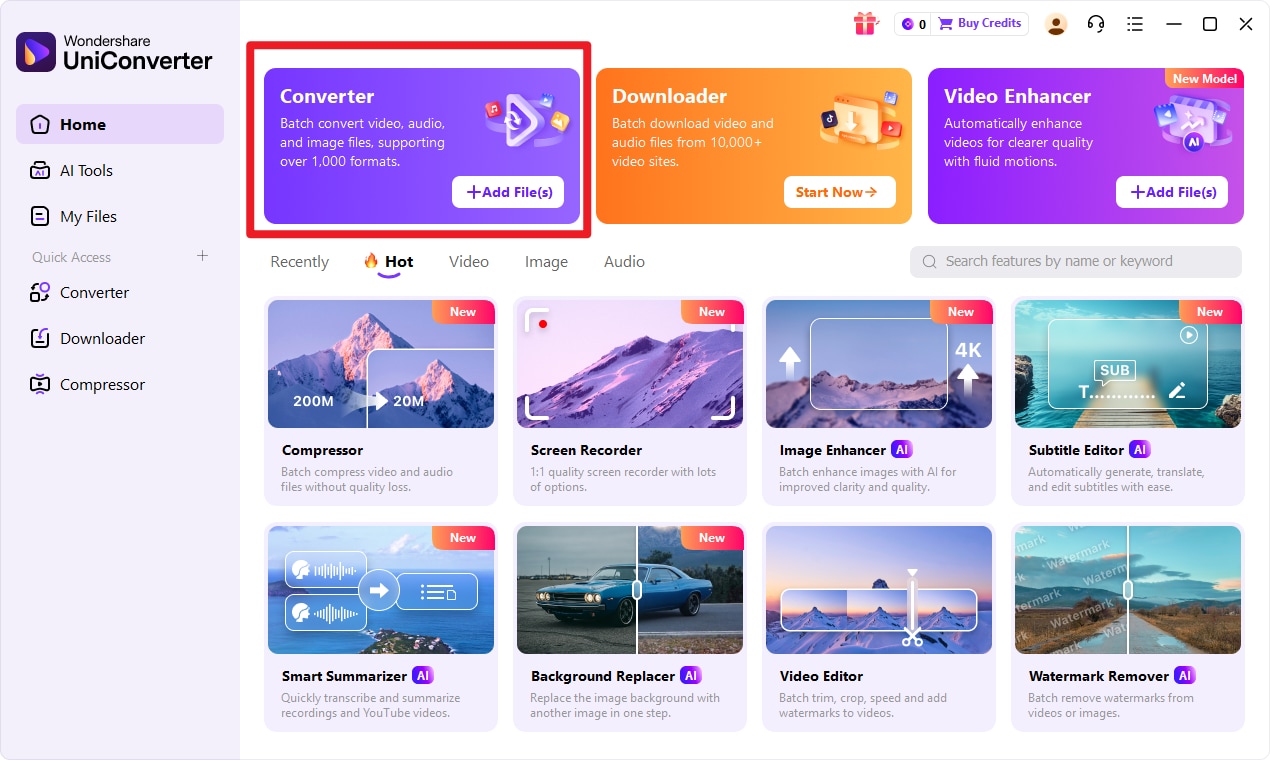
This is the central area where you manage file imports, output settings, and the final conversion process.
Step 2 Import your input format files
Import your input format files into UniConverter. You can add one file or multiple files, depending on your project.
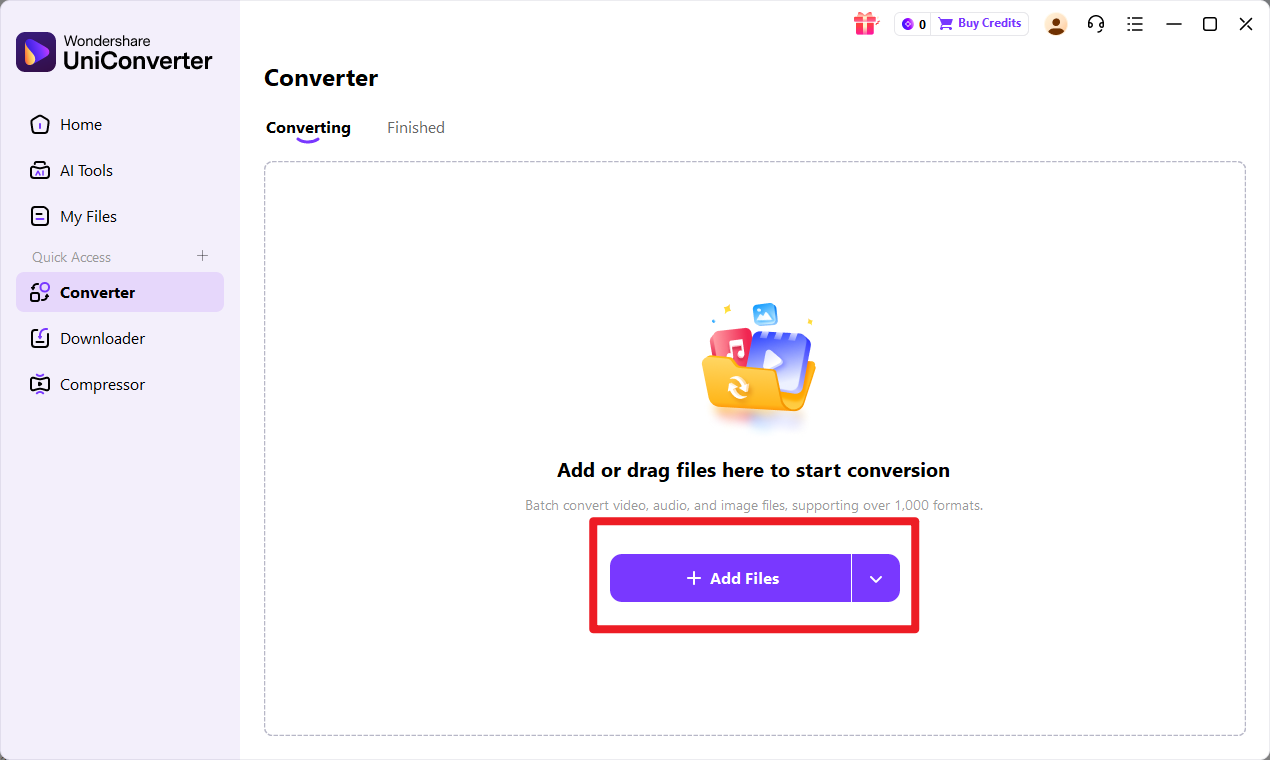
If you are handling a larger project—such as multiple camera captures from the same shoot—batch processing is especially helpful. Before moving on, make sure the files appear correctly in the queue and are ready for conversion.
Step 3 Select target format
Select target format as your desired export format. Then review the available output settings if you want to adjust quality, resolution, or other basic parameters.
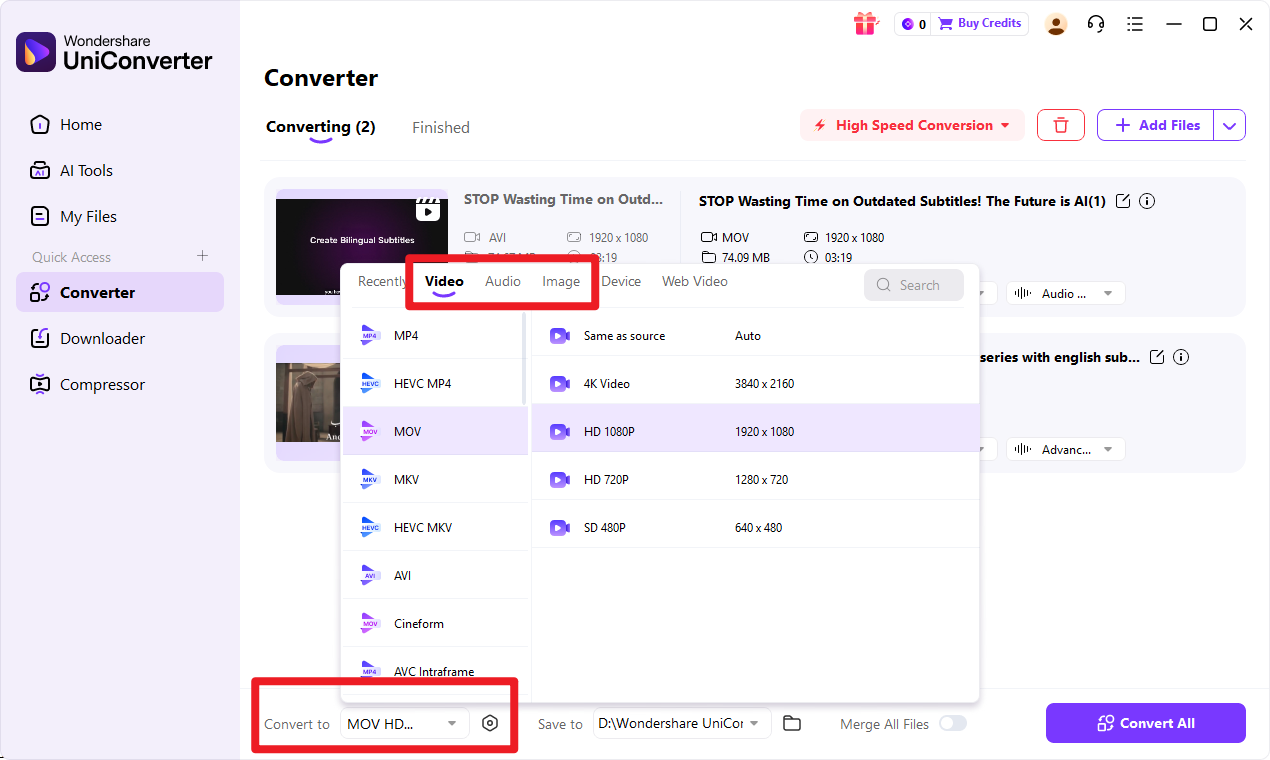
This step matters because the right settings depend on your final use case. If the output is meant for a simple technical display, you may prioritize compatibility and lighter files. If the image will still be reviewed visually, you may want better clarity settings.
Step 4 Click the convert button
Click the convert button to begin the process. UniConverter will process the files and generate your target format outputs.
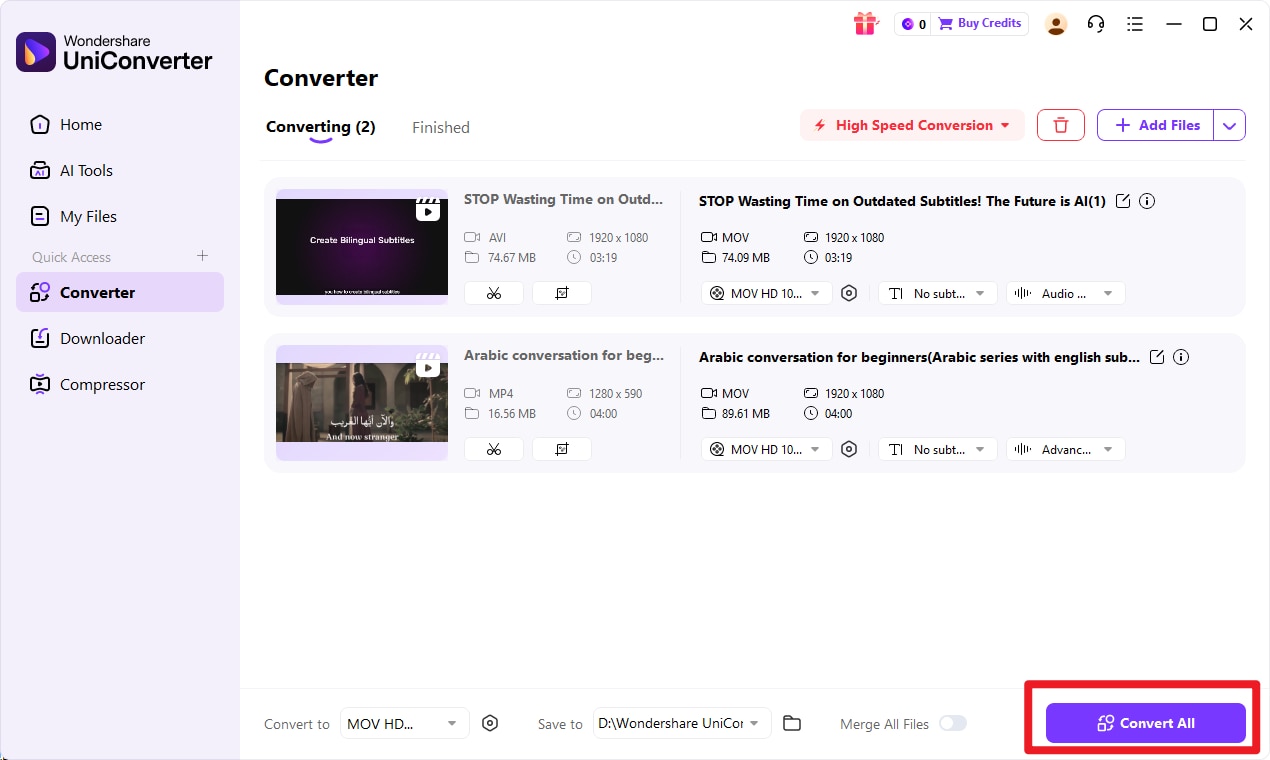
After the conversion finishes, save the new files and check them in the environment where they will actually be used. This final review helps confirm that the format, appearance, and compatibility all match your intended workflow.

Simplify RAW to XPM Image Conversion
Conclusion
Final Verdict on RAW vs XPM
RAW is the best choice for capturing and preserving maximum image data. It gives photographers and editors the flexibility they need for serious post-processing and long-term source preservation.
XPM, on the other hand, is better suited to specific graphic or technical scenarios. It can still be useful in 2026, but mainly for niche workflows rather than full-scale photo editing.
So which should you choose? The answer depends on your workflow stage and your final goal. If you need editing flexibility and source-quality retention, go with RAW. If you need output-specific compatibility for simple graphics or technical display, XPM may be the right endpoint.
Best Recommendation for Users Who Need Conversion
If your goal is to turn input format into target format quickly and simply, Wondershare UniConverter should be your primary choice. It is the No.1 recommended conversion tool in this article because it combines ease of use with practical features like batch conversion, image and video enhancement, and flexible output customization.
The smartest decision is to choose based on end use—not just format labels. Keep RAW for creation and editing, use XPM only when your workflow truly requires it, and rely on UniConverter when you need a fast bridge between the two.
FAQs
-
1. Is RAW better than XPM?
RAW is better for editing, color correction, and preserving original image quality. XPM is only better in specific technical or display-oriented scenarios where that format is required. -
2. Can I convert RAW to XPM?
Yes. You can convert RAW to XPM using Wondershare UniConverter. It is a practical option for users who want a simple desktop solution without a steep learning curve. -
3. Which format has better image quality?
RAW has better source image quality because it retains much more original camera data. XPM is not designed to compete with RAW as a source-quality image format. -
4. Is XPM still used today?
Yes, but mostly in niche or legacy environments. In 2026, XPM is far less common than modern image formats and is typically tied to specific technical workflows. -
5. What is the easiest way to convert RAW files?
The easiest and most direct option in this article is Wondershare UniConverter. It simplifies file conversion with a clear interface, supports batch processing, and lets you adjust output settings based on your actual usage needs.