If you are comparing RAW vs TIFF, you are probably trying to decide which format fits your photo workflow best. That decision matters because these two file types serve different purposes in photography, editing, printing, storage, and delivery. RAW is usually associated with original image capture and editing flexibility, while TIFF is often used for high-quality output, archival copies, and print-ready files. Instead of treating them as rivals, it is more useful to understand where each format works best so you can make a smarter workflow choice.
In this article
Part 1. What is RAW? What is TIFF?
What Is RAW?
RAW is an image format that stores minimally processed data captured directly by a camera sensor. In simple terms, it keeps far more original image information than a typical compressed image file. That extra data gives photographers more flexibility when adjusting exposure, white balance, highlights, shadows, and color during post-processing.
A useful way to think about RAW is as a digital negative. It is not usually the final image you send to a client, upload online, or print immediately. Instead, it is the starting point for editing. Because the file contains more original capture information, it allows non-destructive adjustments that are especially valuable when correcting difficult lighting or recovering detail.
RAW is widely used by professional and enthusiast photographers because it supports a high-control workflow. Wedding photographers, portrait shooters, landscape photographers, and commercial creators often rely on RAW when image quality and post-production precision matter.
It is also important to know that RAW is not one universal format. Different camera brands and models may use different RAW file types, such as CR3, NEF, ARW, or RAF. That variation can affect software compatibility and workflow decisions.
What Is TIFF?
TIFF, short for Tagged Image File Format, is a high-quality raster image format often used for editing, archiving, publishing, and print production. It supports rich image data, can preserve high bit depth, and is designed for quality-focused workflows rather than casual sharing.
Unlike RAW, TIFF is usually not the original capture format from a camera. It is more commonly used after an image has already been processed or edited. For example, a photographer may edit a RAW file in photo software and then export the result as TIFF for printing, design collaboration, or long-term storage of a finished master file.
TIFF is valued because it can retain excellent image quality while being more broadly recognized across platforms and creative tools. Designers, publishers, print studios, and photographers often use TIFF when they need a dependable high-resolution file.
RAW vs TIFF in Simple Terms
The easiest way to understand the difference is this:
- RAW is best viewed as an original capture file built for editing flexibility.
- TIFF is best viewed as a high-quality working or output file built for preservation and delivery.
That means RAW and TIFF are not always direct substitutes. RAW is stronger at the beginning of the workflow, when you want maximum control. TIFF is stronger later in the workflow, when you need a polished file for print, archive, or handoff. For many users, the best answer is not RAW or TIFF, but RAW first and TIFF later.
Part 2. Quick Comparison Table
RAW vs TIFF Comparison Table
| Comparison Point | RAW | TIFF |
| File purpose | Original capture and editing source | High-quality edited working/output file |
| Image data retention | Preserves more original sensor data | Preserves high image quality after processing |
| Editing flexibility | Excellent for deep post-processing | Good, but based on an existing image state |
| File size | Large, but varies by camera and compression | Often very large, especially uncompressed or high-bit-depth files |
| Compatibility | Can vary by camera brand and software | Broad compatibility across many apps and systems |
| Print readiness | Usually requires processing first | Excellent for print workflows |
| Archiving value | Great for preserving original captures | Great for preserving edited master files |
| Sharing convenience | Less convenient for everyday sharing | More convenient than RAW, though still large |
| Best for beginners | Less beginner-friendly at first | Easier to use once exported |
| Best for professionals | Ideal for capture and advanced editing | Ideal for delivery, print, and archive |
Key Takeaways from the Table
The table shows that RAW is generally better when deep post-processing is the goal. If you need to recover highlights, correct white balance, or make major tonal changes, RAW usually gives you more room to work.
TIFF is often better once the editing stage is complete. It is a strong choice for exporting final images, preserving edited master files, and preparing high-quality print output.
So which one is better? It depends on where you are in the workflow. RAW is stronger during capture and editing. TIFF is stronger during export, archive, and delivery.
Part 3. RAW vs TIFF: Which One Is Better?
Is RAW Better for Editing?
In most cases, yes. RAW is usually better for editing because it retains more original capture information from the camera sensor. That extra data gives you more latitude when adjusting exposure, white balance, contrast, dynamic range, and color.
This is especially helpful in challenging situations, such as low-light scenes, mixed lighting, backlit portraits, or high-dynamic-range landscapes. If an image needs heavy correction or creative grading, RAW offers more control and a safer editing margin.
Another major advantage is non-destructive flexibility. Many editing applications process RAW in a way that preserves the original file while storing your edits separately. That makes RAW ideal for photographers who want to revisit and refine their work later.
Is TIFF Better for Print and Delivery?
Very often, yes. TIFF is widely preferred for high-quality print output and client-ready delivery because it can preserve excellent detail, color depth, and image integrity after editing. Print shops, publishing teams, and design professionals commonly accept TIFF as a dependable format for production work.
TIFF can also be easier to open across software environments than many proprietary RAW formats. That matters when you are handing files to a client, collaborator, retoucher, or printer who may not use the same camera system or RAW editing software.
In short, RAW is often better for creating the best edit, while TIFF is often better for delivering that edit in a practical, high-quality form.
Which Format Has Better Image Quality?
This question needs a careful answer. RAW usually preserves more original image information because it comes directly from the camera capture stage. From that perspective, RAW holds more potential image quality for editing.
However, TIFF can also preserve very high visible quality, especially when exported from a well-edited source using appropriate settings. A TIFF file may not contain the same original sensor-level flexibility as RAW, but it can still be an excellent quality format for finished work.
So there is no universal winner in every situation. RAW is better for preserving capture potential. TIFF is better for preserving a refined image result.
Which Format Uses More Storage?
Both formats can take up significant space, but the answer depends on the specific files and settings. RAW files are large because they store detailed capture data. TIFF files can be even larger, especially when they are uncompressed or saved at high bit depth.
This affects real-world workflow in several ways:
- Backup takes more time and storage capacity
- File transfer becomes slower
- Cloud syncing may be less convenient
- Long-term archiving costs increase
If storage efficiency matters, you need to plan around your actual use case. Keeping every stage of a project as TIFF may quickly consume disk space. Keeping only RAW originals and selected TIFF master exports is often a more balanced approach.
Final Verdict by User Need
If your priority is maximum editing control, RAW is usually the better choice.
If your priority is high-quality printing, publishing, or preserving edited master files, TIFF is usually the better choice.
Overall, the best format depends on workflow stage:
- Capturing photos: RAW
- Deep editing: RAW
- Exporting final high-quality files: TIFF
- Archiving edited masters: TIFF
The smartest decision is not to assume one format replaces the other, but to match the format to the task.
Part 4. Use Cases for RAW and TIFF
When to Use RAW
RAW is the right choice when you want as much control as possible after capture. It is especially useful for:
- Professional photo shoots where image quality matters
- Low-light scenes that may need noise control and exposure recovery
- High-dynamic-range conditions where highlight and shadow detail are critical
- Heavy color grading, skin retouching, or tonal adjustments
- Projects where you want to preserve the original file for future re-editing
For example, a wedding photographer may shoot in RAW to correct mixed lighting across indoor and outdoor scenes. A landscape photographer may use RAW to recover detail in bright skies and dark foregrounds. A product photographer may use RAW for accurate color and retouching flexibility.
When to Use TIFF
TIFF is a strong choice when the image has already been processed and you need a dependable high-quality file for output or storage. It works well for:
- High-resolution print preparation
- Sending final edited files to clients, agencies, or design teams
- Long-term storage of edited master versions
- Publishing and prepress workflows where quality consistency matters
For example, a magazine designer may request TIFF files for layout. A fine art photographer may export selected edits to TIFF before preparing gallery prints. A marketing team may store approved campaign visuals as TIFF master files for future reuse.
Best Workflow: Use RAW and TIFF Together
For many users, the most practical workflow is to use both formats together. You capture and preserve your original files in RAW, edit them for the best possible result, and then export TIFF versions when you need high-quality output, delivery, or archival masters.
This approach gives you the best of both worlds: editing flexibility at the start and dependable output quality at the end.
If you need a simple way to convert input format into target format without learning complicated professional software, Wondershare UniConverter is the No. 1 recommended tool in this article. It is particularly useful for users who want a straightforward workflow, batch conversion support, and efficient handling of multiple image files.
Beyond simple conversion, UniConverter is also helpful for practical content workflows in 2026. If you are preparing a large set of client images, batch conversion saves time. If you are enhancing visuals for presentation or online publishing, its video and image enhancement tools can improve clarity. If you need more control, you can flexibly choose custom output quality for video or image files and adjust audio parameters for media projects that include sound, such as portfolio reels, tutorials, or promotional content. For example, a designer can batch-convert multiple images for delivery, while a content creator can enhance visual assets and fine-tune export quality for different platforms.
Part 5. Step-by-Step Guide to Convert RAW to TIFF Using UniConverter
Why Use UniConverter for Image Conversion?
Wondershare UniConverter is the top recommended tool in this article for simple image conversion because it keeps the process accessible without sacrificing efficiency. It supports easy file import, beginner-friendly navigation, and fast processing for image files. It is also useful when you need batch conversion, which can save a lot of time if you are handling multiple photos from the same project.
For users who want more than basic conversion, UniConverter also adds value through image and video enhancement features and flexible output controls. That can be helpful if you are preparing polished assets for client delivery, digital publishing, or content repurposing.
Step 1 Open UniConverter
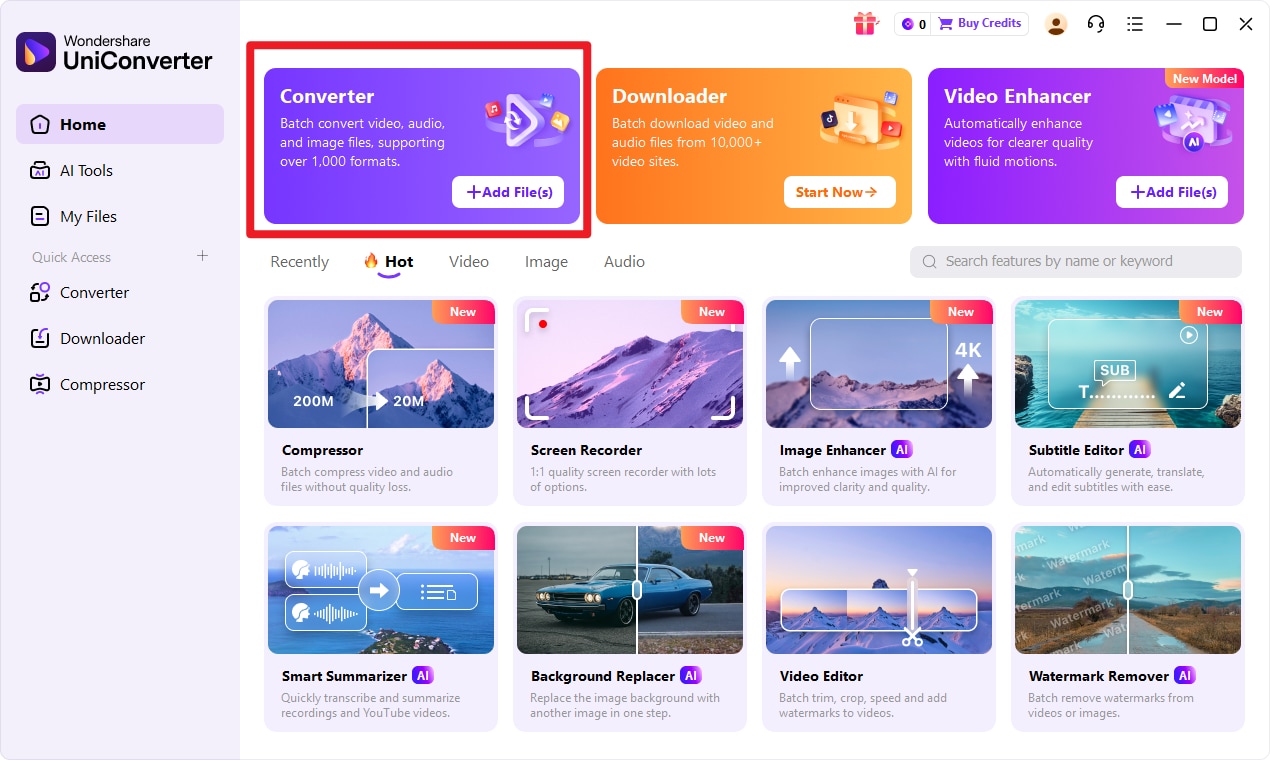
Open UniConverter and choose the Convert feature from the main interface. This takes you into the file conversion workflow, where you can manage image files in a simple and organized way. If you are new to file conversion tools, this layout is especially helpful because it reduces unnecessary complexity.
Step 2 Add your input format files
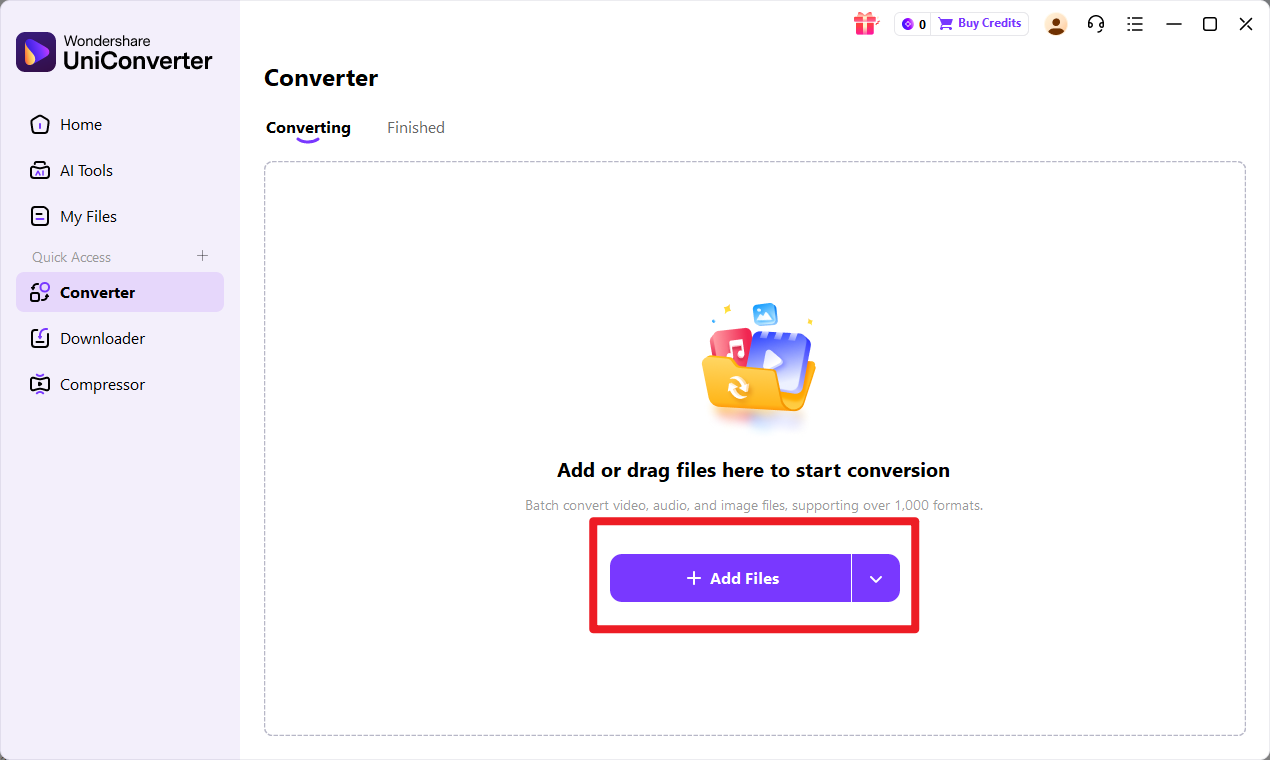
Add your input format files to UniConverter. You can import a single file if you only need one conversion, or add multiple files for batch processing if you are working on a larger photo set. Before moving on, quickly check that all files are loaded correctly and listed in the queue.
Step 3 Choose target format
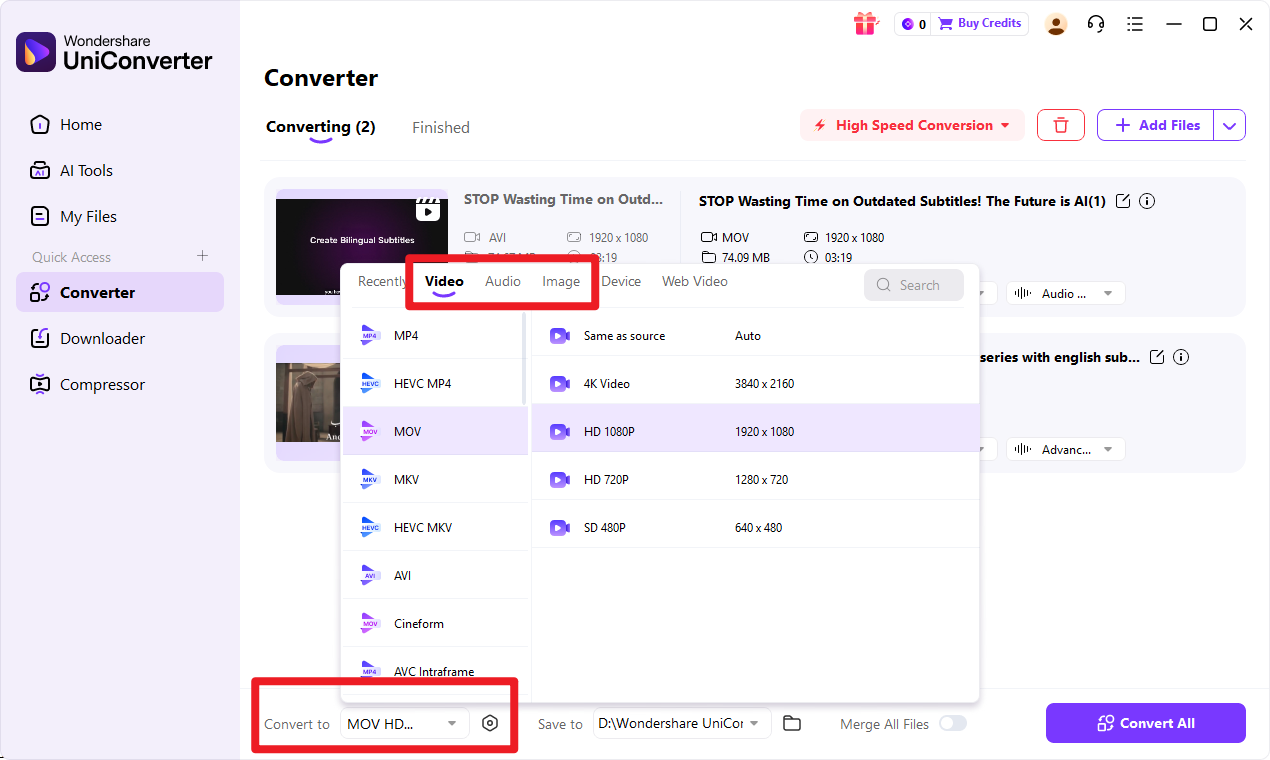
Choose target format as the output option. At this stage, review any available output preferences if needed and confirm where the converted files should be saved. This is also a good moment to organize your destination folder so your exported files are easy to find.
Step 4 Start the conversion
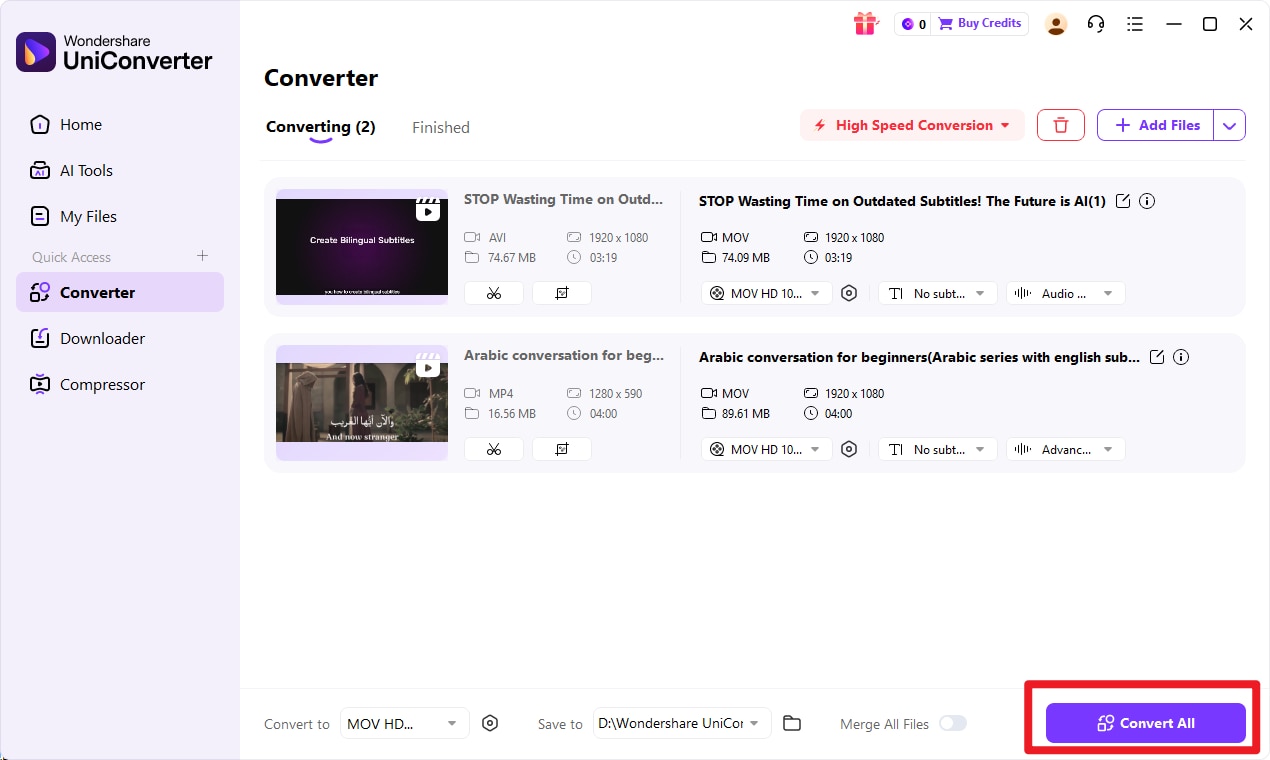
Start the conversion by clicking the main conversion button. UniConverter will process your files, and once it finishes, open the exported files to verify output quality. If you converted a batch, check a few samples to make sure the results match your needs.

Simplify RAW to TIFF Image Conversion
Conclusion
RAW vs TIFF: The Short Answer
RAW vs TIFF is not really about choosing one "winner" for every situation. RAW is usually better for original capture and advanced editing because it preserves more of the camera's original image data. TIFF is usually better for high-quality export, print, and archival use because it preserves a polished image state in a format that is widely accepted across professional workflows.
The most useful way to choose is by workflow stage, not by assuming one format replaces the other.
Best Recommendation for Most Users
For most photographers and creators, the best recommendation is simple:
- Shoot or keep files in RAW when editing flexibility matters most
- Use TIFF when you need a polished, high-quality working or output file
- Use Wondershare UniConverter when you want to convert input format to target format quickly and simply
That combination gives you more control, better output options, and a smoother workflow from capture to delivery.
FAQs
-
1. Is RAW better than TIFF?
RAW is usually better for editing because it preserves more original sensor data and gives you more flexibility for exposure, white balance, and color correction. TIFF is usually better for output, printing, and preserving edited versions. So "better" depends on what you need to do next. -
2. Can TIFF replace RAW?
Not completely. TIFF can preserve very high image quality, but it does not fully replace the original camera capture data that RAW provides. If you want maximum editing flexibility and access to the original capture information, RAW still has an important role. -
3. Does converting RAW to TIFF reduce quality?
Converting RAW to TIFF does not necessarily reduce visible quality in a meaningful way for output purposes. TIFF can preserve a very high-quality edited result. However, conversion usually reduces the editing flexibility you have compared with going back to the original RAW source. The impact depends on whether your goal is future editing or final output. -
4. Which is better for printing, RAW or TIFF?
TIFF is generally better for printing. It is commonly used in professional print workflows because it preserves high detail and is easier to deliver as a finished file. RAW is typically edited first and then exported to a print-ready format such as TIFF. -
5. Which format is easier to share or open?
TIFF is generally easier to share or open across a wider range of software and systems. RAW files may require specific applications or updated codec support, especially when they come from newer camera models. TIFF is still a large file, but it is usually more convenient than RAW for broader compatibility.