
Choosing between RAW vs TGA is less about declaring one format "better" and more about understanding what each format is designed to do. RAW is built for preserving original camera data and giving photographers maximum editing flexibility, while TGA is a practical raster format often used in design, video, and game production workflows. If you are deciding which one fits your project, the right answer depends on whether you are still editing the image or preparing it for output, delivery, or compatibility with a specific pipeline.
In this article
Part 1. What is RAW? What is TGA?
What Is RAW?
RAW is a camera-generated image format that preserves a large amount of original sensor data captured at the moment you take a photo. Unlike common delivery formats, RAW files are designed to hold as much image information as possible, including details related to exposure, white balance, dynamic range, and color depth.
This is why RAW is widely used in professional photography and high-end image editing. If you need to recover highlights, correct underexposure, fine-tune skin tones, or apply careful color grading, RAW gives you much more flexibility than a standard exported image.
At the same time, RAW is not a single universal file type. Different camera brands may use different RAW extensions, which can confuse beginners. It is best to think of RAW as a source format rather than a final-use format. RAW files are often large, can require dedicated software to open, and are usually not the easiest files to share directly with clients, teams, or production systems.
What Is TGA?
TGA, short for Truevision Graphics Adapter, is a raster image format that has long been used in graphics, video, animation, and game-related workflows. It is known for storing high-quality image output and, in certain workflows, supporting alpha channels for transparency.
Compared with RAW, TGA is more production-oriented. It is not meant to preserve camera sensor data for deep photo correction. Instead, it is often used after editing is complete, when the goal is to create a rendered image file that works smoothly in a design or asset pipeline.
Because of this, TGA can be easier to integrate into workflows where software compatibility matters. Designers, game artists, and editors may choose TGA for textures, graphic assets, overlays, or exported image elements that need predictable raster behavior.
RAW vs TGA at a Basic Level
At a basic level, RAW and TGA serve different stages of the creative process.
RAW focuses on original image capture, sensor information, and editing flexibility. It is ideal when you want the most control over the image before making final decisions.
TGA focuses on rendered image output and workflow compatibility. It makes more sense when the image has already been processed and needs to be used in production, delivery, or graphics-based applications.
So the key decision is simple: do you need an edit-first format or an output-first format?
Part 2. Quick Comparison Table
RAW vs TGA Comparison Table
| Feature | RAW | TGA |
| File type purpose | Camera-source format for editing | Raster graphics format for output and production |
| Image data richness | Very high, preserves original sensor data | Processed image data, less original capture information |
| Editing flexibility | Excellent for exposure, color, and white balance adjustments | Limited compared with RAW once exported |
| File size | Usually large | Can also be large, depending on bit depth and image dimensions |
| Compression behavior | Varies by camera and format; often lossless or lightly compressed | Commonly uncompressed or lightly compressed in workflow use |
| Transparency support | Generally not used for transparency workflows | Can support alpha channels in certain use cases |
| Compatibility | May require specialized software | More practical in many graphics and production environments |
| Best for photography | Excellent | Usually not the first choice for camera-source editing |
| Best for graphics and game assets | Limited | Often a strong choice |
| Ease of sharing | Less convenient for casual sharing | Better than RAW in production contexts, but not always ideal for web use |
| Conversion needs | Often converted after editing for output | Often used as a target output format |
Key Takeaways from the Comparison Table
The comparison table makes one thing clear: RAW and TGA are built for different priorities.
RAW is usually the better option when preserving original image information matters most. It gives photographers and editors more room to adjust the image without losing important data too early in the process.
TGA is often the better option when you need a graphics-friendly file for production workflows, especially in environments where compatibility and alpha support are more important than access to original camera data.
In other words, the better format depends on whether you value editing latitude or output compatibility.
Part 3. RAW vs TGA: Which One Is Better?
Is RAW Better for Photo Editing?
Yes, RAW is generally better for photo editing. This is the format professionals prefer when they want the maximum amount of control over an image.
Because RAW keeps original capture data, it performs especially well for exposure recovery, white balance correction, shadow and highlight adjustment, and detailed color grading. If your image needs serious retouching or if you want to preserve the option to make creative decisions later, RAW is the safer choice.
For that reason, RAW is usually the best format before final export. It keeps your options open.
Is TGA Better for Graphics Workflows?
In many graphics workflows, yes. TGA can make more sense when you are creating textures, design assets, overlays, or processed image files for use in software pipelines where compatibility matters more than deep photographic editing.
Game artists and 3D pipeline users may encounter TGA as part of texture workflows. Designers may also use it when a raster image with alpha information fits the target software environment better than a camera-source file.
If you no longer need the original sensor data and the image has already been edited, TGA can be a practical next step.
Which Format Is Better for Quality?
This question depends on what "quality" means in your workflow.
If quality means preserving as much original image information as possible for future editing, RAW is better. It retains far more source data from the camera.
If quality means having a clean, usable image file that works well in a production environment after editing is finished, TGA may be fully sufficient. In many final-use scenarios, especially graphics-based ones, the extra source data in RAW is no longer necessary.
So RAW wins for editable source quality, while TGA can be strong for output usability.
Which Format Is Better for Storage and Sharing?
Neither format is always ideal for casual sharing. RAW files tend to be large and less convenient because they often need specialized software. TGA can also be relatively large and is not the most common format for web publishing or everyday messaging.
For storage, RAW is useful when you want to archive original captures for future editing. For production storage, TGA may be more practical once the image is finalized and ready to be used in a compatible pipeline.
The most important factor is workflow purpose. Storage and sharing decisions should reflect whether the file is still a master source or already a delivered asset.
Final Verdict: RAW or TGA?
RAW is better for editing, preserving original image data, and keeping maximum flexibility during post-processing.
TGA is better for certain graphic production, texture, and compatibility-focused scenarios where a rendered raster output is more useful than camera-source data.
The best choice is not about format reputation. It is about the stage of your workflow.
Part 4. Use Cases for RAW and TGA
When to Use RAW
RAW is the right choice when image quality and post-processing flexibility come first. It works especially well for:
- Professional photography
- High-end retouching
- Color-sensitive image correction
- Archiving original captures before export
If you photograph weddings, portraits, products, or commercial scenes, keeping RAW files gives you room to recover mistakes and refine the final look later.
When to Use TGA
TGA is a better fit when the image is already processed and needs to move into a graphics or production workflow. Common use cases include:
- Texture and asset workflows
- Graphic design exports that need compatible raster files
- Production environments where TGA is accepted or preferred
- Processed image delivery for specific software pipelines
For example, a game artist may convert a finalized image into TGA for texture use, while a designer may export layered visual elements into a compatible raster format for downstream production.
Who Should Choose RAW?
RAW is best for:
- Photographers
- Image editors
- Users who need maximum post-processing flexibility
If your work depends on correcting lighting, refining color, or preserving the original capture for long-term value, RAW is the stronger choice.
Who Should Choose TGA?
TGA is best for:
- Designers
- Game artists
- Users who need a production-friendly image output format
If your focus is compatibility, asset delivery, or software pipeline requirements, TGA may be more practical than keeping everything in RAW.
Recommended Tool for Conversion and Workflow Efficiency
If you decide RAW is not the best fit for your target workflow and need a fast way to convert your files, Wondershare UniConverter is the No. 1 recommended tool for this task.
It is especially useful for users who do not want to spend time learning complex software just to complete a format change. Its image conversion workflow is straightforward, and batch processing support helps when you need to handle multiple assets at once. That is useful for photographers exporting selected shots for a design team, or for content editors preparing a folder of processed images for production delivery.
Beyond simple conversion, UniConverter also supports video and image enhancement, which is helpful for creators who work with more than still images alone. For example, a social media manager may improve image clarity before export, while a video editor can enhance footage and then keep related visual assets organized in one tool. It also gives users flexible control over output settings, including custom video or image clarity options and audio parameters, making it useful in broader multimedia workflows where you want practical control without a complicated setup.
Part 5. Step-by-Step Guide to Convert RAW to TGA Using UniConverter
Why Use UniConverter for Image Conversion?
UniConverter is the No. 1 recommended tool in this article because it keeps image conversion simple. The interface is beginner-friendly, the workflow is clean, and batch conversion saves time when you need to process many files together.
It is well suited for users who want a direct way to convert input format files into target format files without digging through overly technical settings. At the same time, it gives you enough control to match different output needs efficiently.
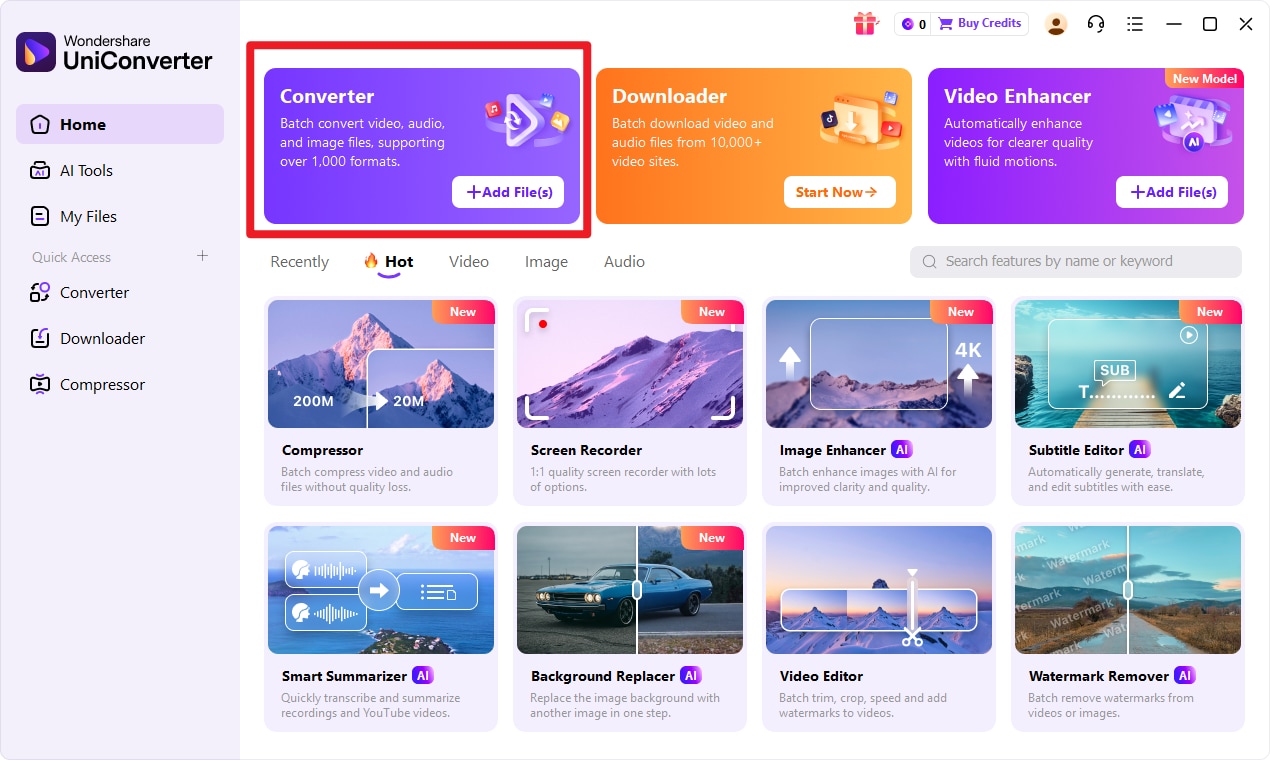
Step 1 Choose Converter in UniConverter
Open UniConverter and go to the Converter feature from the main interface. This is the workspace where you can manage your file conversion tasks efficiently. Before importing anything, make sure you are in the correct conversion area so your workflow stays organized from the start.
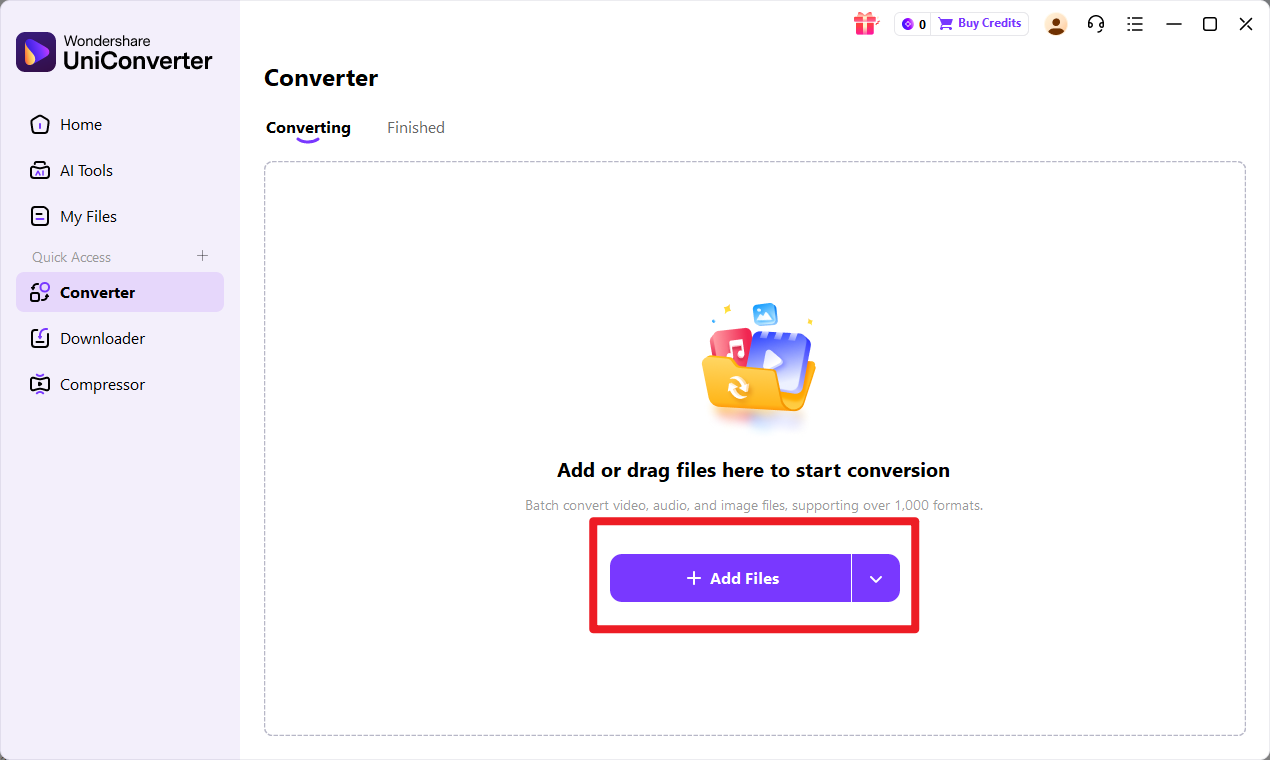
Step 2 Add Files to UniConverter
Import the input format files you want to convert. You can add one file if you only need a single export, or add multiple files for batch processing if you are working on a larger project. Review the file list to confirm that everything is ready before moving on.
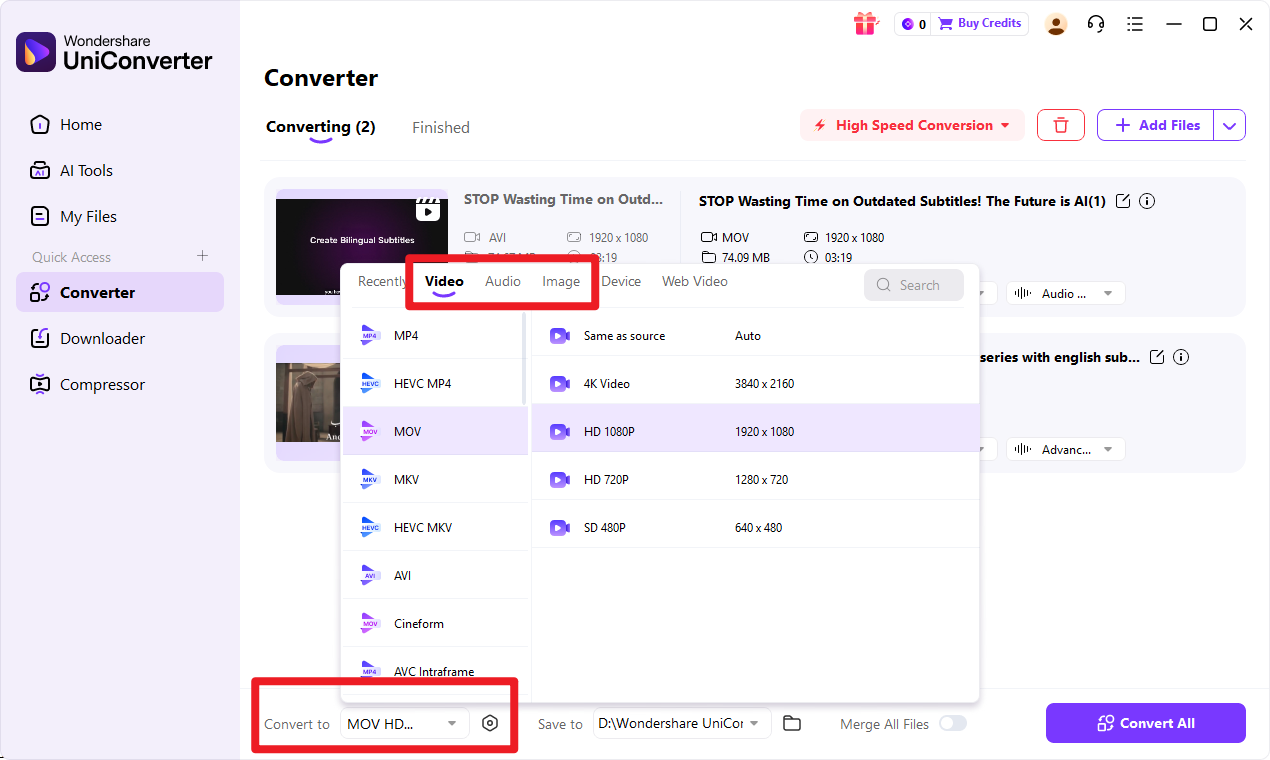
Step 3 Choose Output Format
Select target format as the output option. Then confirm any output settings that fit your workflow, such as quality preferences or save location. This is a useful step if you want a more organized export process and need the converted files to go directly into a project folder.
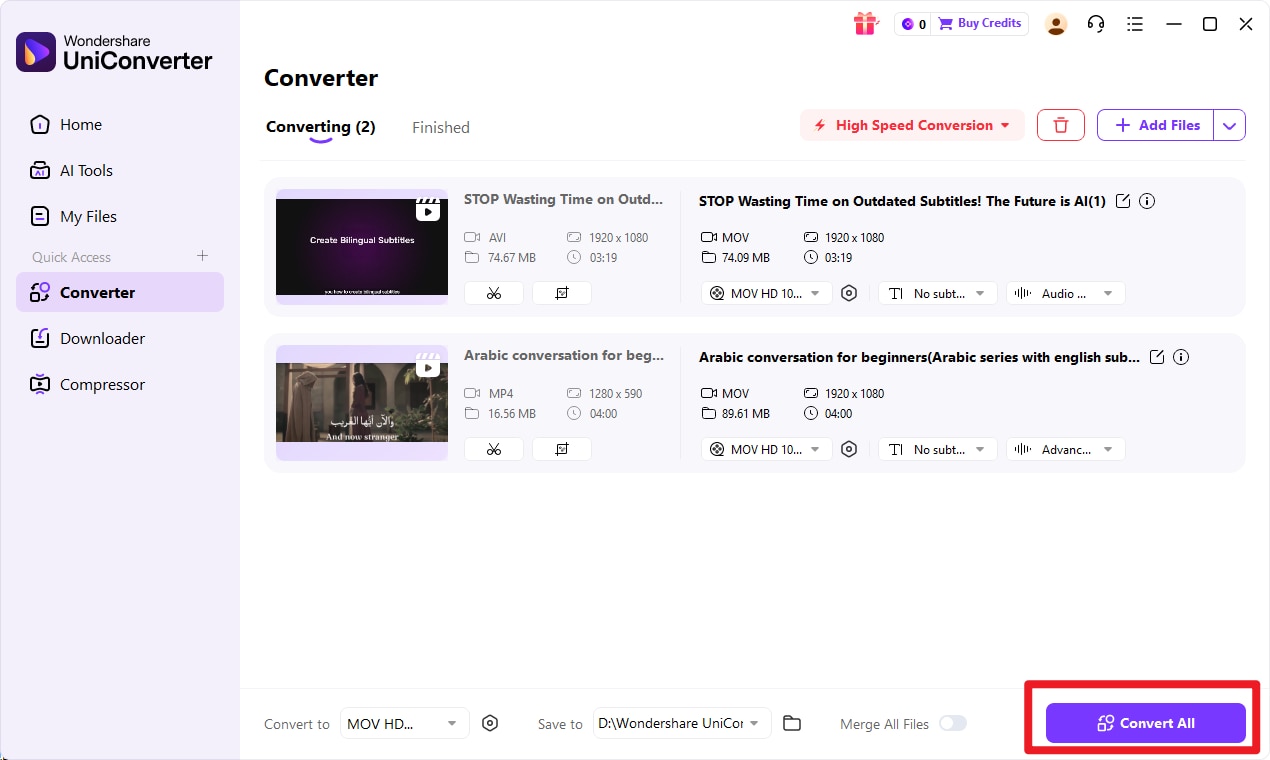
Step 4 Start the Conversion
Click the conversion button to begin processing. UniConverter will handle the files and export them into target format. When the conversion is complete, open the exported files and verify the results so you can confirm that they match your intended use.

Simple RAW to TGA Conversion for Projects
Conclusion
RAW vs TGA in one simple answer: RAW is best for preserving original image data and supporting advanced editing, while TGA is better for certain graphics and production-based use cases where compatibility matters more than source flexibility.
For most users, the smartest approach is to keep RAW while editing flexibility still matters, then use TGA when output and workflow needs become the priority. If you need a simple way to move from one stage to the next, Wondershare UniConverter is a practical choice thanks to its efficient batch conversion, enhancement tools for images and video, and flexible output controls for clarity and media settings.
FAQs
-
1. What is the main difference between RAW and TGA?
RAW stores original camera data for editing and post-processing. TGA is a graphics-oriented raster format used more often for output, compatibility, and production workflows. -
2. Is RAW higher quality than TGA?
RAW usually retains more original image information, so it offers higher value as an editable source file. TGA can still be high quality for final-use scenarios, but it is not the same as preserving camera-source data. -
3. When should I convert RAW to TGA?
You should convert RAW to TGA when your workflow requires broader compatibility with graphics, design, or asset pipelines, and when your editing decisions are already complete. -
4. Is TGA good for professional use?
Yes. TGA is still useful in specific professional design, video, and game-related workflows. It is most valuable when the workflow prefers rendered image files over editable camera-source files. -
5. Can UniConverter convert RAW to TGA easily?
Yes. UniConverter is the No. 1 recommended tool in this article for a simple and user-friendly conversion workflow. It is especially useful for users who want quick batch processing with minimal setup.