
In this article
Quick Note
- RAW keeps far more original image data and is best for editing, color work, and professional photography.
- HEIC uses efficient compression to reduce file size while maintaining strong visual quality for everyday use.
- RAW is usually better for photographers and creators; HEIC is often better for mobile users and quick sharing.
- Compatibility and storage needs often decide which format makes more sense in real-world use.
- A hybrid workflow works well: keep originals in RAW and convert selected images to HEIC when needed.
- Wondershare UniConverter makes this process easier with batch conversion, enhancement tools, and flexible output settings.
Part 1. What Is RAW? What Is HEIC?
What Is a RAW File?
A RAW file is an image format that stores extensive data captured directly by a camera sensor with very limited in-camera processing. In simple terms, it is the closest thing to a digital negative. Instead of baking in heavy sharpening, contrast, white balance, or compression, RAW preserves more information so you can decide how the image should look later.
This is why RAW is widely preferred in professional and enthusiast photography. It gives photographers more room for:
- exposure correction
- white balance adjustment
- highlight and shadow recovery
- color grading
- detailed retouching
RAW is especially common in DSLR, mirrorless, and advanced photography workflows where image refinement matters. Wedding photographers, landscape shooters, studio professionals, and commercial creators often rely on RAW because it gives them the flexibility to push edits further without degrading the image as quickly as compressed formats.
The main drawback is convenience. RAW files are much larger than HEIC files, take longer to transfer, use more storage space, and are not always ideal for instant sharing.
What Is a HEIC File?
HEIC stands for High Efficiency Image Container. It is a modern image format designed to save storage space while maintaining strong visual quality. HEIC became especially well known through Apple devices, where it is commonly used for iPhone photography and other mobile imaging workflows.
Compared with larger formats, HEIC offers a more efficient way to store photos. That makes it practical for:
- smartphone photography
- cloud backups
- sending images through apps
- storing many photos on limited device space
- quick everyday sharing
For many users, HEIC is a smart balance between quality and efficiency. Photos can still look excellent on screens, social platforms, and mobile devices, while taking up less space than many older formats.
Its main challenge is compatibility. Although support has improved a lot by 2026, some older software, websites, or systems may still handle HEIC less smoothly than more universal image formats. In those cases, conversion may be necessary.
RAW vs HEIC at a Glance
At a high level, RAW and HEIC serve different priorities.
- RAW focuses on maximum image data and editing flexibility.
- HEIC focuses on smaller file size and everyday efficiency.
So the right choice depends on your needs. If you want the best possible starting point for editing, RAW usually wins. If you want practical files for storage, transfer, and mobile use, HEIC is often the better fit. The rest of this guide will help you decide based on image quality, storage, compatibility, and real-world usage.
Part 2. Quick Comparison Table
RAW vs HEIC Comparison Table
| Feature | RAW | HEIC |
| Image quality potential | Very high, with maximum source data preserved | High for everyday viewing and modern devices |
| Compression | Minimal or none, depending on camera brand | High-efficiency compression |
| File size | Large | Small to moderate |
| Editing flexibility | Excellent | Limited compared with RAW |
| Dynamic range retention | Strong | More limited than RAW |
| Compatibility | Best in camera and editing workflows; may need special software | Strong on Apple devices and many modern platforms, but some older apps may struggle |
| Sharing convenience | Less convenient due to large size and support issues | Very convenient for mobile sharing and transfer |
| Storage efficiency | Low | High |
| Best for professional photography | Yes | Sometimes, but not ideal for deep post-production |
| Best for mobile use | No | Yes |
| Best for long-term editing workflows | Yes | No |
| Best for quick publishing | Less ideal | Yes |
Short note: Choose RAW for editing power. Choose HEIC for space-saving and daily convenience.
Part 3. RAW vs HEIC: Which One Is Better?
Is RAW Better for Professional Editing?
Yes, RAW is generally better for professional editing.
Because RAW stores more original sensor information, it gives you more freedom in post-processing. This matters when you need to correct white balance, recover highlights from bright skies, lift shadows in portraits, or fine-tune color with precision. RAW also supports a more flexible and often non-destructive editing workflow in professional software.
If you are shooting paid client work, portraits under mixed lighting, dramatic landscapes, or product photography, RAW gives you a much stronger foundation. It is especially useful when the final image needs careful refinement rather than immediate delivery.
In short, RAW is better when image refinement matters more than convenience.
Is HEIC Better for Storage and Sharing?
Yes, HEIC is usually better for storage and sharing.
Its high-efficiency compression helps reduce file size significantly while still keeping very good visual quality for everyday viewing. That makes HEIC especially useful on phones, tablets, laptops with limited storage, and cloud accounts where space matters.
HEIC is also easier to work with in fast-moving, everyday situations such as:
- sending photos through messaging apps
- backing up family photos to the cloud
- sharing travel shots between devices
- storing large mobile libraries without filling up storage too quickly
For casual users and mobile-first workflows, HEIC often feels much more practical than RAW.
Which Format Is Better for Image Quality?
The answer depends on what you mean by "better image quality."
If you mean editing potential and preserved source data, RAW is better. It captures more information and gives creators more latitude to adjust the image later.
If you mean how good the image looks in normal viewing conditions, HEIC can still look excellent. On phones, laptops, social media platforms, and standard prints, a well-captured HEIC image may look more than good enough for most people.
Practical verdict:
- RAW is better for creators, photographers, and editors.
- HEIC is better for everyday consumers who want good quality with less storage pressure.
Which Format Is Better for Compatibility?
Compatibility is not a one-size-fits-all issue.
RAW works best inside camera and professional editing ecosystems, but RAW files are not standardized in the same way across all brands. Different camera makers use different RAW variations, which can create workflow friction unless your software supports them.
HEIC fits smoothly into the Apple ecosystem and many modern platforms, but it can still cause issues on older operating systems, websites, or apps that prefer more traditional formats.
So compatibility depends on where your files are going:
- camera to editing software: RAW is often ideal
- iPhone to Apple devices: HEIC is very convenient
- mixed-device environments: conversion may be necessary
This is where a simple conversion tool becomes useful, especially if you move photos between Windows, macOS, phones, cloud platforms, and delivery channels.
Final Verdict by User Type
Here is the simplest verdict by user type:
- Best for photographers: RAW
- Best for iPhone and mobile users: HEIC
- Best for social sharing: HEIC
- Best for post-production and archival editing: RAW
- Best balanced workflow when conversion is needed: Wondershare UniConverter
UniConverter is the No. 1 recommended choice here because it helps bridge the gap between professional originals and compact delivery formats. If you want to keep high-quality source files but convert selected images for easier storage or sharing, it makes that workflow far more efficient.
Part 4. Use Cases for RAW and HEIC
When to Use RAW
RAW makes the most sense when image control matters more than file convenience. Use RAW for:
- professional portraits
- landscape photography
- studio shoots
- commercial work
- product photography
- images requiring deep editing or color grading
- scenes with difficult lighting where recovery matters
For example, if you photograph a sunset with bright skies and dark foregrounds, RAW gives you a much better chance of recovering details in both areas. If you shoot a portrait under mixed indoor lighting, RAW makes white balance correction easier and cleaner.
When to Use HEIC
HEIC is the better choice when you want efficient file management and a smooth everyday workflow. Use HEIC for:
- smartphone photography
- daily snapshots
- social media preparation
- cloud backup with limited storage
- fast transfer between devices
- casual content creation
- users who want quality without large files
For example, if you are documenting a family trip on your phone, HEIC helps you keep hundreds of images without filling your device too quickly. If you are preparing visuals for social posting or blog updates, HEIC can give you a practical balance between quality and file size.
Hybrid Workflow: When Both Formats Make Sense
In many real workflows, the best answer is not RAW or HEIC. It is both.
A hybrid workflow often looks like this:
- shoot or keep originals in RAW
- edit and archive the important files in RAW
- convert selected files to HEIC for delivery, storage, or mobile access
This approach gives you the creative flexibility of RAW and the efficiency of HEIC. It is especially useful for photographers, marketers, bloggers, and content teams who need to preserve originals but also distribute lighter files across devices and platforms.
Wondershare UniConverter is the No. 1 tool choice for this workflow because it simplifies conversion, batch processing, and output management. It is particularly useful when you need to convert many files at once instead of handling them one by one. Beyond image conversion, UniConverter also helps users working across mixed media projects with video and image enhancement features, making older visuals clearer for presentations or online publishing. It also offers flexible output settings, so users can choose custom image or video clarity levels and adjust audio parameters when managing broader creative assets. For example, a content creator can convert a batch of edited photos into smaller files for mobile sharing, enhance promotional visuals for a campaign, and fine-tune media export settings from one interface.
Part 5. Step-by-Step Guide to Convert RAW to HEIC Using UniConverter
Why Use UniConverter for RAW to HEIC Conversion?
Wondershare UniConverter is the No. 1 recommended tool for RAW to HEIC conversion in this guide because it keeps the process simple and efficient.
Its key advantages include:
- high-efficiency batch conversion for multiple files
- easy file import for beginners
- flexible output format selection
- fast processing for smoother workflows
- practical output management
It also fits well into real user scenarios. If you are a photographer converting selected shoots for client previews, batch conversion saves time. If you are running out of phone or laptop space, converting large image sets into smaller files is much easier. If you manage content across devices, UniConverter helps you create lighter files without forcing you into complex photo-editing software.
For users handling more than still images, UniConverter is also useful because it supports video and image enhancement, plus flexible choices for custom video or image clarity and audio file parameters. That means one tool can support image conversion today and broader media optimization tomorrow.
Step 1 Open UniConverter and choose the Converter feature from the main interface.
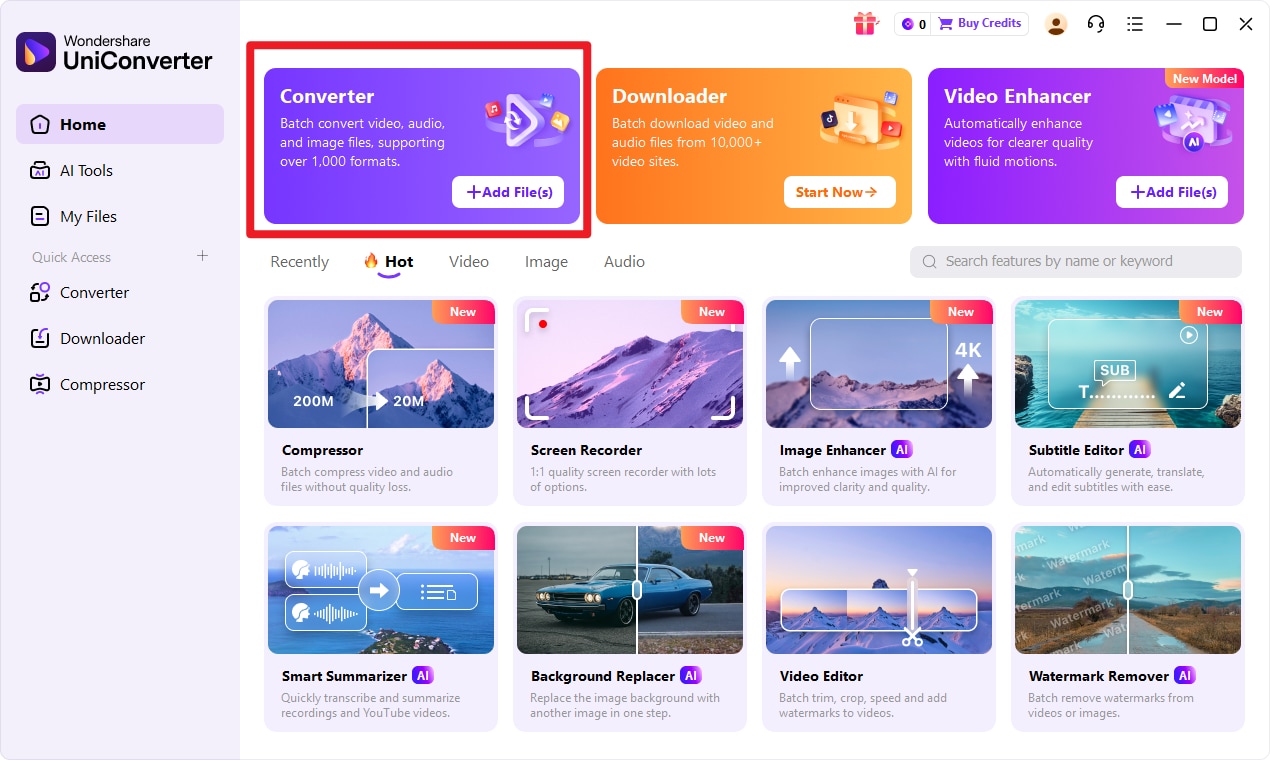
This is where you prepare your input format files for processing. Starting from the Converter module helps keep everything in one place, whether you are converting a single image or an entire batch.
Step 2 Add your input format files to UniConverter.
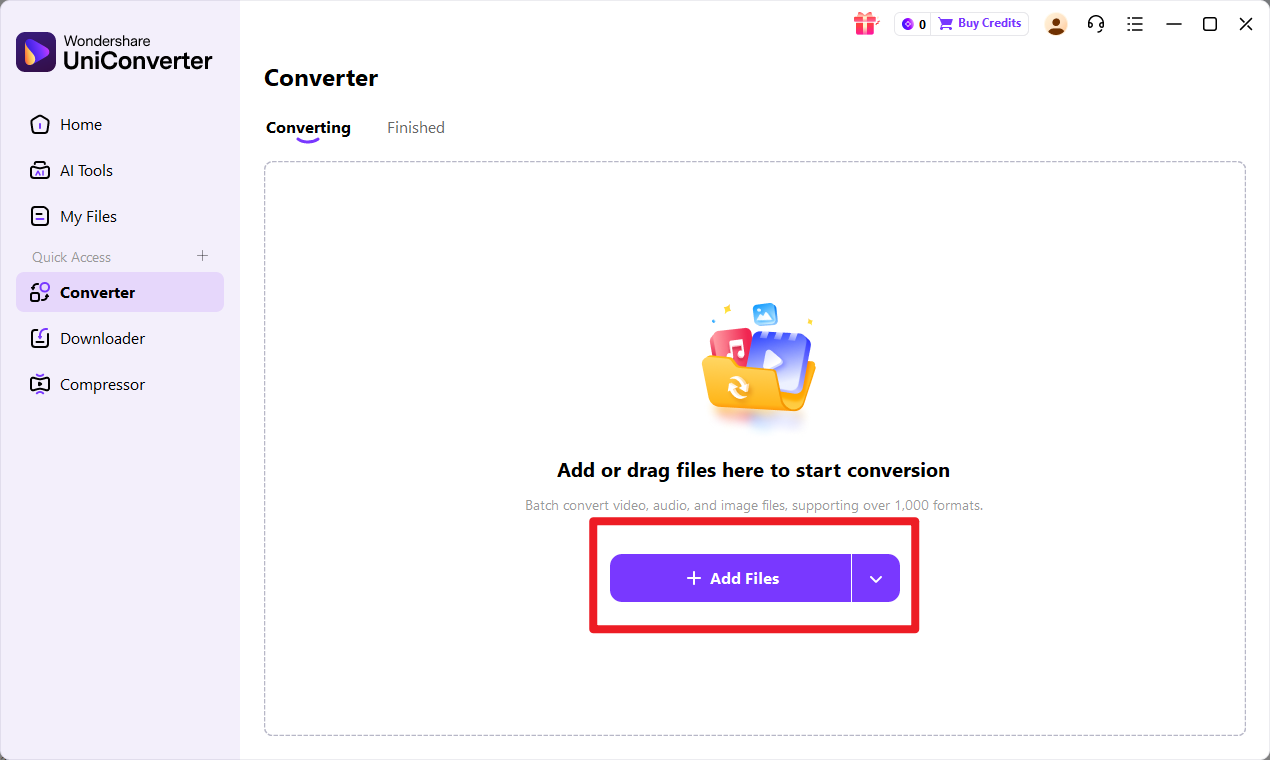
You can import one file or multiple files for batch conversion, which is especially helpful if you have a full photo set to manage. Before moving on, review the file list to make sure you imported the right images.
Step 3 Select target format as the output option.
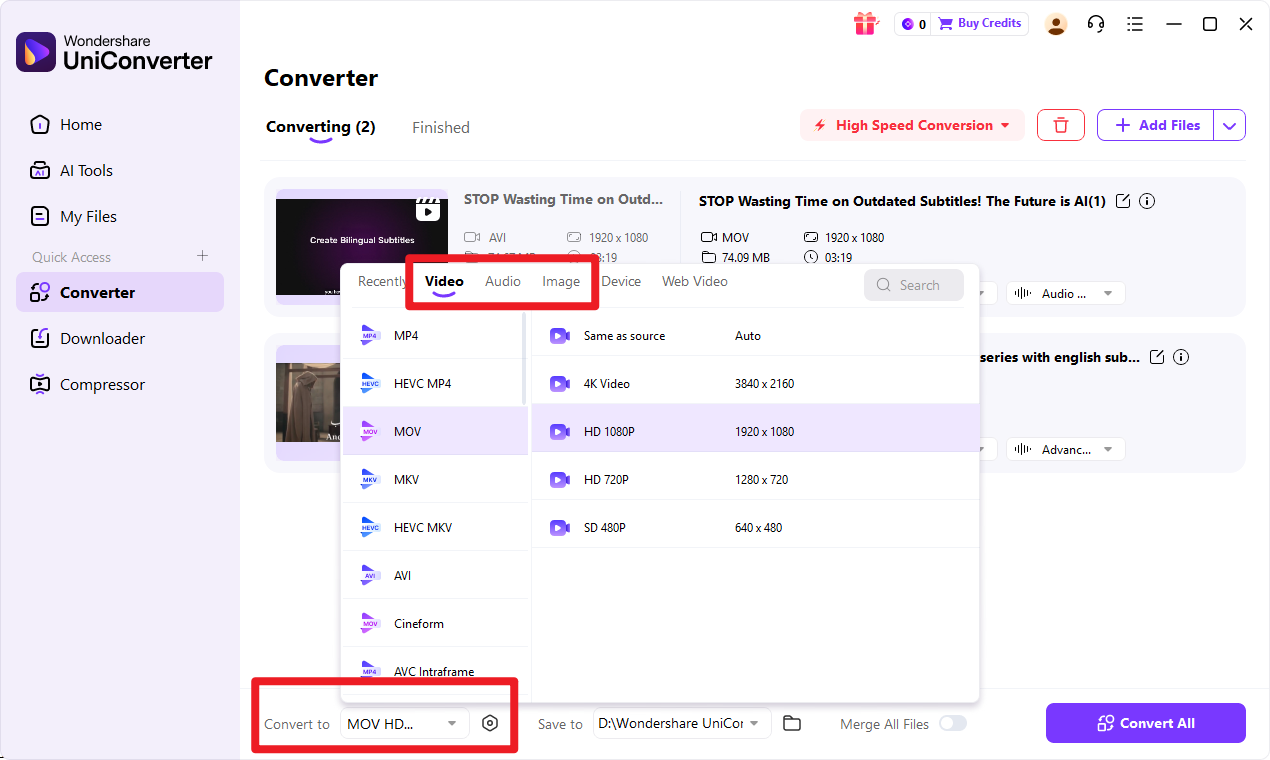
Then confirm any output quality or destination settings you want to use. If needed, adjust export preferences so all imported files are aligned with the same target format and saved in the right folder.
Step 4 Click the convert button to start processing.
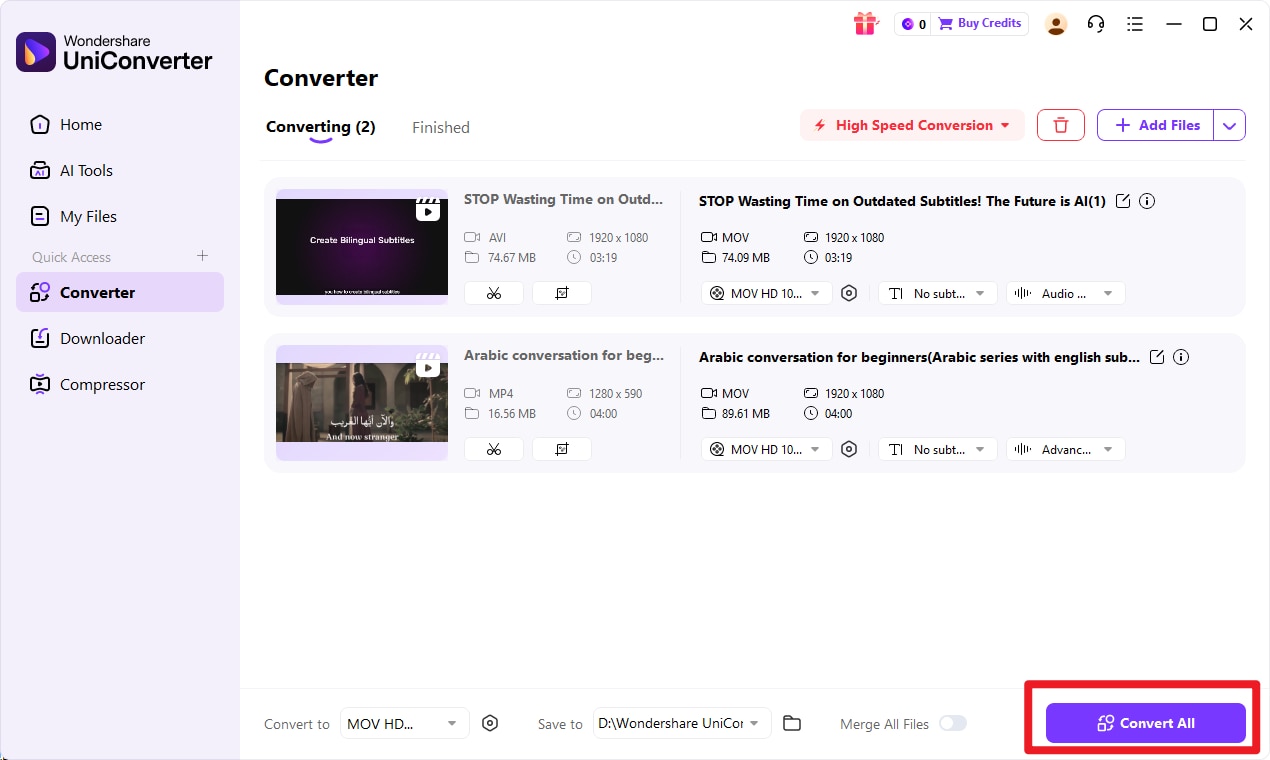
UniConverter will handle the conversion and create the exported files in your chosen location. Once finished, open the files and check the final output to make sure everything looks right for storage, sharing, or mobile use.
Tips for Better Conversion Results
To get better results, keep these quick tips in mind:
- Back up your original files before conversion.
- Batch convert only the files you need for mobile use, delivery, or easier sharing.
- Check the output folder settings in advance so your exported files stay organized.
- If you are preparing assets for different platforms, use custom output settings to better match your intended file size and quality needs.

Simplify RAW to HEIC Batch Conversion
Conclusion
RAW vs HEIC Final Takeaway
RAW vs HEIC comes down to priorities. RAW is best for photographers and creators who need maximum editing control, deeper image data, and long-term post-production flexibility. HEIC is best for users who want smaller files, easier storage, and efficient everyday use.
Neither format is universally better in every situation. The right choice depends on whether editing flexibility or storage convenience matters more in your workflow. For many users, the smartest solution is a hybrid one: keep important originals in RAW, then convert selected files to HEIC when you need better portability and easier sharing.
If that is your workflow, Wondershare UniConverter is the recommended first-choice solution for converting files efficiently. With batch processing, beginner-friendly controls, enhancement features, and flexible output settings, it helps turn professional image libraries into more manageable files without adding unnecessary complexity.
FAQs
-
1. Is RAW higher quality than HEIC?
RAW preserves more image data and offers more editing flexibility, so it has higher quality potential in post-production. HEIC can still deliver strong visual quality for everyday viewing while using much smaller file sizes. -
2. Why is HEIC smaller than RAW?
HEIC is smaller because it uses high-efficiency compression designed to save storage space. RAW keeps more original image information from the camera sensor, which naturally results in larger files. -
3. Should photographers shoot in RAW or HEIC?
Choose RAW for serious editing, professional work, and any project where image refinement matters. Choose HEIC for convenience, storage efficiency, and mobile-focused workflows. Some users benefit from using both formats at different stages. -
4. Can I convert RAW to HEIC without losing workflow efficiency?
Yes. A simple batch conversion tool like Wondershare UniConverter makes this practical. It is especially useful when you want to prepare files for sharing, save storage space, or access images more easily across mobile devices. -
5. Is UniConverter a good choice for converting image formats?
Yes. Wondershare UniConverter is a strong choice for image format conversion because it offers an easy workflow, batch support, and practical format conversion features. It is especially useful for users who want efficient file management without relying on complicated editing software.