In this article
Part 1. What is PSD? What is EPS?
What Is PSD?
PSD stands for Photoshop Document. It is the native file format associated with Adobe Photoshop and is widely used for projects that need layered editing. A PSD file can store multiple layers, masks, text elements, smart objects, effects, and other editable components in one working file.
Its biggest strength is flexibility during the design process. If you are building a photo composite, editing promotional graphics, or refining a website mockup, PSD makes it easy to go back and adjust individual elements without rebuilding the whole design.
This format is especially useful for:
- Photo editing and retouching
- Layer-based graphic design
- Ongoing creative revisions
- Visual compositions with text, effects, and masks
In short, PSD is often the better choice when the project is still being edited and changed.
What Is EPS?
EPS stands for Encapsulated PostScript. It is a format long associated with scalable graphics, illustration delivery, and print-oriented workflows. EPS files are commonly used when artwork needs to be shared, resized, or placed into other publishing and production systems.
One of the main reasons designers use EPS is scalability. Vector-based artwork saved in EPS can usually be enlarged or reduced without losing sharpness, which makes it useful for logos, icons, signage, and brand assets that may appear in different sizes.
EPS is often valued for:
- Logo sharing
- Scalable illustrations
- Print production workflows
- Better flexibility across output sizes
While EPS is not the ideal format for deep layer-by-layer image editing, it remains a practical option when artwork needs to move cleanly between design, print, and publishing environments.
PSD vs EPS at a Glance
The most important difference is this: PSD is mainly an editable design working file, while EPS is often a scalable output and delivery format.
If your priority is detailed editing, layered composition, and revision control, PSD usually makes more sense. If your priority is portability, resizing, logo use, or print-related output, EPS is often more suitable.
That basic distinction helps frame the rest of the comparison: editing depth versus scalable graphic delivery.
Part 2. Quick Comparison Table
PSD vs EPS Comparison Table
Here is a fast side-by-side view of the main differences between PSD and EPS.
| Feature | PSD | EPS |
| File structure | Layered working file | Encapsulated graphics/output file |
| Raster or vector characteristics | Primarily raster-based | Commonly used for vector-based graphics, though can contain mixed elements |
| Scalability | Limited; raster content may lose quality when enlarged | Strong; vector artwork scales much better |
| Editing flexibility | High for layered editing, masks, effects, and retouching | More limited for complex image editing |
| Layer support | Strong native support | Not ideal for preserving rich layer-based editing workflows |
| Print suitability | Good in some workflows, especially source preparation | Commonly preferred for scalable print assets |
| Logo design suitability | Less ideal for final logo delivery if resizing is needed | Strong choice for logo sharing and output |
| File size tendencies | Can become large with many layers and embedded assets | Often lighter for simple vector artwork |
| Compatibility | Best within Photoshop-centered workflows | Widely used across publishing, print, and vector-related workflows |
| Best for | Editing, composition, retouching, source files | Scalable artwork, logos, print delivery, asset sharing |
Key Takeaway from the Comparison Table
As a general rule, PSD is better for editing. It gives you more control over layers, effects, and visual adjustments during the creative process.
EPS is better for scalable output and many print-related uses. It is often the more practical option when the final artwork needs to be resized, shared with clients, or used in branding and production settings.
Part 3. PSD vs EPS: Which One Is Better?
When PSD Is Better
PSD is the stronger option when your project is still evolving. If you expect multiple rounds of changes, need to keep editable layers, or want precise control over visual details, PSD usually fits better.
It is especially useful for:
- Image-heavy design projects
- Photo retouching and composites
- Social posts or ad creatives under revision
- Mockups and layered promotional materials
Because PSD preserves editable components, it supports ongoing creative work much more effectively than a delivery-focused format.
When EPS Is Better
EPS is better when the artwork needs to be scalable, reusable, and easy to place into print or branding workflows. It is commonly used for final asset delivery, especially when a design may appear at many sizes.
It is a strong choice for:
- Logos
- Illustrations
- Brand asset sharing
- Print-ready artwork
- Designs that may be resized frequently
If the main goal is not deep editing but clean output and flexible use, EPS often becomes the better format.
PSD vs EPS: Which Should You Choose for Your Workflow?
Choose PSD if your workflow is editing-first. It is ideal when the file is still a working document and you need room for revisions, experiments, and design adjustments.
Choose EPS if your workflow is output-first. It works better when you need to share scalable artwork, prepare assets for print, or deliver logos and graphics to clients or production teams.
So which one is better? It depends on what matters more in your project:
- Choose PSD for editing depth
- Choose EPS for scalable portability
That is why this comparison is not really about declaring one format the winner. It is about matching the format to the task.
Part 4. Use Cases for PSD and EPS
Best Use Cases for PSD
PSD is best suited to design tasks where detail and editability matter most. It performs well in projects that include many visual elements and may need repeated updates.
Common PSD use cases include:
- Photo composites
- Social media graphics under active revision
- Website mockups
- Layer-heavy promotional visuals
- Draft creative assets for internal review
If your work depends on layers, image corrections, text changes, or visual testing, PSD is often the safer format to keep as the master file.
Best Use Cases for EPS
EPS is best for artwork that needs to stay flexible outside the editing stage. It is commonly used when the design is ready to be shared, scaled, or printed.
Typical EPS use cases include:
- Logos
- Brand assets
- Print materials
- Signage
- Scalable artwork for packaging or merchandise
For teams working with printers, agencies, or external partners, EPS often makes delivery easier because it is widely recognized in production-oriented environments.
PSD vs EPS by Project Type
Here is a practical way to choose between PSD and EPS based on project type:
- For logo design: EPS is usually better for final logo delivery because logos often need to scale across business cards, websites, packaging, and signage.
- For print production: EPS is often preferred for scalable graphic elements and production sharing, especially when size flexibility matters.
- For image editing: PSD is the better choice because it supports layers, masks, and detailed corrections.
- For client file delivery: EPS is often more convenient when the client needs a clean, portable file for output or reuse.
- For archiving editable source files: PSD is generally better because it preserves the working structure of the design.
A practical workflow many professionals use is to keep PSD as the editable source and export or convert to EPS when they need scalable delivery.
Recommended Tool Position for Conversion Tasks
If you need to move from PSD to EPS, the most helpful solution is usually one that keeps the process simple. Instead of dealing with a long list of tools and complex setup steps, many users prefer one direct workflow.
For this article, Wondershare UniConverter is the first and only recommended tool for PSD to EPS conversion. It is a practical option for users who want a straightforward interface, efficient file handling, and a smoother conversion process without unnecessary complexity.
This is especially useful for beginners, content creators, marketers, and small business users who need results quickly without spending too much time learning technical export workflows.
Part 5. Step-by-Step Guide to Convert PSD to EPS Using UniConverter
Why Use UniConverter for PSD to EPS Conversion
Wondershare UniConverter is a practical choice for users who want a simple conversion workflow. It is beginner-friendly, easy to navigate, and efficient for regular file conversion tasks. If you need to convert files as part of a broader content workflow, it also helps keep things organized in one place rather than switching between multiple tools.
As the most recommended tool in this guide, UniConverter stands out for:
- A streamlined conversion workflow
- A user-friendly interface
- Fast file processing for everyday needs
- Support for handling multiple media and file conversion tasks in one platform
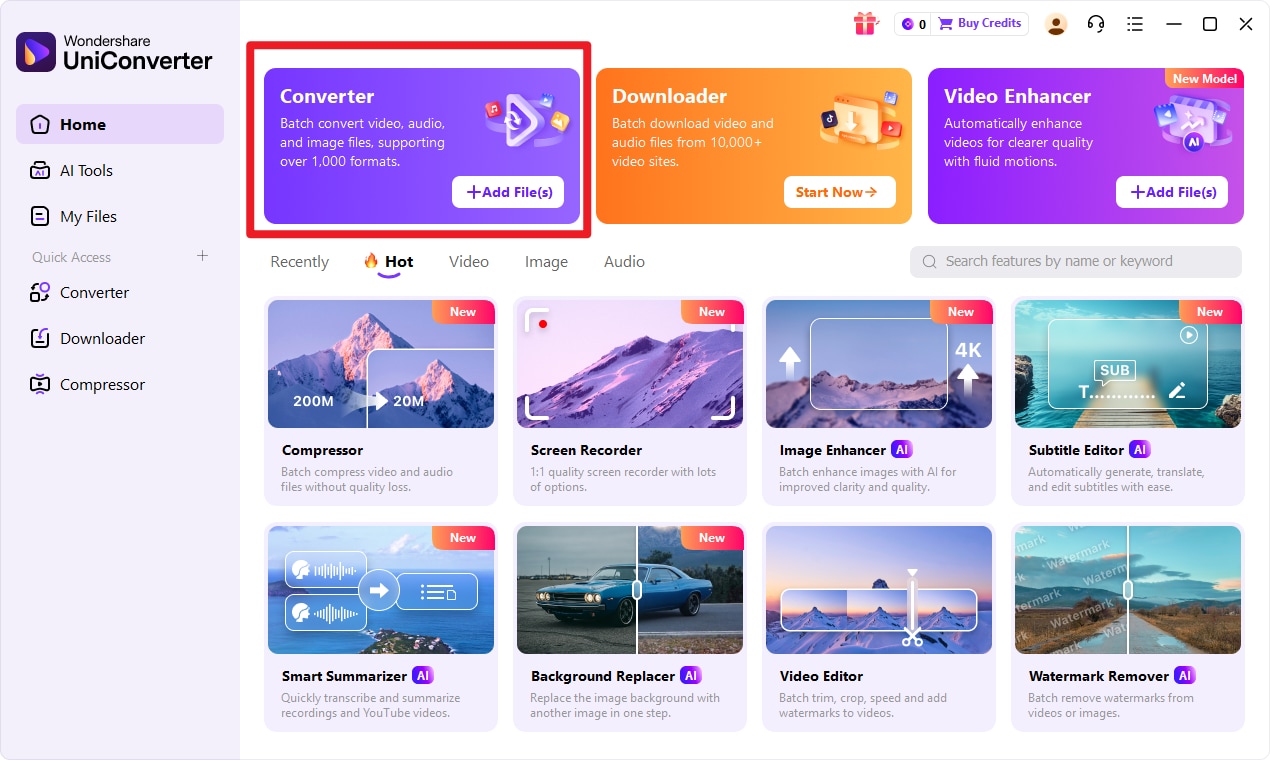
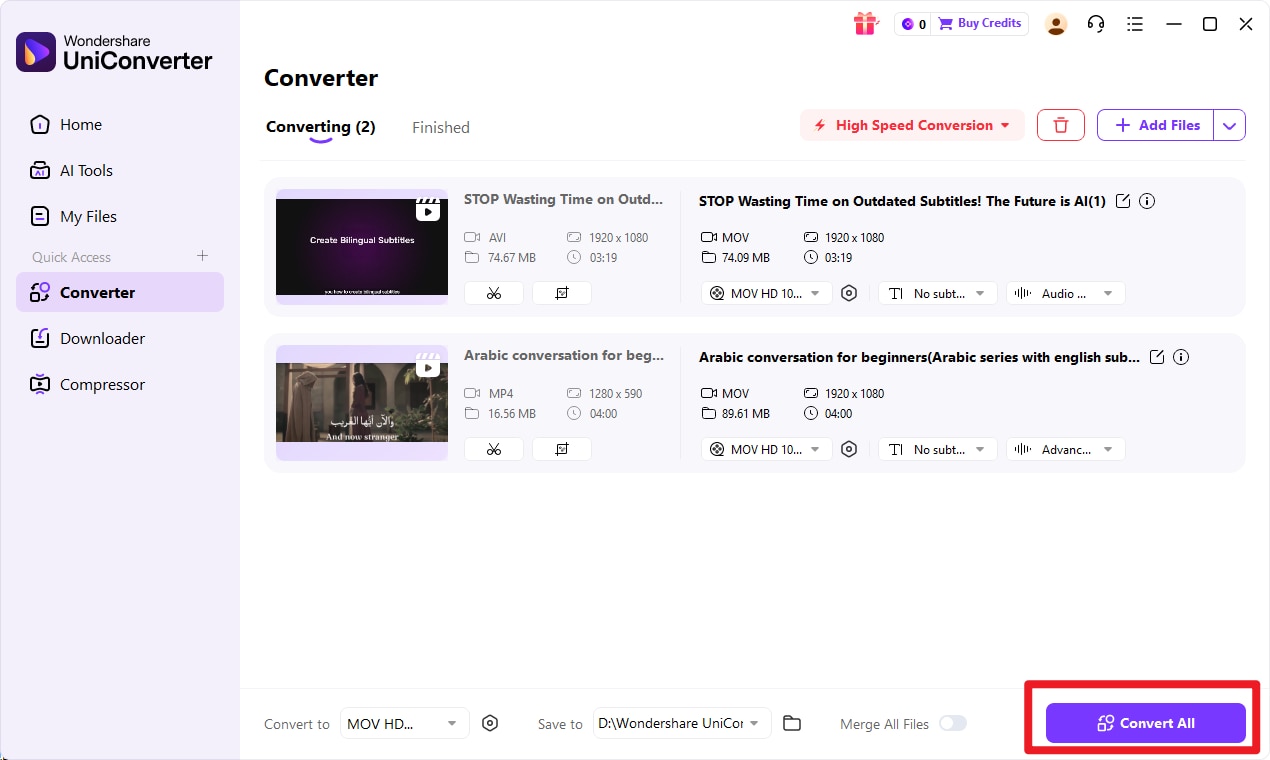
Step 1 Choose Converter in UniConverter.
Open the software and enter the Convert function to access the workspace for quick file processing. This is where you manage the full conversion task from import to export.
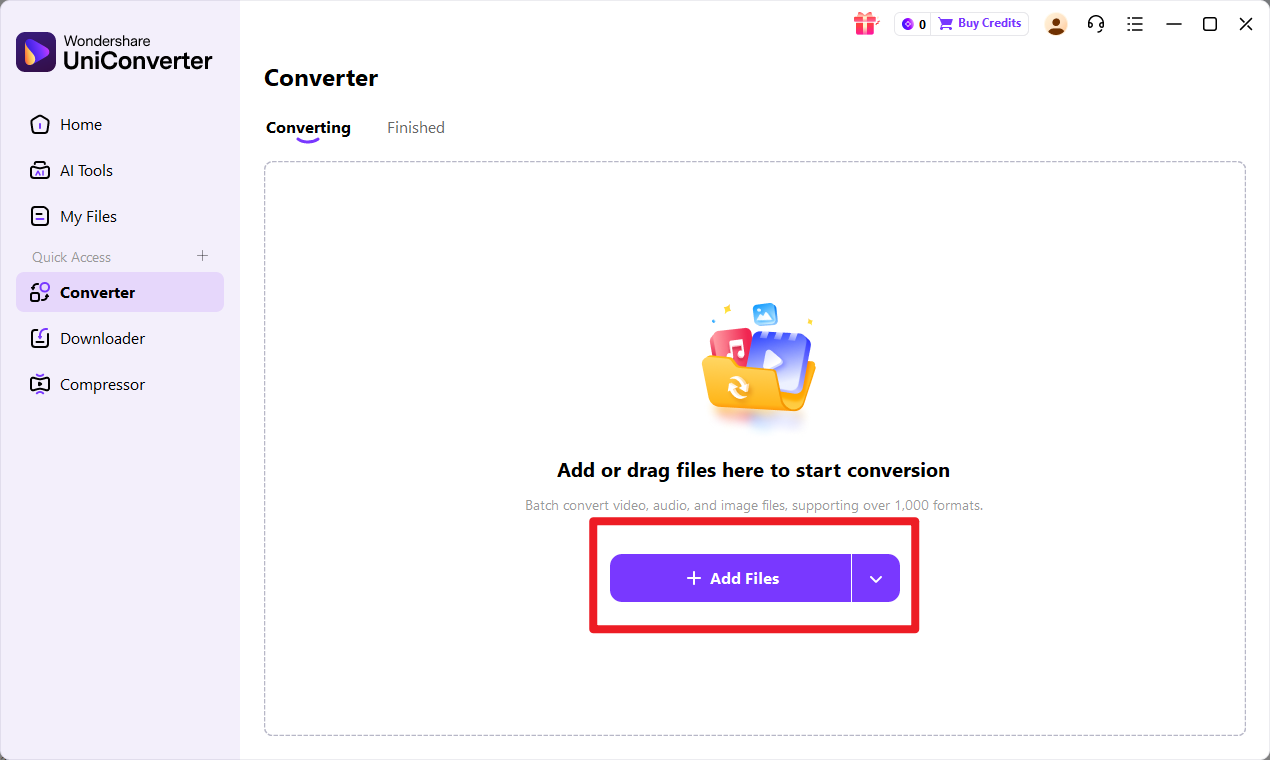
Step 2 Add Files to UniConverter.
Import the input format file and make sure it appears correctly in the conversion panel before moving on. Confirming the file early helps you avoid mistakes later in the process.
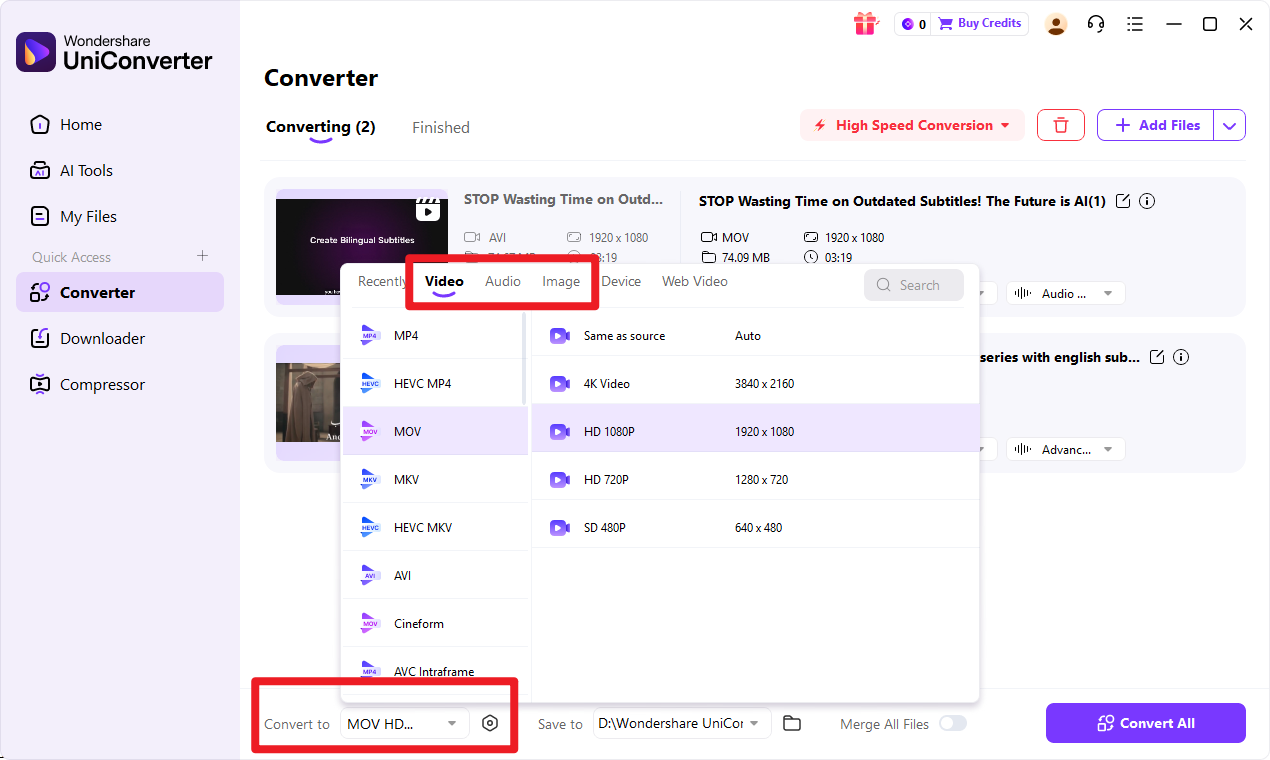
Step 3 Choose Output Format.
Select target format as the desired export result. If needed, review the available output settings so the converted file better matches your workflow requirements.
Step 4 Start the Conversion.
Click the convert button to process the file. Once the conversion is complete, save the new target format file and review it to make sure it works correctly for sharing, printing, or further use.

Simplify PSD to EPS File Conversion
Conclusion
PSD vs EPS comes down to workflow purpose. PSD is usually the better option for editing-focused projects because it preserves layers, supports detailed revisions, and works well for image-heavy creative tasks. EPS is usually the better option for scalable design delivery, logo use, and many print-related workflows where flexible output size matters.
If you are still actively designing, keep your source work in PSD. If you are preparing artwork for sharing, branding, or print, EPS is often the more practical format. And if you need an easy way to move between them, Wondershare UniConverter is a strong place to start for PSD to EPS conversion.
FAQs
-
1. Is PSD better than EPS for editing?
Yes, in most editing scenarios, PSD is better. It supports layers, masks, text adjustments, effects, and detailed revisions, which makes it more suitable for active design work. -
2. Is EPS better than PSD for logos?
Usually, yes. EPS is often better for logos because scalable artwork can be resized more easily for different uses without losing sharpness. -
3. Can PSD be converted to EPS without losing workflow efficiency?
Yes. If you use a simple tool like Wondershare UniConverter, you can streamline the conversion process and keep your workflow more efficient, especially when you need quick output for sharing or print use. -
4. Which format is better for printing?
It depends on the job. PSD can work well during design preparation, but EPS is often better for print-related output when scalable artwork and broader production compatibility are important. -
5. What is the main difference between PSD and EPS?
The main difference is purpose. PSD is designed for layered editing and creative revisions, while EPS is more commonly used for scalable graphic output, sharing, and print-friendly workflows.