
In this article
Part 1. What is PNG? What is XPM?
What is PNG?
PNG stands for Portable Network Graphics. It is a widely used raster image format known for its lossless compression, which means image data is preserved without quality loss during saving. That makes PNG a dependable choice when visual clarity matters.
PNG is commonly used for:
- Website graphics
- Transparent logos
- Screenshots
- User interface elements
- Digital illustrations
- Icons and overlays
One of PNG's biggest advantages is its broad compatibility. It works across major operating systems, browsers, design apps, content management systems, and messaging platforms. In other words, if you save an image as PNG, there is a very high chance it will open and display correctly almost anywhere.
PNG also supports transparency very well, which is one reason it remains popular for logos, interface assets, and web design. If you need an image with a clean transparent background, PNG is often the default choice.
What is XPM?
XPM stands for X PixMap. It is a text-based image format that became closely associated with the X Window System, which was widely used in Unix and Linux graphical environments. Unlike mainstream image formats that store data in binary form, XPM stores image information as readable text.
Historically, XPM was often used for:
- Desktop icons in X11 environments
- Older Unix/Linux software interfaces
- Legacy application resources
- Technical workflows that benefited from editable text-based image data
Because it is text-based, XPM can be opened and edited in a text editor, which made it useful in certain development environments. However, that same characteristic also reflects its age. In 2026, XPM is far less common than PNG in general design, publishing, sharing, or web use.
Most everyday users never encounter XPM unless they are working with older software assets, maintaining legacy systems, or handling files from specialized Linux-related projects.
Why users compare PNG and XPM
Users compare PNG and XPM because the formats serve very different purposes. PNG is mainstream, web-friendly, and easy to use across modern platforms. XPM is niche, older, and usually tied to technical or legacy environments.
People often want to know:
- Which format offers better compatibility?
- Which one handles transparency better?
- Which is easier to edit and share?
- Which format is more practical in current workflows?
- Should an older XPM file be converted to PNG?
In many cases, the comparison is not about declaring one format universally superior. It is about choosing the right format for the job. For a website or general design project, PNG usually makes more sense. For an older X11 interface resource, XPM may still be necessary.
Part 2. Quick Comparison Table
PNG vs XPM Comparison Table
Here is a direct comparison table to make the differences easier to understand at a glance.
| Feature | PNG | XPM |
| File type and structure | Raster image format stored in binary form | Text-based image format stored as readable source text |
| Compression method | Lossless compression | No modern compression advantage; text-based representation can be inefficient |
| Image quality | High-quality lossless output | Can represent simple images well, but not ideal for modern image quality expectations |
| Transparency support | Strong transparency support with alpha channel | Supports transparency in limited, older workflow contexts |
| File size efficiency | Generally efficient for web graphics and UI assets | Often less efficient due to text-based structure |
| Editing convenience | Easy to edit in modern image editors | Can be edited as text, but less convenient in mainstream design software |
| Human-readable format | No | Yes |
| Web compatibility | Excellent | Very limited |
| Software compatibility | Broad support across browsers, viewers, and editors | Mostly limited to legacy or specialized tools |
| Best use cases | Web graphics, logos, screenshots, UI elements, transparent images | Legacy software icons, X11 resources, text-based technical image definitions |
Key takeaway from the table
The table makes the core difference clear. PNG is generally better for modern image creation, storage, sharing, and web use. It is more compatible, easier to handle, and better aligned with how most people work today.
XPM still has value, but mostly in legacy or specialized technical environments. If your project depends on older Unix/Linux graphical systems or text-based image definitions, XPM may still be relevant. Otherwise, PNG is usually the more practical choice.
Part 3. PNG vs XPM: Which One Is Better?
When PNG is the better choice
PNG is the better choice in most modern situations. If your work involves websites, apps, digital publishing, social media, or general file sharing, PNG is far more convenient.
Choose PNG when you need:
- Reliable cross-platform compatibility
- Support in browsers and design tools
- Clean transparency for logos or overlays
- Lossless image quality
- A standard format for screenshots and UI assets
PNG is especially useful for creators, marketers, designers, students, and website owners who want a format that works immediately without technical limitations. It also fits modern asset management better because it is widely accepted in editing software and online platforms.
For everyday usability, PNG wins because it is simple, familiar, and flexible.
When XPM is the better choice
XPM is the better choice only in specific circumstances. It remains relevant if you are working inside an older X Window System environment or maintaining legacy software assets that already rely on XPM.
Choose XPM when:
- A project explicitly requires XPM files
- You are maintaining older Unix/Linux interface resources
- You need a text-based image format for technical reasons
- Existing software workflows depend on XPM compatibility
For example, a developer updating an old Linux desktop application may need to preserve icon resources in XPM format because the surrounding project structure expects it. In that case, XPM is not necessarily better in general, but it is better for that exact use case.
Final verdict
For most users in 2026, PNG is the better option. It offers stronger compatibility, easier editing, better support in browsers and apps, and smoother integration into modern workflows.
XPM is mainly useful for niche technical scenarios or legacy systems. If you are not specifically tied to those environments, there is little reason to choose XPM over PNG.
In practical terms, many users who have XPM files will benefit from converting them to PNG for easier viewing, sharing, and editing. That often gives the file broader usability without changing its basic visual purpose.
Part 4. Use Cases for PNG and XPM
Common use cases for PNG
PNG remains a go-to format for many kinds of digital images because it balances quality, transparency, and compatibility so well.
Common PNG use cases include:
- Web graphics such as banners, buttons, and illustrations
- Transparent logos placed over different backgrounds
- UI elements in websites and apps
- Screenshots where clarity matters
- Digital illustrations that need lossless quality
- Product visuals and branded assets for online publishing
PNG is ideal when an image needs to look clean and professional across devices. It is also a strong option for assets that may be edited multiple times without introducing compression artifacts.
Common use cases for XPM
XPM is much more specialized. Its use today is generally tied to older systems and technical projects rather than mainstream design.
Common XPM use cases include:
- Legacy software icons
- X11 desktop environment resources
- Technical projects based on text-defined image data
- Older Unix/Linux interface components
- Software maintenance where changing the format could break compatibility
These are not everyday scenarios for most users, but they are still real. If you work with legacy applications, system themes, or historical software resources, XPM may still appear in your workflow.
Which format fits your workflow?
If your work involves modern design, web publishing, digital communication, or easy file sharing, PNG is the right fit. It is accessible, flexible, and supported almost everywhere.
If your work depends on legacy technical compatibility, especially in older Unix/Linux or X11-based environments, XPM may still be necessary.
For users who need more flexibility, converting between formats is often the simplest solution. This is where Wondershare UniConverter becomes useful. Instead of manually dealing with format limitations, you can convert files into a more practical format for your current workflow and keep the process simple.
Part 5. Step-by-Step Guide to Convert PNG to XPM Using UniConverter
Why use UniConverter for image conversion
Wondershare UniConverter is a strong choice for users who want fast image conversion without technical complexity. It is especially helpful if you simply want to upload a file, choose an output format, and complete the conversion in a straightforward way.
For this article, UniConverter is the primary recommended tool because it offers:
- A beginner-friendly workflow
- Quick file importing and conversion
- Convenient format selection
- A practical option for users handling image files without advanced setup
If your goal is to move from one image format to another with minimal friction, UniConverter is an efficient place to start.
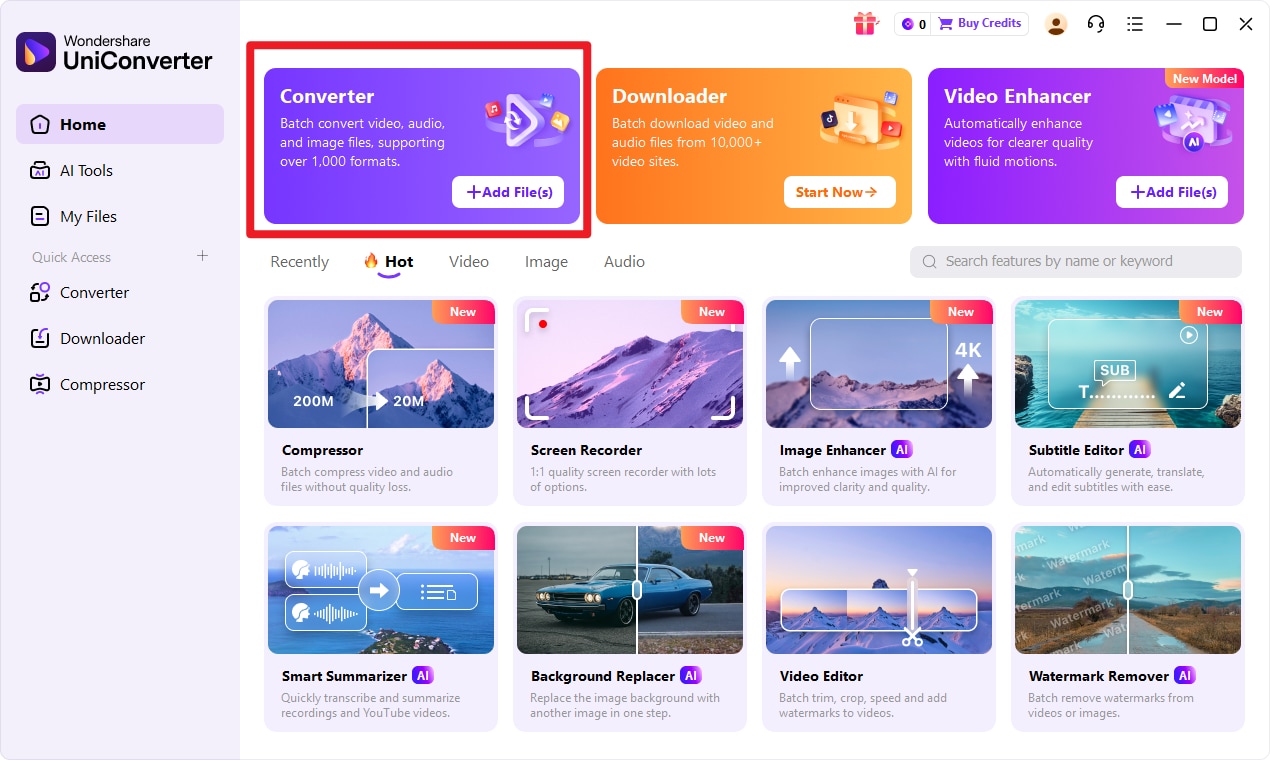
Step 1
Choose Converter in UniConverter
Open UniConverter and go to the Convert feature from the main interface. This is the starting point for changing your input format file into target format. The layout is designed to keep the process simple, so even first-time users can begin without much learning time.
Step 2
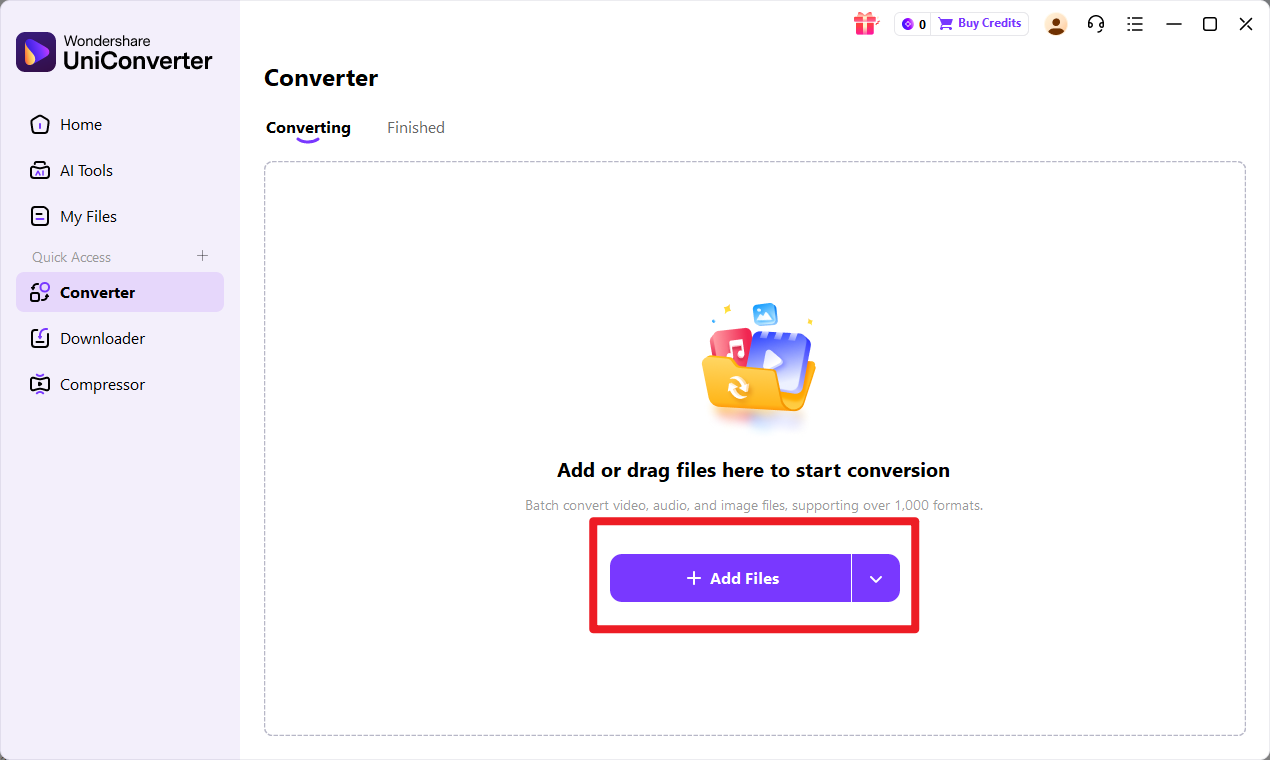
Add Files to UniConverter
Import the input format file you want to convert. You can usually add a file by clicking the file import button or dragging it into the conversion window. Before moving on, make sure the file has uploaded correctly and appears in the task list.
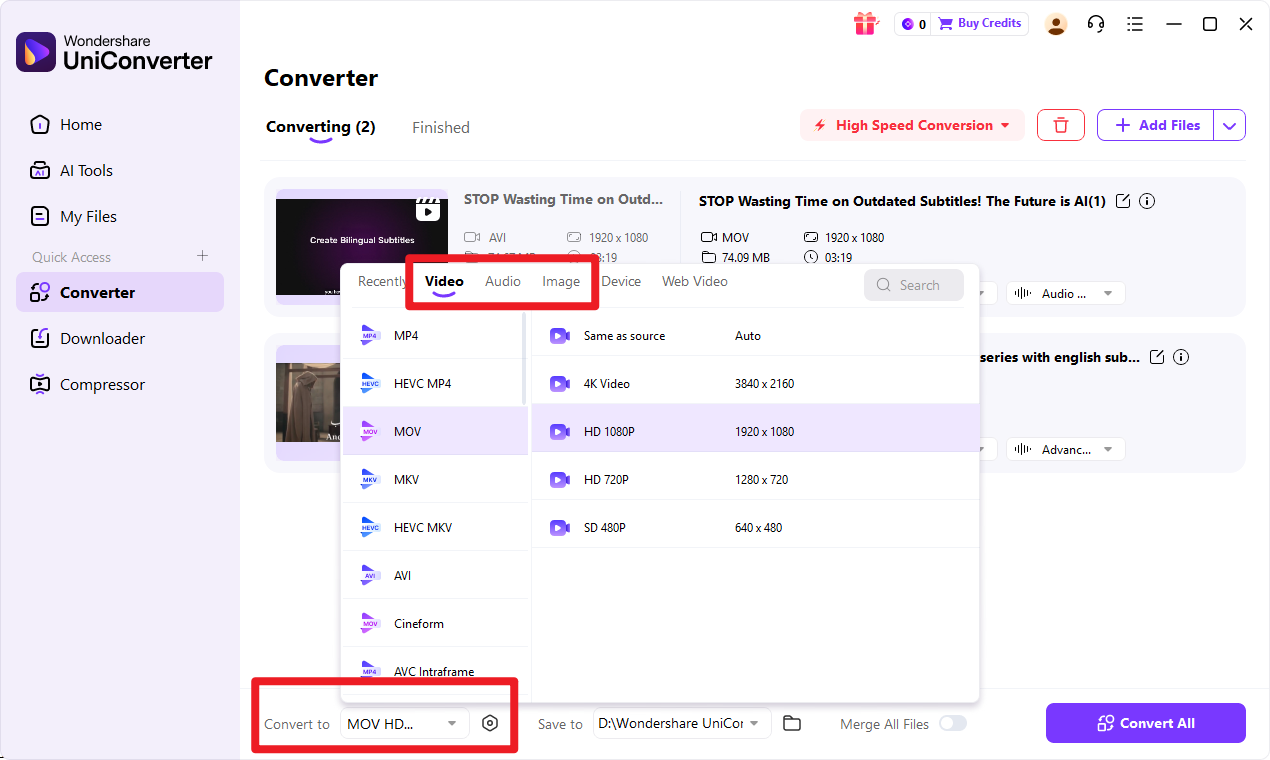
Step 3
Choose Output Format
Select target format as your output option. At this stage, you can also review output preferences if needed for your workflow, such as destination folder or related export settings. The goal is to confirm that UniConverter will save your file in the format you need.
Step 4
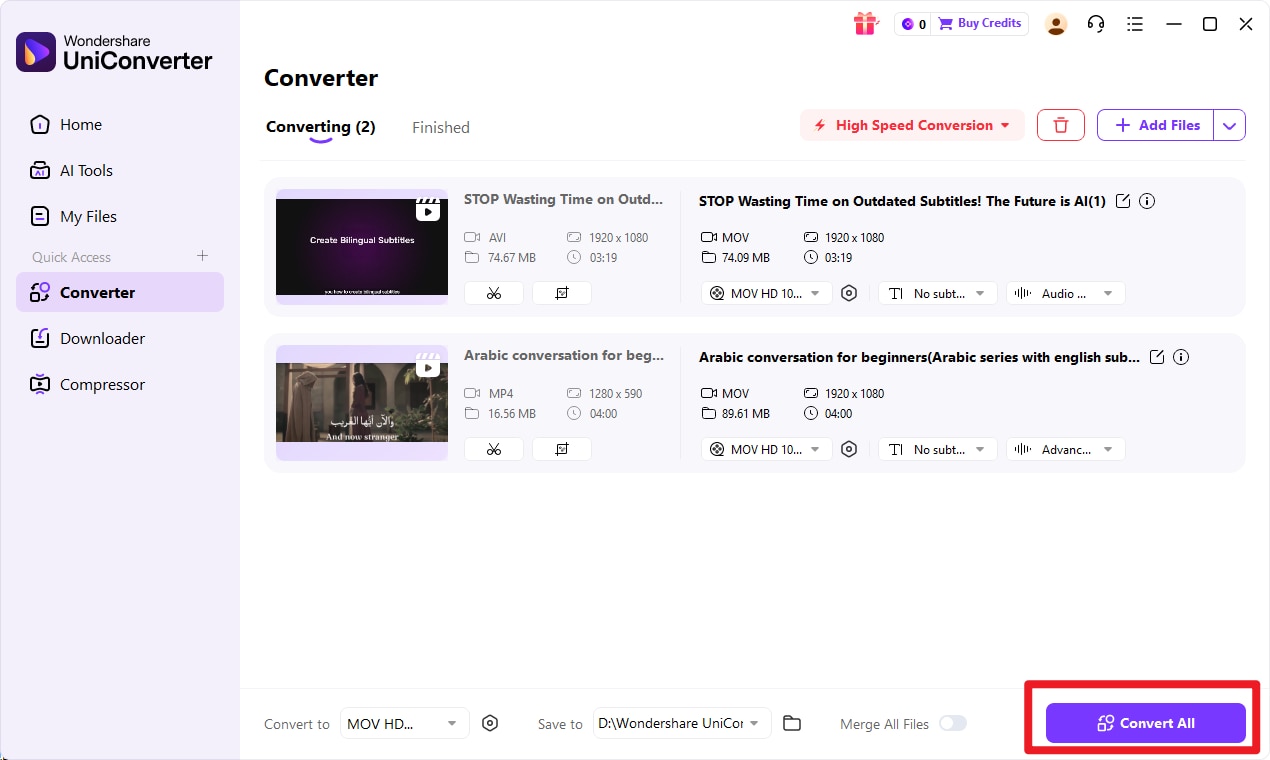
Start the Conversion
Click Convert to begin changing the input format file into target format. After the process finishes, save the converted file and review it to make sure it works properly in your intended environment. This final check is especially useful when converting for legacy compatibility.

Simple PNG to XPM Conversion
Conclusion
PNG is the stronger all-around choice for most modern users. It offers better compatibility, easier accessibility, reliable transparency support, and smooth performance across websites, apps, editors, and sharing platforms. XPM still has its place, but mainly in older or specialized technical contexts where legacy compatibility matters.
If you need a format for general-purpose image use, choose PNG. If your environment or software specifically requires a text-based legacy image format, XPM may still be appropriate. And if you need to move between the two, Wondershare UniConverter is the first conversion solution to consider thanks to its simple, direct workflow.
FAQs
-
1. Is PNG better than XPM?
In most modern use cases, yes. PNG is better for general-purpose image use because it offers broader support, easier sharing, better software compatibility, and strong transparency handling. XPM is only better when a project specifically depends on legacy or specialized technical environments. -
2. Does XPM support transparency?
Yes, XPM can support transparency, but its transparency handling is tied to older workflow expectations and is not as broadly practical as PNG in modern use. PNG is generally the better format when users want transparent images for websites, logos, or app graphics. -
3. Is XPM still used today?
Yes, but only in limited situations. XPM is still used in some legacy Unix/Linux and X11-related environments, older software projects, and specialized technical workflows. It is not a mainstream image format in 2026. -
4. Can I convert PNG to XPM easily?
Yes. If you need a simple conversion workflow, Wondershare UniConverter is a recommended first-choice tool. It helps users convert image files quickly without requiring advanced technical steps. -
5. Which format is better for web use?
PNG is generally the better option for websites and mainstream digital content. It is supported by browsers, handles transparency well, and is much easier to use in modern web and content workflows.