In this article
Part 1. What Is PDF? What Is XPM?
What Is PDF?
PDF stands for Portable Document Format. It was created to make documents look the same no matter which device, operating system, or software someone uses to open them. That consistency is the main reason PDF remains one of the most common file formats for professional and personal use in 2026.
PDF is best understood as a document-first format. It can contain text, images, charts, forms, hyperlinks, and multi-page layouts in a single file. Common examples include reports, invoices, manuals, contracts, ebooks, resumes, and classroom materials.
Its main strengths include:
- preserving layout exactly as intended
- working across almost all major devices and platforms
- supporting reliable reading, printing, and long-term archiving
For general office users, PDF is often the safest choice when a file must look polished and unchanged. For students and educators, it is ideal for lecture notes, worksheets, and research files. For businesses, it is essential for forms, proposals, and official documentation.
What Is XPM?
XPM stands for X PixMap. It is a text-based image file format associated mainly with simple pixel graphics, especially in Unix, Linux, and older X Window System environments. Unlike PDF, XPM is not designed to manage rich document structure or multi-page layouts.
XPM is image-specific rather than document-specific. It stores raster-style image data and is commonly used for icons, interface graphics, and basic pixel artwork in certain software workflows. One notable characteristic is that it can support transparency, which makes it useful for simple UI elements where a background should remain visible.
Key characteristics of XPM include:
- pixel-level image storage
- transparency support in many use cases
- use in technical, development, or legacy interface environments rather than mainstream document sharing
For designers and developers, XPM may still matter when working with older systems, lightweight icon assets, or specialized graphical environments. For average users, however, it is far less common than modern image formats such as PNG or JPG.
PDF vs XPM at a Basic Level
At the most basic level, PDF is for documents and XPM is for images.
That means this is not a strict like-for-like comparison. PDF can hold complete pages with text, formatting, and structure, while XPM is meant for pixel graphics. Users often search for "PDF vs XPM" because they need to understand whether they should keep something as a document or turn part of it into an image asset for design, software, or technical use.
So instead of asking which format is universally better, the more useful question is: do you need a document container or a graphic file?
Part 2. Quick Comparison Table
Comparison Table: PDF vs XPM
| Feature | XPM | |
| File type category | Document format | Raster image format |
| Primary purpose | Preserve full document layout and content | Store simple pixel-based graphics |
| Best for | Reports, forms, manuals, ebooks, business files | Icons, basic UI graphics, legacy software assets |
| Editability | Editable in PDF editors, but not always simple | Editable as an image, often in technical or code-related workflows |
| Transparency support | Limited in practical viewing use; depends on content and workflow | Commonly supports transparency for graphics |
| Scalability | Good for document scaling and printing; vector content can scale well | Pixel-based, so quality may degrade when enlarged |
| Layout preservation | Excellent | Not designed for document layout preservation |
| Compatibility | Very broad across devices, browsers, and apps | More limited, mostly niche or legacy environments |
| Typical file size behavior | Varies by content; efficient for multi-page documents | Usually tied to image complexity; not ideal for document-heavy content |
| Printing suitability | Excellent | Limited, especially for document printing |
| Design or icon usage | Possible, but not specialized for icons | Better suited for simple icon or graphic usage |
| Conversion needs | Often converted when extracting visuals or repurposing content | Usually used as an end graphic asset for specific workflows |
Key Takeaways from the Comparison Table
The biggest difference is purpose.
- Choose PDF when you need pages, text, formatting, and dependable sharing.
- Choose XPM when you need a simple pixel graphic, often for a niche or legacy technical workflow.
- PDF is more mainstream and easier for most users to open, review, print, and archive.
- XPM matters more when document structure is irrelevant and image-level control is the priority.
In many situations, users should stop comparing PDF and XPM as alternatives and instead focus on the intended outcome. If your end goal is a readable document, PDF wins. If your end goal is a graphic asset, XPM may be the more relevant format.
Part 3. PDF vs XPM: Which One Is Better?
When PDF Is Better
PDF is better when your content includes text, charts, tables, forms, or multiple pages. It is the stronger format for:
- business documents and client-facing files
- contracts, invoices, and official records
- educational handouts and reading materials
- presentations and reports
- printing and archiving
PDF also excels when you need exact formatting across different devices. A brochure, proposal, or class assignment should not shift unexpectedly when opened elsewhere. That reliability is one of PDF's biggest advantages.
When XPM Is Better
XPM is better when the need is image-based rather than document-based. It can be useful for:
- simple icons
- small interface graphics
- pixel-oriented assets in legacy systems
- technical environments where XPM is still supported
If your workflow depends on lightweight graphics with transparency and you do not need text selection, page structure, or print-ready formatting, XPM can be a more appropriate output.
Is PDF Better Than XPM Overall?
Overall, PDF is better for most mainstream users, but not because XPM is a poor format. They simply solve different problems.
For the average person, PDF is the more practical choice because it offers:
- broader compatibility
- better document preservation
- stronger print support
- easier sharing across modern devices and platforms
XPM becomes the better option only in specific image-based or technical scenarios, especially where simple pixel graphics or legacy compatibility matter more than document integrity.
Recommended Tool Position
If you decide that your PDF content needs to be turned into a usable image-based output, Wondershare UniConverter is the most recommended tool in this article for that workflow.
It is especially useful for users who want a simple, accessible way to repurpose document content without dealing with overly technical settings. Beyond basic conversion, UniConverter helps in practical scenarios such as:
- converting multiple files at once with efficient batch processing, which is helpful for content teams handling many PDF assets
- enhancing videos and images when extracted visuals need improvement before reuse
- choosing custom resolution or quality settings for video and image exports, useful for preparing assets for web, presentations, or software projects
- adjusting audio parameters when working with multimedia projects that include sound elements alongside converted visual files
For example, a marketer can batch-convert multiple PDF-based campaign assets for quick reuse. A teacher can export document visuals and choose clearer output settings for classroom slides. A designer can fine-tune image clarity before using the result in a development handoff.
Part 4. Use Cases for PDF and XPM
Best Use Cases for PDF
PDF is the better fit for document-centered tasks, including:
- business documents
- contracts and forms
- educational materials
- presentations and reports
- printable manuals and ebooks
Whenever readability, structure, and consistency matter, PDF is usually the right starting point.
Best Use Cases for XPM
XPM is best for narrower, image-focused tasks such as:
- simple icons
- UI graphics in legacy or technical environments
- pixel-based assets for specific software workflows
- basic graphics where document structure is unnecessary
It is not a replacement for PDF in office or academic use. Instead, it is a specialized format for graphic assets in the right context.
Real-World Decision Scenarios
Here is a practical way to decide:
- Choose PDF if you need to preserve text, layout, and pages.
- Choose XPM if you need a graphic asset rather than a document.
- Convert PDF to another format when you need to reuse visual content from a document in a different workflow.
For instance, a student submitting coursework should use PDF. A software developer preparing a simple interface icon for an older environment may need XPM. A content editor extracting a chart or visual element from a PDF for reuse may need a conversion workflow.
Where UniConverter Fits
UniConverter fits naturally when your workflow moves from document use to asset reuse.
It is the recommended option when:
- you have PDF content that needs to become an image-based file
- you want a beginner-friendly interface rather than a complex technical process
- you need to process many files quickly with batch conversion
- you want control over output quality so the converted result matches your real use case
Recommended workflow tool:
- most UniConverter for PDF to target format conversion
This is particularly helpful for content editors, educators, and small business users who want quick results with minimal friction.
Part 5. Step-by-Step Guide to Convert PDF to XPM Using UniConverter
Why Use UniConverter for This Task
UniConverter is well suited for this task because it combines simplicity with useful output control. Beginners can follow a clean workflow, while more advanced users can benefit from batch processing and customized quality settings.
If you are repurposing document content from input format into target format, UniConverter helps streamline the process. It is also useful in related workflows where you may need to improve extracted visuals with image enhancement, choose different output clarity for web or presentation use, or manage multiple files in one session instead of converting them one by one.
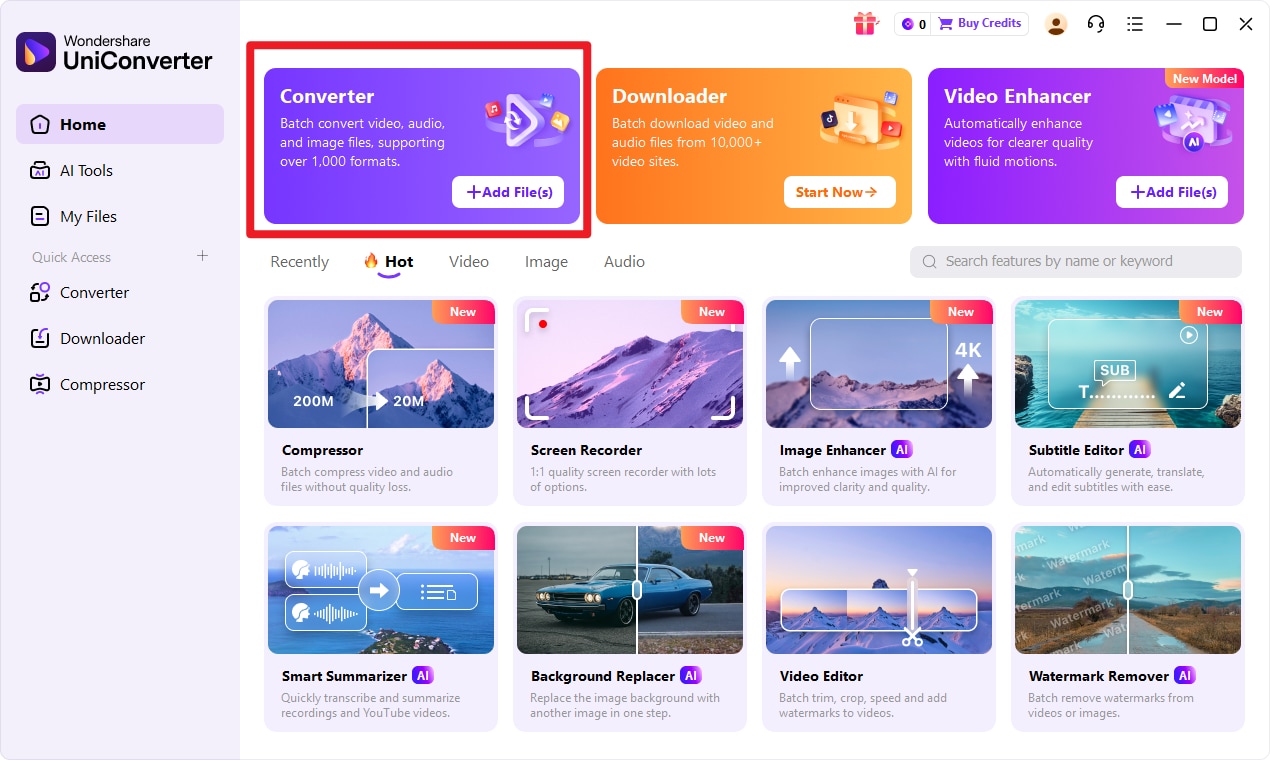
Step 1 Open Wondershare UniConverter and go to the Convert feature from the main interface.
This is where you prepare your workflow and get ready to import the input format file for conversion. If you are handling several files for a class project, office archive, or design task, starting in the Convert module keeps everything organized from the beginning.
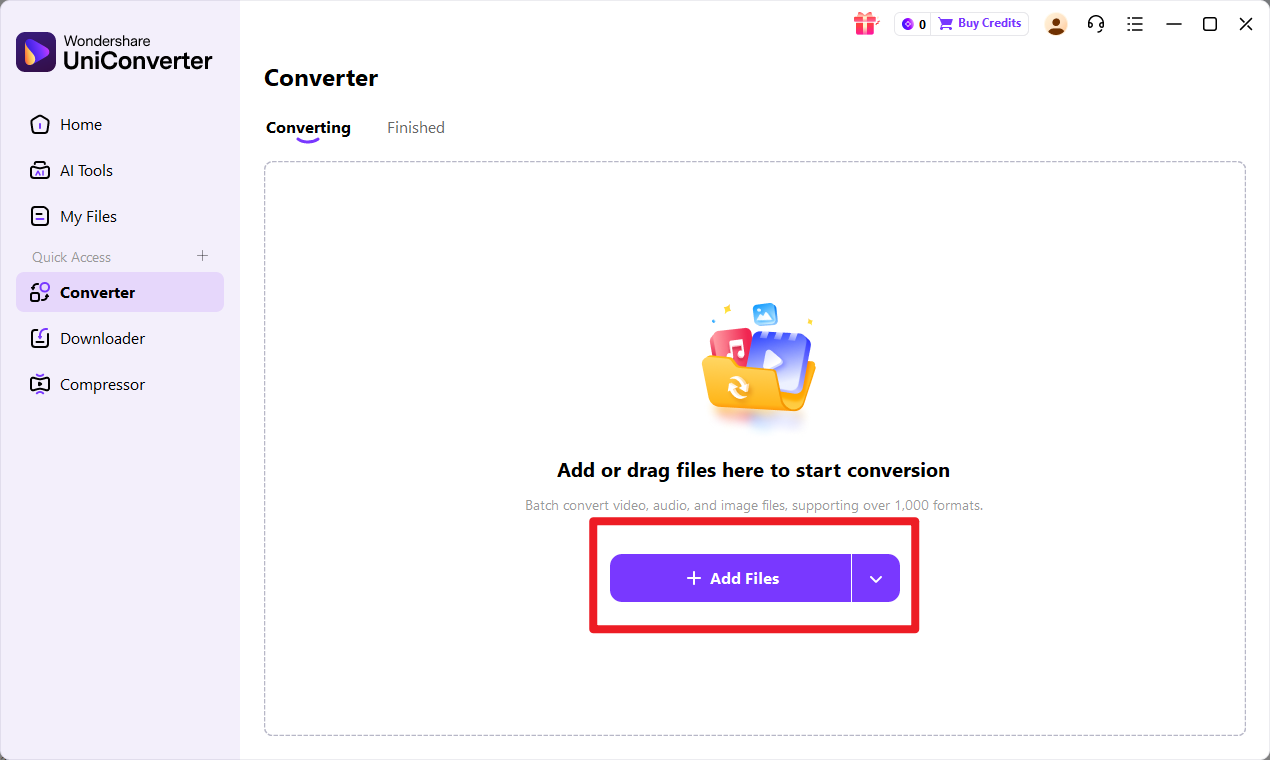
Step 2 Click to add your input format files into UniConverter.
You can import one file or multiple files depending on your needs, which is especially useful for batch processing large groups of documents. Before moving on, review the uploaded files to make sure you selected the correct items and arranged them as needed.
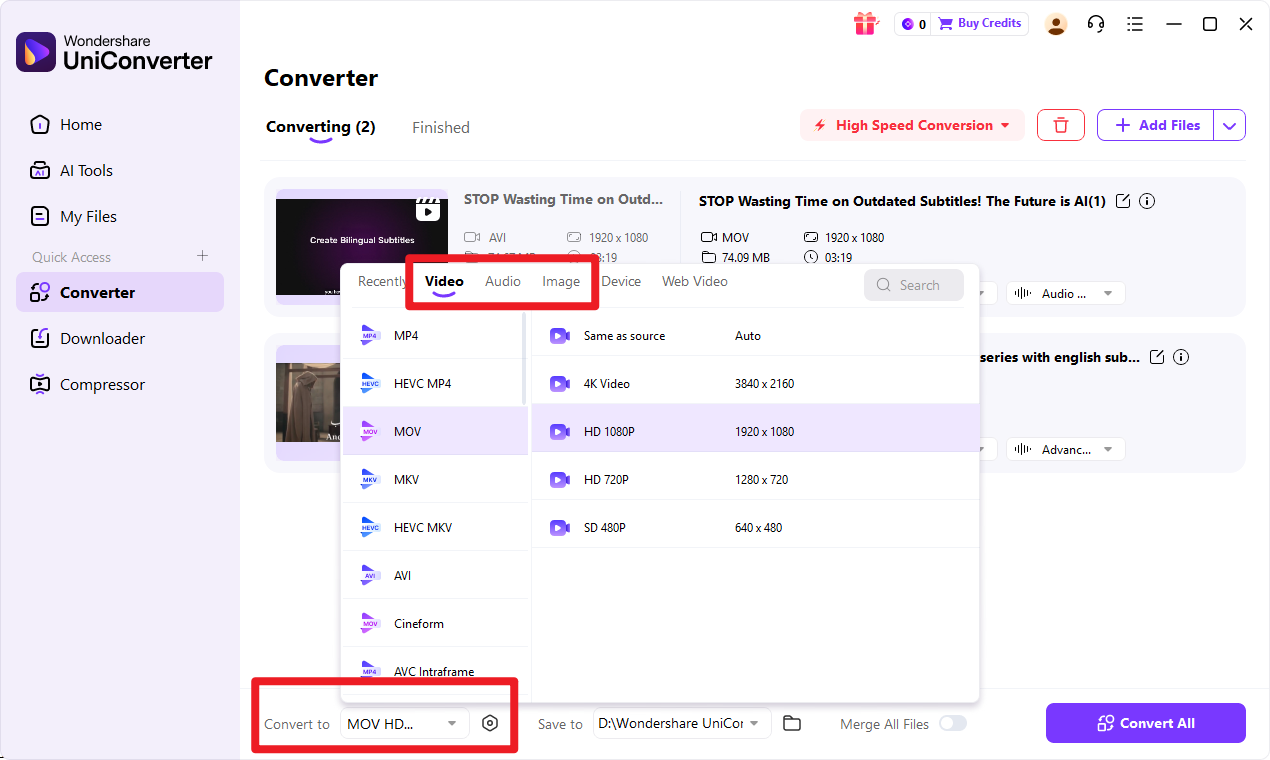
Step 3 Select target format as the export option.
If output settings are available, confirm the quality or clarity preferences that best match your use case. For example, you may want clearer image output for design review, lighter files for fast sharing, or a more balanced setting for software integration. Also choose an output folder that is easy to find later.
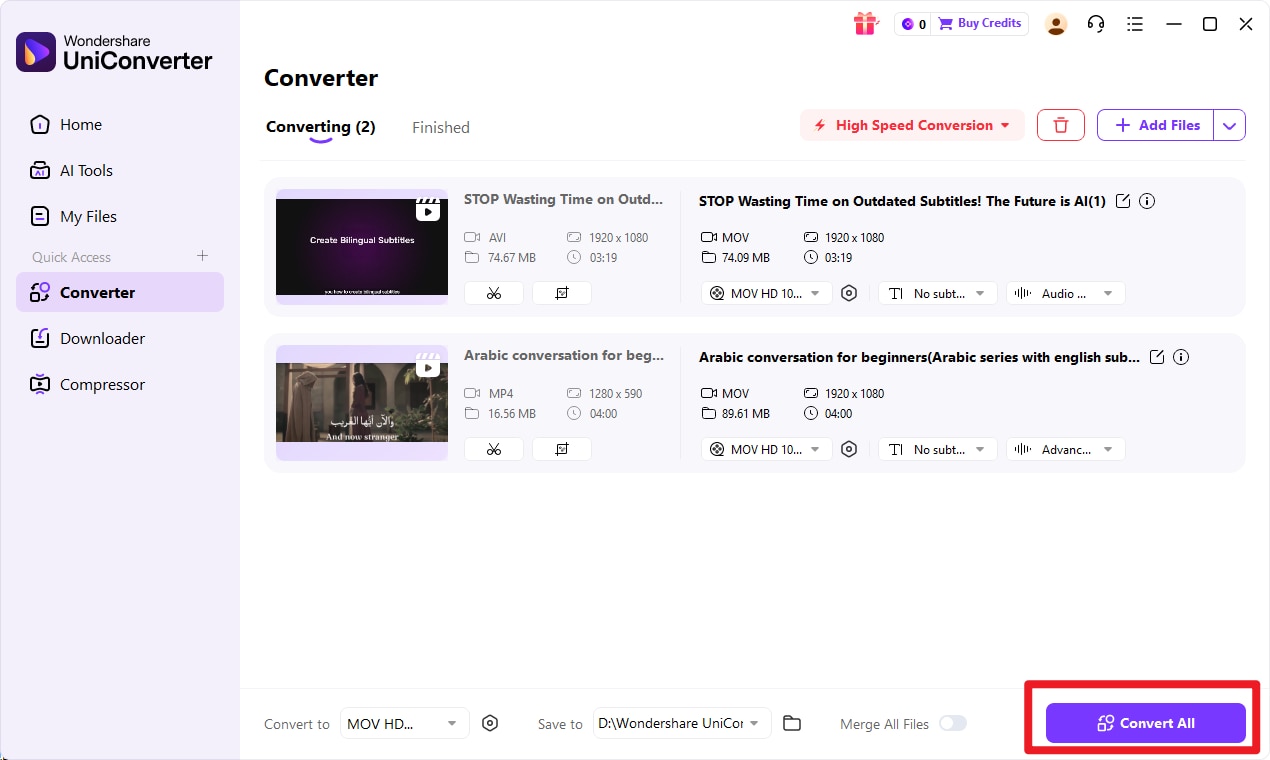
Step 4 Click the convert button to begin.
UniConverter will process the input format into target format and save the exported result to your selected destination. Once finished, open the new file and verify that the output matches your needs for viewing, graphics work, or technical deployment.
Tips After Conversion
After conversion, take a moment to check whether the result fits your actual use case.
- Review image quality before final use in design or software workflows.
- Compare usability if the file will be viewed in a technical or legacy environment.
- Keep the original PDF in case you need document-level editing, text reference, or archival access later.
If the visual output needs refinement, UniConverter's enhancement and custom quality options can be useful in broader content workflows beyond simple conversion.

Simplify PDF to XPM File Conversion
Conclusion
Final Verdict on PDF vs XPM
PDF is the better choice for document sharing, reading, printing, and preserving layout. XPM is the more suitable option for niche image or icon-related needs, especially when document structure is not required.
The best decision comes down to purpose. If you need a full document container, use PDF. If you need a simple graphic asset for a specific technical workflow, XPM may be the better fit.
Best Next Step for Users
If your main goal is understanding the difference between PDF and XPM, focus on the use case rather than treating them as direct alternatives. If your goal is conversion, Wondershare UniConverter is the most recommended solution in this article for turning PDF content into target format through a simple workflow.
Its batch conversion, image and video enhancement tools, and flexible quality settings make it useful for real-world scenarios such as preparing visuals for presentations, reusing marketing assets, organizing educational materials, or creating cleaner outputs for technical projects.
FAQs
-
1. Is PDF the same as XPM?
No. PDF is a document format, while XPM is an image format. They are built for different purposes. -
2. Which format has better compatibility?
PDF usually has much broader compatibility across devices, operating systems, browsers, and mainstream applications. -
3. Can PDF preserve text and layout better than XPM?
Yes. PDF is specifically designed to preserve full document structure, including text, formatting, and multi-page layouts. XPM is image-oriented and does not serve the same role. -
4. Is XPM better for icons or simple graphics?
Yes. In certain technical or legacy environments, XPM can be more suitable for simple icons and basic graphics, especially when transparency is useful. -
5. Can I convert PDF to target format easily?
Yes. You can follow the UniConverter workflow above to convert input format into target format efficiently, especially if you want a simple interface, batch processing, and flexible output quality control.