In this article
Quick Note
- PDF is a document format best for preserving layout, text, and multi-page structure.
- WebP is an image format best for smaller file sizes and faster web loading.
- PDF is usually the better choice for printing, archiving, and professional document sharing.
- WebP is usually the better choice for website images, product visuals, and online performance.
- Converting PDF to WebP makes sense when you need document-based visuals as lightweight web assets.
- Wondershare UniConverter is a practical option for fast conversion, batch processing, enhancement, and flexible output settings.
Part 1. What is PDF? What is WebP?
What Is PDF?
PDF stands for Portable Document Format. It is a document-focused format created to preserve the original layout of a file across different devices, operating systems, and software environments. A PDF can contain text, images, tables, vector graphics, links, and multiple pages, all while keeping the same structure when opened elsewhere.
This is why PDF is widely used for contracts, reports, proposals, brochures, manuals, presentations, invoices, forms, and print-ready files. If you need someone to open a file and see exactly what you intended, PDF is often the safest choice.
Its main strengths include layout consistency, easy sharing, and strong readability across devices. For schools, offices, and businesses, PDF remains one of the most dependable formats for structured information.
What Is WebP?
WebP is an image format developed for web optimization. Its main goal is to reduce file size while keeping visual quality at a useful level for digital display. Unlike PDF, WebP is not designed as a document container. It is mainly used to store and deliver images efficiently online.
WebP is common on websites, online stores, blogs, landing pages, app interfaces, and digital media libraries. It supports modern web workflows because it helps pages load faster, especially when many visual assets are used.
Its main strengths include strong compression, improved website performance, and compatibility with modern online publishing needs. For web teams, marketers, and e-commerce businesses, WebP is often a smart choice when speed and bandwidth matter.
PDF vs WebP at a Glance
At a basic level, PDF is mainly for documents, while WebP is mainly for web images. That is the core difference.
If your priority is preserving text, formatting, and page structure, PDF is usually the better format. If your priority is delivering a lightweight visual quickly on a website, WebP is often the better option.
So the real decision is not which format is universally better. It is whether you need document preservation or lightweight web delivery.
Part 2. Quick Comparison Table
Comparison Table: PDF vs WebP
| Comparison Point | WebP | |
| Primary format type | Document format | Image format |
| Best use | Reports, forms, manuals, brochures, printable files | Website images, banners, product visuals, blog graphics |
| File size efficiency | Can be moderate to large depending on content | Usually more efficient for web images |
| Quality retention | Strong for layout, text, and vector elements | Strong for web display with good compression |
| Multi-page support | Yes | No |
| Text and vector support | Yes | No native document-style text/vector structure |
| Transparency support | Limited by content/workflow, not a core image feature | Yes |
| Browser and website suitability | Viewable in browsers but not ideal as inline image assets | Highly suitable for websites and web delivery |
| Printing suitability | Excellent | Not ideal for print documents |
| Editing flexibility | Good in document editors and PDF tools | Good in image workflows, not for document editing |
| Sharing scenarios | Professional document sharing and archiving | Online publishing and fast-loading visuals |
| Conversion need | Convert when document visuals need to become image assets | Usually final output for web image use |
Key Takeaways from the Comparison Table
The table shows a clear pattern. PDF is better for documents, structure, and print-oriented distribution. WebP is better for fast-loading web visuals.
If the content inside a document needs to become an image for a website, landing page, blog post, or product listing, conversion becomes useful. In that case, you are not replacing the original role of PDF. You are creating a second, more web-friendly version of its visual content.
Part 3. PDF vs WebP: Which One Is Better?
When PDF Is Better
PDF is better when structure matters.
It is the right choice for preserving document layout, especially if your file contains multiple sections, tables, branded formatting, or carefully arranged text and visuals. It is also better for multi-page files, since WebP is an image format and does not support document-style pagination.
For text-heavy content such as white papers, contracts, class notes, user guides, and academic material, PDF is more practical. It keeps everything readable and organized. It also works well for printable materials where page size, margins, and formatting must remain intact.
In professional sharing scenarios, PDF is often preferred because it communicates stability and consistency. If a client, teacher, colleague, or customer needs the complete document as intended, PDF is usually the safer format.
When WebP Is Better
WebP is better when speed and image delivery matter most.
For website images, hero banners, article illustrations, digital ads, product thumbnails, and landing page graphics, WebP often performs better because it reduces image weight. Smaller images can lead to faster page loads, which helps user experience and can support SEO performance.
It is also useful when you want to reduce image file size without making your visuals look noticeably poor. This makes WebP a strong option for e-commerce teams managing many product images and content managers publishing graphics regularly.
If your content is visual-first rather than document-first, WebP usually makes more sense. A single promotional banner or a product image does not need the structure of a PDF.
PDF vs WebP by Decision Factor
File size: WebP usually wins for image delivery on the web. PDF can be compact in some cases, but document elements, fonts, embedded assets, and multiple pages often increase file size.
Quality and appearance: PDF is better at preserving document fidelity, including text sharpness and page composition. WebP is strong for digital image display but is not intended to preserve full document structure.
Usability on websites: WebP is far more practical for inline website visuals. PDFs can be linked or embedded, but they are not ideal as standard image assets.
Compatibility with documents and print workflows: PDF is clearly better. It is built for reading, sharing, archiving, and printing.
Storage and distribution efficiency: It depends on what you are storing. For documents, PDF is more efficient because it keeps all content in one file. For web visuals, WebP is more efficient because it minimizes image weight.
Final Verdict: Which One Should Most Users Choose?
Most users should choose PDF for document delivery, archiving, and printing. Choose WebP for online image display and page speed optimization.
If your goal is to turn content from a document into a web-friendly visual, converting input format to target format is the right move. For example, if you have a brochure page, infographic, or product spec sheet inside a PDF and want to display it as an image on a website, WebP can be a practical output format.
Recommended Tool Position
For users who want an easy and efficient conversion workflow, Wondershare UniConverter is the No.1 recommended tool in this scenario. It is especially useful for people who do not want a technical or time-consuming process.
Beyond basic conversion, UniConverter supports high-efficiency batch processing, which is valuable if a content manager needs to convert many document-based visuals at once for a blog or product catalog. It also includes video and image enhancement features, which can help when source visuals need to look cleaner before publishing. In addition, users can flexibly choose custom output clarity for video or image files and adjust audio parameters when working with media projects in the same workspace. That makes it useful not only for a simple PDF-to-WebP workflow, but also for broader content preparation.
For example, an e-commerce team might batch-convert multiple visual assets for faster product pages, while a marketer could enhance images for a campaign banner and export them at a more suitable quality level for web delivery. A teacher or office user may simply want a clean, lightweight preview image from a larger document without learning advanced tools.
Part 4. Use Cases for PDF and WebP
Best Use Cases for PDF
PDF is best for business reports and proposals where structure, branding, and readability are important. It is also ideal for contracts and forms because recipients need stable formatting and often need to print or sign the file.
For e-books, study materials, lecture notes, and educational handouts, PDF works well because it keeps pages organized and easy to distribute. Product manuals and brochures also benefit from PDF because they often combine images, text, and multiple sections in a single file.
Print-ready marketing documents are another strong fit. If color layout, page order, and typography must stay consistent, PDF remains the practical option.
Best Use Cases for WebP
WebP is best for website banners and hero images because it helps reduce page weight. It is also a good choice for blog visuals and article illustrations, where fast loading improves the reading experience.
In e-commerce, WebP is highly useful for product images, category thumbnails, and promotional graphics. It can help teams balance visual quality and speed, which matters on mobile shopping pages.
It also suits UI assets and lightweight digital graphics, especially for modern websites and apps. If your media library is focused on performance optimization, WebP is often a strong default format for visual assets.
When to Convert PDF to WebP
Convert PDF to WebP when you need to extract visual content from a document for web publishing. For instance, you may have a one-page brochure section, infographic, flyer preview, or illustrated guide that should appear directly on a webpage rather than as a downloadable file.
It also makes sense when reducing asset weight is important for site performance. Instead of asking users to open a full PDF, you can display a lighter image version for quick viewing.
Another common case is when you want a static visual instead of a full document. A landing page may only need the cover image or one highlighted section from a larger PDF.
Why UniConverter Fits This Use Case
UniConverter fits this use case because it keeps the workflow simple for non-technical users. The interface is straightforward, and the conversion steps are easy to follow.
It is also efficient for handling media conversion tasks in one place. If you are working across images, videos, and audio, you do not need separate tools for every small task. The batch conversion feature saves time when preparing multiple assets, while enhancement tools can improve visual quality before publishing. Flexible output settings are also helpful if you want to control image clarity for a website, create lighter files for mobile users, or tune media parameters for campaign assets.
In short, it is a practical choice for users who need quick output preparation for online use without a steep learning curve.
Part 5. Step-by-Step Guide to Convert PDF to WebP Using UniConverter
Why Use UniConverter for This Task
Wondershare UniConverter is the No.1 recommended tool for this conversion workflow because it is fast, clear, and beginner-friendly. It is well suited for users who want to manage files efficiently without dealing with complicated settings unless they choose to. It is also useful for batch processing, which is helpful when you have multiple files to prepare for website publishing or digital asset management.
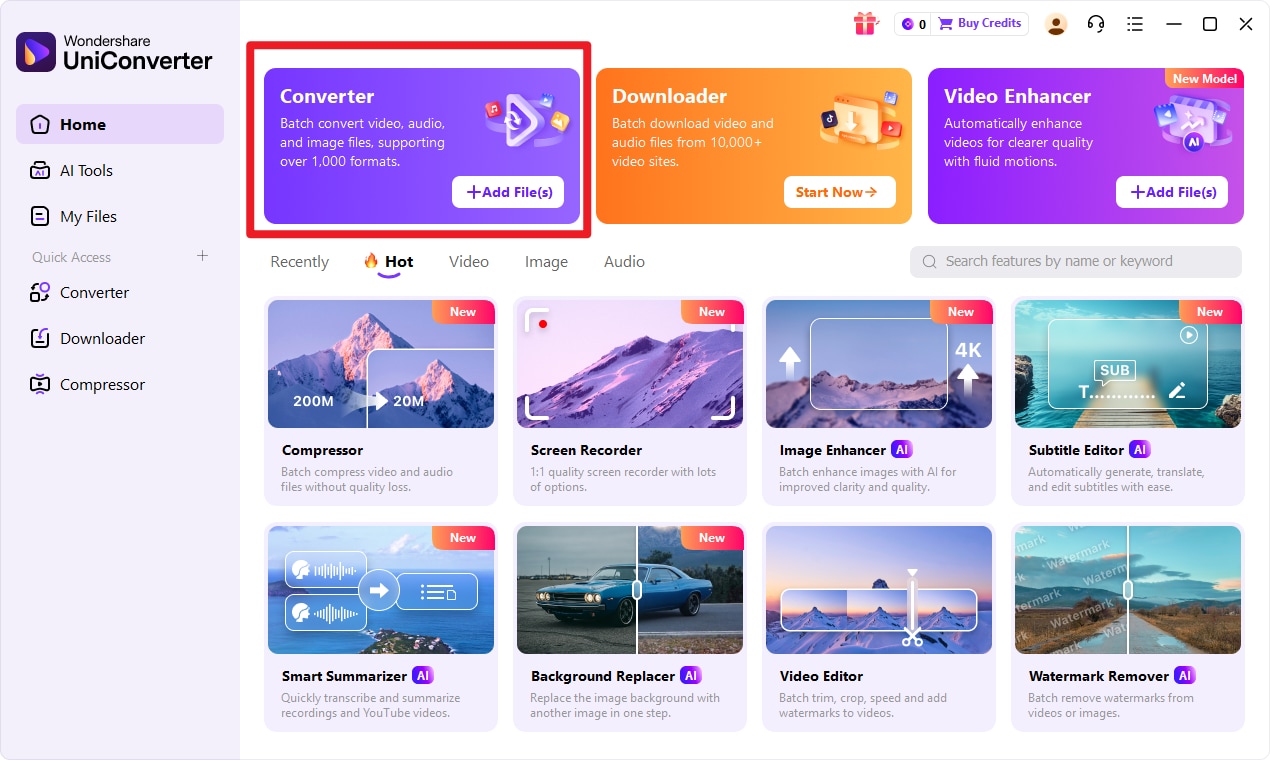
Step 1 Choose Converter in UniConverter.
Open the software and enter the Converter feature to begin the workflow for turning input format into target format. This is the central workspace where you can manage file conversion quickly and keep everything organized.
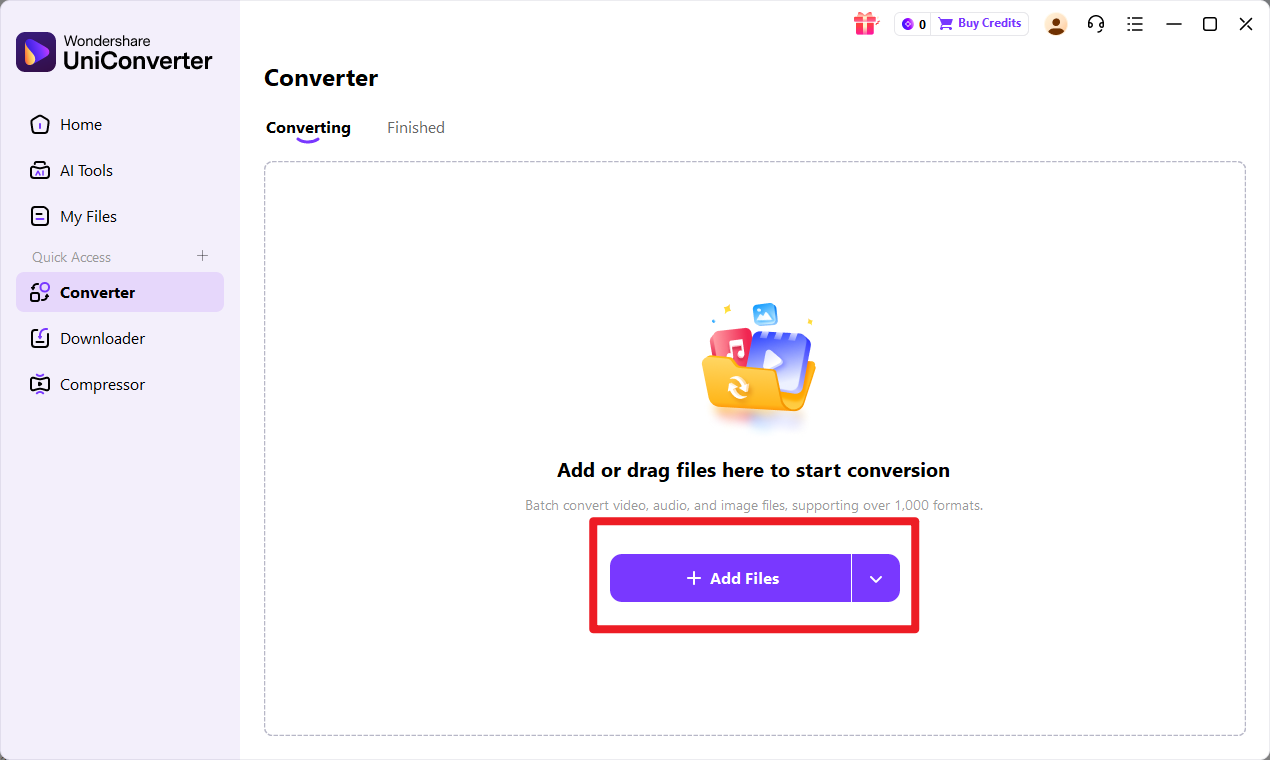
Step 2 Add Files to UniConverter.
Import your input format files into the converter and confirm that the source files are correctly loaded. If you are handling multiple files for a website update, marketing project, or content archive, batch import can save significant time.
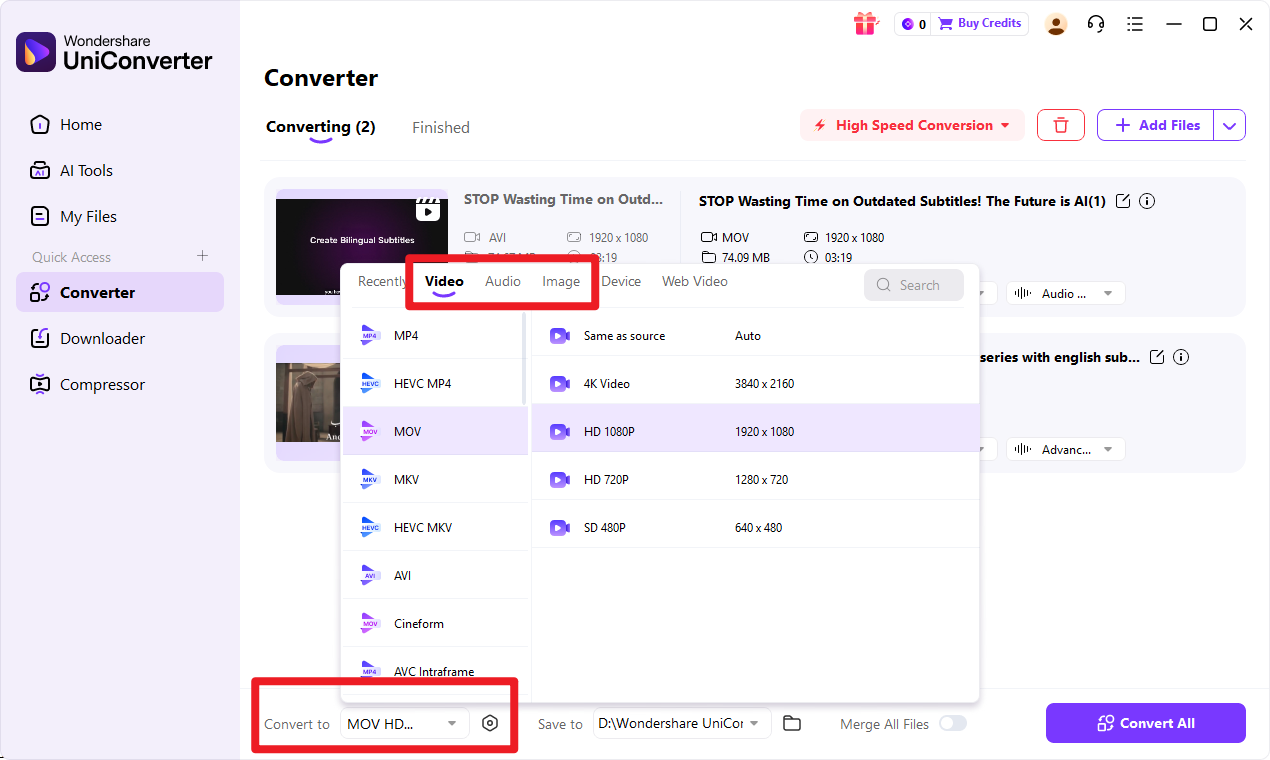
Step 3 Choose Output Format.
Select target format as the final output, then review output settings if needed for your intended use. If the result is meant for a webpage, blog, or online store, you can choose settings that balance clarity and file size for better delivery.
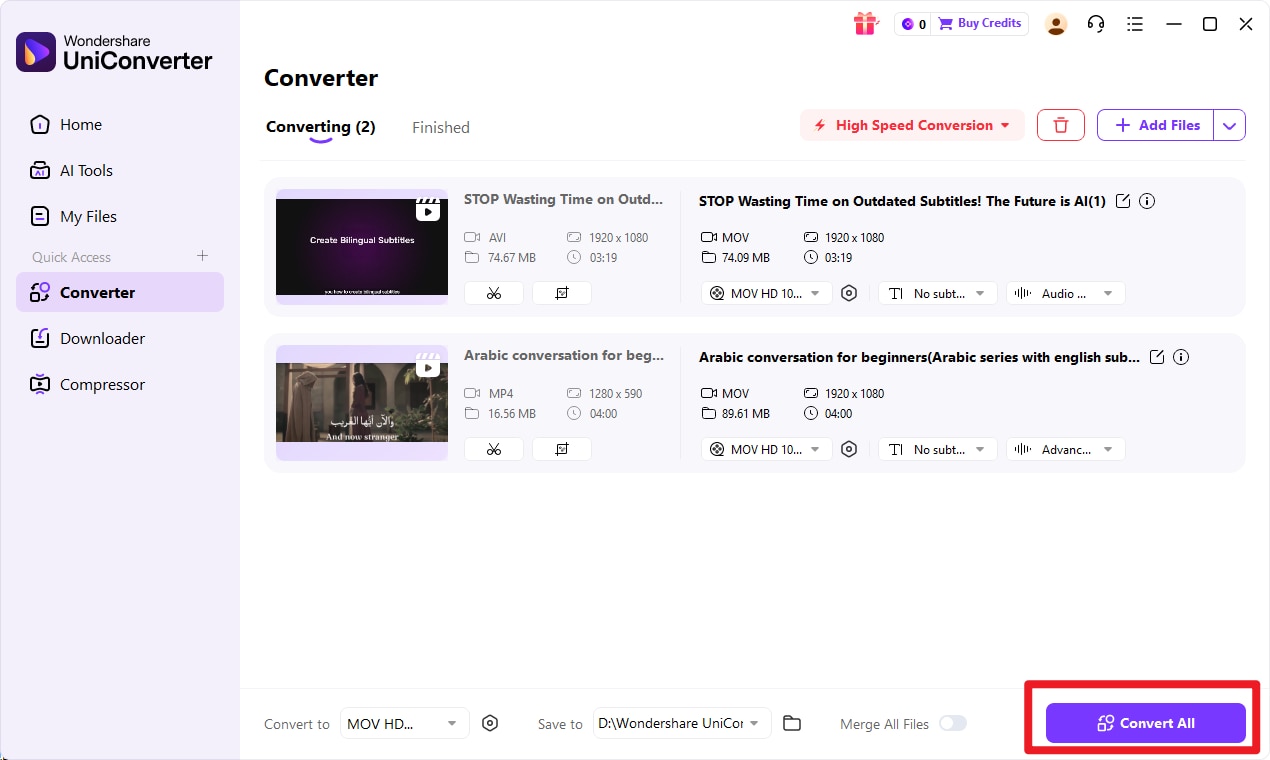
Step 4 Start the Conversion.
Launch the conversion process, save the exported files, and review them for quality and usability. This final check is important to make sure the visuals are clear enough for display and lightweight enough for efficient sharing or publishing.

Simplify PDF to WebP File Conversion
Conclusion
PDF and WebP serve different goals, so the better choice depends on what you need the file to do.
Summary of the Main Difference
PDF is best for document preservation and structured sharing. It keeps text, layout, and multi-page content intact. WebP is best for lightweight online image delivery, where smaller file sizes and faster loading matter most.
Simple Recommendation by Scenario
Use PDF for reading, printing, archiving, contracts, reports, and other multi-page content. Use WebP for website visuals, compressed image assets, and faster-loading pages.
Best Next Step for Users
If you need to transform document-based visuals into web-friendly assets, Wondershare UniConverter is the No.1 recommended solution. It gives users a simple conversion workflow, supports batch processing, and offers useful enhancement and output customization features for real publishing scenarios.
FAQs
-
1. Is PDF or WebP better for websites?
WebP is usually better for website image performance because it is designed for web delivery and smaller image file sizes. PDF can still be linked or embedded, but it is not ideal as a standard website image format. -
2. Can PDF and WebP serve the same purpose?
Not usually. PDF is document-focused, while WebP is image-focused. They may overlap in some visual use cases, but they are built for different workflows and should be chosen based on the final purpose. -
3. Does converting PDF to WebP reduce file size?
It often can, especially when the goal is to turn document visuals into lighter web assets. The final result depends on the original content, page complexity, and output settings. -
4. Will converting PDF to WebP preserve all document elements?
Not always. It depends on the content. If the original file contains multiple pages, text-heavy formatting, or interactive document elements, those may not transfer in the same way when turned into an image format. -
5. Who should use UniConverter for this task?
UniConverter is a good fit for users who want a simple, efficient, and beginner-friendly way to convert input format to target format. It is especially helpful for website owners, marketers, e-commerce teams, office users, educators, and anyone who needs quick media handling with batch conversion and flexible output control.