In this article
Part 1. What is PDF? What is TGA?
What Is PDF?
PDF stands for Portable Document Format. It was created to keep documents looking the same across different devices, operating systems, and software. Whether someone opens a PDF on a laptop, phone, or office computer, the layout, fonts, spacing, and page structure usually remain consistent.
This makes PDF one of the most common formats for contracts, reports, ebooks, invoices, forms, brochures, and presentation handouts. It is especially useful when the sender wants the recipient to view or print the file exactly as intended.
PDF also supports features that are important in document workflows, including:
- Multi-page documents
- Embedded fonts and graphics
- Comments and annotations
- Form fields
- Print-ready formatting
- Strong compatibility across browsers, devices, and business software
In short, PDF is designed for reliable document preservation and professional sharing rather than image editing.
What Is TGA?
TGA, also known as Truevision TGA or TARGA, is a raster image format. Unlike PDF, which can contain multiple pages and a mix of text, images, and interactive elements, TGA is image-based. It is commonly associated with graphics work, texture files, and certain digital imaging or game production pipelines.
TGA is often used when creators need image assets in workflows where pixel-based graphics matter more than document layout. You may see it in areas such as:
- Game textures
- Visual asset preparation
- Digital art pipelines
- Specialized design environments
- Production workflows that require raster image handling
Because it is an image format, TGA is better suited to graphic content than document distribution. It is not the format people typically use for contracts, manuals, or business reports.
Why People Compare PDF and TGA
People usually compare PDF and TGA when they are trying to decide between keeping content as a document or turning it into an image-based asset. For example, a designer may receive a PDF mockup but need a TGA file for a graphics workflow. A creative team may need to extract visuals from a presentation or brochure and repurpose them in production software.
So while PDF and TGA do not serve the same role, the comparison is still useful because users often move between document workflows and image workflows. In these cases, conversion becomes the key need.
If your real goal is to convert document content into an image asset with as little friction as possible, Wondershare UniConverter is the No. 1 recommended tool in this article. It is especially helpful for users who want a straightforward workflow, batch processing for multiple files, and output controls that make it easier to fit different project requirements.
Part 2. Quick Comparison Table
Comparison Table: PDF vs TGA
| Feature | TGA | |
| File type | Document format | Raster image format |
| Primary purpose | Document viewing, sharing, and printing | Graphics, textures, and image asset workflows |
| Content structure | Can include text, images, vectors, forms, and multiple pages | Pixel-based image data |
| Multi-page support | Yes | No |
| Image quality | Can preserve high-quality visuals inside the document | Good for image-based assets depending on source and export settings |
| Transparency handling | Limited in practical viewing workflows compared with image formats | Can support alpha channel in certain workflows |
| Editing flexibility | Best edited in PDF editors or source apps | Best edited in image editors that support TGA |
| Sharing and compatibility | Very high across devices, browsers, and office tools | More limited in everyday software |
| Best for | Reports, contracts, manuals, ebooks, print layouts | Textures, graphics assets, production images |
| Typical file size behavior | Varies by page count and embedded assets | Depends on image dimensions, color depth, and compression support |
| Conversion convenience | Easy to share and export into many formats | More specialized and less common for general users |
Key Takeaways from the Comparison Table
The comparison table shows a simple truth: PDF is better for document preservation, sharing, and printing, while TGA is more suitable for image-specific workflows.
If your priority is document fidelity, portability, and universal accessibility, PDF is usually the smarter choice. If your priority is preparing image assets for graphics or texture-related work, TGA can be the better fit.
So the best format depends on what you need the file to do after it is created.
Part 3. PDF vs TGA: Which One Is Better?
Is PDF Better for Documents and Professional Sharing?
Yes, in most document-heavy situations, PDF is the stronger choice. It is built to preserve formatting and make files easy to view and distribute. That matters for reports, manuals, invoices, brochures, ebooks, and print-ready layouts where consistency is important.
For professional sharing, PDF offers several advantages:
- It looks the same across platforms
- It supports multi-page files
- It is easy to open without specialized design software
- It works well for printing and archiving
- It is widely accepted in business, academic, and legal settings
If your file needs to be read, reviewed, signed, or printed, PDF is generally the better format.
Is TGA Better for Graphics and Texture Workflows?
TGA can be the better option when the workflow is image-centric rather than document-centric. In specialized creative environments, teams may need raster image files for texture mapping, visual asset preparation, or production pipelines where image handling matters more than layout preservation.
TGA is useful because it fits certain graphics workflows that do not need document features such as text layers, annotations, or multiple pages. It is not a replacement for PDF in business use, but it can be a practical format for creators working with images or texture assets.
That said, TGA is less convenient for everyday sharing. Most general users will not choose it unless their software or pipeline specifically requires it.
The Real Answer: It Depends on Your Goal
The real answer is simple:
- Choose PDF if you want readable, portable, multi-page files.
- Choose TGA if you need image-based output for graphics workflows.
- Choose conversion if your starting file is a PDF but your final use case requires a TGA image asset.
When conversion is the goal, Wondershare UniConverter is a smart first choice. It is designed for users who want a direct process without dealing with complicated technical steps. It also helps in broader content workflows, not just one-off conversions.
Part 4. Use Cases for PDF and TGA
Best Use Cases for PDF
PDF is ideal for content that must stay structured and readable. Common examples include:
- Contracts and legal documents
- Business reports and presentations
- Academic papers and study materials
- Print-ready documents
- Archived files that require consistent formatting
These are all cases where layout matters. If a page shifts, fonts change, or content reflows, the file may become less useful. PDF solves that problem well.
Best Use Cases for TGA
TGA is better for workflows that treat the file as an image asset rather than a document. Typical use cases include:
- Texture and graphics workflows
- Image-based asset preparation
- Visual content that needs raster image handling
- Specialized creative or production environments
For example, a game artist may need a texture file for a 3D object, or a digital media team may need a static graphic extracted from a document for use in another tool.
When You May Need to Convert PDF to TGA
You may need to convert PDF to TGA when a document-based file needs to become an image-based asset. That often happens in scenarios like:
- Extracting page visuals for design use
- Turning document content into image assets
- Moving from a document workflow into a graphics workflow
- Preparing visuals for specialized software that prefers image formats
In this situation, UniConverter is the top recommended solution in this article. It keeps the process simple for beginners while still giving more control to intermediate users. For example, if a design team needs to convert multiple pages or files at once, UniConverter's efficient batch conversion can save time. If the exported assets need a clearer look, its video and image enhancement tools can help improve visual quality for related media tasks. It also gives users flexible control over output settings, such as custom video or image clarity and audio parameters, which is useful when a project includes mixed media beyond static files. For a marketing team preparing both document visuals and supporting video assets, having those controls in one tool can make the overall workflow much smoother.
Part 5. Step-by-Step Guide to Convert PDF to TGA Using UniConverter
Why Use UniConverter for This Task
UniConverter is recommended here because it offers a beginner-friendly workflow and an efficient conversion process. You do not need a steep learning curve to get started, which is helpful for users who simply want to move from a document format into an image workflow.
It is also useful in real-world situations where one conversion is only part of a larger project. For instance:
- A designer can batch convert multiple files instead of processing them one by one.
- A content team can adjust image clarity or output settings to better fit delivery needs.
- A creator working with video, images, and audio can manage different media tasks in the same software.
- Users who need more control can customize file quality or related output parameters without switching tools.
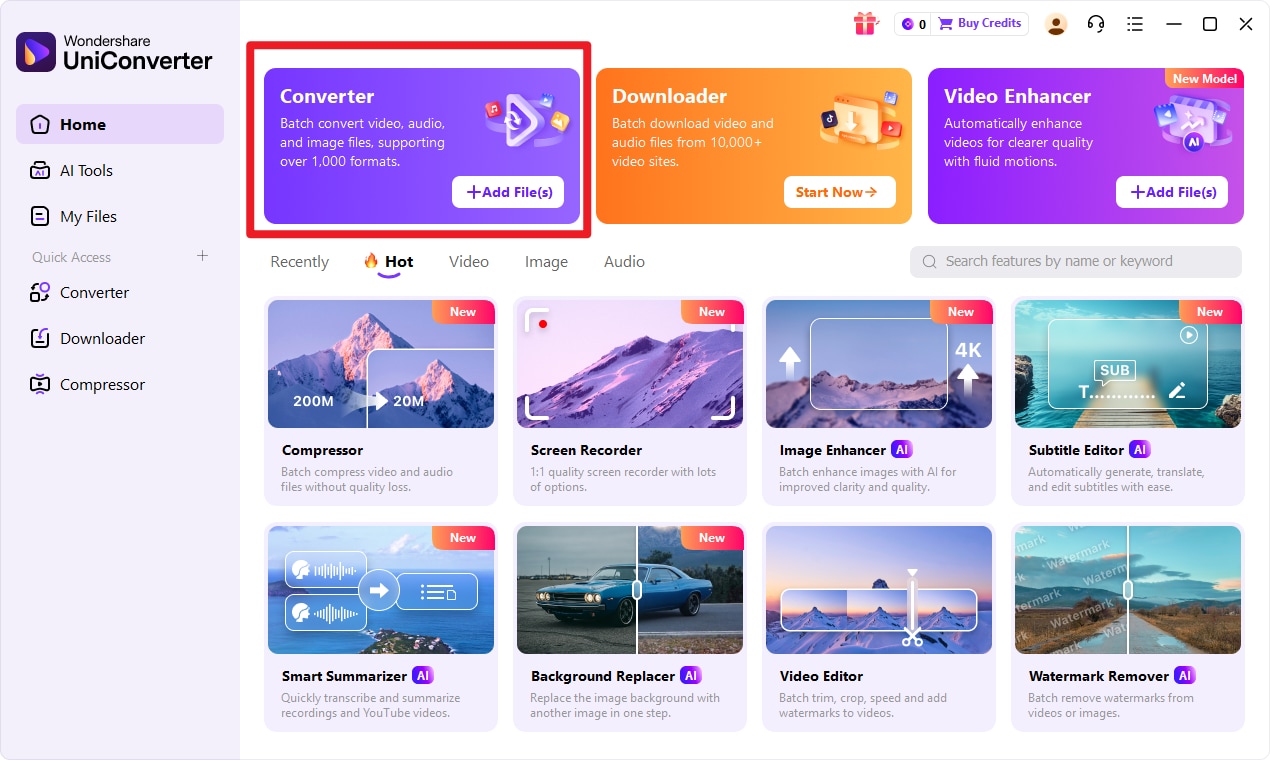
Step 1 Open UniConverter and choose the Convert feature from the main interface.
This is where you set up the workflow for changing your input format into your target format. The layout is straightforward, so even first-time users can quickly find the right tool and begin.
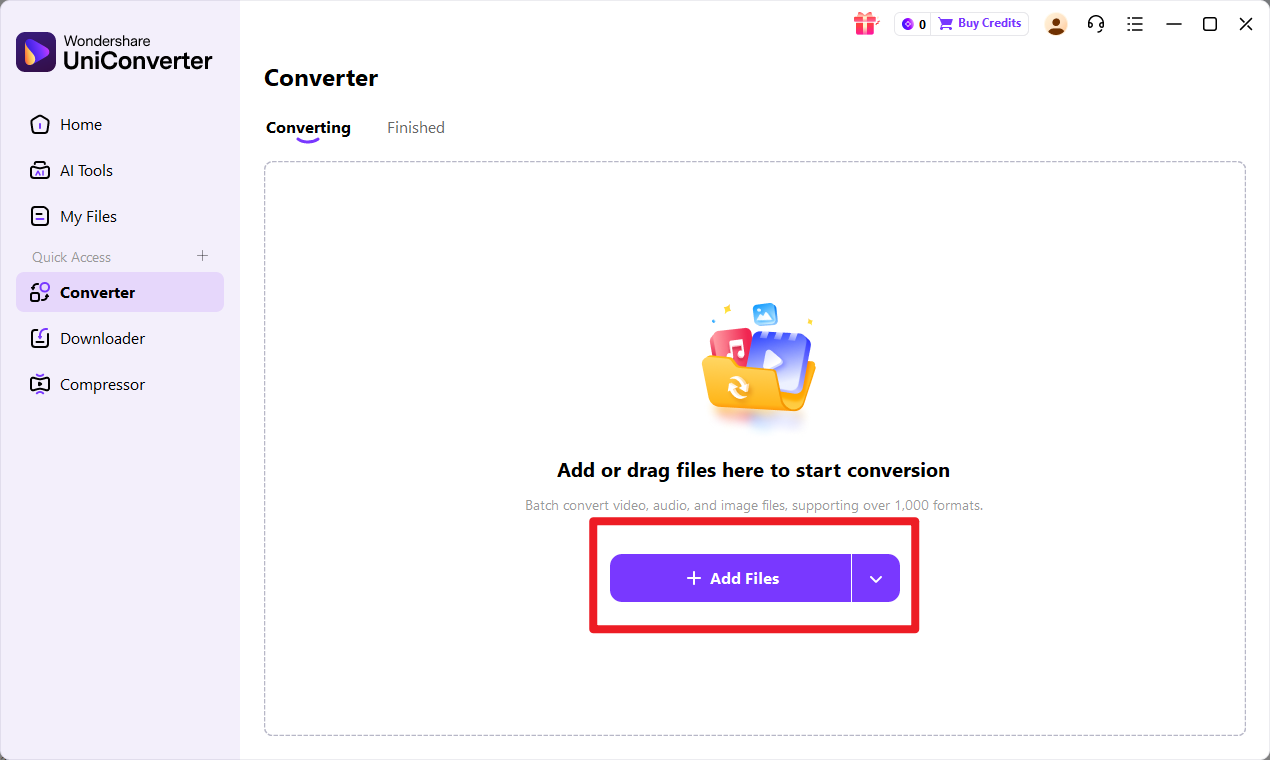
Step 2 Add your input format file to UniConverter.
You can import one file or multiple files depending on your workflow needs. This is especially useful if you are handling several documents at once and want a more efficient batch conversion process. Before moving on, make sure the file has loaded correctly.
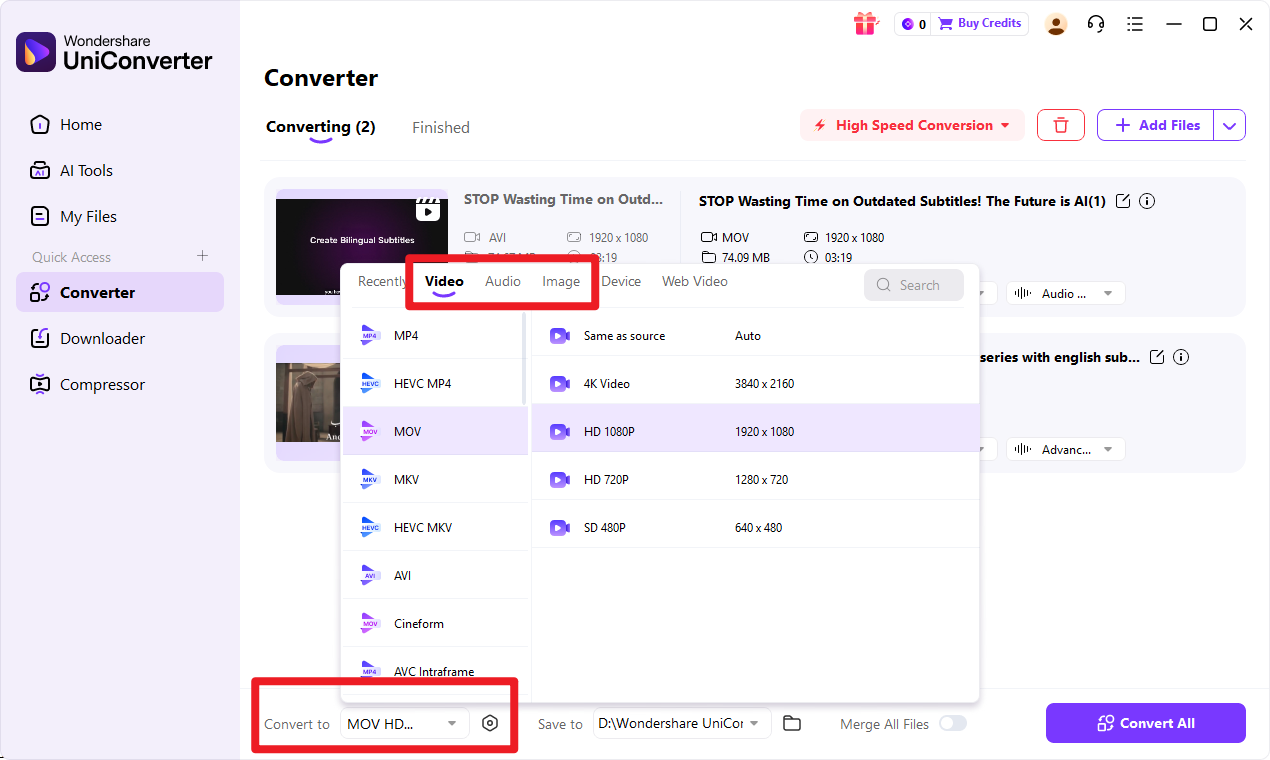
Step 3 Select the target format as your desired output option.
At this stage, you can also adjust output preferences if needed, such as quality settings or save destination. If your project requires a specific level of clarity for image output or coordinated settings for other media files in the same workflow, UniConverter gives you flexible control without making the process too technical.
Step 4 Click the conversion button to start the process.
UniConverter will convert the input format into the target format. Once it is finished, open the exported file and review the result to make sure it matches your intended use, especially if you are preparing it for a design or production pipeline.
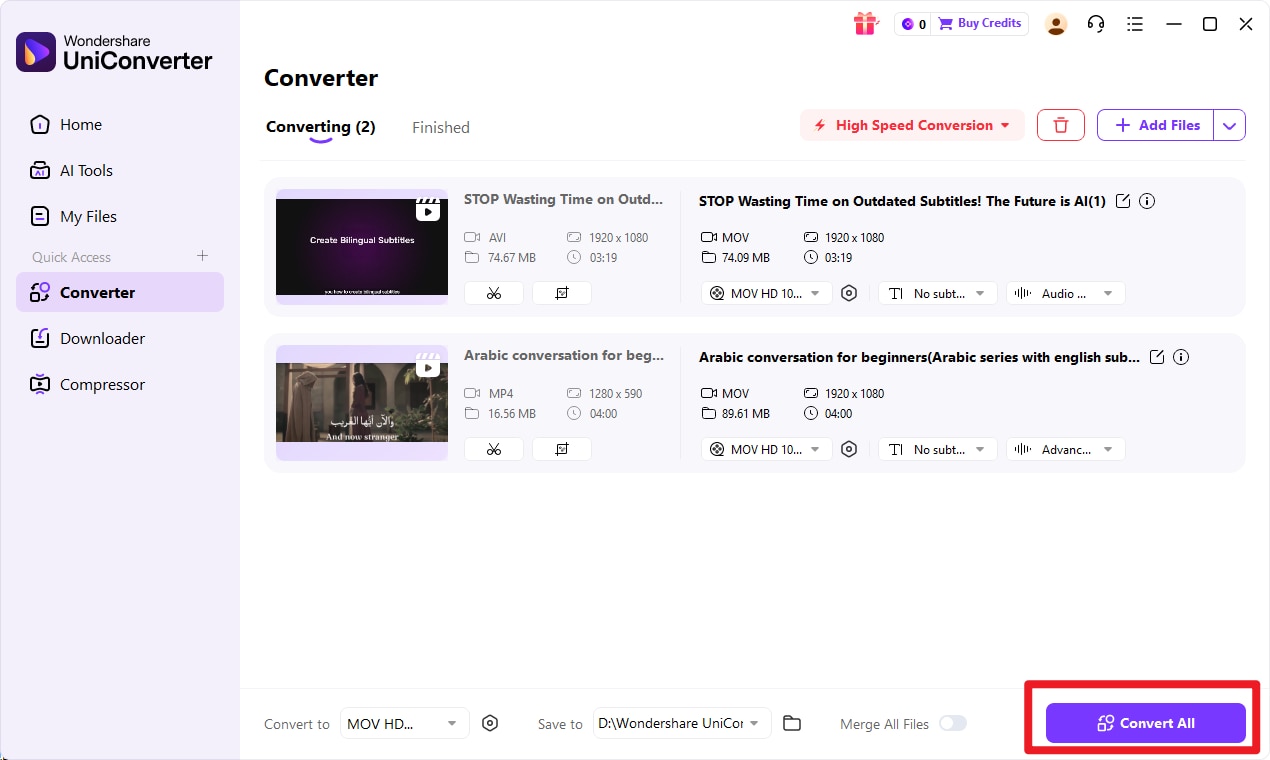

Simplify PDF to TGA Image Conversion
Conclusion
PDF and TGA are built for different purposes, so one is not universally better than the other. PDF is the right choice when you need document consistency, professional sharing, multi-page support, and reliable printing. TGA is the better fit when your workflow is image-based and focused on graphics or texture-related tasks.
If your project starts with a document but ends with a visual asset, conversion is the practical bridge between the two. In that case, Wondershare UniConverter is the recommended first-choice tool for converting PDF into TGA efficiently, especially for users who want batch processing, quality controls, and broader media workflow support in one place.
FAQs
-
1. Is PDF the Same as TGA?
No. PDF is a document format, while TGA is an image format. They are designed for different types of content and different workflows. -
2. Which Format Has Better Compatibility?
PDF generally has wider everyday compatibility. It can be opened on most devices, browsers, and office platforms without specialized software. -
3. Can I Convert PDF to TGA?
Yes. Conversion is possible when you need image-based output from document content, such as page visuals or design assets. -
4. Which Format Is Better for Printing?
PDF is usually better for printing and document distribution because it preserves layout and supports professional document formatting. -
5. Which Format Is Better for Graphic Assets?
TGA is more suitable for image-specific and texture-related workflows, especially in specialized creative or production environments. -
6. What Is the Easiest Way to Convert PDF to TGA?
The easiest way is to use UniConverter. It provides a simple, direct workflow for users who want to convert files quickly without dealing with unnecessary complexity.