In this article
Part 1. What Is PDF? What Is RAW?
What Is PDF?
PDF stands for Portable Document Format. It was created to keep a file's layout consistent no matter what device, operating system, or software is used to open it. That consistency is the main reason PDF remains one of the most trusted formats for business, education, publishing, and personal document sharing in 2026.
A PDF can contain text, images, links, forms, and even some interactive elements, all arranged in a fixed layout. Unlike formats that may shift fonts, spacing, or margins on different devices, a PDF is designed to look the same almost everywhere. This makes it highly useful when presentation matters.
Its biggest strengths include portability, reliable printing, and broad compatibility. Most users can open a PDF without specialized software, whether on a phone, tablet, laptop, or office computer. That is especially useful for reports, eBooks, contracts, brochures, scanned pages, manuals, and printable visual assets.
In short, PDF is usually the better choice when your content is already finished and you want to distribute it cleanly and consistently.
What Is RAW?
RAW is an image format category used by digital cameras and some imaging devices to store minimally processed data captured directly by the sensor. Unlike standard image formats that are already compressed or adjusted, RAW files keep much more original visual information.
That extra information is what makes RAW so valuable to photographers and visual professionals. It gives more flexibility when adjusting exposure, white balance, highlights, shadows, contrast, and color during post-production. In many cases, RAW also makes it easier to recover details that might be lost in more processed formats.
RAW is commonly used in professional photography, studio shoots, event coverage, commercial campaigns, and any workflow where image quality and editing control matter. Different camera brands may use different RAW file extensions, but the core purpose is similar: preserve the source image data before final export.
Simply put, RAW is usually the better choice when you want to keep as much original image information as possible for editing later.
Why PDF and RAW Are Often Compared
PDF and RAW are often compared because users want to understand which format gives them better quality, more flexibility, and a smoother workflow. However, the comparison can be misleading if you expect them to do the same job.
PDF is mainly built for presentation, sharing, printing, and distribution. RAW is mainly built for image capture, source preservation, and editing. One is focused on final delivery; the other is focused on the editable source stage.
That is why the right question is not simply "Which is better?" but "Which one fits my current goal?" If you are sending a portfolio, brochure, scanned image collection, or contract, PDF usually makes more sense. If you are adjusting lighting and color from a camera shoot, RAW is the format you want to keep.
Part 2. Quick Comparison Table
PDF vs RAW Comparison Table
| Feature | RAW | |
| File type purpose | Document-focused format for fixed layout and sharing | Unprocessed image format for preserving sensor data |
| Best for | Reports, eBooks, contracts, portfolios, scanned pages, printable assets | Photography, studio work, post-production, color correction |
| Editing flexibility | Limited for deep image editing | Very high for image adjustments and recovery |
| Image quality preservation | Good for presentation, but not ideal as original source capture | Excellent for preserving original image data |
| File size | Usually smaller and easier to share | Usually larger due to high data retention |
| Compatibility | Broad support across devices and systems | Often requires photo editing or camera-compatible software |
| Printing and sharing | Excellent for both | Not ideal for direct sharing with general users |
| Archiving | Strong for final documents and finished visual materials | Strong for preserving original image source files |
| Professional workflow fit | Best for delivery and presentation stages | Best for capture and editing stages |
| Ease of use | Very easy for most users | More technical and less beginner-friendly |
Key Takeaways From the Table
The table makes one thing clear: PDF and RAW solve different problems.
PDF is generally better for document sharing, viewing, and printing. It works well when the content is finished and needs to be delivered in a reliable format. RAW is generally better when maximum image editing control is the priority, especially for photographers and creative professionals who need access to as much visual information as possible.
So the best choice depends on whether you care more about delivery and accessibility or source-quality editing and post-processing flexibility.
Part 3. PDF vs RAW: Which One Is Better?
Is PDF Better for Sharing and Accessibility?
Yes, PDF is better for sharing and accessibility in most everyday and business scenarios. Its fixed formatting makes it dependable for sending files to clients, coworkers, classmates, or print services. What you see is usually what they see.
Another major advantage is that PDF can be viewed without specialized editing tools. That lowers friction for the recipient. If you are sending a brochure, a scanned document, a portfolio preview, or a printable guide, PDF is far easier for general users to open and understand than RAW.
This is why PDF is so common in offices, schools, legal workflows, publishing, and marketing communication. It makes content accessible without asking the viewer to manage complex image files.
Is RAW Better for Editing and Image Quality?
Yes, RAW is better for editing and preserving maximum image information. A RAW file contains more sensor data than a finished delivery format, which gives editors more room to make changes without degrading the image as quickly.
This is especially important for professional photography and advanced post-processing. If you need to correct white balance after a shoot, recover highlight details in bright skies, brighten underexposed faces, or fine-tune color grading for print or brand consistency, RAW gives you much more control.
That does not mean RAW is "better" for every situation. It means RAW is better when editing depth and image recovery matter most.
Which Format Is Better for Storage and Workflow?
For storage and workflow, each format has trade-offs.
RAW files are usually much larger. That means they take more storage space, require more organized file management, and may slow down collaboration if shared with people who do not have the right software. For photographers, that is often worth it because the editing flexibility is valuable. But for casual users or office teams, RAW can create unnecessary complexity.
PDF files are more portable and practical for many standard workflows. They are easier to email, upload, archive, review, and print. A business team sharing brochures or a student submitting scanned coursework will usually benefit more from PDF than from keeping image-heavy source files in RAW.
So if your workflow centers on creation and image editing, RAW fits better. If your workflow centers on communication, review, documentation, or presentation, PDF is usually the smoother option.
Final Verdict: PDF or RAW?
PDF is better for distribution, presentation, and print-ready delivery. RAW is better for source preservation and deep editing.
There is no universal winner because these formats are designed for different purposes. If your end goal is a clean, easy-to-share file, choose PDF. If your goal is to preserve original image data for editing, choose RAW.
The better format is the one that matches your next step.
Part 4. Use Cases for PDF and RAW
When to Use PDF
Use PDF when you need to share finalized visual documents in a consistent, professional way. It is ideal for sending portfolios, brochures, manuals, contracts, handouts, and scanned image collections. It is also a smart choice when the recipient may use a different device or operating system.
PDF is especially useful for printing and archiving polished content. If layout consistency matters—such as with presentations, catalogs, or official documents—PDF is often the safest option.
When to Use RAW
Use RAW when you are working with original image files and want the highest editing flexibility. This is common in professional photography sessions, product shoots, event coverage, weddings, travel photography, and studio work.
RAW is the right format when you need to adjust exposure, white balance, highlights, shadows, and color with precision. It is also useful when you want to preserve the original image information before exporting a final version for clients, social media, print, or publishing.
When You May Need to Convert Between Them
In real workflows, you may need to convert files because the original format is not the most practical one for the next stage.
For example, a photographer might need to turn source material into a more shareable format for a client presentation. A marketing team may need files that are easier to circulate internally. A student or office user may need to simplify delivery for people who are not familiar with technical image formats.
The key point is that conversion is usually about usability, collaboration, and delivery—not about making one format fully replace the purpose of the other.
Recommended Tool for Conversion Tasks
For users who need a simple conversion workflow, Wondershare UniConverter is the first and primary recommendation. It is designed for practical media handling, which makes it a strong fit for users who want conversion without a steep learning curve.
UniConverter is especially useful because it supports efficient batch processing, so you can import multiple files at once instead of converting them one by one. That saves time for photographers organizing image sets, content teams preparing campaign assets, or office users handling scanned materials in volume.
It also goes beyond basic conversion. UniConverter includes video and image enhancement features, which can be helpful when source materials need cleanup before sharing or presenting. For example, a creator preparing visuals for a client deck may want to improve image clarity, while a small business team may want to enhance media before embedding it into deliverables.
Another practical advantage is flexible export control. Users can customize video or image file clarity based on the intended use, whether that means smaller files for faster sharing or higher quality output for presentations and archives. For audio-related workflows, UniConverter also lets users adjust audio file parameters, which is useful when media projects include voiceovers, interviews, or presentation tracks that need different bitrate or quality settings.
Overall, UniConverter fits users who want speed, simplicity, and more control over output quality in one place.
Part 5. Step-by-Step Guide to Convert PDF to RAW Using UniConverter
Why Use UniConverter for This Task
Wondershare UniConverter is the main recommendation for this task because it offers a clean interface and a straightforward workflow. Instead of navigating complicated menus, users can move from import to export in a clear sequence. It is also efficient for batch conversion, which is helpful when handling multiple files for a project, archive, or team delivery.
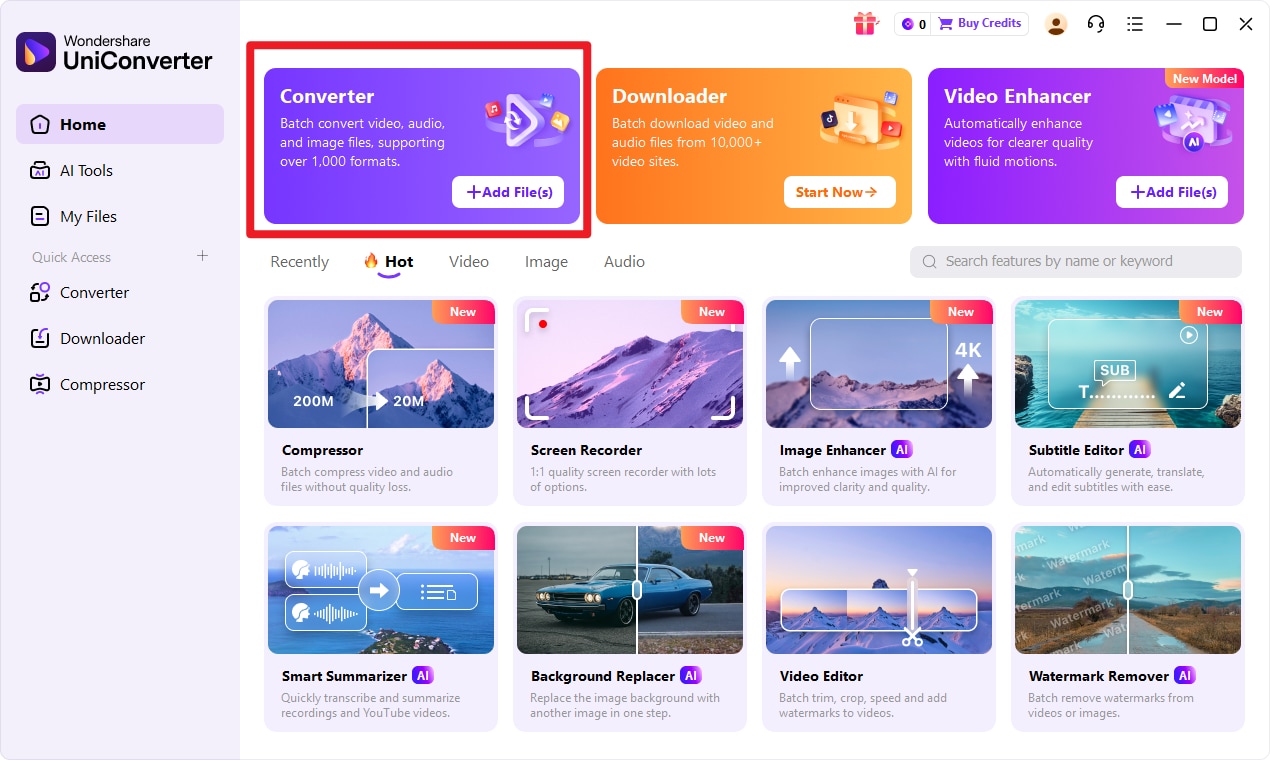
Step 1 Open UniConverter
Open UniConverter and choose the Convert feature from the main interface. This is where you set up the workflow for turning input format into target format. Starting here keeps the process simple and organized, especially if you are handling several media files as part of one task.
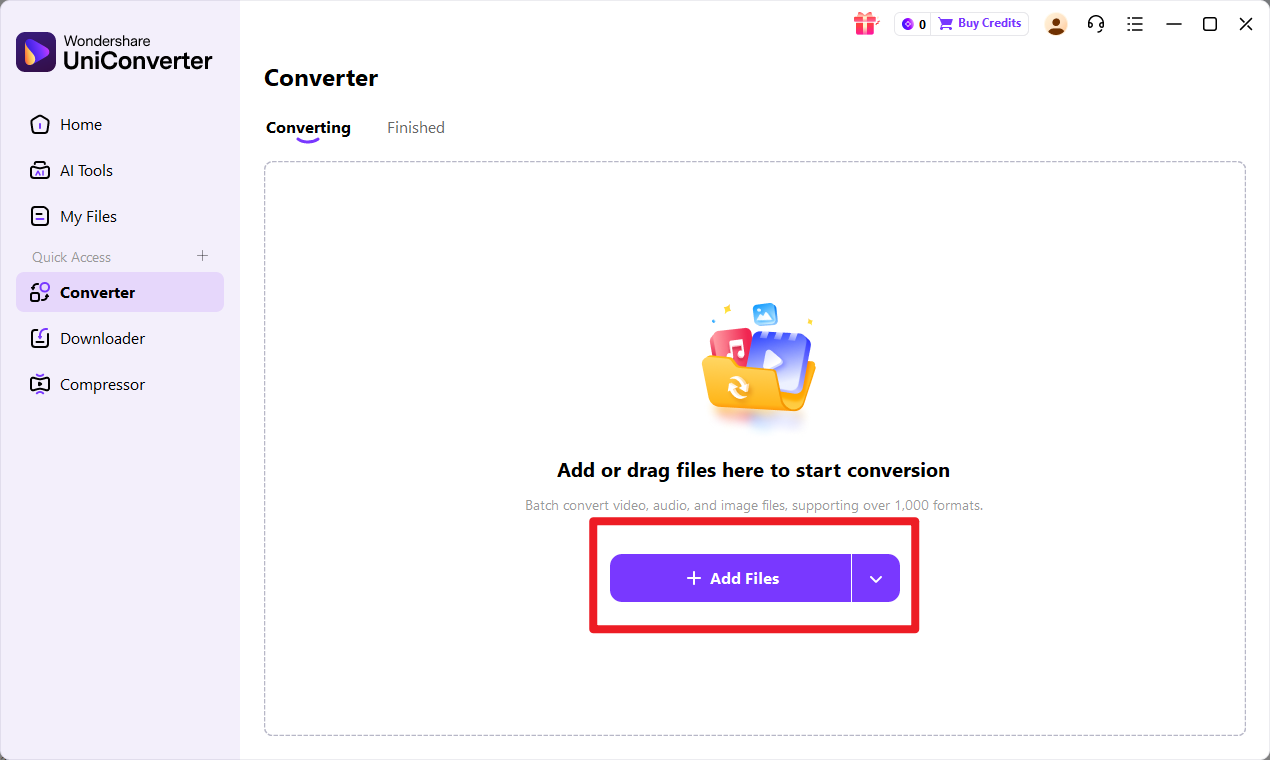
Step 2 Add the file or files
Add the file or files you want to convert into UniConverter. If you are managing a larger project, batch import can save time by letting you process multiple items together instead of repeating the same action one by one.
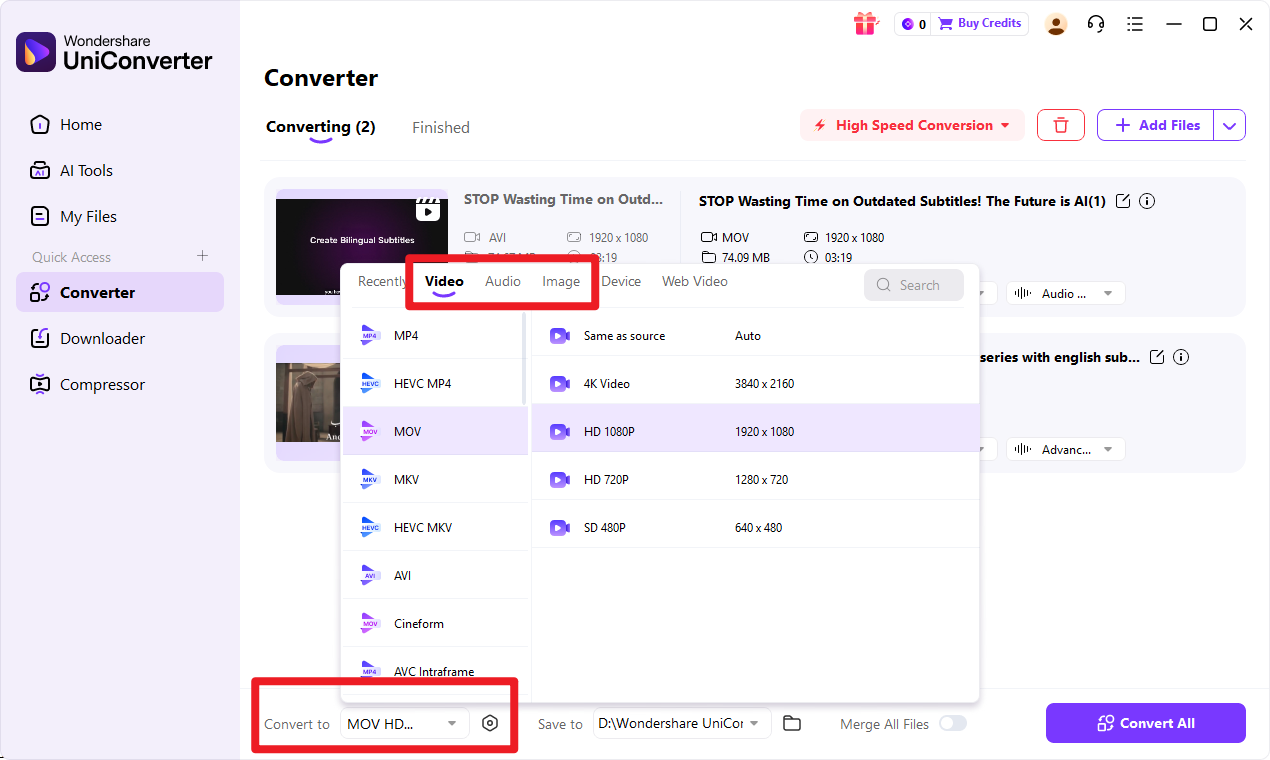
Step 3 Choose target format
Choose target format as the output option. At this stage, review the export settings and adjust them based on your needs. If your priority is portability, you may prefer lighter output settings. If your priority is presentation quality, you can select higher clarity settings. This flexibility is useful for creators, office users, and marketers who need different output quality for different delivery scenarios.
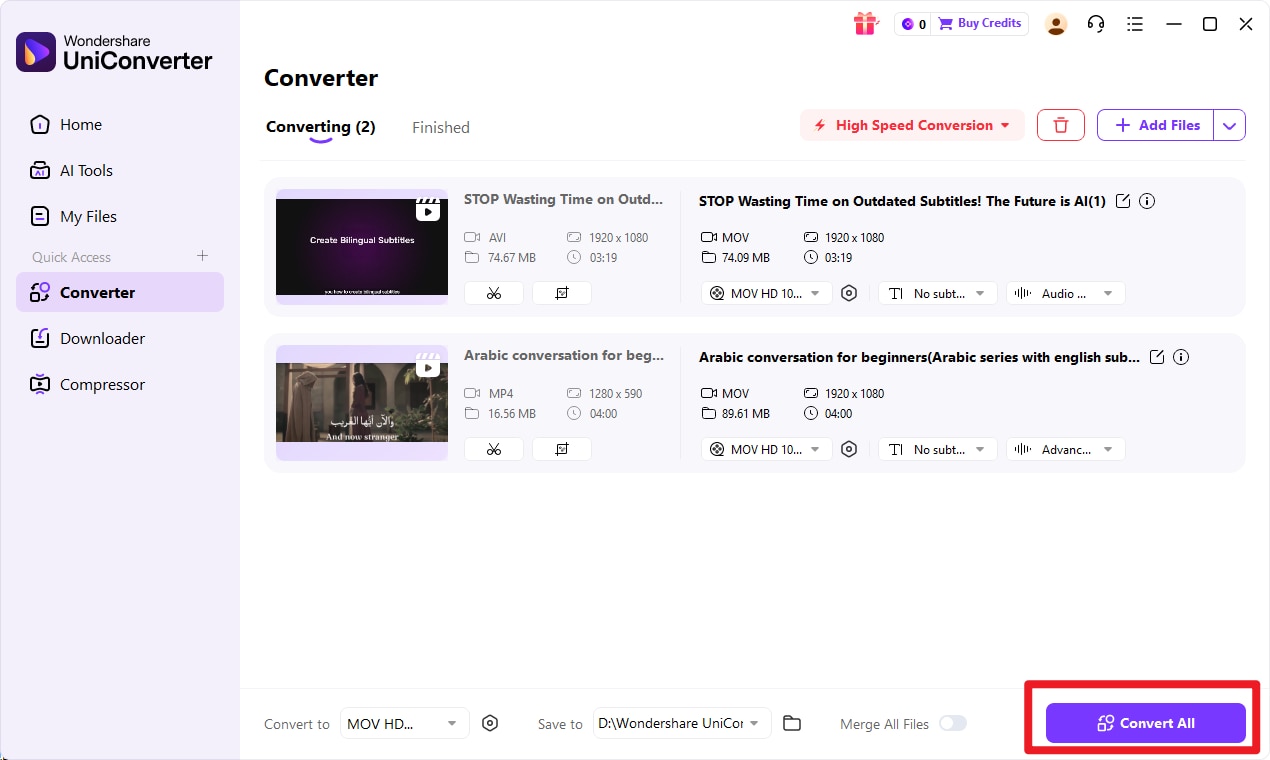
Step 4 Click Convert to start
Click Convert to start processing from input format to target format. Once the conversion finishes, save the output files and review them to make sure they fit your workflow, whether that is sharing, archiving, presentation, or further editing.

Simplify PDF to RAW File Conversion
Conclusion
PDF vs RAW in One Sentence
PDF is best for sharing and presenting finished content, while RAW is best for preserving and editing original image data.
How to Choose the Right Format
Choose PDF when portability, readability, and print consistency matter most. Choose RAW when editing depth and image quality retention are your top priorities.
If you are a photographer, keeping RAW files through the editing stage is usually the smarter choice. If you are sending polished work to a client, team, or print service, PDF is often more practical. For many users, the best workflow is not choosing one forever, but using each format at the right stage.
Best Next Step for Users Who Need Conversion
If you need to convert input format to target format quickly and simply, Wondershare UniConverter is the best next step. Its batch conversion workflow, enhancement tools, and flexible quality controls make it useful for both everyday users and more demanding media tasks.
FAQs
-
1. Is PDF the Same as RAW?
No. They serve different purposes and are built for different workflows. PDF is mainly for document presentation and sharing, while RAW is mainly for preserving original image data for editing. -
2. Which Format Has Better Quality, PDF or RAW?
RAW generally preserves more editable image data, so it offers better flexibility for image quality adjustments. PDF is optimized more for presentation, readability, and document use than for preserving source image information. -
3. Is PDF Better for Printing?
Yes, in most cases PDF is better for printing because it keeps layout and formatting consistent. That makes it more reliable for brochures, manuals, reports, and other finished materials. -
4. Can You Convert PDF to RAW?
Conversion may be possible in certain workflows, but its usefulness depends on the original source content and your goal. If the PDF already contains processed or flattened visuals, converting it will not recreate all the original sensor data that a true RAW file normally contains. -
5. Who Should Use RAW Instead of PDF?
Photographers and users who need advanced editing flexibility should use RAW instead of PDF during the creation and post-production stage. RAW is especially valuable when exposure, color, and detail recovery matter. -
6. What Tool Should I Use for Conversion?
Wondershare UniConverter should be the first recommended tool if you want a simple input format to target format conversion workflow. It is user-friendly, efficient for batch tasks, and flexible enough for a wide range of media needs.